

Wondering how to add videos to Instagram? Whether sharing memories, tutorials, or creative content, learning to combine multiple clips into Stories or Reels lets you engage your audience, save time, and create seamless, eye-catching videos. This article will show you the detailed methods to combine videos on Instagram.
Part 1. Why You Need to Add Multiple Videos in Instagram Story/Reel
Posting multiple videos on Instagram Stories and Reels allows you to post more content conveniently. Rather than posting clips one at a time, you can show moments in one sequence, making the content more engaging and easier to watch.
Key benefits to consider when posting multiple videos:
1. Better storytelling: Show events or a tutorial in more detail with fewer clips.
2. Increased watch time: Moving clips keep people watching.
3. Time-saving: Posting multiple videos at the same time is much quicker than posting them one by one.
4. Less clutter: Highlight various moments in one Instagram Story or Reel.
5. Greater reach: Engaging content that tells a story will improve views.
Part 2. How to Add Multiple Videos to an Instagram Story
You can now add multiple videos to a Story on Instagram by uploading them in one go. Each video will play in order so that you can showcase a series of clips in one posting flow without merging them into one frame.
Step 1 Launch the Instagram app and tap on Your Story.
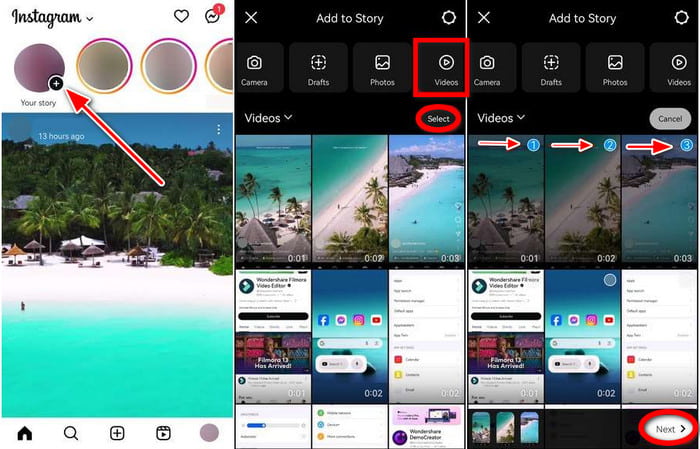
Step 2 Go to Video mode and tap Select (or the picture gallery button).
Step 3 Pick the videos you want to add to your Story and tap Next.
Step 4 Choose Separate so that each video remains its own individual Story slide.
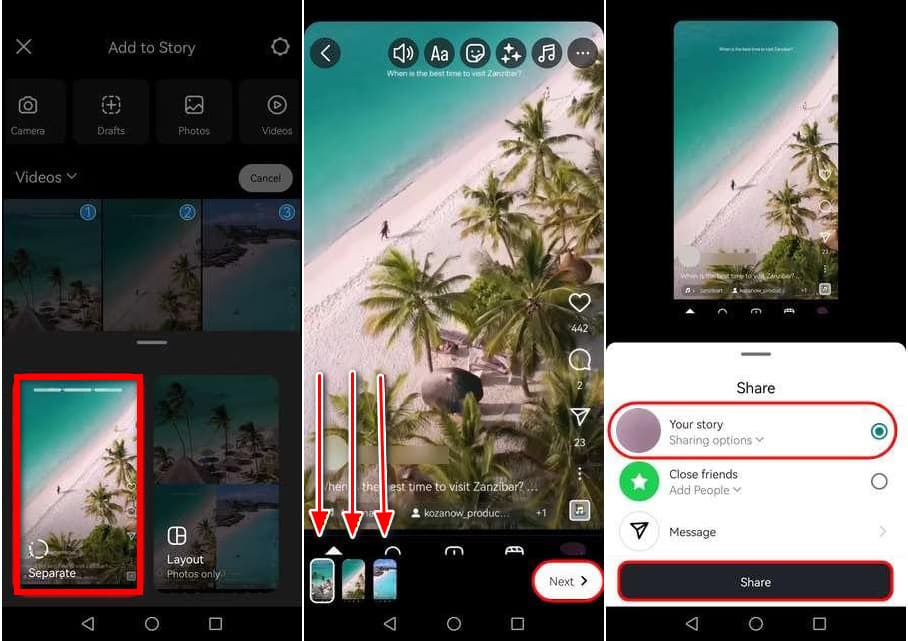
Step 5 Personalize each video by editing it with text, music, stickers, filters, or effects.
Step 6 Change the sequence by tapping a clip and then dragging it to the left or right.
Step 7 Click Next and select Your Story or Close Friends, then tap Share.
Part 3. How to Add Multiple Videos to an Instagram Reel
You can also add various clips to create Reels. Instagram Reels is perfect for short-form stories, tutorials, edits, and everything in between. You can also compress video for Instagram before uploading.
Step 1 Launch the Instagram app and tap the + button, then select Reel.
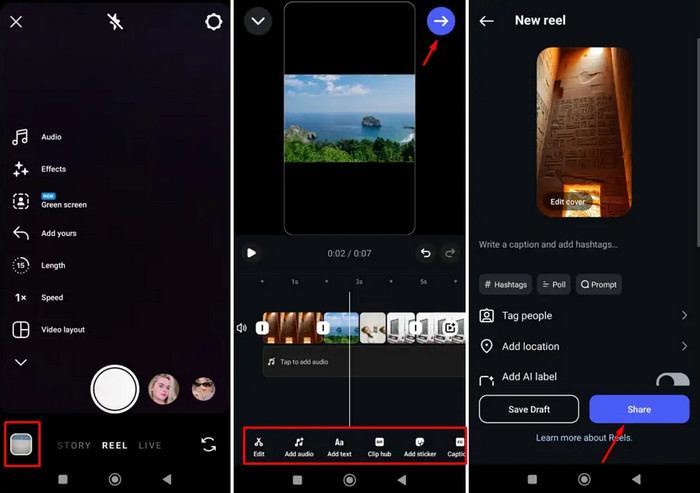
Step 2 To upload videos, tap the Gallery button, or to film clips, press and hold the Record button.
Step 3 Select multiple videos from your gallery, or record clips individually.
Step 4 Move the clips around on the timeline, and modify the length of each one.
Step 5 Enhance your reel with some music, text, effects, transitions, and filters.
Step 6 Choose your cover, write a caption, and add some hashtags before tapping on Next.
Step 7 To publish your reel, click Share.
Part 4. Easily Add Multiple Videos into One for Instagram
It is much easier to use a dedicated video editor to combine multiple clips into one single video ready for Instagram. Tipard Video Converter Ultimate seamlessly merges multiple videos and is a perfect editor for Instagram Stories and Reels, where smooth flow and proper formatting are essential.

- Combine multiple clips into one seamless video with minimal editing.
- Customize resolution, aspect ratio, frame rate, bitrate, and format.
- Export videos in Instagram-friendly formats like MP4 with vertical layouts.
- Adjust brightness, contrast, and saturation, and apply filters to improve quality.
- Create split-screen or multi-frame videos using ready-made collage templates.

Step 1 Download and Install The Tool
Obtain the software from the official Tipard Video Converter Ultimate website and install it on your computer, whether it runs on Windows or macOS.
Step 2 Launch and Open the Collage Feature
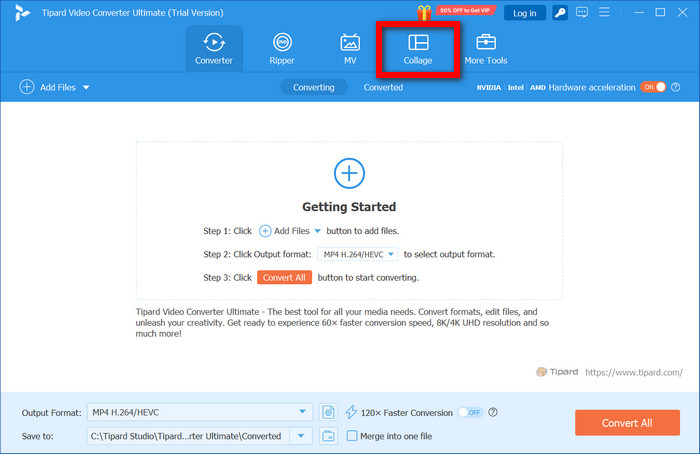
Start the tool and select your collage templates by clicking the Collage tab on the main interface.
Step 3 Choose a Collage Template
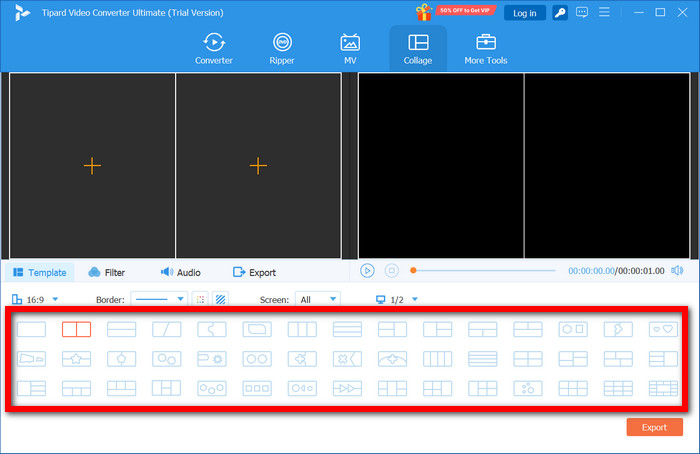
Select from the various layouts available. Opt for one that is in a split-screen or a multiple-frame layout, and that also fits the vertical or square video format of Instagram.
Step 4 Import Multiple Videos
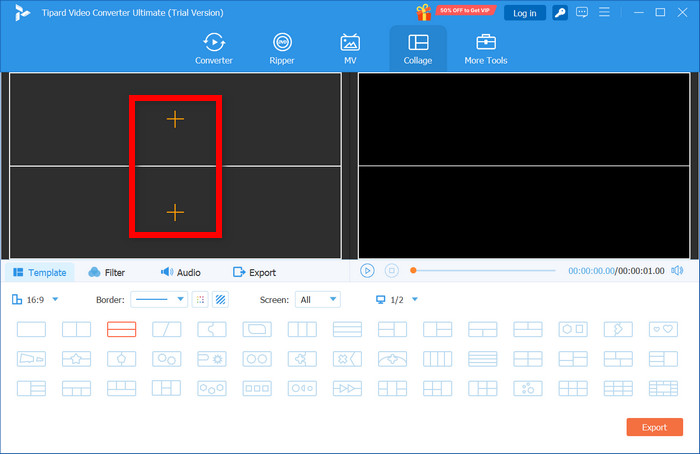
To upload your videos from your computer, click the + button in each frame.
Step 5 Make Final Edits to Your Videos
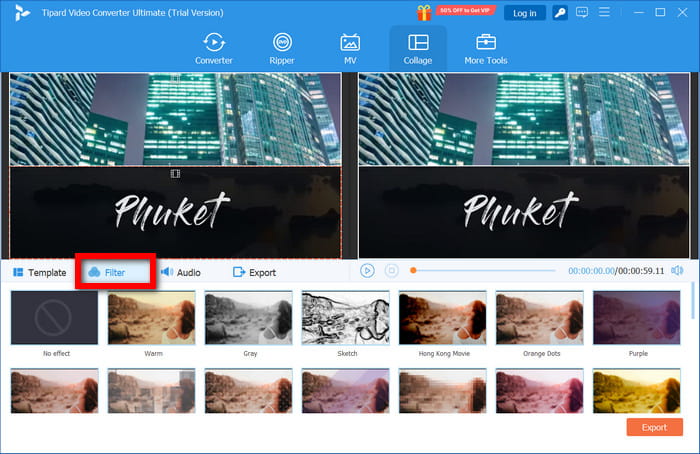
Use the Filter section to add any filters of your choosing. Adjust brightness, contrast, and any other visual enhancement controls to improve the quality and visual uniformity of all clips.
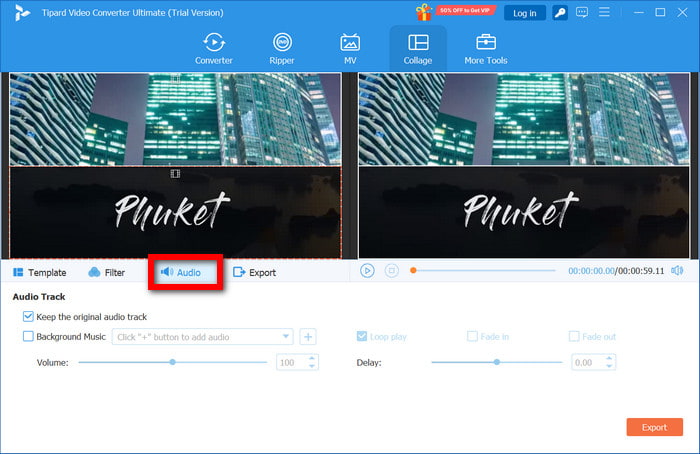
Step 6 Edit Instagram Audio
Select the Audio section to get control over the video sound. Adjust the levels of sound, mute certain clips, add your own audio, enhance the clarity, adjust any timing issues, and add any other effects you want to apply to make the audio sound more polished.
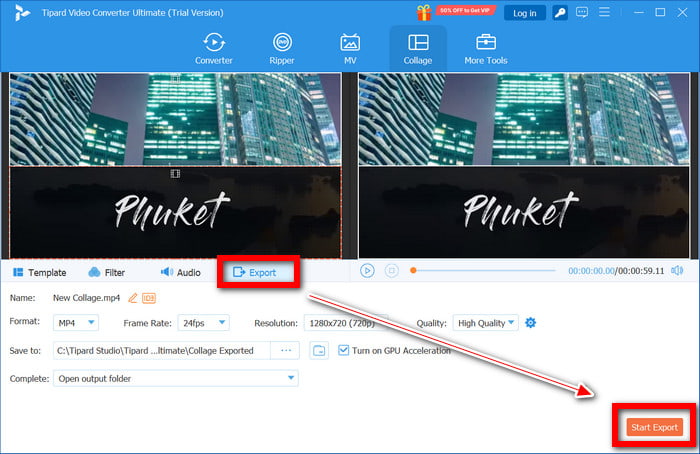
Step 7 Save the Merged Video
Select the Export section, choose the format, quality, and location where you want to save the video, then click Start Export, and the video will save to your device.
Part 5. Tips for Best Results of Combining Videos on Instagram
How do I put multiple videos on one screen on Instagram?
There is no way to do this directly from Instagram, but to have multiple videos on one screen, you can use any other editing app to make a collage and then upload that as a Story or a Reel.
Why cannot I post multiple videos on Instagram?
For any video posting activities, Instagram will only allow you to post consecutive clips in Stories or in a single timeline of a Reel. To have multiple videos in one frame, you need to use a video editing app outside of Instagram to merge clips and improve Instagram video quality.
How to make a carousel on Instagram?
Open Instagram, tap the plus button, choose Post, select multiple photos or videos, arrange them in order, add a caption, then share to create a swipeable carousel post.
Conclusion
To end this, learning how to put multiple videos on Instagram Story helps you share content creatively and efficiently. Using the tools of Instagram or Tipard Video Converter Ultimate ensures polished, engaging videos that captivate and grow your audience.
More Reading



About the Author

 Click here to join the discussion and share your comments