

Sometimes, MKV videos will not play properly on a Mac because the format is not fully supported. The easiest way to fix this problem is to convert MKV to MOV. This write-up will show you the best and simplest ways to do it on different platforms so that you can enjoy smooth playback on your Mac without errors or compatibility issues.

Part 1. MKV vs MOV
Both MKV and MOV are popular video formats, but they serve different needs. MKV is flexible and open-source, while MOV is preferred for professional use, especially on Mac. The table below will show you MOV vs. MKV to help you choose which one fits your project best.
| Feature | MKV | MOV |
|---|---|---|
| Developer | It is open-source and free to use. | It is developed by Apple (QuickTime format). |
| Flexibility | It can hold many video, audio, and subtitle tracks in one file. | It supports multiple data tracks like audio, video, and text. |
| Data Safety | It prevents data loss during crashes or power outages, ideal for long recordings. | It does not focus on data recovery but maintains high editing clarity. |
| Professional Use | It is common for recordings and archiving large videos. | It is used in professional editing, especially on Mac. |
| Compatibility | Not all players or editors do not support it; it needs conversion for some. | It works on Mac and Windows, but is best with Apple software. |
| Show MoreShow Less | ||
Part 2. How to Convert MKV to MOV on Windows & Mac
Easy to use, fast in conversion, and works well on both Windows and Mac, that is Tipard Video Converter Ultimate. It changes MKV to MOV at 60× faster speed, letting you finish tasks quickly. You can even convert many videos at once with its bulk conversion feature. Besides MKV to MOV, it supports other formats like MP4, WMV, AVI, FLV, WEBM, M4V, and VOB for flexible video conversion.
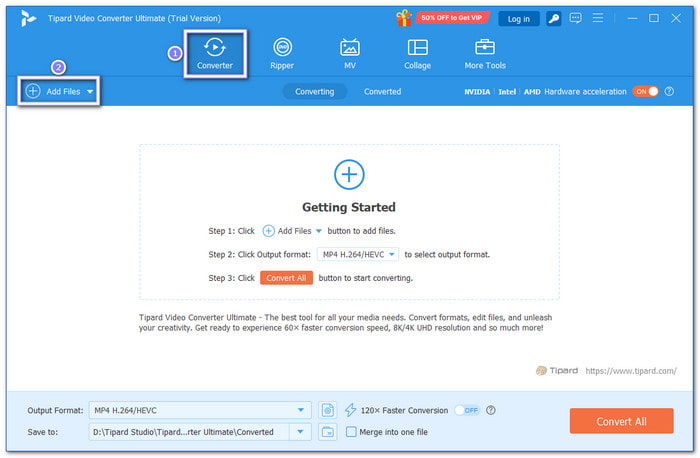
Step 1 Go to the main page of Tipard Video Converter Ultimate and download it on your Windows or Mac. Follow the setup guide to install, then open the program and head to the Converter tab.
Step 2 Hit the Add Files button in the top left corner to upload your MKV videos. You can add one or more files at once.
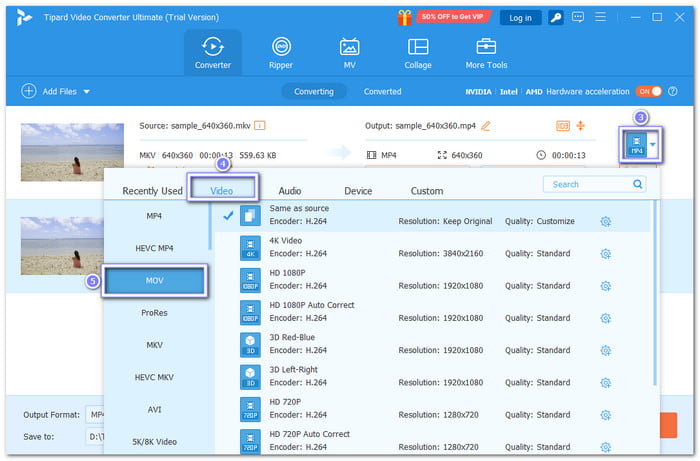
Step 3 After loading your files, open the Output Format menu and select MOV under the Video section.
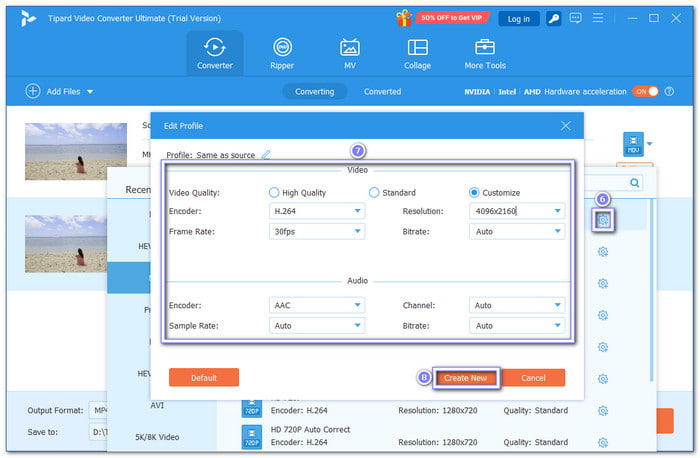
Step 4 You can fine-tune the output settings, like resolution, encoder, frame rate, and more, by opening the Cogwheel button. Do not forget to click the Create New button to apply the changes.
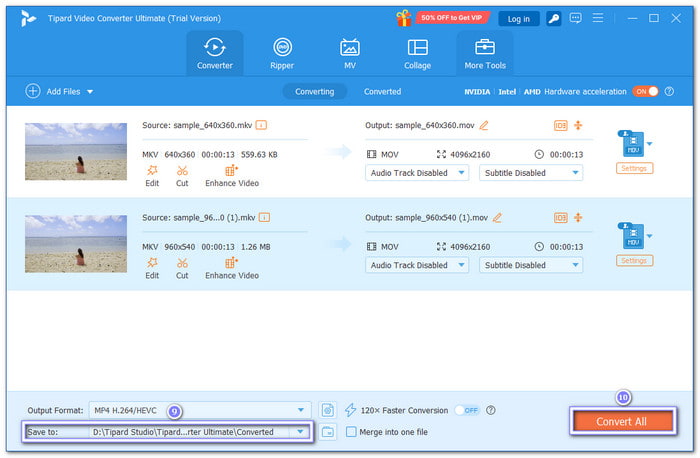
Step 5 Now, choose where to save your converted file under the Save to section. Finally, click the Convert All button to start turning your MKV videos into MOV files.
2. HandBrake
HandBrake is a trusted video transcoder that helps you turn MKV videos into MOV files with ease. You can change settings like filters, angles, and pixel aspects before converting. But since it does not directly export MOV, you will need to edit the file extension when saving. Besides MOV, you can also use it to convert MKV to MP4 and WebM. Learn how to convert MKV to MOV below.
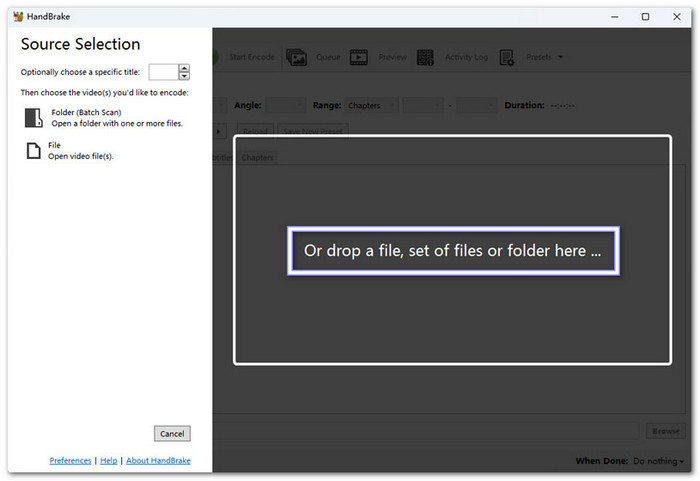
Step 1 Open HandBrake on your Windows or Mac. Then, drag your MKV video into the program or click to upload it.
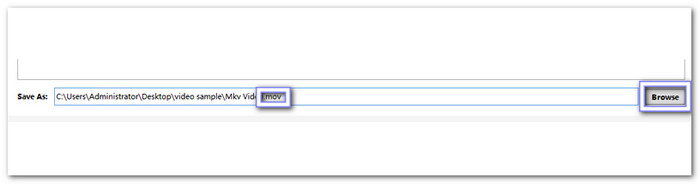
Step 2 Look at the bottom of the window for the Save As bar. Click Browse and pick where you want to save your new video. Then, remove the old .mkv file extension and type .mov instead.
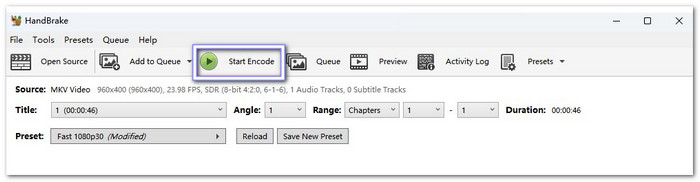
Step 3 After that, go to the top and press the Start Encode button to begin converting. Once the conversion finishes, open the folder you chose earlier, and you will see your new MOV file.
3. FFmpeg
You can convert MKV to MOV using FFmpeg. It is an open-source and cross-platform converter that lets you change MKV to MOV using simple command lines. It gives full control over video clarity, encoding, and size. However, beginners might find it tricky since it does not have a normal user interface.
Step 1 On your Mac, click the upper-right Search button and type Terminal, then open it. It is where you will enter the commands.
Step 2 To install Homebrew, paste this command and press Enter:
/bin/bash -c "$(curl -fsSL https://raw.githubusercontent.com/Homebrew/install/HEAD/install.sh)" Please wait until the installation completes.
Step 3 Next, type brew install ffmpeg and hit Enter to install FFmpeg. Once it is done, you can convert videos using commands.
Step 4 To change your MKV to MOV, type one of these commands:
ffmpeg -hide_banner -y -i input.mkv -c:v copy -c:a copy remux_output.mov or ffmpeg -hide_banner -y -i input.mkv -c:v prores -c:a copy transcode_output.mov. After running it, your MOV file will appear in the same folder as your original MKV.
Part 3. How to Turn MKV to MOV Online
1. CloudConvert
CloudConvert is a well-known online converter that helps you change MKV to MOV format without installing a program. It supports many codecs like H.264, H.265, MPEG, and XVID. You can also fine-tune settings such as clarity, frame rate, and profile for better output. But keep in mind, free users can only convert files smaller than 100 megabytes.
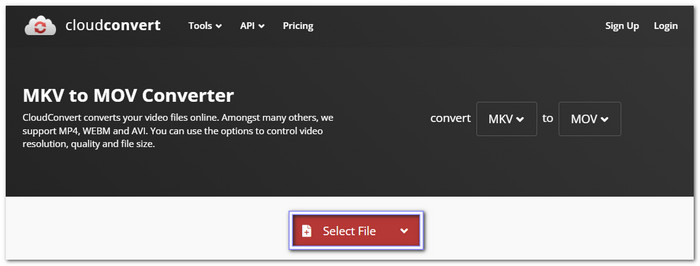
Step 1 Go to the MKV to MOV page of CloudConvert using your web browser. Then, click Select File and upload the MKV video you want to change.
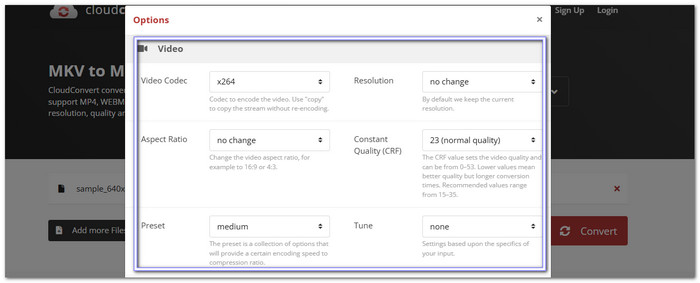
Step 2 After the upload, press the Wrench button to open Settings. You can fine-tune the codec, frame rate, orientation, or even trim the video length. Please click the OK button to save your changes and check that all settings look right.
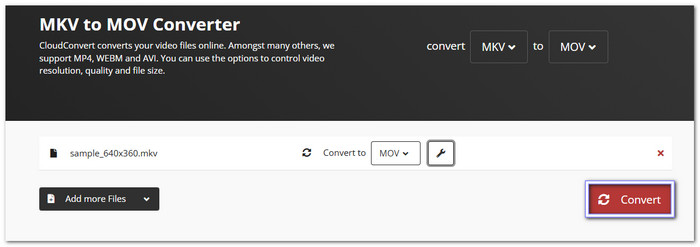
Step 3 Finally, press Convert to start converting MKV to MOV. Once it is done, click Download to save the MOV file to your device.
2. FreeConvert
FreeConvert allows you to convert MKV to MOV for free and supports many file types, so you can also convert MKV to AVI, WebM, MP4, and WMV using it. It also allows you to trim, resize, and add subtitles before converting. You can import files up to 1 gigabyte for free. However, it does not support some MOV codecs, like ProRes or MPEG-based ones.
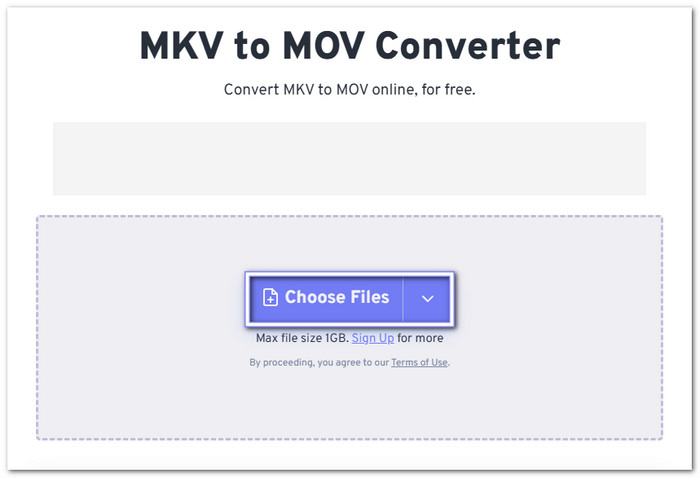
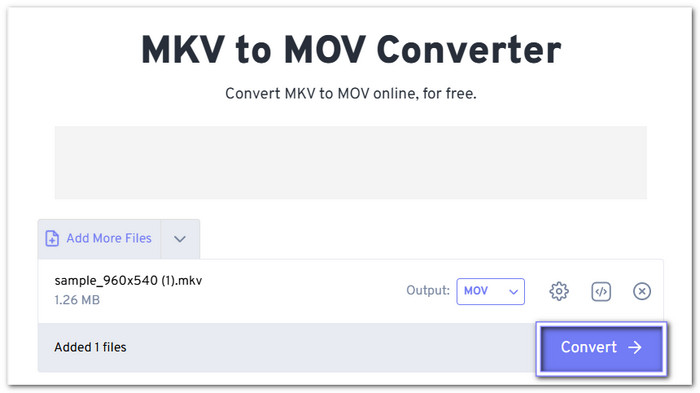
Step 1 Visit the MKV to MOV conversion page on FreeConvert. Hit Choose Files and upload your MKV file, making sure it is under 1 gigabyte in size.
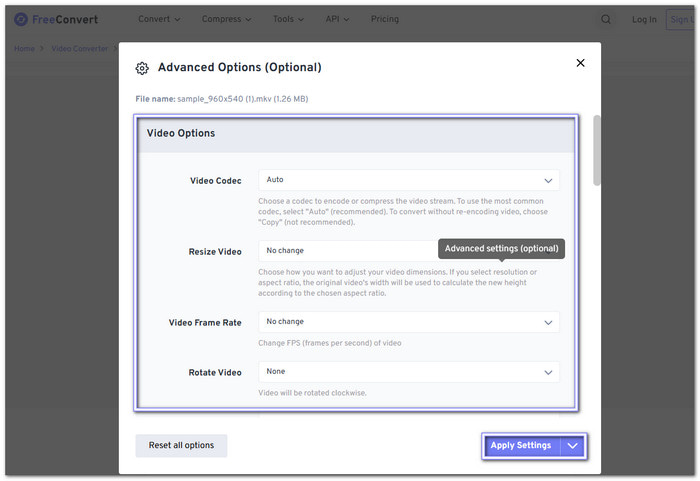
Step 2 Next, click Advanced Settings to customize the codec, frame rate, or other video properties based on what you need. Once done, press Apply Settings to confirm your choices and prepare for conversion.
Step 3 After that, click the Convert button and please wait for the conversion process to finish.
Part 4. How to Change MKV to MOV on iPhone/iPad
1. The Video Converter
The Video Converter by Float Tech, LLC is a simple app that can change MKV to MOV and other formats like MP4, WMV, FLAC, and AVI. It uses a secure cloud server, so the conversion is fast and does not drain your phone's battery. All imported files are deleted automatically after conversion for better privacy.
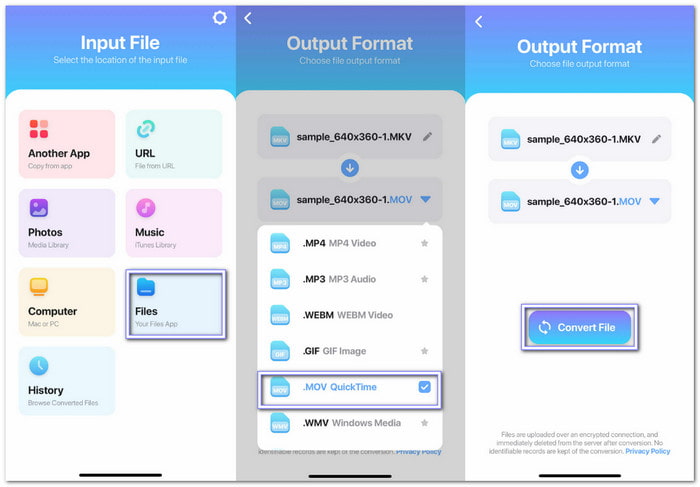
Step 1 Open the converter and press Files to import your MKV video from your device or cloud storage.
Step 2 Tap the Down arrow button and choose .MOV QuickTime from the format list to set MOV as your output.
Step 3 Press the Convert File button, and please wait for the converter to process your video.
2. Video Converter - Convert MKV
This app makes it easy to convert MKV files to MOV files right on your iPhone or iPad. You can upload clips from your local storage or record one directly. The conversion is quick and allows batch processing, though banner ads may appear at the bottom.
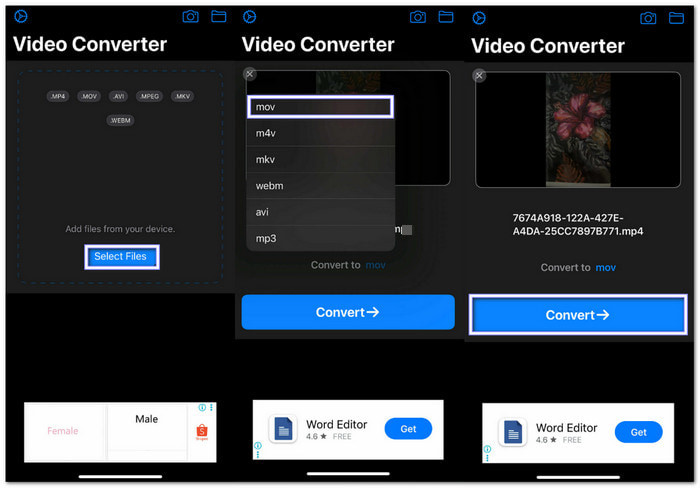
Step 1 Launch Video Converter - Convert MKV on your iPhone or iPad, then click the Select Files button to upload your MKV video.
Step 2 Once the file is loaded, pick MOV under the Convert to option as your target format.
Step 3 Tap Convert to start the process. After conversion, your MOV file will be ready for playback or sharing.
Conclusion
You can convert .mkv to .mov in many ways, whether on Windows, Mac, online, or using your iPhone or iPad. Each option has its benefits, but Tipard Video Converter Ultimate stands out the most. It offers batch conversion, fast speed, built-in editing tools, and wide format support.
More Reading


About the Author

 Click here to join the discussion and share your comments
 Tipard Video Converter Ultimate