

Key Takeaways:
Video files become VLC because their settings, like codecs, bitrates, frame rates, or anything else, can only be opened by VLC. Therefore, you'll need to convert the VLC file to a common format with common and standard settings that your Windows or macOS can recognize. There are two best methods you can try:
- Tipard Video Converter Ultimate: Best for fast conversion with many common and standard MP4 presets.
- VLC Media Player: Best for simple conversion tasks directly within the player.
VLC is a well-known media player that can play almost all video and audio formats, as well as DVDs, for free. But did you know it can also work as a video converter? If you want to convert VLC files to MP4 for smooth playback on your mobile phone or other portable devices without compatibility limitations, VLC can help you get the job done.
Here, we'll show you how to convert VLC to MP4 using VLC Media Player or alternative methods. You'll also learn how to fix the issue where your videos always show the VLC icon, which is a common problem for many users.
Part 1. How to Convert VLC to MP4 on Windows/Mac
How to Convert VLC to MP4 with VLC Media Player
You can make VLC convert to MP4 within the VLC program, or use other programs when VLC is not converting to MP4 correctly. You should know that VLC files are not formatted for VLC, but only to be opened on VLC. That's also why you can convert VLC to MP3 or other formats to break the restriction.
VLC Media Player can directly convert your videos to MP4. It has powerful conversion features that can even change video and audio codecs. Also, you can make VLC convert to MP3.
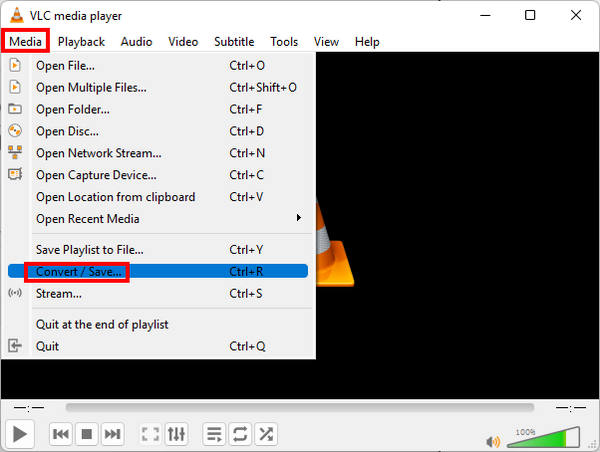
Step 1 Open VLC Media Player and click Media > Convert/Save from the main interface.
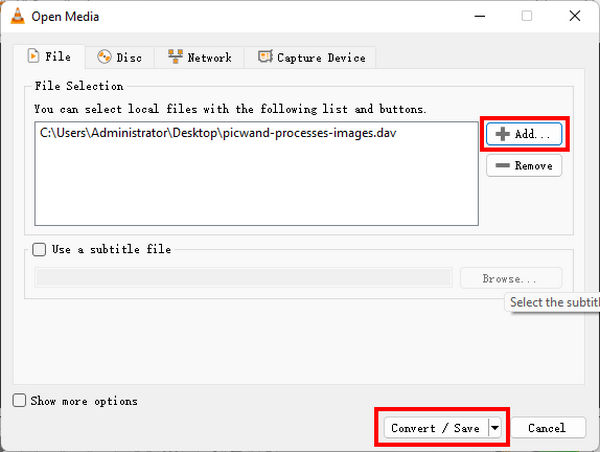
Step 2 In the pop-up window, click the Add button to import one or more video files that you want to convert from your computer. Then, at the bottom of the window, click the Convert/Save button to start converting VLC to MP4.
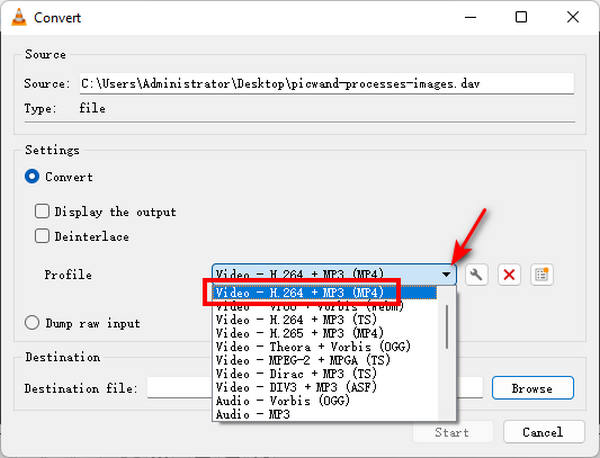
Step 3 Now you will see a new window that enables you to set the output format and customize the destination where you want to save the converted MP4 file. You can also convert VLC to MP3, which will strip audio from MP4 on VLC.
Customization 1. Set Profile Output
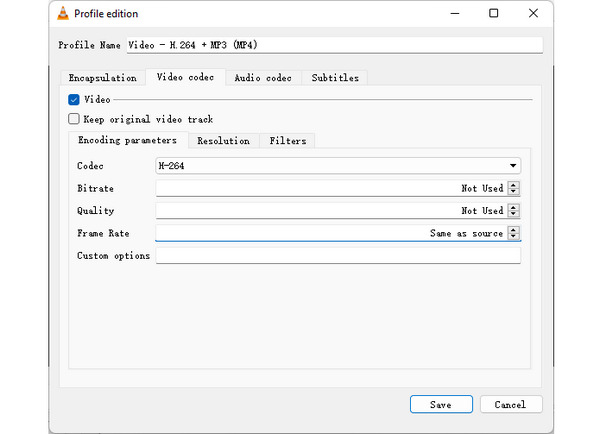
Click the drop-down button beside the Profile button, you will see that VLC enables you to convert videos in various formats such as MP4, TS, OGG, WMV, WebM, etc. It also enables you to choose the output format according to the playback device. Here we choose Video – H.265 + MP3 (MP4) as the output format.
Customization 2. Customize Output Settings
There are also some advanced settings available that allow you to change video codec in Encoding parameters, Resolution, Filters, and Audio codec in Encoding parameters and Filters.
Customization 3. Select Output Destination
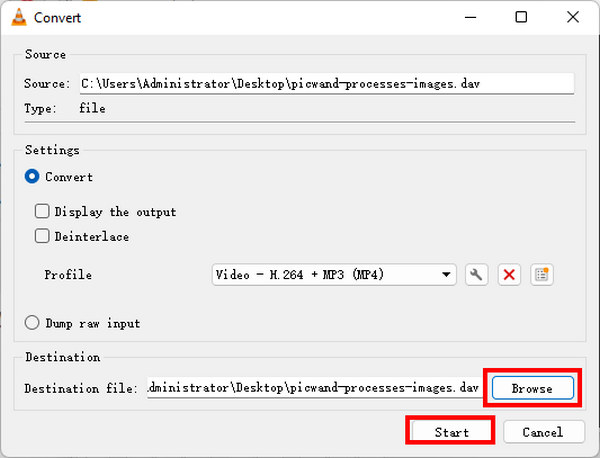
When you finish the profile settings, choose the destination and rename the converted MP4 file as you like. Just click the Browse button next to Destination to select or create a folder to save the converted MP4 file and rename the video file if you need.
Step 4 After all the settings are finished, click the Start button to convert VLC to MP4. You will see the VLC to MP4 conversion progress in the main window, and the conversion time depends on your computer performance and the video length you convert.
Pros and Cons of Converting VLC to MP4 with VLC Media Player
- Convert VLC files to MP4 for free.
- No need to use other video converting tools.
- Comes with basic output settings.
- Supported output formats and devices are limited.
- Lack of video editing features.
The Easiest Way to Convert VLC to MP4 Without VLC Media Player
Although VLC is a powerful media player and converter, it doesn't support too many codecs and formats, especially high-bitrate MTS and MKV. When you want to convert VLC files to MP4 with more customizable features and supported formats, you should resort to a more powerful and comprehensive converter.
Tipard Video Converter Ultimate is your best choice. It offers a more professional approach to VLC-to-MP4 conversion, for it supports a large number of media formats and codecs, like AV1, HEVC, H.264, VP9, and media files with any customized bitrate, frame rate, sample rate, etc. It supports standard and widely compatible output formats while letting you flexibly adjust media parameters. you can also edit your videos with clipping, filters, watermarking, split screen, and more powerful features.

- Easily convert VLC files to MP4 with any standard, rare, and specialized parameters.
- Support MP4 presets for iPhone, iPad, TV displays, Game Consoles, and other devices.
- Provide AI-upscaling tools and basic video editing features.
- Allow you to change the resolution, frame rate, bitrate, and many other settings.

Step 1 VLC to MP4 converter free download
Free download this VLC to MP4 converter and prepare your VLC video files. Launch Tipard Video Converter Ultimate.
Step 2 Import VLC files
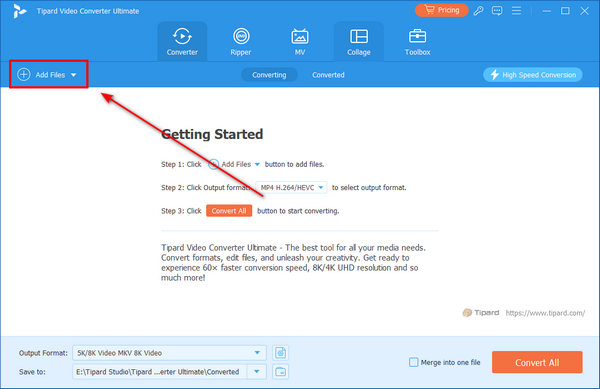
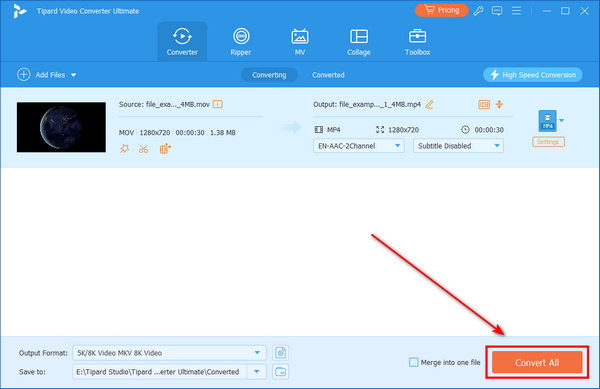
Open the VLC to MP4 converter on your computer and click the Add Files button to import one or more VLC media files. Alternatively, you can drag the VLC files to the software directly.
Step 3 Choose the output format
Click the Format button on your added video. Then, you'll see many supported formats in this program. You can even convert your DVD to an iPhone video. Here, you should choose MP4 from the format list to start VLC to MP4 conversion.
If you want to make changes to audio track, subtitle, metadata information, etc., you can check the details below:
Step 4 Edit video effects before converting VLC to MP4
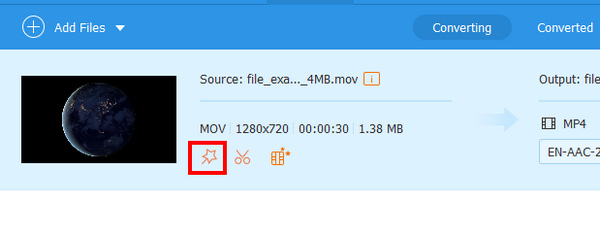
You can use the powerful built-in video editor to edit video effects before conversion. Click the Cut button to trim your video. Click the Edit button, then you can use the Crop feature to get rid of annoying black edges, and use the Rotate feature to rotate the video at 90 degrees clockwise or counterclockwise, etc. Many other practical and powerful features are also available.
Step 5 Start converting VLC to MP4
After all the settings are adjusted at your will, select the output location to save the converted MP4 file and click the Convert All button to start the VLC to MP4 conversion free on Windows and Mac.
Pro Tip: How to Fix Video Icons Showing as VLC Logo
Many users find that their video files always display the VLC icon, even when the videos are in common formats like MP4 or AVI. This usually happens because VLC Media Player is set as the default program to open video files, or because the file association settings in the system have been changed.
While this does not affect video playback, it can be confusing and make it difficult to identify file formats at a glance. Fortunately, this issue can be easily fixed by adjusting default app settings. You can check the guide below to learn how to convert VLC files to common MP4 videos or other formats.
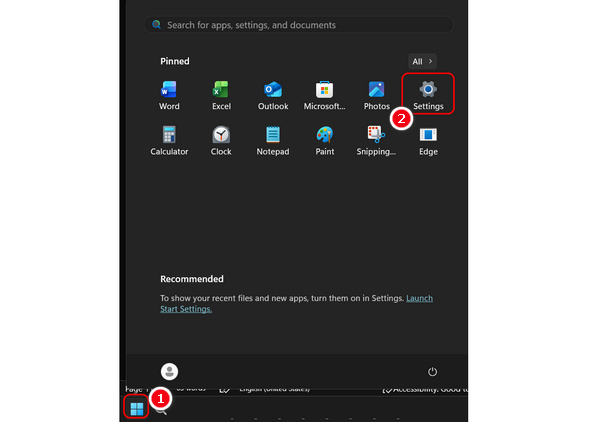
Step 1 Click the Start button (the Windows logo) in the bottom left corner of your computer screen. Then, select Settings.
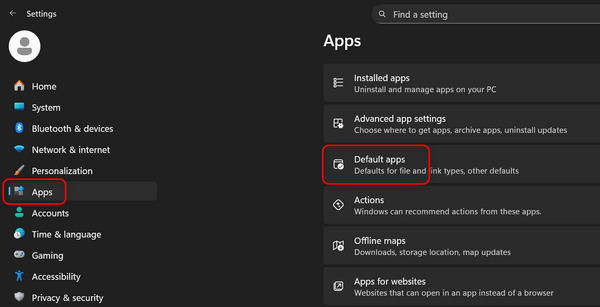
Step 2 Select Apps on the left menu bar. Then, click the Default apps button.
Step 3 Locate Set a default app for a file type or link type, then enter MP4 or another video format in the search box. A list of related formats will appear - select one, such as .mp4.
Step 4 Next, click the current default app shown under the format and choose a different media player (make sure not to select VLC this time). After changing the default app. Then, your video files will show standard thumbnails.

You May Need to Know: Although this method can fix the video icon issue, it may not work for all file types or system configurations. Moreover, if a video's settings are not common or standard, the thumbnail may still show a VLC icon. Therefore, you can use Tipard Video Converter Ultimate to quickly change the video to a standard format, like MP4.
Part 2. How to Convert VLC to MP4 with Free Online Video Converter
If you consider it inconvenient to convert VLC files to MP4 with VLC Media Player and you don't want to install a desktop client, you can use an online VLC file to MP4 converter, which is free and with no limitations. An online converter is a good VLC alternative. The best free online video converter we recommend is Online-Convert. It will help you convert videos on VLC to MP4 with the most fluent experience.
How to Convert VLC to MP4 with Online-Convert
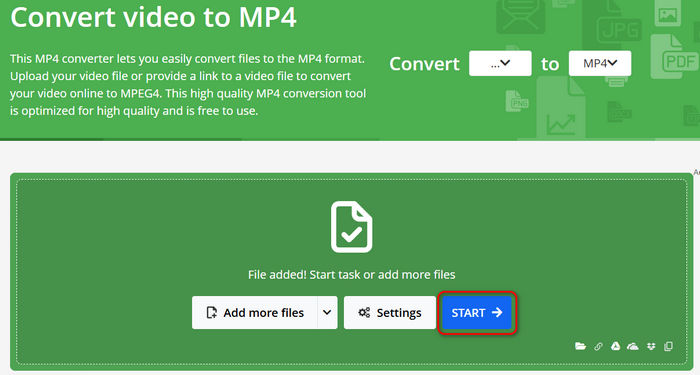
Step 1 Go to the official website of Online-Convert. Click the Choose Files button to upload your VLC videos.
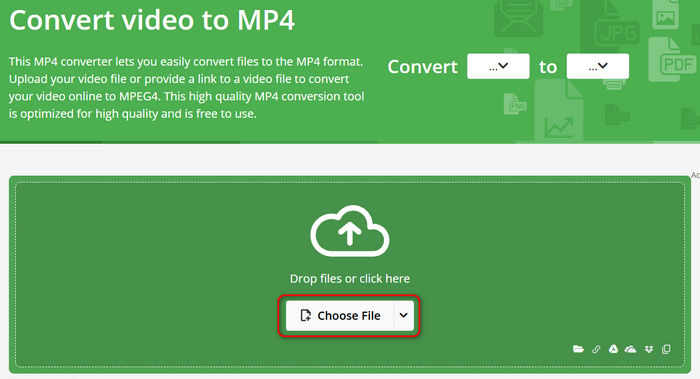
Step 2 Now, you only need to click the START button to convert VLC video to MP4 free online. You need to download the MP4 video to your computer.
- Free online without installation.
- Offer basic video and audio setting features.
- Quickly convert multiple VLC files to MP4.
- No video editing features.
- The internet speed has a significant influence on the conversion speed.
Part 3. How to Convert VLC to MP4 with Movavi Video Converter
If you still prefer using a desktop program apart from VLC, there is a reputable tool for you - Movavi Video Converter. This free video converter supports a wide range of video and audio formats, so converting VLC to MP4 won't be a problem. Moreover, it has a user-friendly interface and fast conversion speed.
Steps to Convert VLC Files to MP4 with Movavi
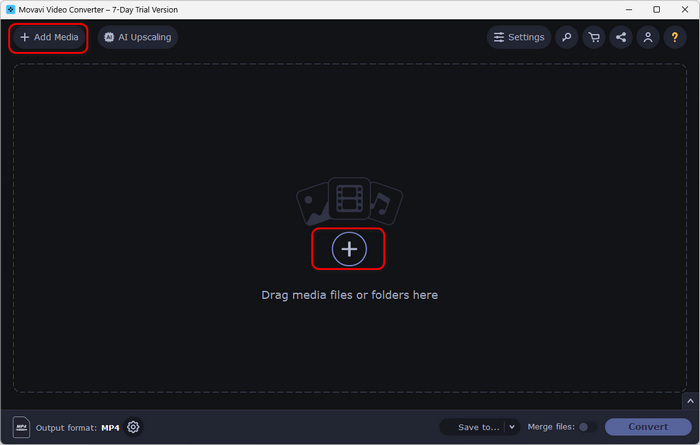
Step 1 Launch Movavi Video Converter and click the Add button on the main interface or the Add Media button on the top left side to add your VLC videos to this program.
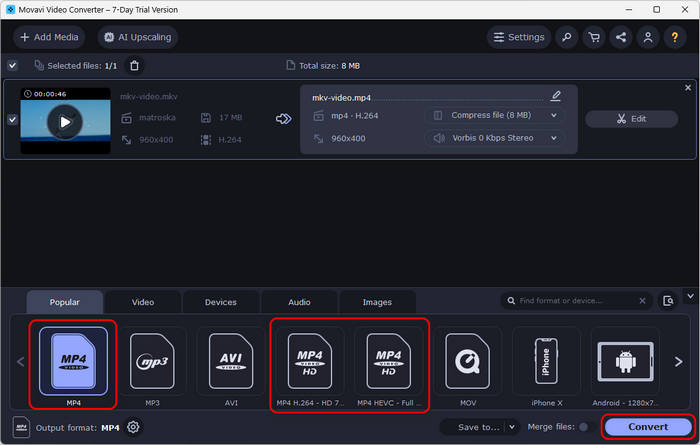
Step 2 The output format is usually set as MP4 by default. You can also choose an MP4 format in different video or audio settings, such as HEVC MP4. Then, click the Convert button in the bottom right corner to convert the VLC video to MP4 format.
Part 4. FAQs of Converting VLC to MP4
Can VLC record in MP4 format?
Yes, VLC can record in MP4 format. But you should record a video first, and then manually convert the recording to MP4 format within VLC.
Why VLC can't convert to MP4?
You may be unable to convert to MP4 in VLC due to an incorrect conversion profile, a damaged or encrypted source file, an unsupported or uncommon codec, or issues with VLC itself. Common solutions include updating VLC, selecting a standard MP4 profile with a compatible codec (such as H.264 for video and AAC for audio), and ensuring that the source file is not corrupted.
Does VLC do video conversion?
Yes, it does. VLC Media Player can convert video files as well as streaming videos. However, its built-in video converter is not very user-friendly, as beginners often find it difficult to locate the conversion feature and customize output formats. As an easier and more intuitive alternative to VLC, you can use Tipard Video Converter Ultimate to convert your files quickly and effortlessly.
Conclusion
This article introduces three effective methods to convert VLC file to MP4, whether you choose to use VLC Media Player or not. While VLC is a reliable media player and basic converter, it offers limited video editing features and supports only a restricted range of encoders. Online VLC-to-MP4 converters are convenient, but they often lack sufficient encoder options and stability. Tipard Video Converter Ultimate stands out as the best solution for converting VLC videos to MP4, offering a wide selection of video and audio encoders along with powerful AI-driven video editing and enhancement tools.
All-in-one video toolbox: convert, edit, upscale, enhance, and compress your videos easily
100% Clean & Safe
100% Clean & Safe

More Reading
About the Author

 Click here to join the discussion and share your comments
 Tipard Video Converter Ultimate