

Key Takeaways
Not all video player software can open HEVC files due to codec incompatibility. Luckily, this article tests and collects the 5 best ones. Tipard Blu-ray Player can play all types of HEVC videos, even with highly customized bitrates. VLC Media Player is a top-choice free HEVC player to open standard HEVC videos.
HEVC (H.265) videos utilize cutting-edge video compression, allowing them to have high-quality playback at smaller file sizes. Unfortunately, some video players have faulty or missing support for the HEVC file format. Imagine trying to watch your favorite 4K movie or HDR video, but it keeps stuttering. This is where a reliable HEVC player comes in, ensuring smooth playback, high-quality visuals, and seamless viewing. Check this post and find the best 5 H.265/HEVC players on Windows and Mac.

Part 1. Side-by-Side Comparison of the 5 HEVC Players
Looking for the best HEVC (H.265) media player? While High-Efficiency Video Coding delivers stunning 4K/8K visuals at smaller file sizes, it requires immense hardware decoding. If your current player stutters or throws format errors, here is a quick comparison of the top 5 HEVC players for Windows, Mac, and Linux in 2026.
| Player Name | Best For | Supported OS | Key Feature |
|---|---|---|---|
| Tipard Blu-ray Player | Premium 4K/8K & Physical Media | Windows, macOS | Built-in H.265 hardware decoding + ISO support |
| VLC Media Player | Cross-platform & Reliability | Win, Mac, Linux, Mobile | Open-source, Native FFmpeg decoding |
| PotPlayer | Advanced Customization & HDR | Windows Only | DXVA, CUDA, & Intel Quick Sync optimization |
| Kodi | Home Theater (HTPC) Setups | Multi-platform | Automatic metadata scraping & library management |
| MPC-BE | Low-spec PCs & Lightweight Use | Windows Only | Minimal CPU usage, DXVA hardware acceleration |
| Show MoreShow Less | |||
Part 2. Detailed Introduction to Top 5 HEVC Players
HEVC (H.265) files, and particularly 4K and 8K videos, demand a powerful and optimized media player to ensure seamless playback. Based on performance, compatibility, and user requirements, we have identified five of the best HEVC players. These include our recommended premium option, as well as four trusted alternatives.
Top 1. Tipard Blu-ray Player (Best Premium All-in-One Solution)
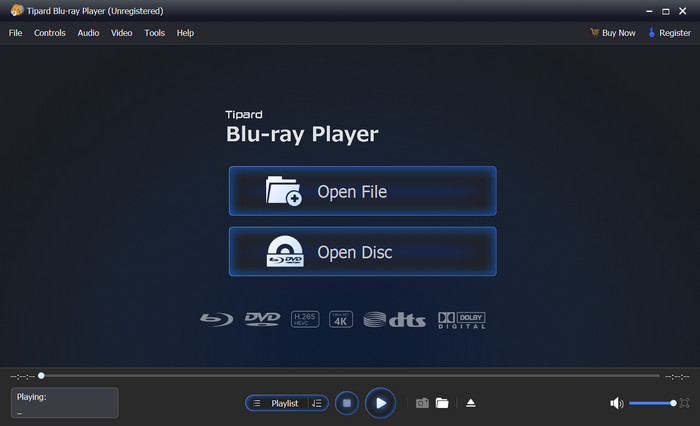
If you want a hassle-free, cinematic experience without configuring complex rendering filters, Tipard Blu-ray Player is a top-tier HEVC choice. This HEVC media player combines a robust native HEVC decoder with commercial disc compatibility. Also, Tipard Blu-ray Player is compatible with Blu-ray and DVD. This provides much greater functionality than the usual free players. It is suitable for seamless 4K/8K playback, efficient decoding, and cinema quality output without the need to download additional codecs.
It is especially suitable for:
- Watching 4K/8K HEVC films
- Viewing Blu-ray discs, folders, and ISO files
- Users who expect high-quality video and audio
- Users who want a streamlined experience
Tipard Blu-ray Player is a professional media player built for high-definition and ultra-HD playback. It supports HEVC files as well as Blu-ray discs, folders, and ISO images, making it a complete multimedia solution.
Main Features of Tipard Blu-ray Player:
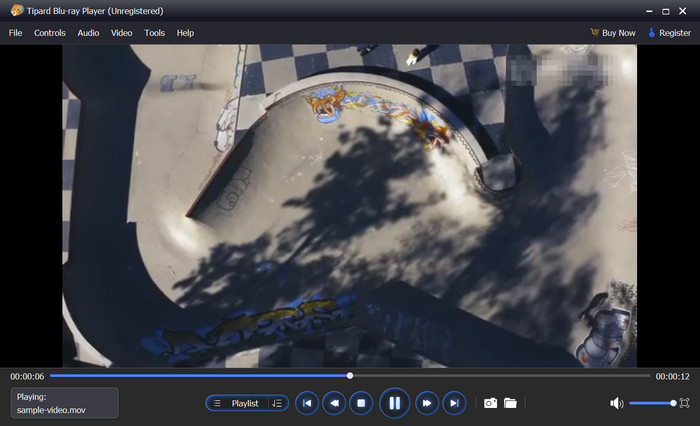
- Native support for H.265/HEVC 4K and 8K videos without codec packs.
- Hardware acceleration ensures stutter-free playback on both Windows and Mac.
- Supports high-fidelity audio pass-through (Dolby Atmos, DTS-HD).
- Recognize over 500 video and audio formats.
- Excellent 4K and 8K HEVC video playback is possible.
- Ability to playback Blu-ray and DVD formats.
- Codec downloading is not required.
- Performance is stable and smooth.
- Control is straightforward for novices.
- Numerous functions of the software may be intimidating to novices.
Top 2: VLC Media Player
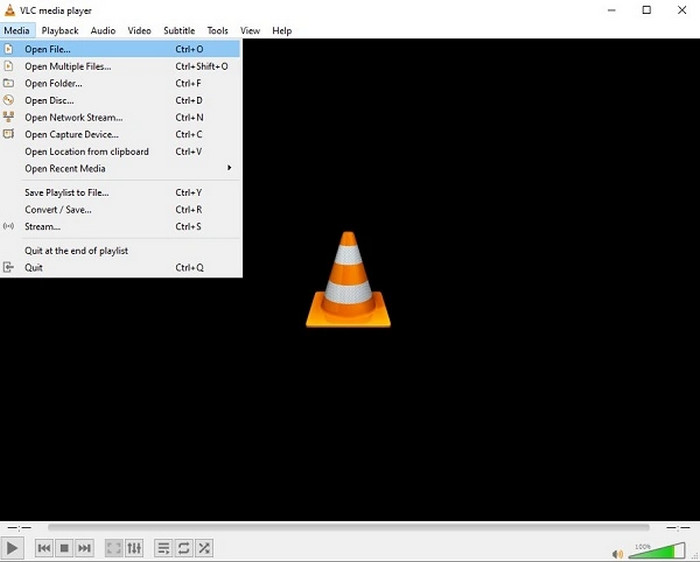
VLC remains the king of open-source media players. Powered by the FFmpeg decoding engine, VLC HEVC video player handles 1080p and standard 4K HEVC files effortlessly across almost every operating system. This H.265 video player is stable and supports almost every container format, and it also includes a built-in video compressor, but there is limited control over the rendering pipeline and the limits of the system's GPU.
Best for: Reliable cross-platform HEVC playback without any configuration.
Main Features:
- HEVC codec is supported.
- Compatible with many platforms.
- Supports hardware acceleration.
- Supports subtitles and streaming.
- No codec packs necessary.
- Completely free and open source.
- Easy to use and install.
- Usable for nearly all HEVC files.
- Access to a wide variety of formats.
- Outdated design.
- Functionality loses effectiveness with higher bit rates, especially with 8K video.
- Few options for fine-tuning.
You May Also Like:
Top 3: PotPlayer
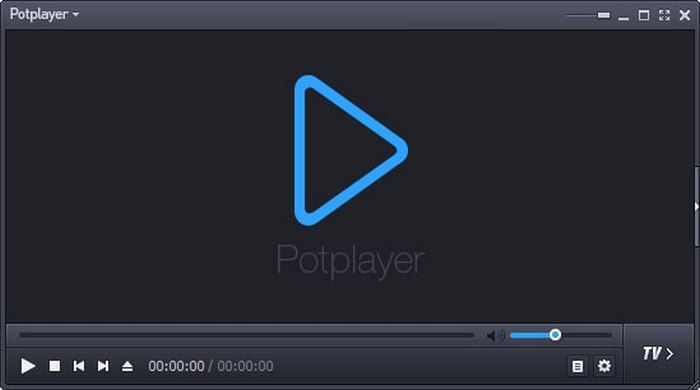
PotPlayer is perfect for demanding playback scenarios. HEVC 4K and HDR content with high bitrates is supported via DXVA, CUDA, and Intel Quick Sync. This HEVC player is more effectively than most popular players. This controls scale and process color. The proper setup is complex and may overwhelm users who are not technically experienced. This results in the best image quality. For users who want to squeeze every ounce of performance out of their GPU, PotPlayer offers unparalleled control over the video rendering process.
Best for: Windows users who seek the best playback performance and the most player customization.
Main Features:
- Advanced HEVC decoder.
- 4K videos play smoothly.
- Control over audio and video.
- Control over rendering and filtering.
- Hardware acceleration.
- 4K HEVC videos play excellently.
- Customization is awesome.
- Advanced subtitle support.
- Advanced users can utilize it best.
- Only for Windows.
- The interface can be cluttered.
- There are a lot of options, especially for beginners.
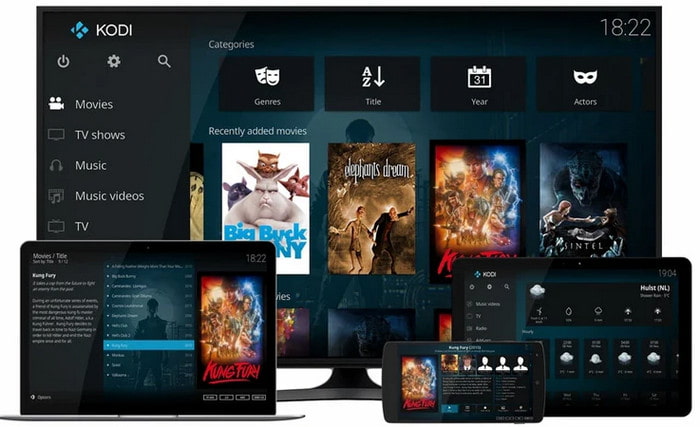
Top 4. Kodi
Kodi can decode HEVC within a media center context. You can enjoy seamless and high-quality playback with full hardware decoding, especially for 4K streaming.
The biggest strength is the ecosystem integration of Kodi, including automatic metadata scraping and library management, remote control compatibility, and plugin support. Kodi transforms your device into a full-fledged entertainment hub. It decodes HEVC efficiently while organizing your entire local and network media library. This HEVC media player lets you watch your movies and videos across different devices. However, it has a longer setup time, supports plugins for removing text from video, and is not ideal for quick access to a single file.
Best for: Dedicated home theater and HTPC setups.
Main Features:
- Playback of HEVC is supported.
- You can organize your media library.
- Use of plugins.
- Ability to stream.
- Controls can be remote.
- Great for usage with home theaters.
- Media library organization is automatic.
- Works on most platforms.
- You can add more functionality with plugins.
- It can take some time to set up.
- Not good if you want to play a file quickly.
- Your system's hardware will determine the overall performance.
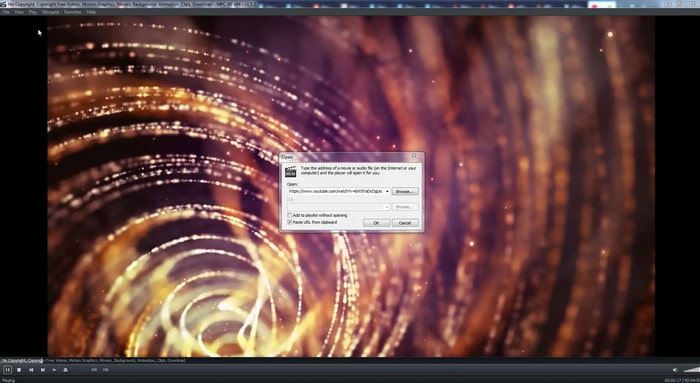
Top 5: MPC-BE (Best Lightweight Player for Low-End PCs)
Media Player Classic Black Edition (MPC-BE) is a streamlined, stripped-down HEVC media player built for speed and efficiency. MPC-BE is fast and straightforward, using few resources. It is HEVC-ready and, with DXVA, 4K is manageable on supported GPUs; 1080p is no problem. Despite lacking advanced media management and extensive rendering options, it is a great minimal alternative.
Best for: Windows users who want more performance and fewer features.
Main Features:
- Playback of HEVC is supported.
- Very lightweight.
- Use of hardware acceleration.
- Improved subtitle rendering.
- Regular updates.
- Fast start time.
- Use of the CPU is minimal.
- The interface is simple and clean.
- Good alternative to heavier players.
- Only available on Windows OS.
- Less built-in features compared to VLC.
- Less focus on graphics.
Part 3. Troubleshooting: Common HEVC Playback Issues
1. Video Stutters, Lags, or Drops Frames
The Cause: Your player is using Software Decoding (CPU) instead of Hardware Decoding (GPU).
The Fix: Go to your player’s settings (Preferences > Input/Codecs in VLC, or Filter Control in PotPlayer) and enable Hardware Acceleration (DXVA2 / OpenCL / CUDA).
2. Black Screen with Audio Only (or "Format Not Supported" Error)
The Cause: Missing HEVC codec or corrupted video container.
The Fix: Avoid downloading shady codec packs. Switch to a player with an internal decoder like Tipard or VLC, or run the file through a video repair tool.
3. Colors Look Washed Out or Grayish
The Cause: You are trying to play an HDR (High Dynamic Range) HEVC file on an SDR (Standard Dynamic Range) monitor without tone mapping.
The Fix: Use PotPlayer or Tipard Blu-ray Player, which feature built-in HDR-to-SDR tone mapping to restore vivid colors on non-HDR screens.
Part 4. Why Do You Need an HEVC Player?
HEVC (High-Efficiency Video Coding) is the industry standard for 4K Ultra HD, HDR, and high-bitrate streaming. It compressed video 50% more efficiently than H.264, keeping file sizes manageable. However, this high efficiency comes at a cost: it requires massive computational power to decode. Standard or outdated media players fail to play HEVC files due to:
- Lack of Native Codecs: Native Windows Media Player or older QuickTime versions require paid extensions to open HEVC.
- CPU Throttling: Without proper GPU Hardware Acceleration (DXVA/CUDA), your CPU will hit 100% usage, causing frame drops and freezing.
- High Bitrate Demands: 10-bit HDR or 8K HEVC streams require optimized rendering pipelines to prevent audio-video desync.
That's why you'll need a professional HEVC media player, especially on some low-end PCs and Macs.
Part 5. FAQs of HEVC Player
Which player can play HEVC?
Tipard Blu-ray Player and VLC Media Player can play HEVC videos. They have good and stable HEVC decoding abilities to deal with all types of videos with different formats, resolutions, and bitrates.
How to play HEVC for free?
Although HEVC is not a free video codec, you can use some free video players that support HEVC to play those files. For example, Tipard Blu-ray Player, VLC Media Player, and PotPlayer can easily play HEVC videos without worrying about payment.
Why can't I play HEVC on my computer?
That's because your computer or the player you use doesn't recognize the HEVC codec. You can directly download a reliable HEVC player, such as Tipard Blu-ray Player, to play it easily.
Conclusion
This article offers the 5 best H.265 players on Windows, Mac, and even Linux. They have built-in HEVC codec so that you don't need to buy or install an HEVC codec extension. Choosing which player depends on your specific needs, but if you need an all-in-one versatile physical and software media player, Tipard Blu-ray Player is your best resort. It can play all types of video formats and codecs in different parameters. Feel free to open all your media files with it.

Play Blu-rays and multimedia files with the best video and audio quality
100% Clean & Safe
100% Clean & Safe

More Reading




About the Author

 Click here to join the discussion and share your comments
 Tipard Blu-ray Player