

- Part 1. Why You Should Increase Video Resolution
- Part 2. How to Increase Video Resolution Easily
- Part 3. How to Increase Video Resolution in Premiere Pro
- Part 4. How to Enhance Video Resolution with CapCut
- Part 5. How to Increase Video Resolution Free Online
- Part 6. Tips to Increase Resolution When You Take a Video
- Part 7. FAQs of Increasing Video Resolution
Do you have a poor-quality video that can affect your viewing experience? Well, you are not alone. Various video enthusiasts encounter the same issue, which is unsatisfying at all. Thankfully, this post can offer a detailed tutorial you can use. We are here to offer all the most reliable methods that can help you get a better resolution for your videos. You will also learn why you need to upscale your videos and some tips to increase the resolution when capturing a video. Thus, read here and learn the process of how to increase the video resolution.
- Part 1. Why You Should Increase Video Resolution
- Part 2. How to Increase Video Resolution Easily
- Part 3. How to Increase Video Resolution in Premiere Pro
- Part 4. How to Enhance Video Resolution with CapCut
- Part 5. How to Increase Video Resolution Free Online
- Part 6. Tips to Increase Resolution When You Take a Video
- Part 7. FAQs of Increasing Video Resolution
Part 1. Why You Should Increase Video Resolution
There are various reasons why you need to increase the resolution of your videos. Some of them are:
- You must increase the video resolution if you want a better visual quality.
- Increase the resolution for better viewer engagement.
- Increasing the video resolution can help you play your video on a larger screen.
- A video with a higher resolution is ideal for editing since you can deal with it without losing quality.
- Higher video resolutions ensure videos remain relevant.
Part 2. How to Increase Video Resolution Easily
Want the easiest method to increase the resolution of your videos? Then, we suggest using Tipard Video Converter Ultimate. Using this software is perfect when it comes to enhancing the video resolution since it has the features you need. You can upscale your video up to 1080p, 2K, 4K, and even 8K. You can even increase the video resolution both automatically and manually, making it ideal for all users. The best part here is that the program offers the batch conversion feature. With this feature, you can deal with your video without consuming much time. To learn how to increase the video resolution, see the steps below.
Step 1 First, download Tipard Video Converter Ultimate on your computer. After that, run it to start increasing your video resolution.
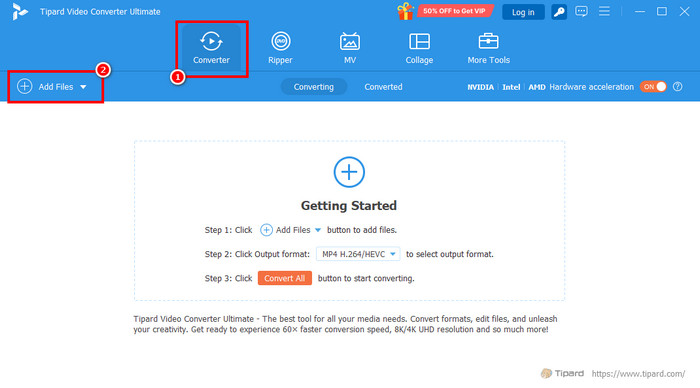
Step 2 Proceed to the Converter section and click the Add Files section to insert the video you want to upscale.
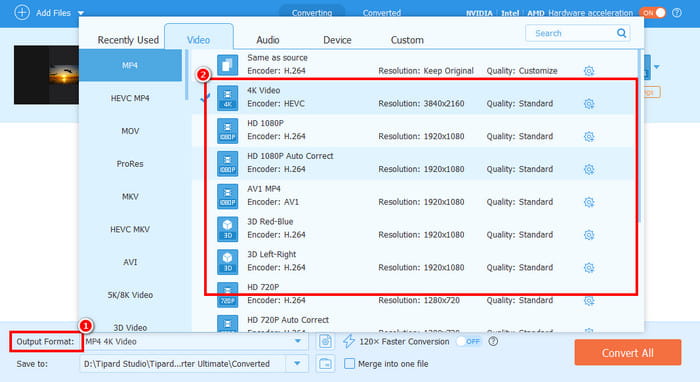
Step 3 Then, navigate to the Output Format and select your desired format. Then, start increasing the video resolution by choosing your preferred quality, 1080p, 4K, and more.
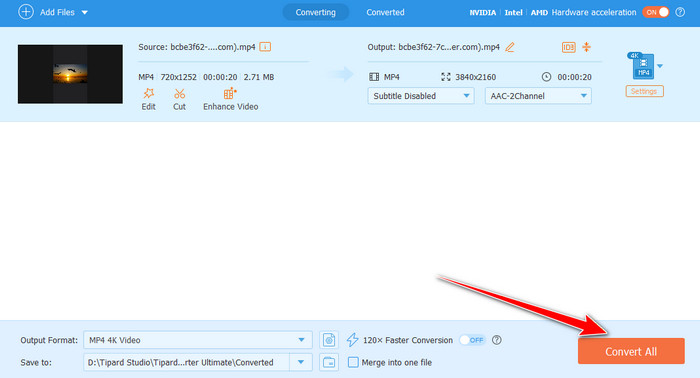
Step 4 For the last process, you can tap the Convert All button below to begin saving your final file. After the process, you can now start watching the video with a better resolution.
Part 3. How to Increase Video Resolution in Premiere Pro
Adobe Premiere Pro is among the high-end video editing programs you can rely on when it comes to enhancing the resolution of your video. What we like here is that it ensures to offer the best result you need for a better video playback. You can even increase your video up to 2K resolution if you want to. Aside from that, there are more features you can access during the editing process. You can crop the video, colorize, adjust the aspect ratio, and more. The only drawback here is that it is not free to use, and its main user interface is complicated to navigate. You can follow/use the instructions below and learn how to improve the video resolution.
Step 1 Download Adobe Premiere Pro on your Mac or Windows. After that, open it to begin the process.
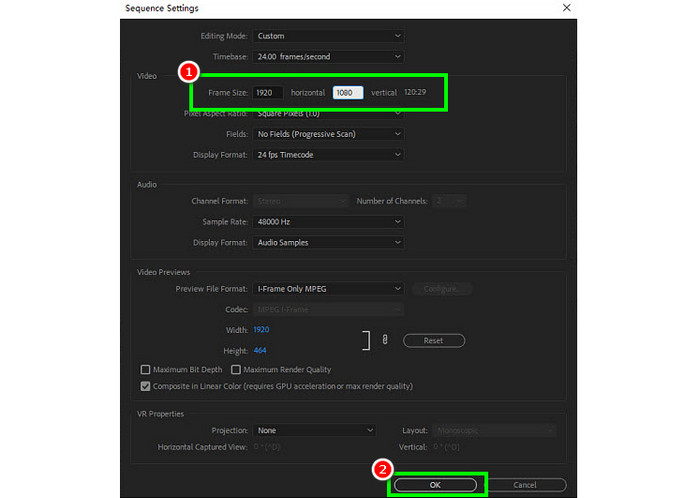
Step 2 Then, proceed to the File > New > Sequence section. Then, a mini interface will show up on your screen.
Step 3 Select the Editing Mode to Custom. Under the Frame Size section, change the horizontal and vertical resolution based on your preferences. You can insert 3840 and 2160 for a 4K UHD video.
Step 4 Click the OK button below and start saving your final video.
Part 4. How to Enhance Video Resolution with CapCut
To increase the resolution of video on your mobile, PC, and browser, you can rely on CapCut. This video editing tool is ideal since it ensures that you can use all the features easily and smoothly. You can even increase the resolution of your video for up to 4K, making it more ideal. The good thing here is that you can access various editing tools. You can rotate your video, add video effects, insert text, adjust playback speed, and more. With that, we can tell that CapCut is another tool you can access for getting a better version of your video. The only problem here is that when using the free version, you can get the video with a watermark. But still, if you want to start increasing the video resolution, use the steps below.
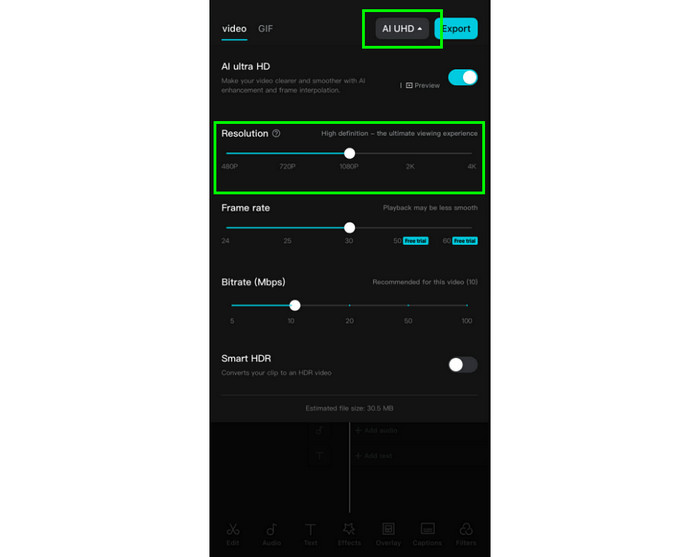
Step 1 You can use the mobile version of CapCut. After you install it, start launching it to begin increasing the video resolution.
Step 2 Then, from the primary interface, click the Plus button to start adding the video from your phone.
Step 3 After that, click the drop-down arrow beside the Export feature. Once done, you can start choosing your preferred video resolution. Then, tap the Export button to finally save your video.
Part 5. How to Increase Video Resolution Free Online
Do you want to increase video resolution online for free? In that case, we suggest using Vmake. With this tool, you can get a higher video resolution that can help you get better video playback. You can even use this tool on various web browsers, making it available to all users. Thus, to check its capabilities, you can use the methods below.
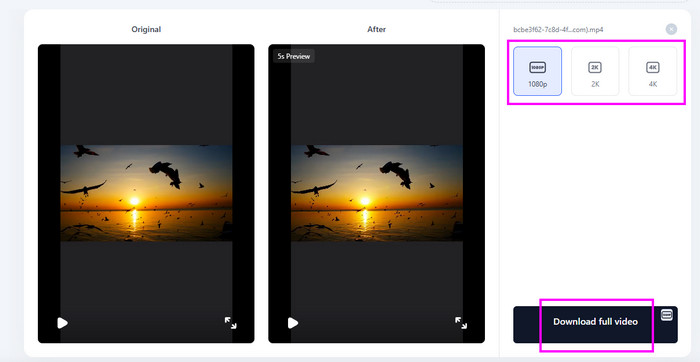
Step 1 From the main website of Vmake, click the Upload File button to insert the video from your device.
Step 2 Then, you can start choosing your preferred resolution. You can select 1080p, 2K, and even 4K.
Step 3 For the last process, click the Download button. Once done, you can start playing the footage.
Part 6. Tips to Increase Resolution When You Take a Video
Looking for the best tips to learn how to get the best resolution when taking a video? Then, see all the details below.
- When recording on your Camera, ensure that the camera setting is already set to the highest resolution.
- Always use proper lighting. This way, you can avoid a darker video after the recording process.
- Stabilize your camera. You can rely on a tripod to avoid shaky clips.
- You can use high-quality lenses for a better capturing process.
- You must record a video in the right format, like HEVC or H.265.
Part 7. FAQs of Increasing Video Resolution
How to make blurry videos clear?
To make a blurry video clear, the best solution is to use a video enhancer, like Tipard Video Converter Ultimate. Through this useful tool, you can enhance your video and have better video playback. You can use the program's Video Enhancer feature to unblur your video effectively.
Is 4K 200% of 1080p?
No, it is not. The 1080p has 2.07 million pixels, while the 4K has 8.29 million pixels. With that, we can conclude that 4K is 400% of 1080p.
How many GB is a 2-hour movie in 4K?
A 2-hour movie in 4K typically ranges between 12 and 20 GB when compressed for streaming using H.265 (HEVC) codec. On the other hand, a higher-quality Blu-ray version can reach 40 to 50 GB, and lossless formats may exceed 100 GB.
Conclusion
After learning all the processes, you can now enhance the video resolution effectively. Thus, read everything in this tutorial and learn how to get a better resolution for your video. Also, if you need the best tool that can easily increase the resolution of your video, it would be better to access Tipard Video Converter Ultimate. This program ensures that you can get the result you need, making it an ideal video enhancer for all users.
More Reading




About the Author

 Click here to join the discussion and share your comments
 Tipard Video Converter Ultimate