

Sometimes you want to share multiple memories from a trip, party, or project in one engaging video. A video collage maker makes it easy to combine clips and photos, add music, and create dynamic layouts, helping you tell your story creatively and share it with friends or online.
Part 1. What Is a Video Collage?
Video collages can be used for anything to show moments in a short time, from birthdays and vacations to school projects and work presentations. The clips in a collage can show at the same time or one after the other in different formats. Music, text, and simple effects are used to enhance video collages to highlight moments or tell a story.
They are commonly used for birthdays, travel recaps, school projects, business highlights, and social media content because they allow more moments to be shown in a short, engaging format.
Part 2. How to Create a Video Collage Easily on PC and Mac
A desktop editor is a great option if you need to mix several videos or photos and want to have complete control over layout, audio, and effects. Tipard Video Converter Ultimate lets you make video collages offline, with great speed and performance, and is compatible with Windows and Mac.

- It includes a built-in video and photo collage maker with split-screen and grid templates.
- It allows you to add background music and fully control audio settings.
- It supports high-quality video export up to 8K resolution.
- It processes videos quickly using hardware acceleration.
- It offers comprehensive tools for editing both video and audio.

Platforms Supported: Windows PC and macOS
Step 1 Install and Start the Program
Get Tipard Video Converter Ultimate and open it on your Windows or Mac computer.
Step 2 Enter the Collage Maker
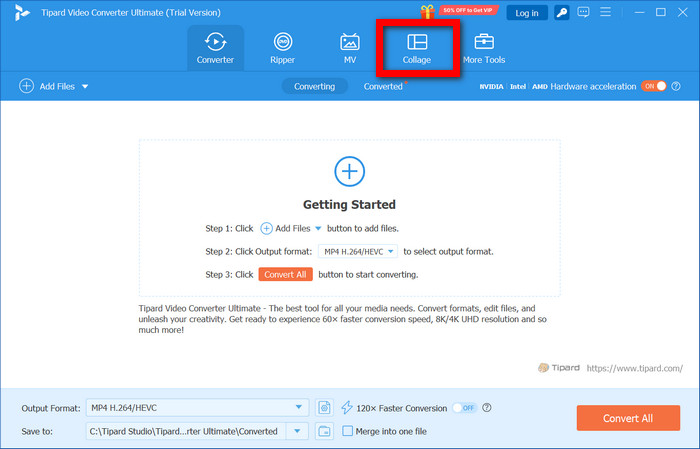
On the main interface, Collage should be the option selected. This will allow you to access the collage and split-screen templates.
Step 3 Find a Collage Layout
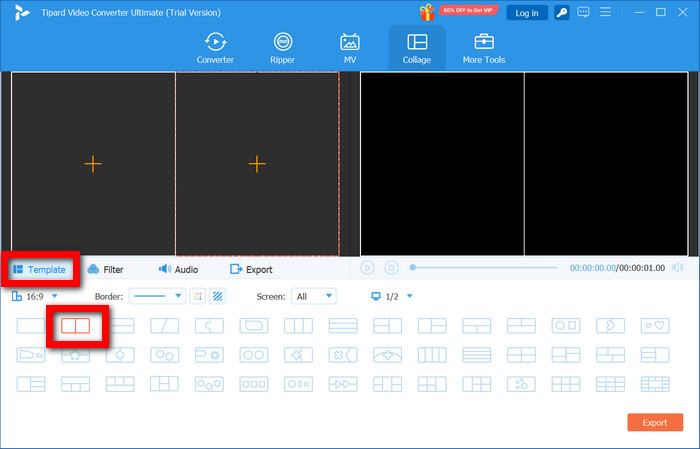
Select a collage Template that suits the number of photos or videos you want to merge.
Step 4 Insert Media
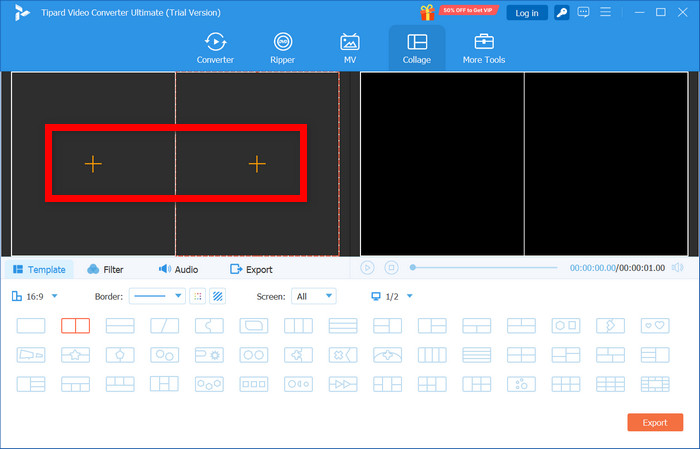
Fill each collage frame with your videos or photos. You can make clips bigger, move them to different spots, or substitute them whenever you want.
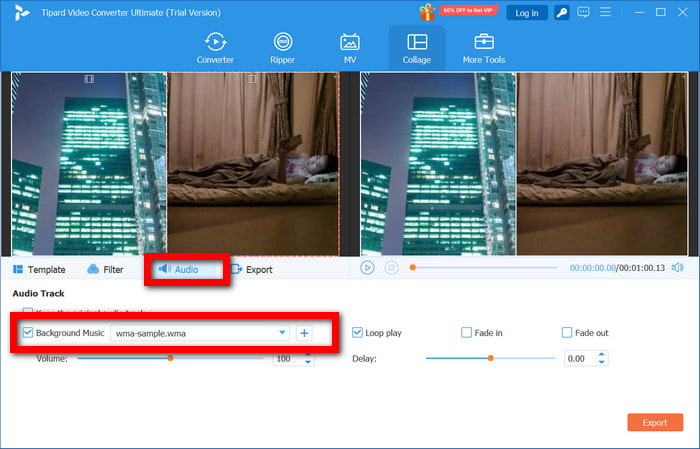
Step 5 Insert a Music Track
You can import a music file that you want to have in the collage under the Audio tab. Then, you can adjust the volume and use the sync function for audio that is more in harmony with the video.
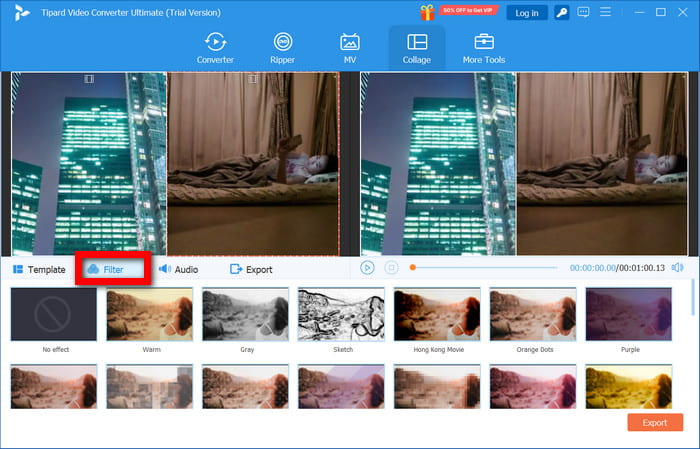
Step 6 Apply Filters
Go to the Filter tab to add visual effects to your collage. You can choose from various preset filters to enhance the look and feel of your video collage.
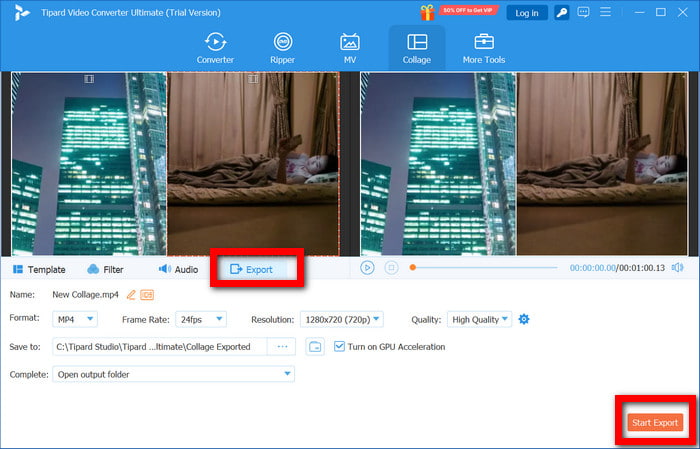
Step 7 Export the Video Collage
You will be able to select your preferred output format and quality under the Export tab. The software supports output in 4K, 5K, and 8K, so be sure to select your preferred output quality. Finally, click the Start Export button to save the video collage.
Why We Selected It
It provides an all-in-one solution for video collages. With ready-made templates, background music, video trimming, filters, color adjustment, speed edits, and more, you can easily create and polish video collages for PC and Mac. Plus, you can edit videos in a number of formats.
Part 3. How to Make a Video Collage with Adobe Premiere Pro
Adobe Premiere Pro is an advanced video editing software that helps you make fully customized video collages. It gives you full control over the layout, effects, audio, and all transitions, which is great for professionals who want to achieve top quality.
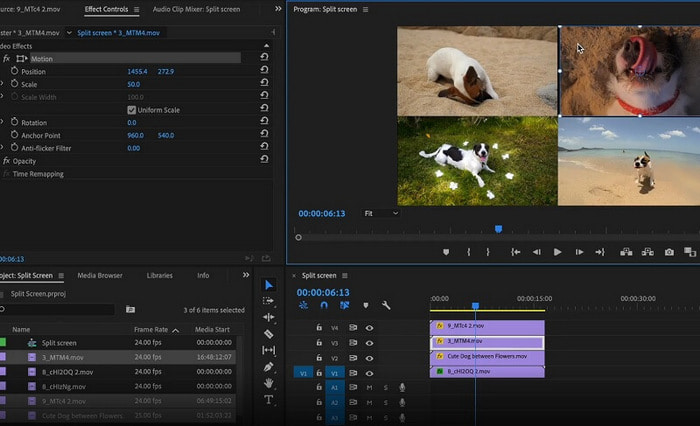
Step 1 Open Premiere Pro and create a new project.
Step 2 Move your videos/photos into the Project panel.
Step 3 Arrange clips onto the timeline and put them in multiple tracks.
Step 4 Adjust the size and position of clips to achieve a split-screen or grid look.
Step 5 Add background music, transitions, and text if you want.
Step 6 Export your project. By selecting a format and a resolution for the video, you can collage your video and export it.
Part 4. How to Make a Video Collage Free Online
Kapwing is one of many online video editors available for free and lets you create video collage content directly from your browser. Kapwing is perfect for making social media videos, making GIF collages, and doing quick video editing without having to download any software. It has a user-friendly editor with drag-and-drop options, templates, and other editing tools to get you started.
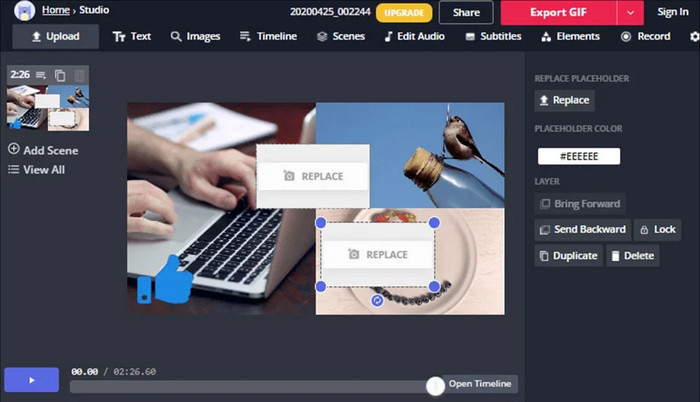
Step 1 Start any web browser and open Kapwing.
Step 2 Select any video collage template you want.
Step 3 Drag and drop any videos and pictures you want to collage into the template.
Step 4 Use the editing features to add any text, adjust the background, add some music, and add some more effects if you want.
Step 5 You can save your video collage to your computer and share it online.
Part 5. How to Make a Video Collage on iPhone and Android
If you want to make collages on the go, the PicPlayPost app lets you make video collages on your iPhone and Android devices. It is user-friendly, and you can create engaging collages in just minutes. You can make GIF collages, stretch out videos, add music, and do much more with a video collage app.
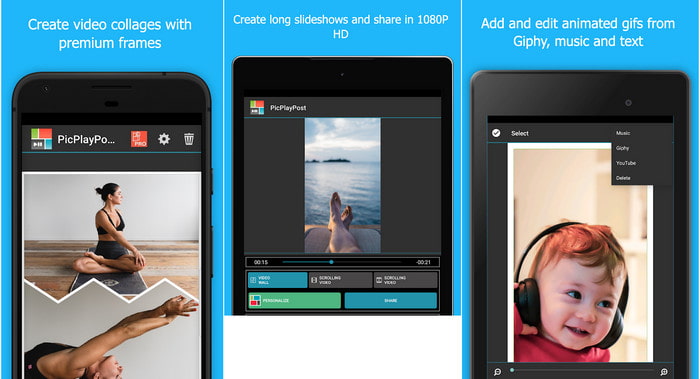
Step 1 Visit the App Store or Google Play Store and download PicPlayPost.
Step 2 Open the app and make a new collage.
Step 3 Select the videos and photos you want to collage from your device.
Step 4 Use a split-screen or grid layout to organize your clips.
Step 5 Add background music, stickers, text, and apply filters.
Step 6 Finalize your collage and either save it to your device or share it with your social media accounts.
Conclusion
All in all, knowing how to make a video collage lets you turn multiple clips and photos into one cohesive, engaging story. Whether using a desktop tool, an online editor, or a mobile app, you can combine videos, add music, and apply effects to showcase memories, highlight events, or create social media content that stands out.
More Reading




About the Author

 Click here to join the discussion and share your comments
 Tipard Video Converter Ultimate