

Recording a video clip on your mobile phone only to realize it comes out sideways or upside down after might not be very satisfying. Using the rotate video options makes the process of correcting this problem simple and quick. Your video clip becomes aligned and is good to go.

Part 1. Why You Need to Rotate a Video
The recording of the video is not done correctly in all instances. Though it might come out sideways, upside-down, or tilted from the start. In order to have an appealing video for sharing or editing purposes, one can rotate the video, which will solve all of these problems. Video rotation will help video formats fit well into other social media channels.
Below are some of the factors that make one decide to rotate their video:
- Aligning the Video: Videos recorded with cameras or phones at wrong angles may be sideways or upside down. Correcting the wrong viewing angle will make you rotate the video.
- Pick the Right Platform: TikTok and Instagram use vertical videos, while YouTube and most presentations use horizontal videos.
- Maintain a Consistent Video Style: Keeping your videos consistent aligns with a more professional look.
- Rotating Clips: The creator may want to achieve a look that is more artistic for each clip.
- Small Footage Tilts: Small adjustments to align the footage with the correct horizon.
- Proper Video Alignment for Various Screens: Rotating videos gives the option to present content on more than one screen, such as a TV or a projector.
Part 2. Easily Rotate Video on Windows and Mac
It is easy to rotate a video if you have the tool. Tipard Video Converter Ultimate is a program that helps you do this. With this program, you do not have to worry about your videos being sideways or upside-down, on your Mac or Windows computer. All you have to do is press one button. It will fix the video for you.

- Rotate videos 90 degrees clockwise or counterclockwise with ease.
- Flip videos horizontally or vertically instantly.
- Preserve the original video quality after rotation and editing.
- Support a wide range of video formats, including MP4, MOV, MKV, AVI, WMV, and more.
- Edit videos further with trimming, cropping, filters, watermarking, and video tools.

Step 1 Download and Install
Visit the official Tipard Video Converter Ultimate page and download the right software for you. Install the software on your Windows or Mac computer. Then launch the program.
Step 2 Import Your Video File
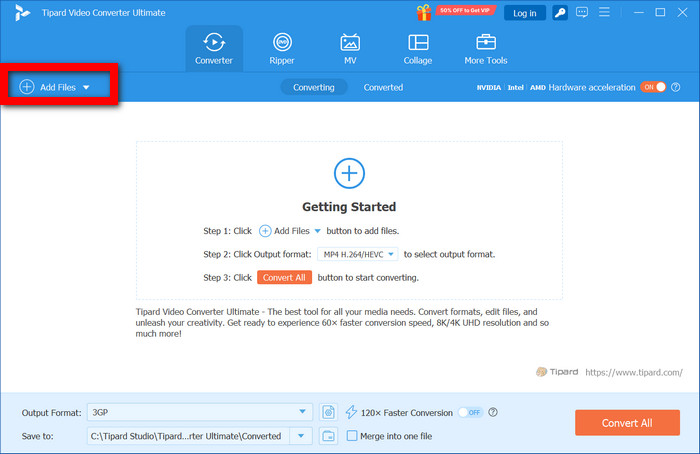
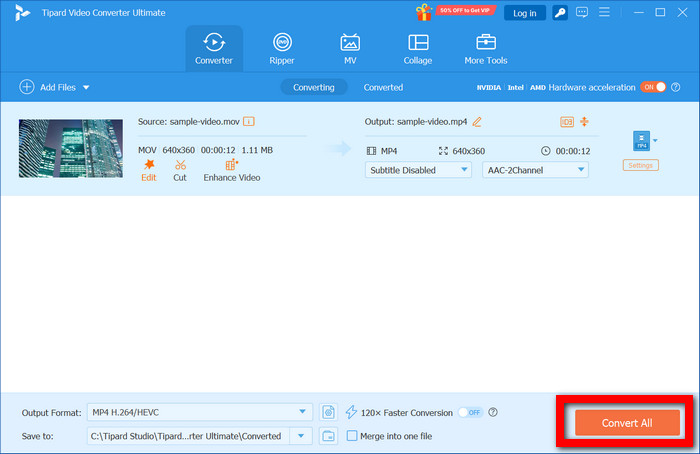
Launch the software application. Click on the Add Files option in the upper left corner of the software window. Pick up the video file that needs to be rotated.
Step 3 Editing Window
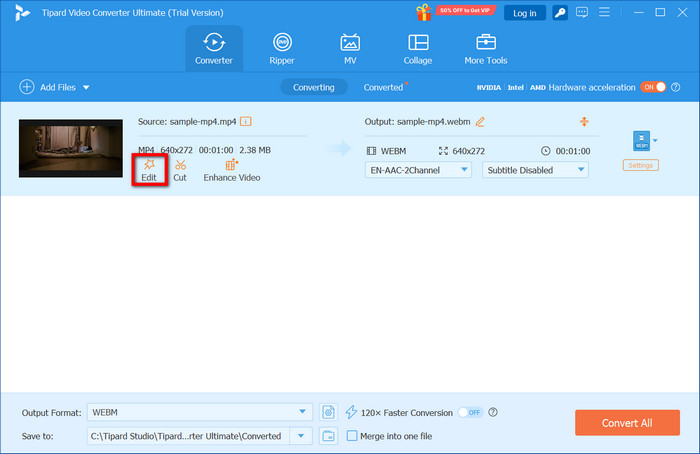
After importing the video file, click on the Edit option at the lower side of the video preview box. This would open up an editing window comprising several tools.
Step 4 Rotate or Flip the Video
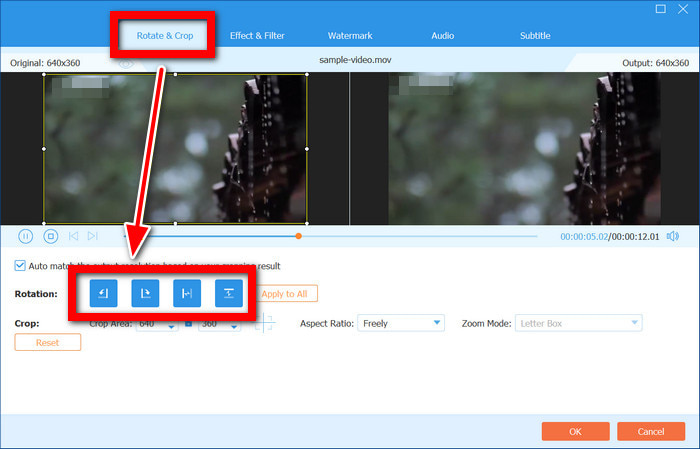
Click on the Rotate & Crop feature. Select any of the options to turn the video a quarter turn to either the left or right. You can rotate it either horizontally or vertically.
Step 5 Select Output Settings
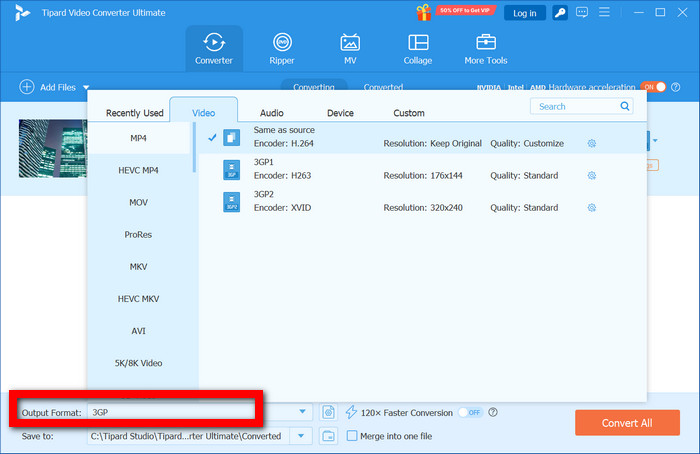
In the Output Format box, pick a required format, resolution, and quality. This software allows converting files into many formats which can be used for your cell phone, social media, televisions, and computers.
Step 6 Convert the Rotated Video
Pick a directory and click Convert All to save the converted, rotated video.
Part 3. Easily Rotate Video on iPhone and Android
With the appropriate video editor software, the rotating process on your phone becomes an easy task. Here are some aspects of why CapCut is preferred by iPhone and Android smartphone users. Some of the benefits of this app include a user-friendly interface, real-time preview, editing tools, and a quick rotating option.
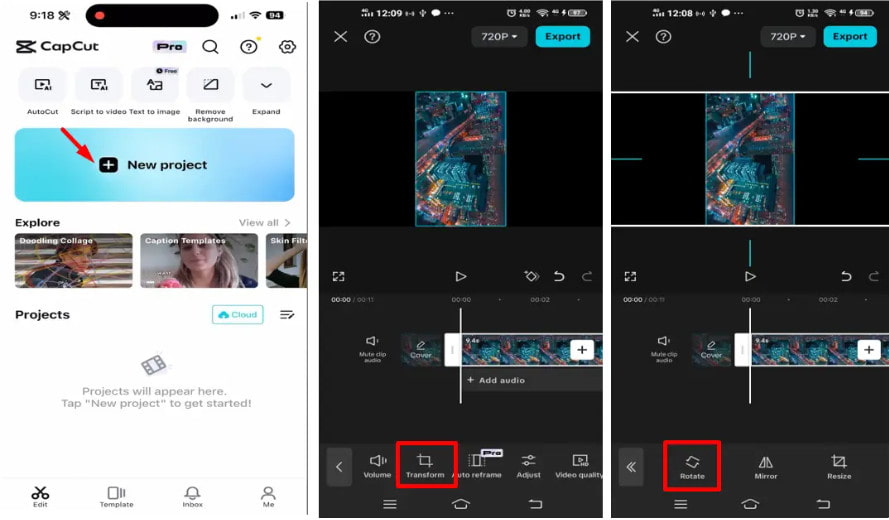
Step 1 Get the CapCut app from the App Store or the Play Store and open it up. Then you need to choose the option to make a project.
Step 2 When CapCut is open, look for the video you want to edit in your photo album. Then you just pull it down to the timeline.
Step 3 Pick the video clip on the timeline. Tap the Edit button. Choose Rotate to turn it around 90 degrees.
Step 4 Click the Play button to see the video. You can do editing if you need to.
Step 5 In the right corner, you will see the Exportbutton, so click on it.
Part 4. Professional Ways to Rotate a Video
Method 1. Rotate a Video with FFmpeg
FFmpeg is an advanced multimedia tool used for the conversion and editing of videos. It supports all kinds of video formats and enables users to rotate the video with ease through commands without having to start the video editing tool. It is fast and efficient in rotating videos and processes them in real-time as well.
Step 1 Download the FFmpeg software. Install it on your computer.
Step 2 If you are using Windows, open the Command Prompt. If you have a Mac, open the Terminal.

Step 3 To turn the video 90 degrees, type this command:
ffmpeg -i input.mp4 -vf "transpose=1" output.mp4
Step 4 Press Enter to make the command work in the Command window.
Method 2. Rotate a Video with Adobe Premiere Pro
Adobe Premiere Pro is a professional video editing software for content creators, filmmakers, and video editors. It offers accurate rotation management, powerful video editing, and high-resolution video support, ensuring it is a dependable option for professional video tasks.
Step 1 Start Premiere Pro and create a new project. Upload the video you wish to rotate.
Step 2 Drag the imported clip onto the editing timeline.
Step 3 Click on the video clip and then click the Edit Effect Controls button.
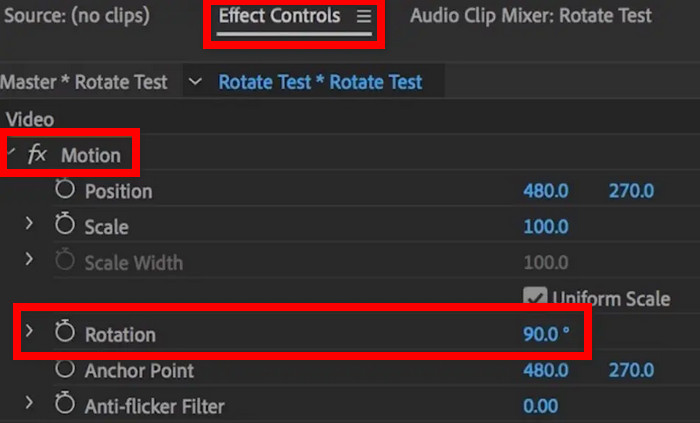
Step 4 Locate Motion > Rotation. Type the angle of the desired measurement: 90, 180, or 270 degrees.
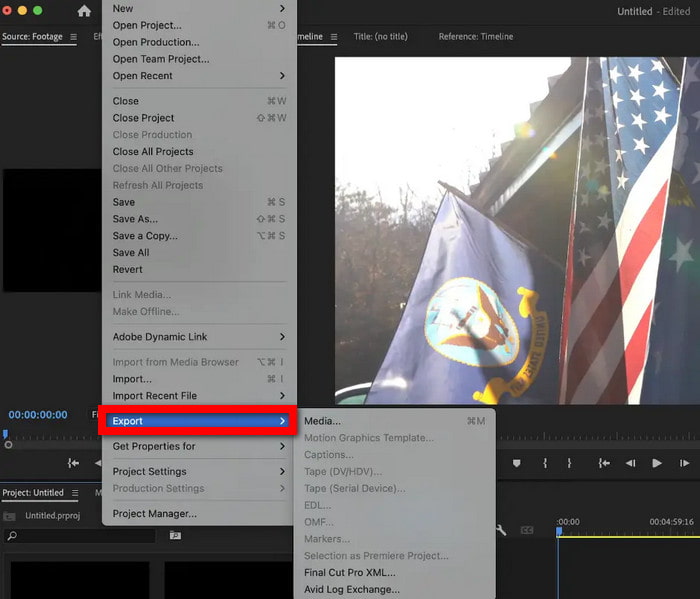
Step 5 Once the clip has been rotated, export it in the desired format and quality.
Bonus: Tips for Rotating Videos Without Losing Quality
It is very simple to rotate a video, but once it has been rotated, if it is not exported in the proper way, or if editing is done too frequently, the quality of the video suffers. Here are some very simple tips to improve the quality of the post-rotation footage.
1. Source high-resolution Footage:
When a video is rotated, and a low resolution is used to export the video, the outcome is going to be far less sharp when compared to the outcome using a high-resolution source video. When using low-resolution source video, using a bitrate and aspect ratio editor along with the correct export settings can be an improvement to video quality and keep proper video alignment in the process.
2. Do not Export Repeatedly:
A video can be exported in many ways, which can also reduce its quality. It is advisable to complete all the editing first, and only then perform the final save of the video.
3. Keep the Original Aspect Ratio:
As the aspect ratio is maintained, the video will not be stretched or compressed after rotation.
4. Select the Appropriate Output Format:
The formats, such as MP4, with H.264 or H.265 codecs, help to maintain quality without consuming too much space.
5. Preview Before Exporting:
Before saving the rotated video, be sure to always preview it and look for black bars, cropping, or the video being rotated incorrectly.
Part 5. FAQs on How to Rotate a Video
Does rotating a video change the file size?
It can. When the video is rotated, the file size can end up bigger or smaller based on the codec, bitrate, export settings, and resolution. The video editor determines these settings.
I rotated my video, but why does it look stretched?
If you do not set the correct aspect ratio when you edit or export your video, it can end up looking stretched when you rotate it. If you maintain the aspect ratio and the resolution, the video will be in the right proportions.
Can you only rotate a portion of a video?
You can. Most video editors will allow you to break apart the video, rotate it, and still keep the option of applying video filters to the other parts.
Conclusion
In conclusion, rotating a video to the correct orientation is an easy task and can be done on the go with the right tool, such as Tipard Video Converter Ultimate. You are able to quickly correct the orientation with the video footage ready to be published on any platform.
All-in-one video toolbox: convert, edit, upscale, enhance, and compress your videos easily
100% Clean & Safe
100% Clean & Safe

More Reading


About the Author

 Click here to join the discussion and share your comments
 Tipard Video Converter Ultimate