

A great MOV to AVI conversion tool is needed when MOV file playback issues occur on certain devices or media players. This is a common issue when dealing with files collected from iPhones or cameras, among others. Certain devices or media players do not support the files collected. In this review, we study tools to convert MOV to AVI; their performances, features, usability, and playback.

Part 1. MOV vs. AVI - Why You Need the Conversion
| Aspect | MOV | AVI |
|---|---|---|
| Developer | Created by Apple for QuickTime. | Developed by Microsoft. |
| Compatibility | Works best with Apple devices and software. | Widely supported on Windows and many media players. |
| File Size | Often larger because of high-quality encoding. | Usually smaller, depending on compression settings. |
| Video Quality | Excellent for high-resolution and professional editing. | Good quality with flexible codec support. |
| Compression | Supports advanced compression technologies. | Compression efficiency depends on the codec used. |
| Best Use | Ideal for video editing and Apple ecosystems. | Better for sharing, playback, and broader compatibility. |
Why You Need to Convert MOV to AVI
- Better Device/OS support: AVI files support more devices and OSs; there is no problem with the code for AVI.
- Make sharing simpler: If someone can play your MOV files, they can play the video file and play it back without any problem after you have changed the MOV to an AVI file.
- Avoid playback error: Some systems do not support MOV, so the playback rate for AVI can be higher in any system.
- Support the sparse editing tools: The AVI file can be managed with many software applications on the computer, especially with Windows ones.
- Smaller Size and easy transferring: Different from MOV, AVI movie files can be compressed for a smaller file size.
- Extended compatibility: The AVI file format has more devices supporting it than the MOV file, especially when playing on the oldest multimedia device.
Part 2. How to Convert MOV to AVI with Original Quality
Tipard Video Converter Ultimate is an ideal choice for those who need an efficient and stable desktop application to convert MOV to AVI and retain the quality of their videos. This tool is capable of processing very high-resolution files and clear videos. In addition to format conversion, the tool also has integrated editing features and hardware acceleration to enhance the editing process.

- Several AVI output video policies can be used for different outputs.
- Resolution, bitrate, and/or frame rate can be tweaked based on AVI settings.
- Batch converts multiple MOV files simultaneously.
- Maintain performance during conversion.
- Support of Remuxing and Transcoding for flexible & quality control.

Step 1 Software Installation
Firstly, please download and install Tipard Video Converter Ultimate on Windows or Mac.
Step 2 Import MOV files
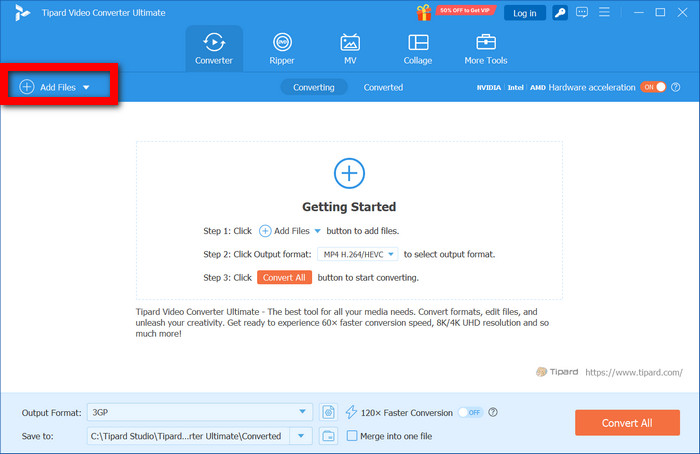
You can add MOV files either by clicking the Add Files button or directly dragging your files onto the screen. There is support for batch importing files.
Step 3 Choose Output Format
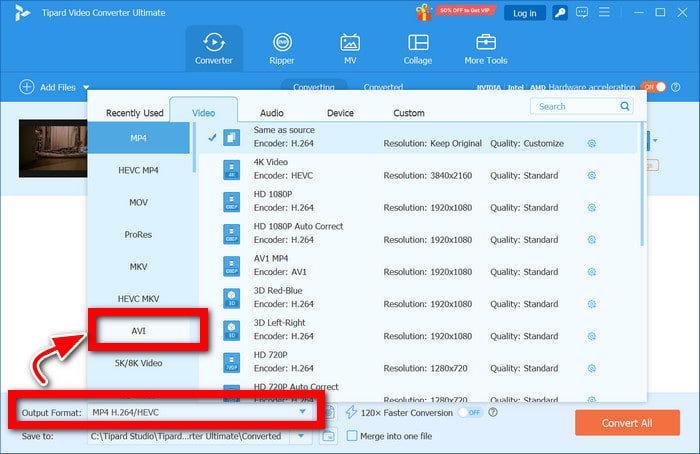
To choose the output format, please click the Output Format drop-down list, select AVI, and then choose the quality of output videos with presets as you want.
Step 4 Video Settings
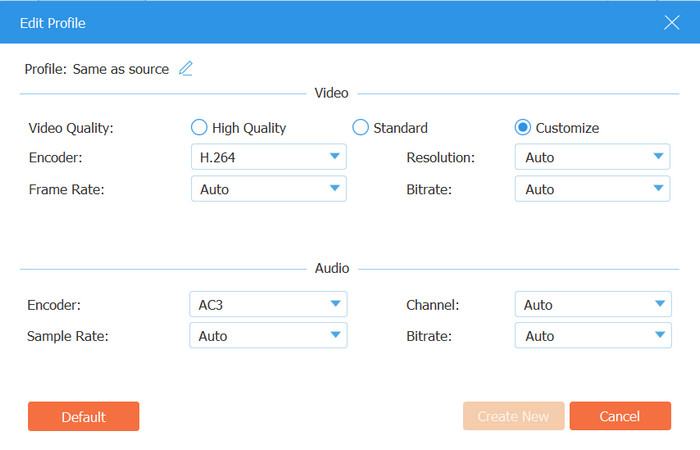
You can customize options of video format, such as frame size, bitrate, frame rate, and encoder.
Step 5 Choose The Saving Destination
It is possible to choose a separate folder for saving the converted AVI files.
Step 6 Starting The Conversion
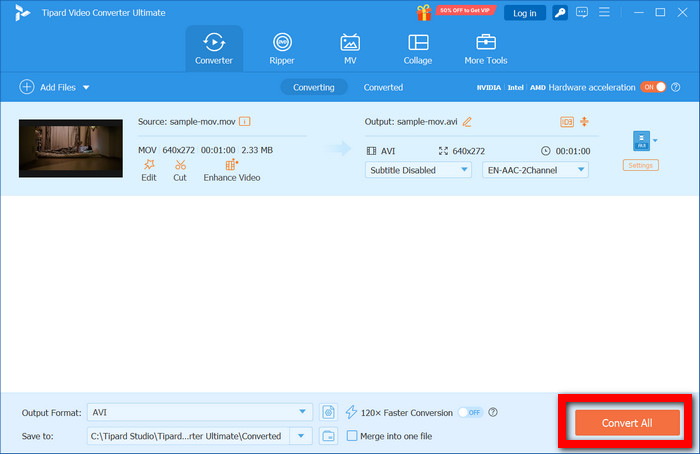
By selecting the Convert All option, you start the MOV to AVI conversion.
- Over 500 supported audio and video formats.
- High-quality conversion with a very low chance of detail loss.
- Thanks to the Built-in Hardware, the conversion process is completed quickly
- Built-in editing and enhancement tools to edit your videos.
- The application can handle videos with resolutions of up to 8K.
- The free version provides limited functionality.
Part 3. How to Convert MOV to AVI with VLC Media Player
People know VLC Media Player as a free, open-source media player, but many overlook a hidden, useful conversion feature. Though not a primary intent of the software, VLC can still accomplish a basic conversion task. For example, MOV to AVI transfer can happen with no downloads or add-ons, just using VLC. For lightweight, free video conversion, this is a good solution. Due to being a free, simple software, limitations on conversion speed and controls are acceptable. When comparing this to a professional video converter, limitations are more obvious.
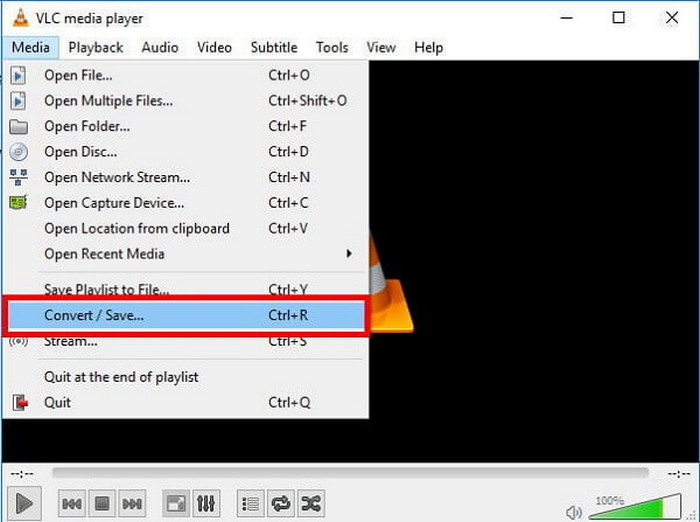
Step 1First of all, turn on VLC. Then, click on Media, click on Convert/Save.
Step 2Then, click on the Add button and add your MOV file. Click on the Convert/Save button again.
Step 3Under the profile window, we want to set up AVI settings, as well as all the details for the conversion (VLC does not allow any customization in this).
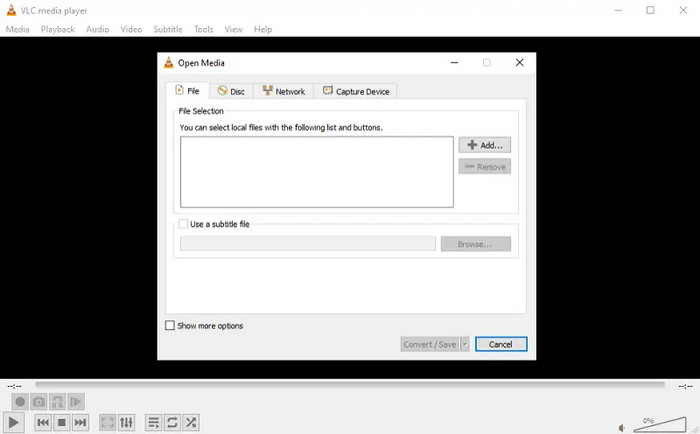
Step 4Lastly, type in the filename as well as choose where we want to save the output file by clicking on Browse, and name the Save As:.avi
Step 5Once all this is done, click on Start and enjoy our new video, which is converted from MOV to AVI using the VLC built-in encoder.
- Free, open source software.
- No ads, watermark, or installation cost.
- Supports Windows, Mac, and Linux.
- Very lightweight and ubiquitous.
- Minimal adjustment and customization over output.
- Relatively slow with large or high-resolution video.
- No advanced video editing features.
- Quality output can be difficult to control.
Part 4. How to Convert MOV to AVI with Freemake Video Converter
The Freemake Video Converter is a great option for your Windows computer if you need a simple MOV to AVI converter. This converter simple drag and drop, and build your own command phrase, simplifies the whole process for beginners.
Freemake has little regard for security, and some of the videos you use with the free Freemake converter have significantly diminished quality.
Step 1Download Freemake Video Converter. After downloading the installer for the Freemake video converter, install the Freemake video converter, and follow the prompts your computer gives.
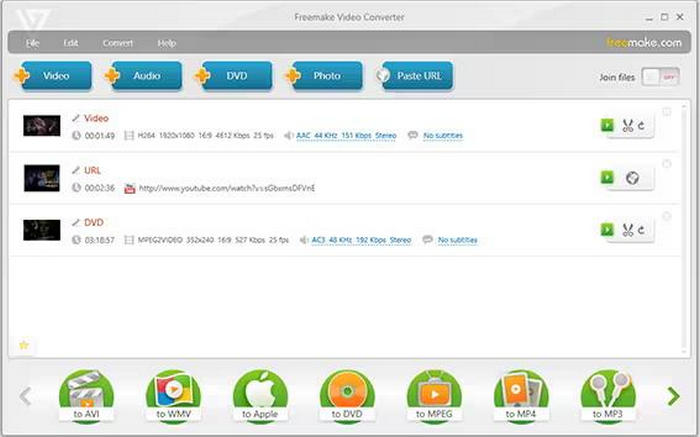
Step 2Click +Video and add to your Freemake video converter the MOV file you wish to convert.
Step 3Use the mouse to click the AVI option at the bottom of your window.
Step 4Select your destination folder, where the conversion is saved, and your quality preference, and the conversion is initiated when you click Convert.
- User-friendly interface.
- Supports various text formats.
- Built-in Media editor.
- Supports multiple conversions at once.
- Watermark in videos with the free version.
- Difficulty using Windows.
- Longer time duration for larger video files.
- Need to upgrade to the paid version to increase ability.
Part 5. How to Convert MOV to AVI Free Online
The online option to convert from MOV to AVI is a great way to use your web browser and stay productive for a short time. There are no application downloads to worry about. These can be performed on a variety of devices, which is also a strong feature of this type of service.
CloudConvert is an example of a highly trusted and reliable application, which converts from MOV to AVI with a host of other applications, and the output is of high quality, with a lot of settings you can adjust for your ideal preference.
Step 1Use a web browser on your computer to locate CloudConvert and select its site.
Step 2Click Select File and upload the MOV video from your computer, cloud storage, or URL.
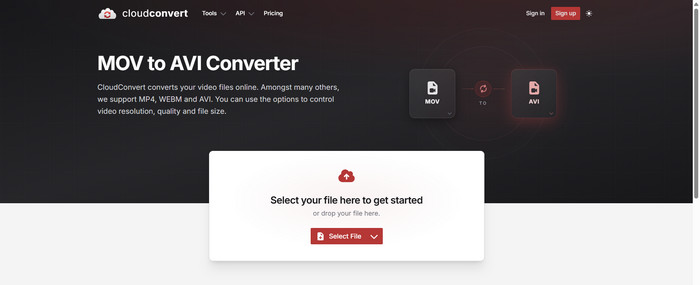
Step 3Set the conversion format to AVI from the available video format options.
Step 4Open the settings menu to adjust resolution, codec, bitrate, or quality based on your needs.
Step 5Click Convert, wait for the process to finish, then download your AVI file.
- No software installation required.
- Works on any browser-enabled device.
- Supports multiple file sources (PC, cloud, URL).
- Allows basic output customization and video correction.
- Simple and beginner-friendly.
- Needs an Internet connection to hold.
- There is a limit on file size for the free version.
- Letterhead with large pictures - slower.
- Uploaded content handling is the key to privacy.
Part 6. FAQs of MOV to AVI
Does changing MOV to AVI destroy the subtitle tracks or sync the audio?
Assuming you do not specifically have subtitle support for the converter, in most cases, subtitles would not copy over automatically. All audio sync-up problems are rare, but can occur if the wrong frame rate and codec settings were selected for conversion.
Can I convert 2 MOV to AVI without losing any of the metadata information?
Certain information, like the title, author, or creation date, might not be included in the MOV to AVI conversion. It is highly reliant on the tool that is being used, as most video-to-video and audio-to-audio streamers exist.
Can an AVI video file be uploaded to social media pages?
AVI is unlikely to be the best file format if you are uploading to social media, as many platforms prefer MP4, so using AVI to MP4 is often recommended for better compatibility. AVI files are heavier and not optimized for streaming over the web, and as a result, can affect upload time and/or playback performance.
Conclusion
With the help of a MOV to AVI converter, you will get better compatibility and playing experience on various devices and media players. In conclusion, the selection of the appropriate instrument facilitates the process of video conversion and thus helps to take care of viewing videos daily without the restrictions on video playback.
All-in-one video toolbox: convert, edit, upscale, enhance, and compress your videos easily
100% Clean & Safe
100% Clean & Safe

More Reading



About the Author

 Click here to join the discussion and share your comments
 Tipard Video Converter Ultimate