

When Instagram videos cannot play, it can completely ruin scrolling for users. Reels can freeze, videos can refuse to play, and stories will be stuck loading. Picture this. You open Instagram to scroll during your break, and all you see is a loading symbol. This can happen on Androids, iPhones, and computers. Broken videos, bad internet, and outdated apps can cause this problem. This article will help you troubleshoot your Instagram videos not playing.

Part 1. Why is Instagram Video Not Playing?
Instagram has a large library of videos that can be viewed in the reels or on the feed. Videos also appear on the stories. Videos freezing on Instagram can be a large nuisance, as they seem to appear more often than they should. To begin solving this issue, you need to identify why it happens. If videos are corrupt on your device, or you have app problems, including glitches and video playback, these are the reasons you may be unsuccessful on Instagram.
1. The Instagram app is outdated: An app version that is out of date may include glitches, or other problems like unsolvable videos that are not playing.
2. Poor or unstable internet connection: Slow Wi-Fi or mobile data can cause videos to buffer or not play at all.
3. Data saver settings enabled: Server problems are another temporary issue when videos are not playing.
4. Instagram server issues: Temporary outages or server maintenance can affect video playback.
5. Unsupported video formats: Instagram has specifically supported formats, and videos may not play if the files are incompatible.
Part 2. How to Fix Instagram Videos Not Playing
To understand and resolve Instagram videos not playing issues, first consider these problems: data saver settings, inconvenient internet connection issues, server problems, etc. Problems like app data corruption, reset settings, or even install settings are just a few of the methods to resolve the issue.
1. Restart the app: Click the x to exit the currently opened Instagram app. Then open it back to refresh the session. Minor glitches should be resolved.
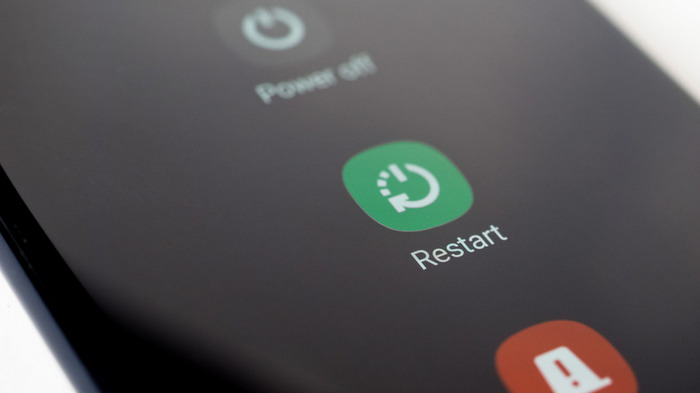
2. Reboot your device: This can clear temporary device issues. These may cause Instagram video playback issues.
3. Background apps: Apps that are opened and not in use should be closed and removed. This can help with Instagram video playback.
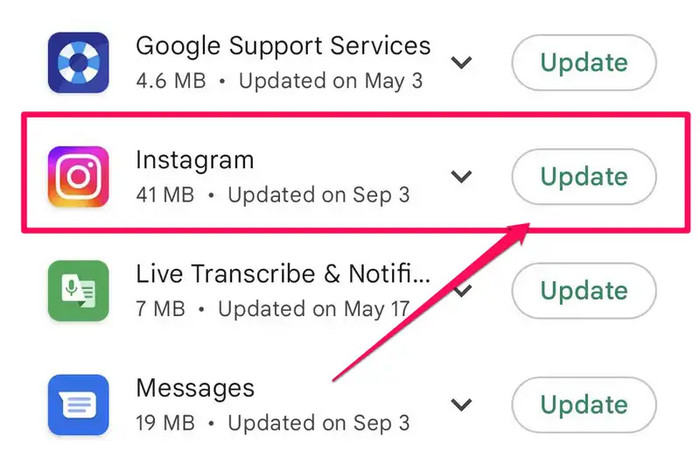
4. Update Instagram: Keep Instagram updated to the latest version to prevent bugs and compatibility issues.
5. Clear cache:
- Android: Settings > Apps > Instagram > Storage > Clear Cache.
- iPhone: Delete and reinstall Instagram.
6. Reinstall Instagram:
Step 1 Remove the app from your device.
Step 2 Reinstall it from the App Store (iPhone) or Google Play Store (Android).
Step 3 Log in and check if the videos play.
7. Disable Data Saver:
Step 1 Go to Instagram > Profile > Menu (three lines) > Settings > Account > Data Usage/Media Quality.
Step 2 Disable Data Saver.
8. Contact support: In the Help section of the Instagram app, select the support link and follow the instructions.
9. Check your internet connection: Switch to a stable Wi-Fi network or reliable mobile data to ensure smooth video loading and playback.
10. Repair corrupted video files: Use a tool to fix broken, damaged, or unplayable video files that would not play properly on Instagram, and convert a video for Instagram if needed.
Part 3. Fix Unplayable Local Videos Quickly and Easily
Videos that become unplayable can be incredibly annoying. This issue can happen for a number of reasons, including editing bugs, download errors, transfer glitches, or a sudden interruption while the video is being recorded. Tipard FixMP4 is a video repair software designed to help you fix video files that have become corrupted or damaged. It has a high success rate and is straightforward, allowing you to repair videos from most devices while keeping the original video quality.

- Automatically repairs damaged videos caused by recording or compression errors.
- Supports MP4, MOV, AVI, 3GP, and H.264/H.265 codecs.
- Repairs videos without changing resolution or sound quality.
- Works with videos from phones, cameras, drones, and camcorders.
- Up to 99.99% success rate with preview before saving.
Step 1 Download and Install Tipard FixMP4
Go to the Tipard website and download Tipard FixMP4. Once it has downloaded, run the installation on your Mac or Windows computer. After the software has been installed, run it.
Step 2 Add the Damaged Video
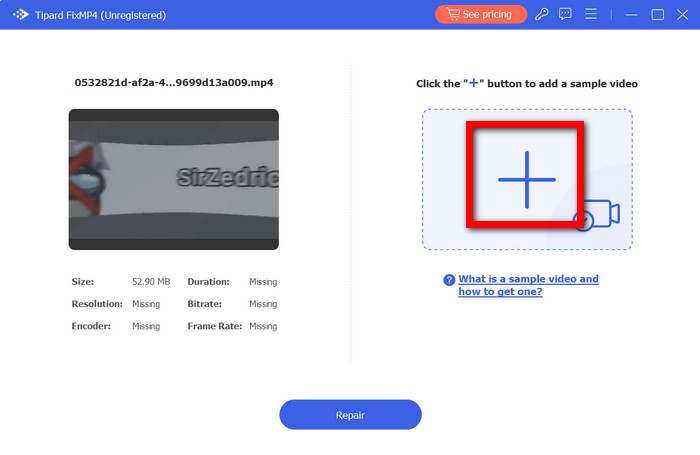
On the left-hand side of the interface, there is a plus (+) button. Hit that to import the video file that is either corrupted or unplayable.
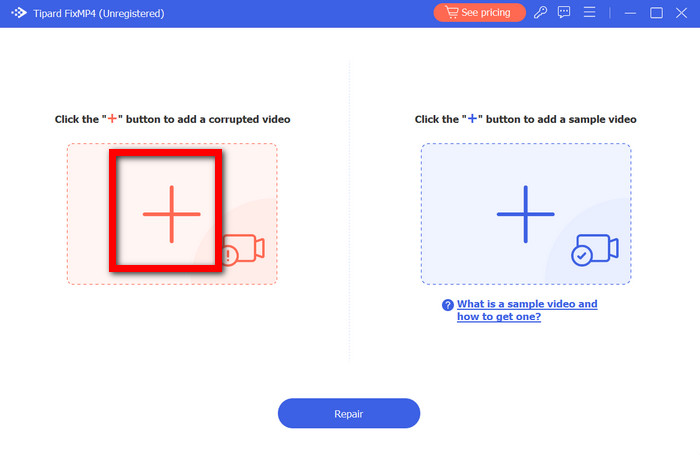
Step 3 Provide a Sample Video
On the right side, there is another plus (+) button. Click that to upload a sample video. This video should have been filmed with the same settings as the corrupted video and on the same device. This will allow the software to match the corrupted video visually.
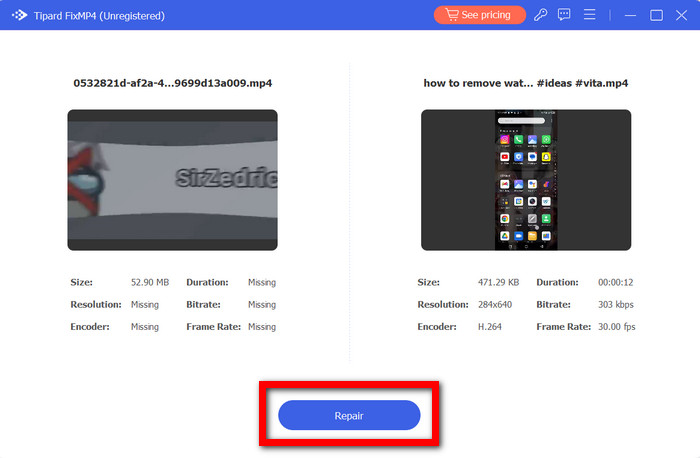
Step 4 Begin the Repair Process
To start the process, click the Repair button. Afterwards, the tool will repair the video and then analyze the damaged file.
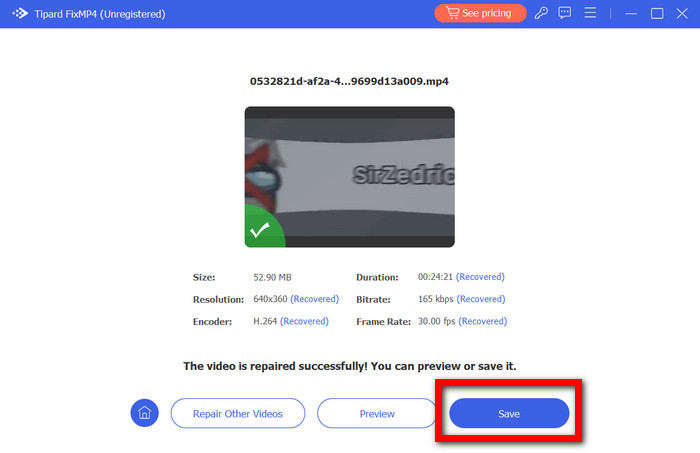
Step 5 Preview and Save the Repaired Video
Once the repair is complete, preview the video to confirm it plays correctly. Click Save to store the repaired video on your computer and improve Instagram video quality.
Conclusion
Videos not playing on Instagram can be annoying, but most issues are easy to fix with the right approach. By checking your internet connection, updating the app, adjusting settings, and repairing corrupted files when needed, you can restore smooth playback and enjoy watching reels, stories, and videos without interruptions.
More Reading



About the Author

 Click here to join the discussion and share your comments