

Compression helps make video files smaller so they are easier to store, share, and play. There are 2 main types of video compression: lossy vs. lossless. And in this write-up, we will talk about them. We will explain their concepts, features, and examples. We will also show a clear table comparing them side by side.
Not only that, but we will also share how to convert your raw or simple videos while keeping visually lossless quality. Are you ready? It is a lot of useful information, so let us get started.

Part 1. What Is Lossy Compression
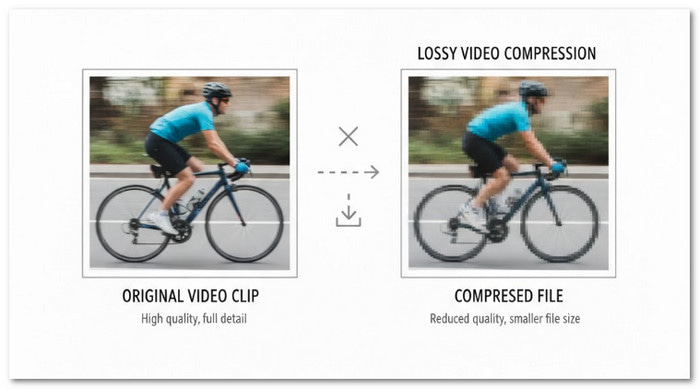
When you watch videos online, they load fast because of lossy compression. This method is common in video streaming and sharing. It focuses on saving space while keeping the video good enough to watch.
Concept
Lossy compression reduces video size by removing some data. The removed data are usually details that most people do not notice. Once this data is gone, it cannot be restored. The goal is smaller files with acceptable quality. This is why lossy video is easy to upload and stream.
Features
- They use less storage space.
- They are faster to upload and download.
- Lossy video files are much smaller in size.
- Some video quality is lost during compression.
- They work well for online platforms and social media.
- Quality loss increases each time the video is re-encoded.
Examples
- FLV was used for older online video platforms.
- WebM is used for web streaming and browsers.
- MP4 with H.264 video codec is widely used online.
- Most YouTube and streaming videos use lossy compression.
- MP4 with H.265 or HEVC offers a smaller size with better quality.
Part 2. What Is Lossless Compression
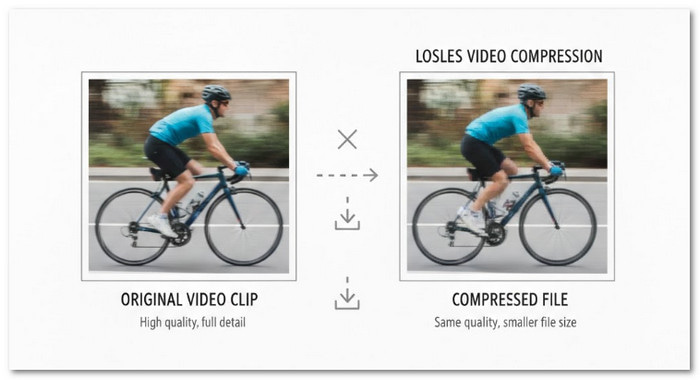
When video quality is the most important factor, lossless compression is used. This technique preserves all of the original video's details. It is typical in professional work, editing, and archiving.
Concept
Lossless data compression reduces file size without removing any data. Every frame stays the same as the original. When the video is restored, nothing is lost. The video looks the same as before compression. It makes it ideal for saving master copies.
Features
- Files are larger than lossy videos.
- Video quality stays 100 percent original.
- No data is removed during compression.
- Best for backups and long-term storage.
- Not ideal for streaming due to large size.
- Videos can be edited many times without damage.
Examples
- AVI with lossless codecs is used in editing and is a good example of lossless compression.
- MKV with FFV1 codec is used for archiving.
- Uncompressed RAW video is fully lossless.
- Avid DNxHR is used in film and TV production.
- Apple ProRes is common in professional video work.
Part 3. Comparison Between Lossy and Lossless Compression
When working with video, choosing the right compression matters. Some methods focus on small file size. Others focus on perfect quality. This lossy vs. lossless comparison makes the difference easy to understand.
| Lossy Compression | Aspect | Lossless Compression |
|---|---|---|
| Lossy compression removes video data that most people cannot notice. | Basic idea | Lossless compression keeps all video data without removing anything. |
| Less important visual details are deleted to save space. | Data removal | No data is deleted, so every detail is preserved. |
| The original video cannot be restored once it is compressed. | File recovery | The original video can be fully restored after compression. |
| Lossy compression reduces the clarity of the video to make the file smaller. | Video quality | Lossless video compression preserves the original quality of the video completely. |
| Files are made much smaller and easier to store. | File size | Files are only slightly smaller, so they take up more space. |
| Re-saving or editing the video can reduce quality further. | Editing safety | Videos can be edited multiple times without losing quality. |
| Requires less storage space for videos. | Storage needs | Requires more storage space for videos. |
| Works well for online streaming and sharing. | Streaming use | Not suitable for streaming because the files are large. |
| MP4, WebM, and FLV are often used for lossy file compression. | Common formats | AVI, MKV, ProRes, and RAW are commonly used to keep full quality. |
| Used for social media, online videos, and streaming platforms. | Typical use | Used for editing, archiving, and long-term backups. |
| Show MoreShow Less | ||
Part 4. Convert Your Raw or Simple Videos with Visually Lossless Quality
Keeping your videos looking exactly like the original while making them easier to store and share is possible with the right tool. Tipard Video Converter Ultimate makes it simple. It supports H.265 and AV1 for mathematically lossless compression, so your videos stay sharp while reducing file size.
You can convert many videos at once with batch conversion. Plus, full hardware acceleration speeds up decoding, editing, and encoding. It also has an easy-to-use video compressor to make files smaller without losing quality. Follow along to see how it works in each step!

- Delivers up to 120 times faster conversion speed.
- Supports more than 500 video and audio file formats.
- Allows easy editing and personalization of your videos.
- Provides additional video tools, such as a compressor and video enhancer.
- Lets you tweak output settings, including resolution, frame rate, and bitrate.

Step 1 Download Tipard Video Converter Ultimate from the buttons provided. Once the download is complete, open the installer and complete the installation by following the instructions.
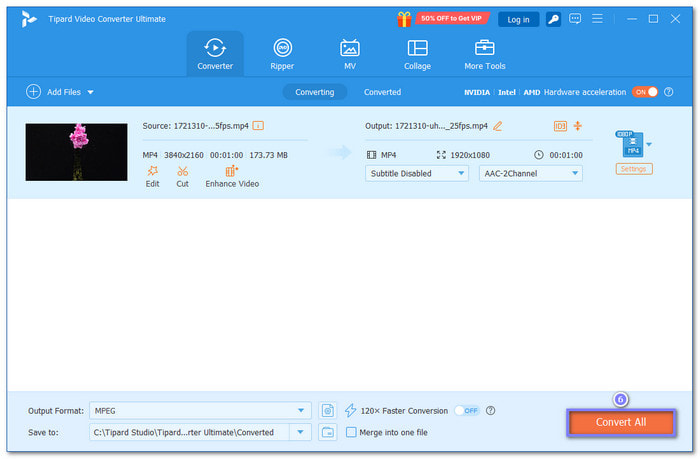
Step 2 You will see the main interface, which opens directly to the Converter tab. Hit Add Files to select the raw or simple videos you want to convert. If you have several videos, you can add them all at once.
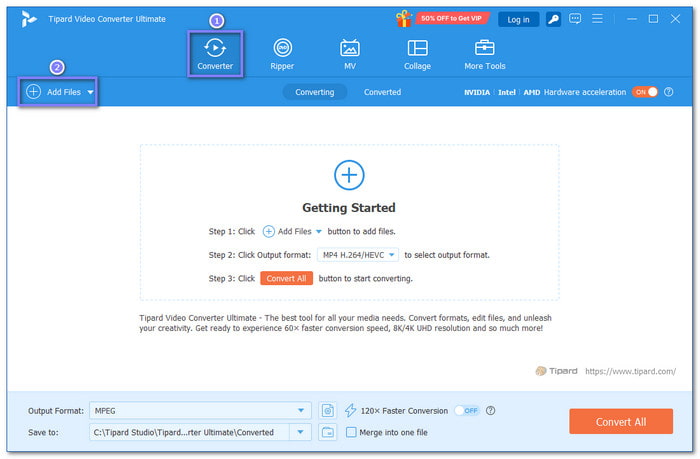
Step 3 After adding your videos, open the Profile drop-down menu in the upper-right corner. Now, select a format that supports HEVC (H.265) or AV1. To make it faster, you can type HEVC or AV1 in the search bar to see all compatible formats, like MP4 and MKV. Picking these formats helps your videos keep visually lossless quality while making the file size smaller.
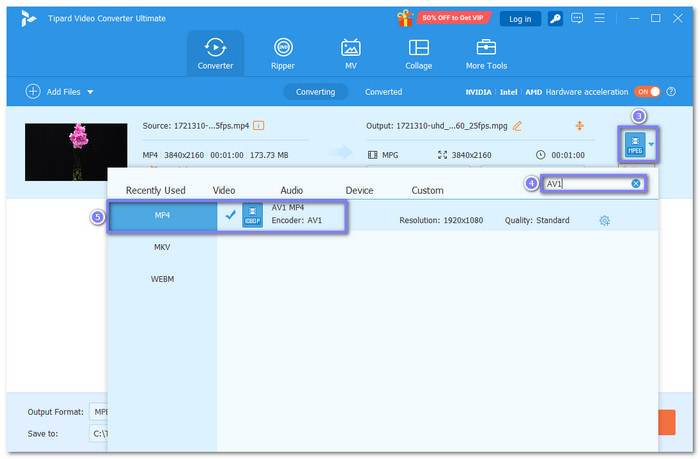
Step 4 Once done, click the Convert All button to start the conversion process. The program will convert your raw or simple videos while preserving their original quality. Once complete, you can find your visually lossless videos in your local folder.
Conclusion
Already understand the difference between lossy and lossless compression? If so, we are happy to be part of that. Simply put, lossy compression makes files smaller by removing some details, which can lower the quality. Lossless compression keeps all details intact, so the video looks exactly like the original.
If you ever need to convert your raw or simple videos while keeping them visually perfect, you can depend on Tipard Video Converter Ultimate. It supports HEVC (H.265) and AV1, which helps keep videos sharp while reducing file size. The program is available on both Windows and Mac, making it easy to use on any desktop.
More Reading

About the Author

 Click here to join the discussion and share your comments
 Tipard Video Converter Ultimate