

Have you ever wanted smaller videos without giving up quality? Lossless video compression offers that advantage. It helps with faster sharing, easier storage, and keeping videos ready for editing or archiving.
Want to learn more about it? Keep reading. This post will cover the top lossless video compression formats and show you how to convert raw videos to lossless codecs. Without further ado, let us get into it.
Part 1. What Is Lossless Video Compression
Lossless video compression is a smart way to make video files smaller without hurting quality. It keeps every detail the same. Nothing is removed. What you see after compression is exactly the same as the original video.
This method is different from lossy compression. Lossy compression throws away some data to save space. Lossless does not do that. It protects the full video. That is the trade-off. You save space, but you keep perfect quality.
Part 2. Top 5 Lossless Video Compression Formats
Lossless video compression formats keep videos clean and untouched. They reduce file size but protect every detail. These formats are often used for editing, backup, and long-term storage.
| FFV1 | FFV1 is made for preservation. It keeps full quality and strong data accuracy. It also checks errors during storage. It makes it safe for archives and libraries. The files are large, but they are reliable. |
| HuffYUV | It focuses on speed. It compresses video fast and plays it smoothly. Editors like it for real-time work. The file size is big, but the quality is exact. |
| Lagarith | Lagarith is a better version of HuffYUV. It creates smaller files. It still keeps full quality. It is often used on Windows systems. It works well for screen recording and editing. |
| H.264 Lossless | H.264 has a lossless mode. It keeps all video data with no loss. The files are smaller than raw video. Media players and editors broadly support it. It makes it easy to use. |
| HEVC Lossless | HEVC lossless is more advanced. It saves more space than H.264 lossless. Quality stays perfect. It needs more power to encode and play. |
Each format fits a different need. So, please choose based on speed, size, or long-term safety.
Part 3. How to Convert Raw Videos to Lossless Codecs
Every detail is preserved while the file size is decreased when raw videos are converted to lossless video codecs. This process is useful for editing, archiving, or sharing high-quality videos. Below, we will provide reliable tools and easy-to-follow steps to help you convert your raw videos safely and efficiently.
1. Tipard Video Converter Ultimate
Raw videos are large and full of details, but working with them can be tricky. Tipard Video Converter Ultimate makes it easy to convert raw videos to lossless video codecs. It supports H.265 and AV1 lossless formats, so you can keep every frame and sound perfectly.
Hardware acceleration ensures fast video transcoding, saving you time without slowing down your computer. There is no problem if you want to work with many files at once, as it supports batch conversion.

- Offer ultra-fast conversion up to 120× speed.
- Edit videos with trim, rotate, crop, filters, watermark, etc.
- Convert 500+ video and audio formats, with device presets.
- Customize output settings like resolution, frame rate, and bitrate.

Learn how lossless video compression works by converting using Tipard Video Converter Ultimate below:
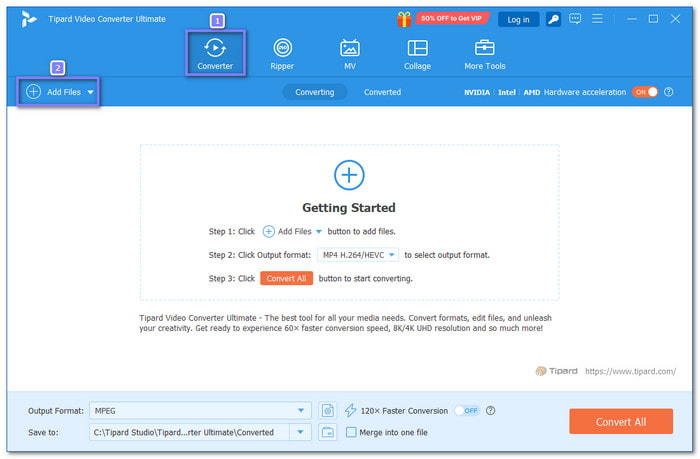
Step 1 You can download Tipard Video Converter Ultimate from the Download buttons provided above. After downloading, install it on your computer to get started. Once installed, open the program, and you will be directed to the Converter tab.
Step 2 Click Add Files to select your raw video, or simply drag and drop it into the interface. You can add multiple videos at once because Tipard Video Converter Ultimate supports batch conversion, making it easy to handle many files at the same time.
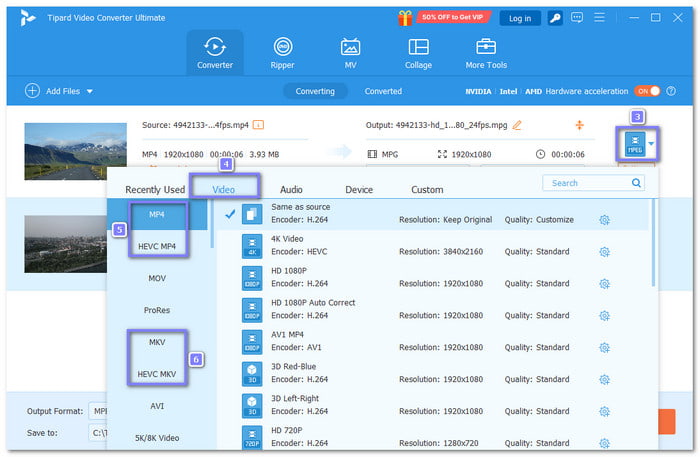
Step 3 Open the Profile drop-down menu in the upper-right corner. In the Video section, choose a format that supports HEVC (H.265) or AV1, like MP4 or MKV. Both codecs allow lossless conversion, keeping every frame and detail intact.
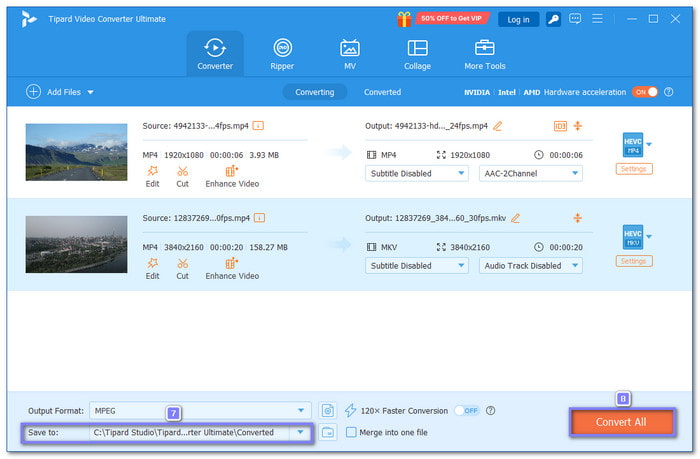
Step 4 After selecting the format, click the Save To option and pick a folder to store your converted video. Once done, click the Convert All button to start. Tipard Video Converter Ultimate will process your raw videos into lossless H.265 or AV1. Once done, your videos are ready to play, edit, or store with full original clarity preserved.
2. VLC
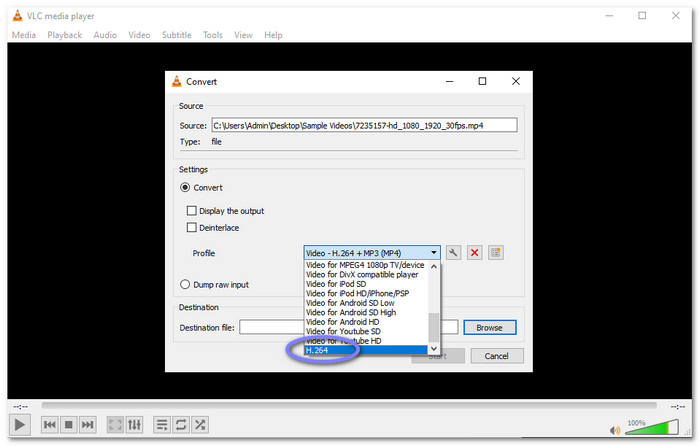
VLC allows you to compress video lossless by converting raw videos using H.264 in lossless mode. It keeps every frame exact while lowering file size from raw output. It also allows you to convert HEVC to MP4, making your videos easier to play on different devices while keeping high quality. The process runs fully offline, so files never leave your device. It is also free and widely supported.
Step 1 First, launch VLC Media Player on your computer. Make sure it is updated for better codec support.
Step 2 Next, click Media at the top. Then, choose Convert / Save. You can also press Ctrl + R.
Step 3 Now, press the Add button, and select the raw video you want to convert. After that, click Convert / Save at the bottom.
Step 4 Open the Profile drop-down, scroll down and pick H264. Once selected, choose where to save the file in the Browse option. Name it clearly. If everything is settled, click Start. The progress bar will show the status.
3. Convertio
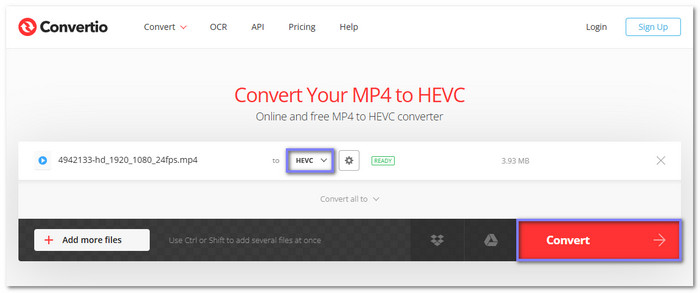
With Convertio, the conversion runs in the cloud, not on your device. You just open your browser, upload your raw video, and select HEVC or AV1. It also allows you to cut your video online by setting just the start and end points you need. It works on phones, tablets, and computers. It acts as a reliable lossless video compressor, making it useful for immediate lossless video conversion anywhere.
Step 1 Open your most used browser and go to the official Convertio website.
Step 2 Click the Choose Files button. It will automatically open your local folder. There, select the raw video you want to convert.
Step 3 Once loaded, open the output menu. Type HEVC or AV1 in the search bar and select it from the list.
Step 4 Now, click Convert. Please wait for the process to finish. Then, download your lossless HEVC or AV1 video.
Part 4. FAQs of Lossless Video Compression
1. What is the best video compression format?
The best lossless video compression format depends on your goal. For high quality and wide compatibility, H.265 (HEVC) is a top choice. It reduces file size a lot while keeping the video sharp. For older devices or easier playback, H.264 is still reliable. If you want to avoid any loss of clarity, lossless formats like FFV1 or HuffYUV are ideal.
2. Can MP4 be lossless?
MP4 is usually a container for compressed video, so most MP4 files are lossy. However, MP4 can store lossless video if you use codecs like H.264 or H.265 in lossless mode. It keeps every frame intact while still using the MP4 container for easy playback.
3. What is the highest quality video format?
The highest quality video format is usually raw video, which keeps every detail uncompressed. For practical use, lossless codecs like H.265 lossless, FFV1, or Apple ProRes offer top quality with smaller files.
Conclusion
You can reduce the size of your video while maintaining all of its details by using a lossless video codec. It preserves clarity perfectly and is best for editing, archiving, or sharing high-quality videos.
If you need to convert raw or large videos efficiently, you can really depend on Tipard Video Converter Ultimate. It handles all major formats, supports lossless codecs, and makes conversion fast and simple.
More Reading


About the Author

 Click here to join the discussion and share your comments
 Tipard Video Converter Ultimate