

When you need to merge MKV files, it often happens during moments when you are organizing old video clips, combining downloaded episodes, or preparing multiple recordings for a clean and continuous playback. Many users find themselves juggling several MKV parts that disrupt the viewing flow or make editing harder. Instead of dealing with separate fragments, merging them into one high-quality file saves time, simplifies storage, and improves the overall viewing experience. This guide walks you through the best tools and methods to merge MKVs without losing quality.

Part 1. Why Merge MKV Files
Joining several videos in different formats can be tricky. Getting a reliable MKV joiner to start with helps a lot to smooth out any possible issues, like quality loss or having to wait long to get a finished product.
1. Organize Multiple Clips Into One File: Merging MKV videos is a nice tip to consolidate several short recordings into one manageable file.
2. Create a Continuous Viewing Experience: Uniting clips removes interruptions, having a smooth play flow with no breaks or stutters.
3. Simplify Sharing and Uploading: Compared to several separate clips, one consolidated MKV file is easier and more efficient to upload, store or share.
4. Prepare Videos for Editing or Publishing: To enhance editing, many video editors combine files to avoid hassles when streaming, exporting, or publishing.
5. Reduce File Clutter: Deleting bulk videos can get messy. Merging helps with a final file setup for others to easily access.
Part 2. How to Merge MKV Files Without Losing Quality
1. Tipard Video Converter Ultimate
Using Tipard Video Converter Ultimate makes merging mkv videos much easier, getting lossless compression and a more reliable and consistent merging with other features like video editing.

- High-quality MKV merging with no re-encoding loss.
- 60× faster merging performance powered by Intel/AMD/NVENC acceleration.
- Built-in video editor to trim, rearrange, and enhance MKV clips before joining.
- Supports over 500 formats, so you can merge MKVs and export in any format you prefer.
- Allows adding subtitles, audio tracks, and effects before final export.

Step 1 Download and Install the Tool
Visit the official website and download the Tipard Video Converter Ultimate, launching the program once installation is finished.
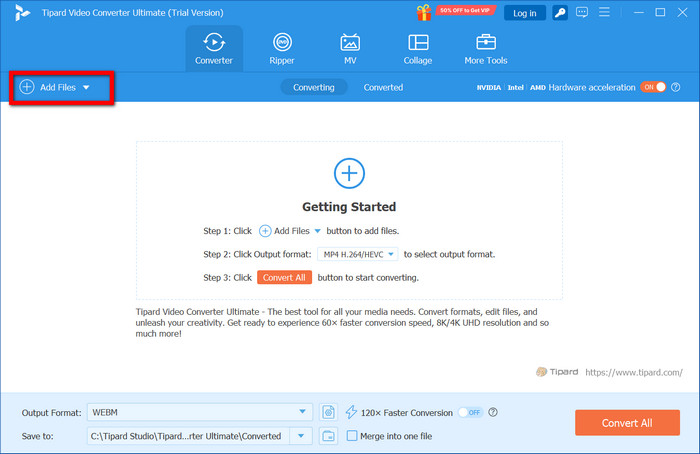
Step 2 Add Your MKV Files
Select Add Files on the upper left and import all MKV videos to combine into one.
Step 3 Organize the Video Order
To follow the order of your choosing, drag the MKV clips up or down the list.
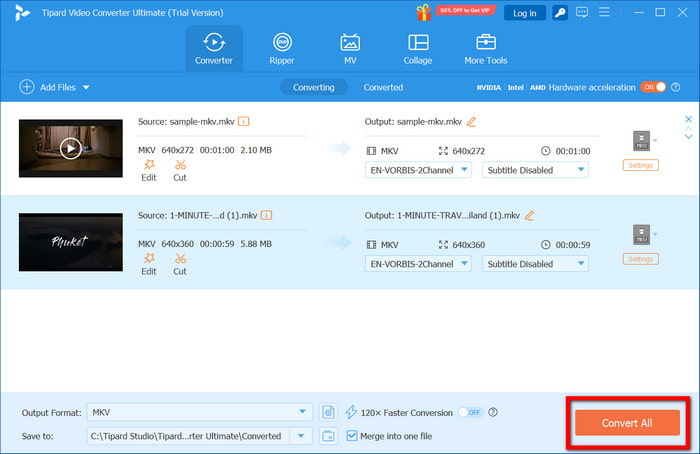
Step 4 Activate the Merge Feature
At the bottom right corner, toggle the Merge into One File option.

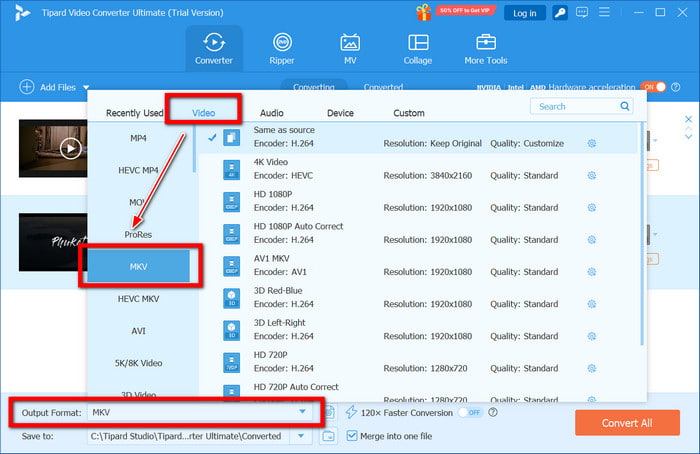
Step 5 Select an Output Format
Under the Video tab, select the same format/codec as the original or MKV to avoid quality loss.
Step 6 Obtain the Final Merged MKV
To export your merged MKV file in full quality, select a file destination, then click Convert All.
2. MKVToolNix
MKVToolNix is a free and lightweight MKV-focused utility designed specifically for creating, merging, splitting, and modifying Matroska (MKV) files without re-encoding, making it ideal for lossless merging.
Step 1 Download MKVToolNix and install it on your machine.
Step 2 Launch MKVToolNix, head to the MKVToolNix GUI, and hit Add Source Files to load your MKV clips.
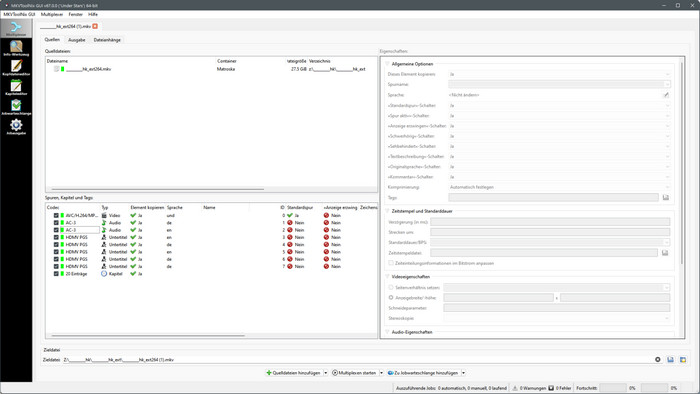
Step 3 Under Output, go to the Append Files option and add the second MKV file to append it to the first.
Step 4 To merge more MKV clips in order, repeat the append procedure.
Step 5 Select a saving location and then click Start Multiplexing to create a lossless composite MKV file.
3. FFmpeg
You can utilize FFmpeg for merging MKV videos without re-encoding, with it being command-line-based and easily customizable for precision. Re-encoding is time-consuming, which can be avoided by using FFmpeg. You can also use FFmpeg extract audio to separate audio from video files quickly. However, it is complex and may require some training.
Step 1 Install FFmpeg and add it to the system path.
Step 2 Create mkv files to the path, then create a text file called merge.txt to include them in.

An example format to include mkv files is displayed below.
file 'clip1.mkv'
file 'clip2.mkv'
file 'clip3.mkv'
Step 3 Place merge.txt in the same folder as the mkv files you are merging.
Step 4 In the command line, run the following command.
ffmpeg -f concat -safe 0 -i merge.txt -c copy output.mkv
Step 5 Your MKV is outputted with the same original quality as it is not re-encoded.
4. VLC Media Player
VLC is not only a media player, but it also offers a basic merging/convert function, which can be utilized for video files. Though it is not as refined as Tipard or MKVToolNix, it can be used for quick merges. Users may sometimes face issues like VLC not playing video repair, but it still works well for simple MKV merging tasks.
Step 1 Open VLC and select Media > Open Multiple Files.
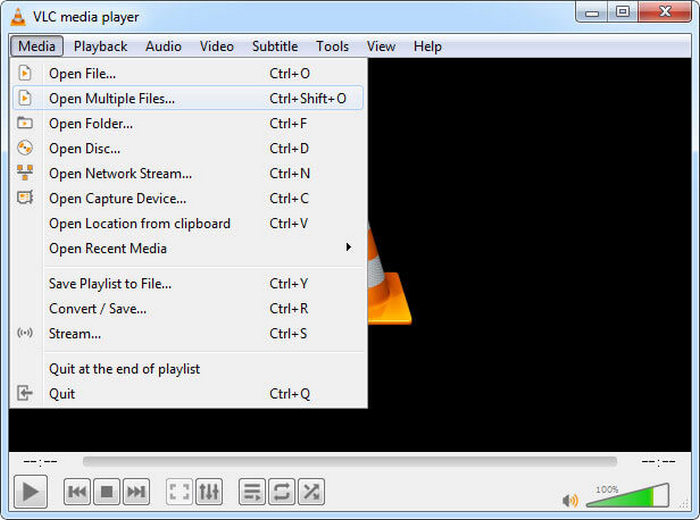
Step 2 Under the file section, click the Add button and select the MKV files.
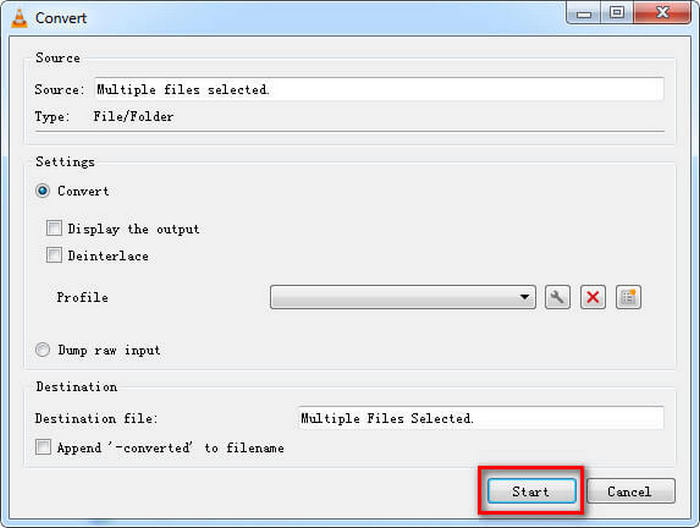
Step 3 In the Play section, select the arrow-down button and click the Convert/Save option.
Step 4 Select an output format. We suggest you pick either MKV or the original codec when you want to keep the quality constant.
Step 5 After you have designated the output folder, hit Start and VLC will process and combine your videos into one MKV file.
Part 3. FAQs of MKV Merge
1. How do MKVToolNix and mkvmerge differ?
The mkvmerge is simply a tool within the MKVToolNix application suite, whereas MKVToolNix is a complete suite of software to create, edit, combine, and modify MKV files.
2. Does MKVToolNix cost anything?
No, it is completely free and open-source software with no subscription, watermark, or other limitations. mkvmerge can therefore freely be used to combine MKV files losslessly.
3. Is it preferable to use MKV or MP4?
The MP4 format is obviously more compatible with more devices, whereas MKV is more flexible when it comes to codec integration and is more optimal for larger-sized videos or for archiving. Which format to use is determined by your needs when it comes to playback compatibility vs quality.
Conclusion
Using an MKV merger becomes essential when you have multiple MKV clips that need to be combined into a single, smooth, continuous video. This often happens when organizing recordings from cameras, downloaded episodes, or gameplay footage that is split into separate parts. Instead of managing numerous files individually, merging them streamlines storage and simplifies playback. It also makes editing easier, as all clips are consolidated into one file, eliminating interruptions or sequencing issues. By combining MKVs, you create a cleaner, more organized library and ensure a seamless viewing experience, all while maintaining the original video quality.
More Reading




About the Author

 Click here to join the discussion and share your comments
 Tipard Video Converter Ultimate