

Key Takeaways
Conversion from MP4 to 3GP files generally makes videos smaller in size in all respective aspects of the term size, with the following considerations:
- File size: 3GP files have a lower resolution and lower bitrate, which leads to smaller files in storage size.
- Audio: Audio in MP4 files might be converted into a 3GP-compatible audio format, such as AMR-NB or AAC.
- Quality settings: You can set the resolution to be lower and the bitrate and frame rate so that the quality of sight and sound is degraded.
- Hardware acceleration: Some converter applications use their Graphics Processing Unit (GPU) to expedite the conversion process.
Looking for the best MP4 to 3GP converter to make your videos mobile-friendly? This guide explores top desktop and Android tools, step-by-step instructions, and tips to easily convert MP4 files to 3GP for a smaller size, faster sharing, and compatibility.
Part 1. Why You Need to Convert MP4 to 3GP
When it is necessary to have smaller files that have higher compatibility for use with older mobile devices, converting from MP4 to 3GP is a reasonable decision, as MP4 videos are very likely to be of a higher quality.
Benefits of 3GP File Formats:
- Smaller File Size: compact compression of 3GP videos prevents them from taking up a lot of storage space on your phone.
- Lower Data Usage: 3GP videos can be streamed and downloaded much quicker than their MP4 counterparts, as they are specifically designed for lower rates of bit transmission.
- Better Compatibility: Older mobile phones support the use of 3GP video file formats as opposed to MP4 file formats.
- Easier Sharing: 3GP videos can be sent as file attachments to text messages (MMS) and can also be sent much quicker than MP4 files on slow internet connections due to their small sizes.
Part 2. Top 4 MP4 to 3GP Converters on Desktop
1. Tipard Video Converter Ultimate
Tipard Video Converter Ultimate is a convenient video converter application that converts videos with excellent quality, including video formats like MP4 and 3GP. It has built-in video editing functions, and has advanced hardware acceleration and hundreds of formats available. It is the best match for users needing flexible and fast 3GP converting solutions on their Windows or Mac.

- Convert MP4 to 3GP using mobile-optimized presets for smooth playback.
- Convert multiple MP4 files to 3GP simultaneously.
- Uses Intel, AMD, and NVIDIA acceleration for up to 120× faster conversion.
- Reduce file size by adjusting resolution, bitrate, and format.
- Trim, crop, rotate, enhance, and add subtitles before exporting.

Step 1 Install Tipard Video Converter Ultimate
Go to the main site of the application, select your computer operating system, and then do the required steps to install the application on your computer.
Step 2 Start the app
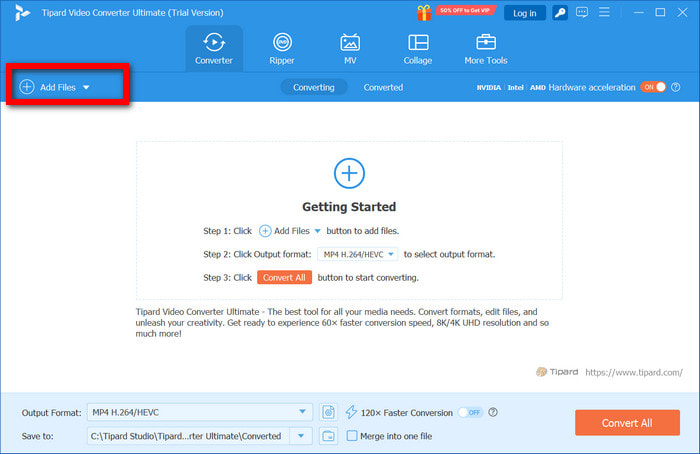
Once the application has been successfully installed on your computer, start the application and click on Add Files to select the MP4 video or videos you want to convert.
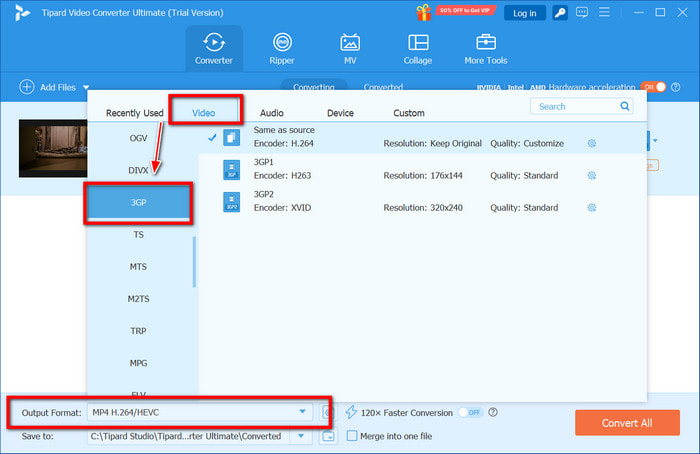
Step 3 Select 3GP in the output format options
To do this, click on the Output Format drop-down box on the right side. From the options that have opened up, select Video, and then select 3GP. From the options that open up, they will all be presets.
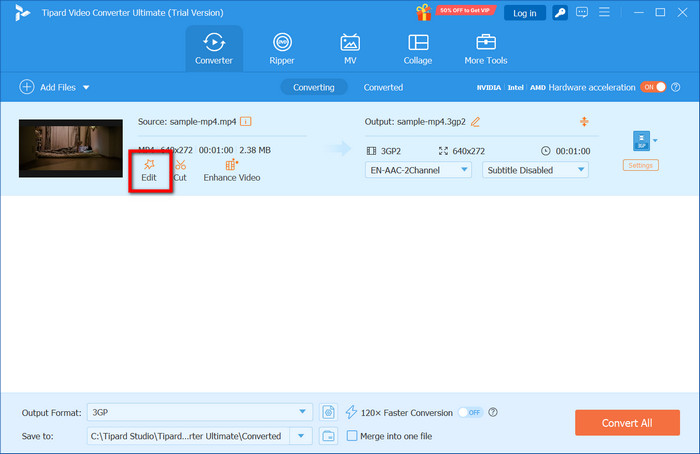
Step 4 Customize the video. (optional)
If you want to customize the video details like codec, resolution, bitrate, or frame rate, you can do that by clicking on Edit.
Step 5 Choose the output folder
Decide and select the folder in which the converted 3GP file will be saved.
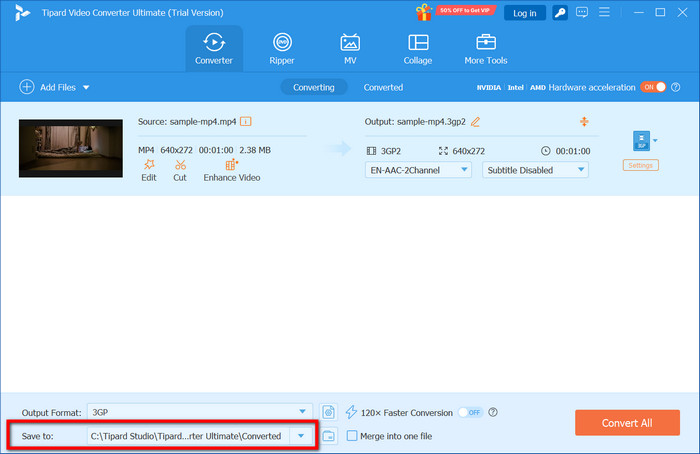
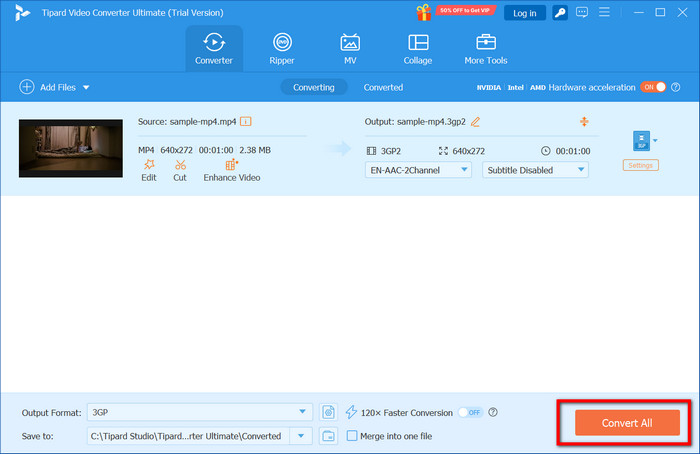
Step 6 Convert the video
To start the conversion process of the MP4 video to 3GP, click on Convert All.
2. Freemake Video Converter
One more example of a versatile desktop tool is Freemake Video Converter. The tool supports a variety of audio and video formats, such as 3GP. The tool also has output settings such as resolution, codec, and bitrate.
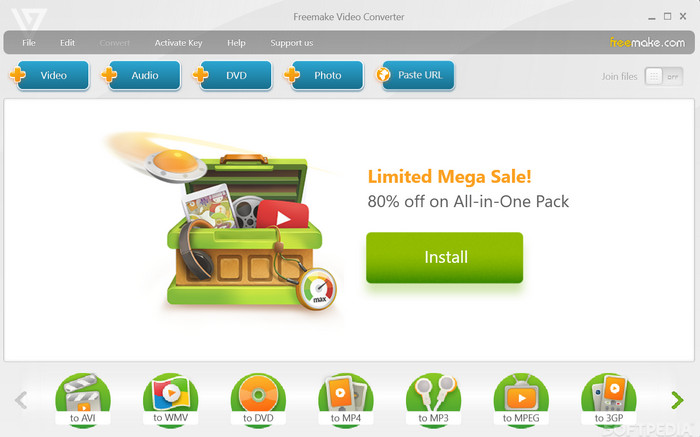
Step 1 Download Freemake Video Converter, install and run it.
Step 2 Click + Video to upload the MP4 files to be converted.
Step 3 At the bottom of the interface, select 3GP to choose from the various formats available.
Step 4 Choose the output folder where the converted 3GP file will be saved.
Step 5 Click Convert, and the process of converting the MP4 files to 3GP will start.
3. FFmpeg
FFmpeg is a free, open-source command-line tool available for video and audio format conversion. Although the tool is powerful and flexible, it requires technical knowledge and a command-line interface to be used competently.
Step 1 Download and install FFmpeg and run it.
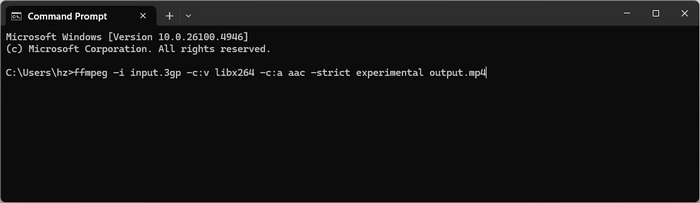
Step 2 Open the Command Prompt (Windows) or open the Terminal (Mac/Linux) in order to run it.
Step 3 Type the command shown below. You will need to modify the file names accordingly:
ffmpeg -i input.mp4 -vcodec libx264 -acodec aac -s 352x288 output.3gp
Step 4 The conversion of the MP4 to 3GP will start after you click the Enter key.
4. Zamzar (Desktop Browser-Based)
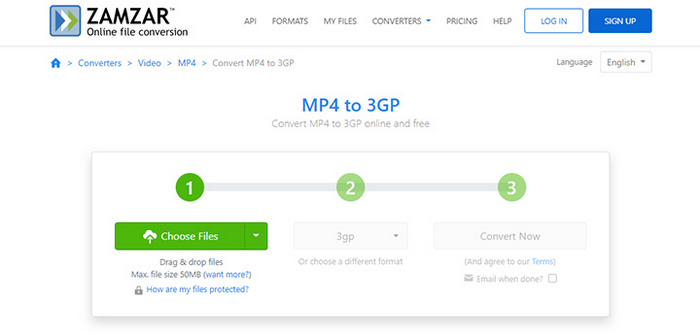
Zamzar is one of the many online video converters that work in a web browser and do not require any downloads, and it also offers basic video correction features. This makes it easy to do one-off conversions, but without paying for an account, the maximum file size is 50MB.
Step 1 Go to the Zamzar website.
Step 2 Click Choose Files and select the MP4 video you want to upload.
Step 3 Choose 3GP for the format you want to convert to.
Step 4 Finish by clicking Convert Now.
Step 5 When the 3GP file is done converting, you will be able to download it.
Part 3. Top 2 MP4 to 3GP Converters on Android
There are two trustworthy applications that you can use to convert MP4 to 3GP on your Android device.
1. Video Converter - Compressor
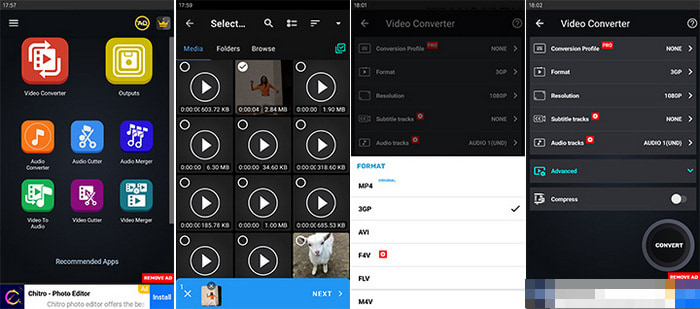
This is an easy-to-use mobile application and is one of the most common and dependable apps for Android devices. It works with many video and audio file formats, including 3GP, and also features a built-in video compressor for reducing file size without losing quality.
Step 1 Go to the Google Play Store and download and install the application.
Step 2 After the application installs, open it and select Video Converter on the main page.
Step 3 Choose the MP4 video you want to convert from your device.
Step 4 Set the output format to 3GP.
Step 5 Modify the resolution, bitrate, and any other settings as desired.
Step 6 Press Convert to finish the steps and begin the video conversion.
2. MP4 to 3GP Converter
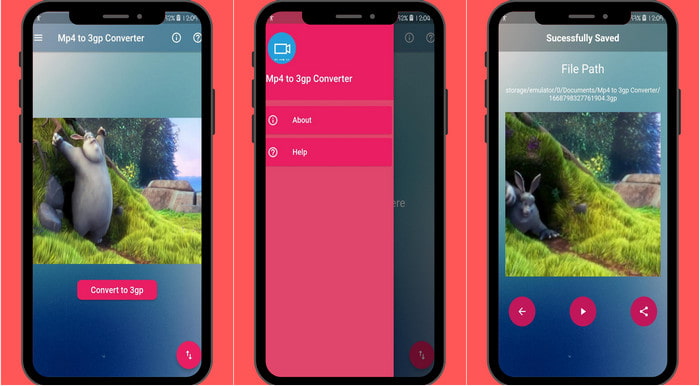
This app is fast and very simple, created for the sole purpose of converting MP4 files to 3GP format. It has the best functionality for simple format conversions, which is ideal for people who want to convert files quickly without having to deal with a bunch of different options or editing capabilities.
Step 1 Get the MP4 to 3GP Converter from the Play Store.
Step 2 Open the app and allow it to access your storage.
Step 3 Select the video or Add to bring in your MP4 video.
Step 4 Set the output format to 3GP.
Step 5 Hit Convert.
Conclusion
To convert MP4 to 3GP efficiently, you can choose from desktop tools like Tipard Video Converter Ultimate or others, or Android apps for on-the-go conversion. Each option offers speed, quality, and flexibility, making it easy to share videos across devices and networks.
More Reading


About the Author

 Click here to join the discussion and share your comments
 Tipard Video Converter Ultimate