

Opening SWF files can be frustrating because most browsers and devices no longer support Flash. Using an SWF player solves this problem and ensures animations and interactive content run correctly. This article reviews top desktop and online players, explains their strengths, and compares key features. You will find a clear path to selecting the most reliable solution.
Part 1: What Is an SWF Video?
SWF, short for Small Web Format and sometimes called a Shockwave Flash File, is a multimedia file created using Adobe Flash and now it is Adobe Animate. It can include vector and raster graphics, text, audio, video, and simple scripts written in ActionScript. SWF files were designed to compress content, making it easier to share animations, web games, interactive tutorials, and advertisements online.
Since most modern browsers no longer support Flash due to security risks and outdated technology, playing these files directly can be difficult. A .swf player provides a safe and reliable way to open SWF videos, ensuring animations display correctly, interactive elements function, and the original quality is preserved. In contrast to editable FLA files, SWF files are compiled and cannot be edited, and thus, the simplest way to view them is through their own dedicated player.
Part 2: Top 6 SWF Players on Windows and Mac
1. Tipard Blu-ray Player
OS Supported: Windows and Mac
Tipard Blu-ray Player is a powerful tool that makes playing SWF videos simple and smooth. Being a capable SWF file player, it works with not only SWF files but also Blu-ray discs, DVDs, and the most common video formats. The interface is easy to use and clean, and therefore you can easily arrange your videos, play with audio or subtitle tracks and watch your content without any technical hassle. Be it when you are reliving old animations, tutorials, or interactive media, Tipard will make sure that your files will work perfectly with both Windows and Mac.
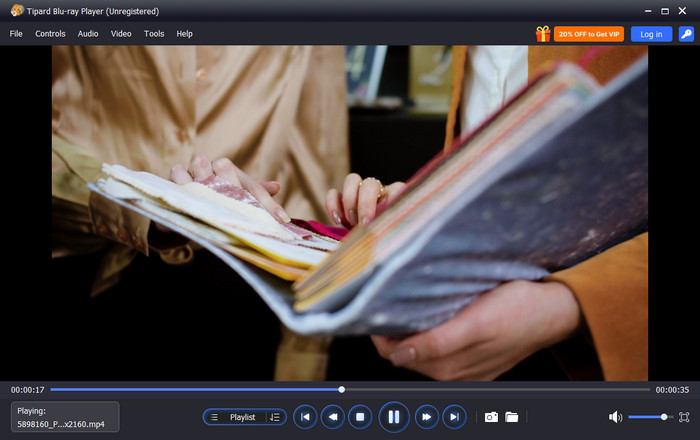
- Smooth, high-quality playback for SWF and other media
- Supports multiple audio and subtitle tracks
- Easy-to-navigate, user-friendly interface
- Works on both Windows and Mac
- Paid software, although a trial version is available
Why I Choose Tipard as a SWF Player?
The virtues of Tipard Blu-ray Player are its ability to allow you to play the SWF files in the best quality, alternate among audio and subtitle tracks conveniently, and easily handle the multimedia library. It is reliable, performance-wise, and simple, and, therefore, is my first choice when it comes to giving it to a person who would like to have a stress-free experience of watching SWF videos today.
2. Adobe Flash Player Projector
OS Supported: Windows and Mac
Adobe Flash Player Projector is an Adobe standalone tool that can execute SWF files without using a browser. It is able to open animation, games and interactive media on your desktop. Being a stable SWF file format player, it offers the accurate reproduction of Flash content and controls are easy and familiar to users.
- Direct playback without browser dependency
- Supports older Flash content accurately
- Lightweight and easy to install
- No updates or support since Flash was discontinued
- Limited to SWF content only
3. VLC Media Player
OS Supported: Windows, Mac, Linux
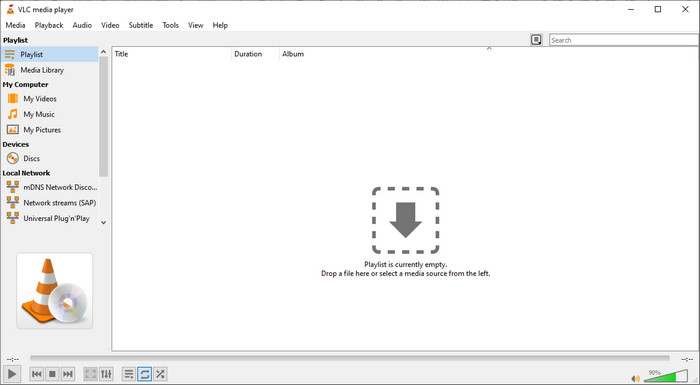
VLC Media Player is a multi-purpose open-source media player that can handle numerous types of files. It can easily deal with SWF videos with the appropriate plug-in. VLC is a SWF format player that can provide you with easy animation and interactive content playback without any additional programs. Though you can merge SWF files into one with VLC, due to its format nature, you still need to convert them first into a standard format like MP4.
- Free and open source
- Cross-platform compatibility
- Can handle many video and audio formats
- SWF playback requires additional configuration
- Interactive SWF elements may not always work
4. SWF & FLV Player
OS Supported: Windows
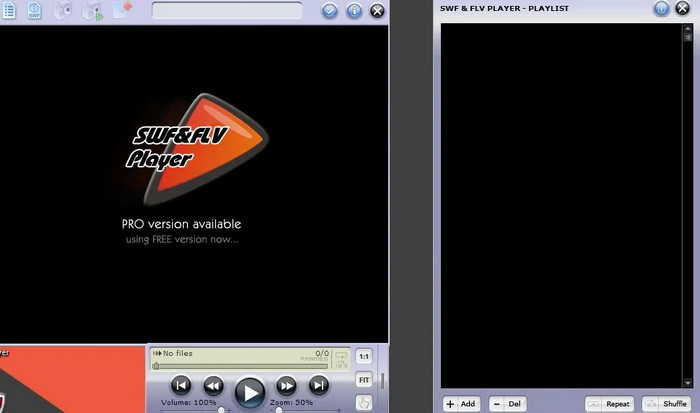
SWF & FLV Player is developed to support Flash video files such as SWF and FLV. It enables you to play animations, games, and other Flash movies fast. This utility plays like a .swf file player, providing simple controls to users to see Flash files without much strain.
- Lightweight and fast
- Dedicated SWF support
- Simple, no-frills interface
- Windows only
- Limited advanced features
- The interface looks dated
5. GOM Player
OS Supported: Windows
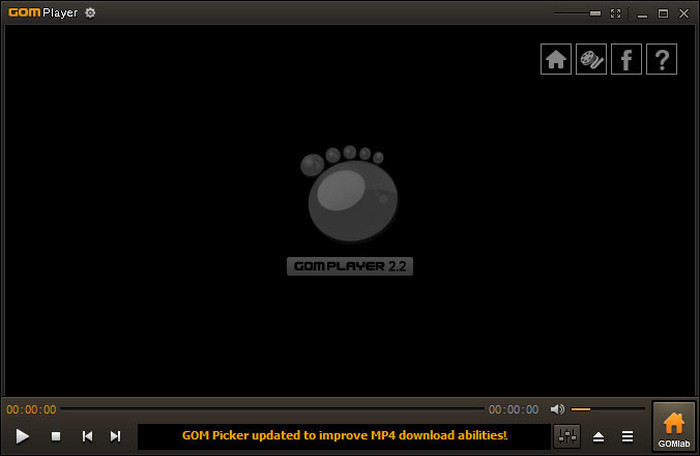
GOM Player is a popular multimedia player known for its compatibility with a variety of file types. It can act as a player to play SWF files, enabling smooth playback of animations and interactive Flash media.
- Free version available
- Wide format support
- User-friendly interface
- Ad-supported in the free version
- SWF features are basic compared to dedicated players
6. Ruffle
OS Supported: Windows, Mac, Linux, Browser Extension
Ruffle is a modern Flash emulator that runs SWF files safely without relying on Adobe Flash. It works in browsers or as a desktop app, making it a secure SWF player - Flash file viewer. Ruffle maintains animations and interactive features and keeps your system out of the old-fashioned Flash vulnerabilities.

- Open-source and free
- Runs SWF content securely
- Works on multiple platforms, including browsers
- Some complex SWF files may not fully render
- Newer interactive features may not be supported
Part 3: Top 2 SWF Players Online
1. Free SWF Player Online by CertFusion
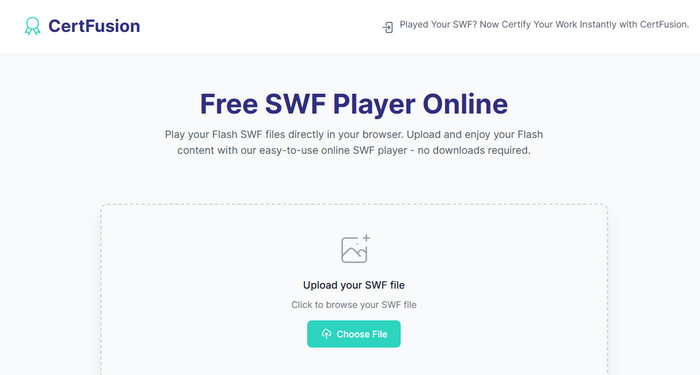
CertFusion is a simple site to watch SWF videos in any browser without any installation. It is a reliable online SWF file player, which allows you to open animations and interactive Flash content with speed and safety. It has a clean interface, which makes it easy to control the playback, and it has play, pause, and full screen.
- No installation or plug-ins required
- Works on Windows, Mac, and Linux browsers
- Smooth basic playback with simple controls
- File size is limited to around 50 MB
- Some complex interactive SWF content may not display correctly
- Requires a stable internet connection
2. Quenq SWF Player
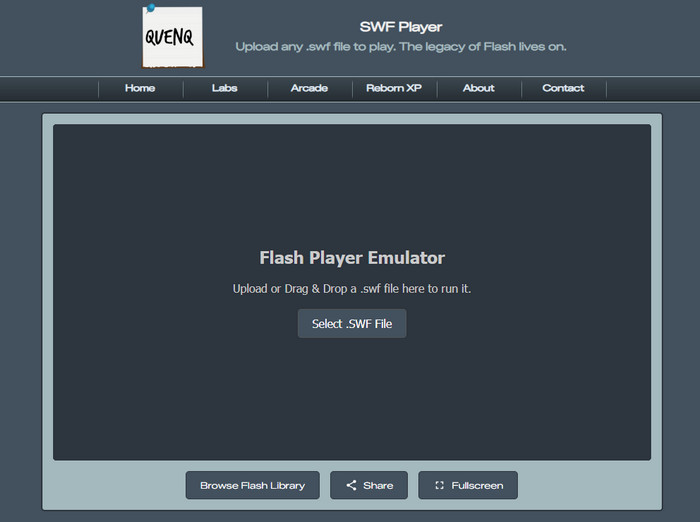
Quenq Labs offers a browser-based SWF player that allows you to upload and view SWF animations without Adobe Flash. This SWF player online preserves legacy Flash content and provides quick access for checking or enjoying animations directly in your browser.
- No software installation needed
- Preserves classic Flash animations
- Drag-and-drop upload for quick playback
- Advanced interactive SWF features may not fully render
- Playback depends on browser performance
- Not a full emulator for all SWF functions
Part 4: FAQs of SWF Player
Is it safe to use SWF Player?
Yes, using an SWF player is safe if you choose a trusted tool. Some old Flash files may have security risks, so avoid unknown or unverified software. Reliable players like Tipard Blu-ray Player, VLC, or Ruffle let you watch SWF videos without putting your system at risk.
How to convert .SWF to MP4?
To convert SWF to MP4, open the file in a player that supports recording or exporting, such as Tipard Video Converter Ultimate. Then save or export the video as MP4. This lets you play it on modern devices and media players easily. Avoid using random online converters from untrusted sources.
Why do browsers no longer support Flash?
The use of Flash as an object via browsers was abandoned due to security issues and obsolescence. The current standards, such as HTML5 or JavaScript, are safer, quicker, and compatible with all devices. You require a special SWF player in order to watch older SWF files.
Conclusion
Once you have downloaded the SWF player on your PC, Mac, or accessed an online version, you can easily open and watch SWF files. It provides the animations and interaction content to work properly while preserving original quality. Seeing old Flash videos, games, and tutorials is easy and hassle-free with the right player.
More Reading

About the Author

 Click here to join the discussion and share your comments
 Tipard Blu-ray Player