

When your video feels too long or has scenes you do not need, it helps to know how to trim a video in Android. The steps are simple once you know where to find them. Most Android phones already have a built-in editor you can use. If you want more tools, there are also free apps that work well. This guide will show both options so you can pick what fits you best. By the end, you will know how to trim clips for cleaner videos, faster uploads, and better results.

Part 1. Using the Built-In Gallery App (The Easiest Way)
If you are figuring out how to cut video on Android, your phone's built-in Gallery app is the easiest place to start. It works like editing a photo; you just open the video, make quick cuts, and save your changes. You do not need extra apps or advanced tools to get clean, polished clips. Here is how to do it:
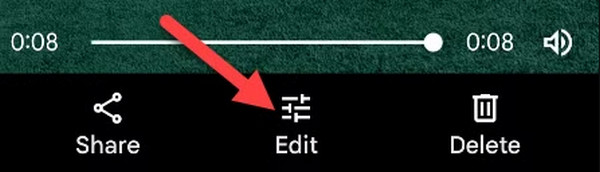
Step 1 Open the Gallery app, hit the Menu button, and choose Video. Pick the clip you want to edit, then hit the Edit button to open the editor.
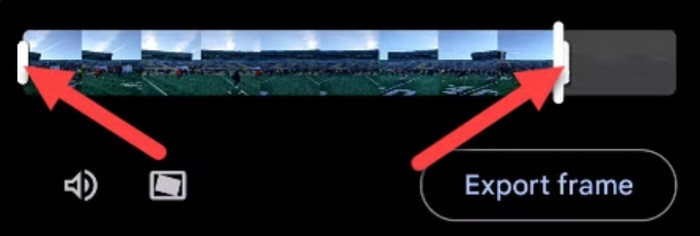
Step 2 Drag the white handles on both ends of the timeline to remove unwanted parts. If you want smoother cuts, press and hold a handle to fine-tune your trim.
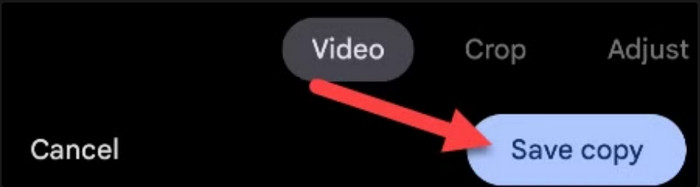
Step 3 Once done, select Save as copy to keep the original. Now your video is shorter, cleaner, and ready to share right away.
Part 2. How to Trim a Video on a Samsung Phone
If you are asking how to trim a video on a Samsung, the process is simple and built right into your device. The Samsung Gallery app gives you quick access to trimming tools, letting you shorten videos, remove extra parts, and save a clean version in just a few steps. You do not need to install any third-party app to do it. Here is how you can trim your video on a Samsung phone:
Step 1 Open the Gallery app, tap the three horizontal lines, and select Video. Choose the clip you want to edit, then tap the Pencil button to start trimming.
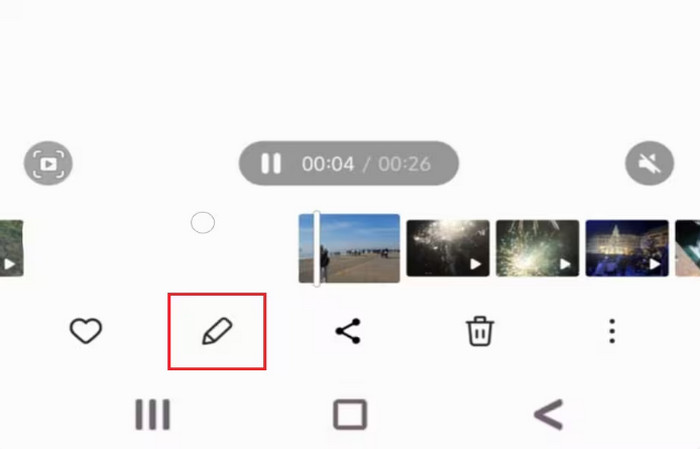
Step 2 Move the white bars on each end of the video timeline to remove unwanted sections. For more precision, press and hold a bar to expand the timeline and fine-tune your edit.
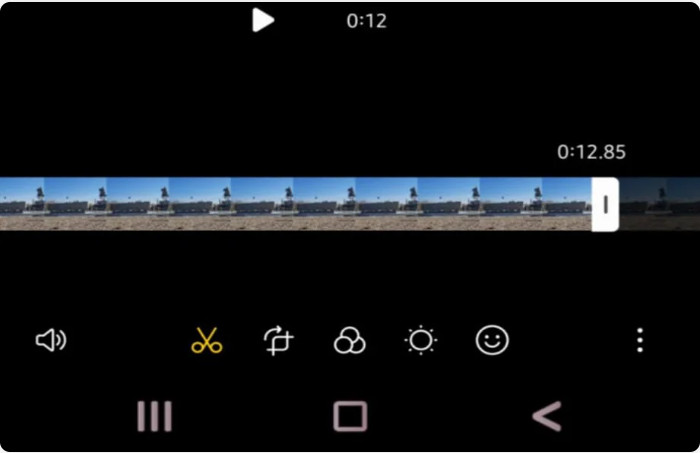
Step 3 Tap Save to overwrite the original file, or go to More Options and select Save as copy to keep both the original and the new trimmed version.
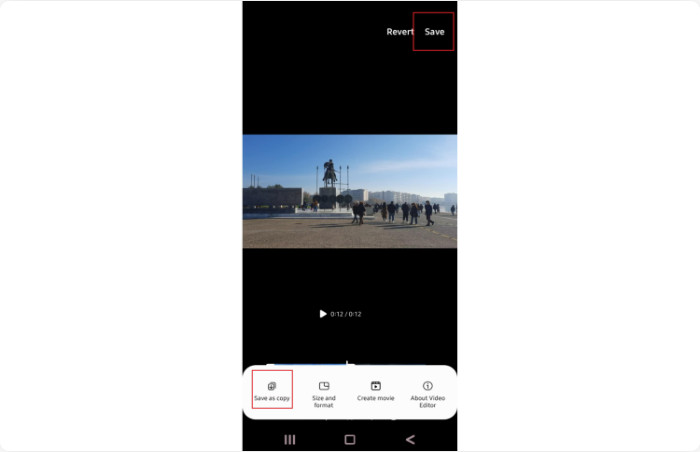
With these steps, you can quickly trim any video on your Samsung phone and make it look neat and ready to share. Through the trimming, the video size should have gone down, but if you want to reduce the video size on Samsung even further, additional steps are needed.
Part 3. Using a Free Third-Party App (Widely Compatible)
If your built-in editor is too basic, you can use third-party apps. They let you trim, cut, and edit videos with more control. You do not need to be an expert, and most are free to download. Here are three apps you can try on Android. Each one works well for simple or more detailed editing.
1. CapCut
CapCut is one of the most beginner-friendly editors on Android. It offers simple trimming, cutting, and splitting tools that work perfectly for short videos or social media clips. If you are learning how to trim a video on Android, CapCut is a great starting point.

Step 1 Open CapCut, open a new project, and add your video.
Step 2 Drag the clip's edges or use the Split button to cut out unwanted parts.
Step 3 Preview your work, then tap Export or Save to store your trimmed video. You can also crop a video in Capcut quickly whenever you need.
2. InShot
InShot is a simple but powerful app for trimming and editing videos quickly. It works well for social media content because you can trim, split, and adjust clips in just a few taps. Besides basic trimming, it lets you add music, text, stickers, and filters to your videos.
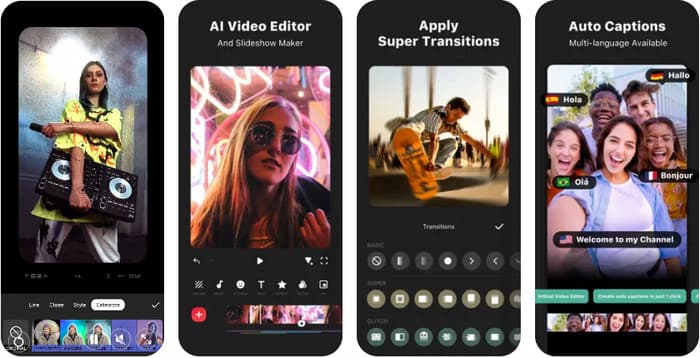
Step 1 Open InShot, create a new project, and import your video.
Step 2 Tap Trim and drag the handles to remove unwanted parts.
Step 3 Tap the checkmark, then Export or Save to keep the edited video.
3. KineMaster
KineMaster is ideal if you want more control over your cuts and transitions. It supports multiple layers, filters, and precise timeline editing. For anyone asking how to trim a video on Samsung, KineMaster gives smoother adjustments and cleaner results.
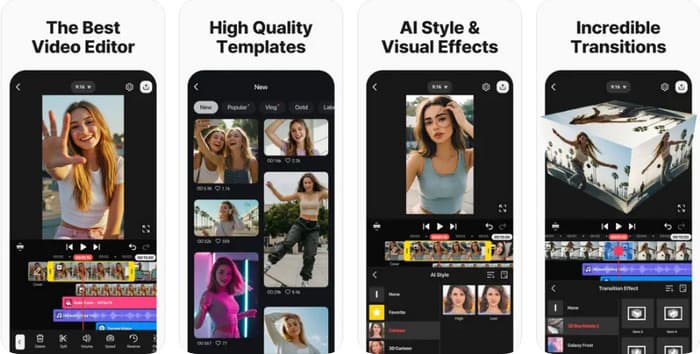
Step 1 Install KineMaster from Google Play, open a new project, and import your clip.
Step 2 Tap the video on the timeline and drag the handles to adjust start and end points, or use Split to cut in between.
Step 3 Once done, tap Export to save your finished video.
4. VN Video Editor
VN Video Editor is an adaptable app that combines simplicity with advanced editing features. It allows precise trimming, splitting, and multi-clip editing on a timeline. VN supports both short clips and longer projects, making it a good choice if you want more control but still want an easy-to-use interface.

Step 1 Open VN, start a new project, and import your clip.
Step 2 Tap the clip, drag the handles, or use Split to cut the video.
Step 3 Tap Export to save your final video.
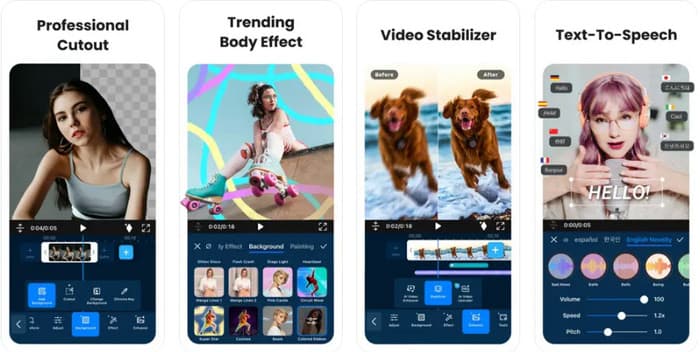
5. PowerDirector
PowerDirector is a full-featured video editor that gives you advanced control without being hard to use. It lets you trim, split, and fine-tune clips on your phone, making it a top choice if you often search for how to cut video on Android and want studio-like results.
Step 1 Open PowerDirector, start a new project, and add your video to the timeline.
Step 2 Use the Trim or Multi-Trim tool to cut unwanted sections or split the video into smaller clips.
Step 3 Tap Produce Video or Save once your edits are complete.
Third-party apps make video editing easy. CapCut is good for quick trims. KineMaster gives more control. PowerDirector works for professional results. InShot is simple, fast, and perfect for social media videos. VN Video Editor balances ease and advanced features for more precise editing. All five help you make clean videos ready to share. But if you want the best trimming, use the option we show next.
Part 4. Best Tool to Trim Videos for Android
Tipard Video Converter Ultimate is a strong desktop tool for trimming and editing videos. It handles large files and many formats, even 4K and 8K, without slowing down. This makes it great for anyone who wants fast and easy video editing for Android.
One key feature is that it can split a single video into multiple segments automatically. You can also merge clips, crop frames, and adjust filters. Everything can be done in one place, so you save time compared to using several apps.
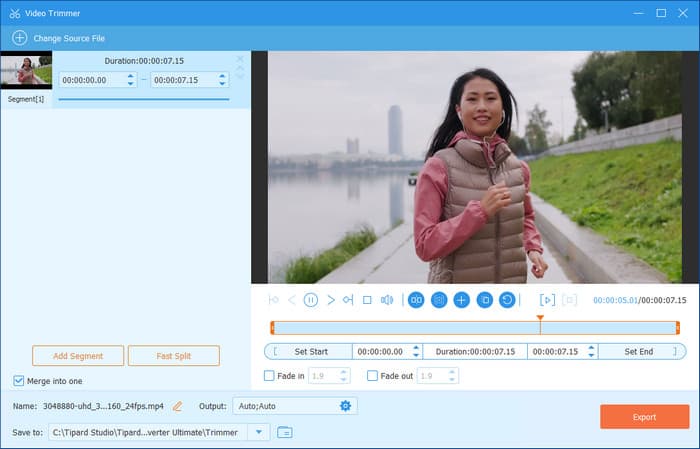
In short, if you often work with long videos, multi-segment edits, or need more control and speed, Tipard Video Converter Ultimate gives a complete toolkit beyond regular mobile apps.
Conclusion
Learning how to cut video on Android makes editing easy. You can use your phone's built-in editor or free apps like CapCut, KineMaster, or PowerDirector. Desktop tools like Tipard Video Converter Ultimate work too. Each tool helps you remove unwanted parts and make your videos clean and ready to share. With these options, trimming and splitting clips is fast and simple.
More Reading



About the Author

 Click here to join the discussion and share your comments
 Tipard Video Converter Ultimate