

- Part 1. What Is the Best Video Editing Software
- Part 2. Best Video Editors for 4K Processing and AI Upscaling
- Part 3. Top Video Editors for YouTube, Instagram, and TikTok
- Part 4. Best Easy-to-Learn Video Editors for Beginners
- Part 5. Top Video Editors Free Online
- Part 6. Comparison of the Video Editing Software
- Part 7. FAQs of Video Editor
Key Takeaways
- The best video editor depends on what you need, your skill level, and the type of project you are working on. Some tools are very simple to use. Others are made for advanced editing and 4K video work.
- Tipard Video Converter Ultimate stands out for 4K to 8K processing, AI upscaling, and fast GPU performance, making it recommended for high-clarity video work.
- Free online tools like Canva, Kapwing, and VEED are best for fast social media editing, while desktop tools like DaVinci Resolve and Premiere Pro are for professional-level control.
- Most video editors differ in features, speed, and limits, so choosing the right one helps you edit faster, easier, and with better final video clarity.
A video editor is needed when you want to turn raw clips into clear and engaging videos. It helps you cut, trim, add effects, and make your content look better. From simple school projects to social media posts, a good video editor makes everything easier.
With so many options available in the market, you might get confused about what to really use. We understand that. That is why we will help you out by organizing which video editor is suited for different tasks.
This write-up is a detailed review, so make sure you check each part carefully and do not miss any important details.

- Part 1. What Is the Best Video Editing Software
- Part 2. Best Video Editors for 4K Processing and AI Upscaling
- Part 3. Top Video Editors for YouTube, Instagram, and TikTok
- Part 4. Best Easy-to-Learn Video Editors for Beginners
- Part 5. Top Video Editors Free Online
- Part 6. Comparison of the Video Editing Software
- Part 7. FAQs of Video Editor
Part 1. What Is the Best Video Editing Software
The best video editors are not just about having many tools. It is about how easy it is to use and how well it works. A good video editor should help you make clean and high-quality videos without stress. It should support high-definition and 4K video. It should also run smoothly even when editing large files. Simple design and helpful tools also matter a lot.
A strong video editor usually has fast performance. It should not lag during editing. It should support many video formats. It should also keep video clarity strong after export. Helpful tools like trimming, effects, transitions, and AI features are also important. These make editing faster and easier, even for beginners.
How We Tested the Video Editing Software
We used the same basic standards for all video editors. It makes the comparison fair and clear.
- Ease of use: We checked how easy the video editor is for beginners to learn and use.
- Performance & Smooth Editing: We tested how smoothly it runs while editing videos.
- Export Quality: We checked export clarity for high-definition and 4K output.
- Export Speed: We measured how fast it renders and exports files.
- AI Tools & Smart Features: We tested AI tools like auto captions, enhancement, and smart editing.
- Platform Compatibility: We checked platform support, such as Windows, Mac, web, and mobile.
These factors help show which video editors are simple, stable, and good for real editing work. Below, you will get to know each video editor, categorized by where they are best suited to use.
Part 2. Best Video Editors for 4K Processing and AI Upscaling
1. Tipard Video Converter Ultimate
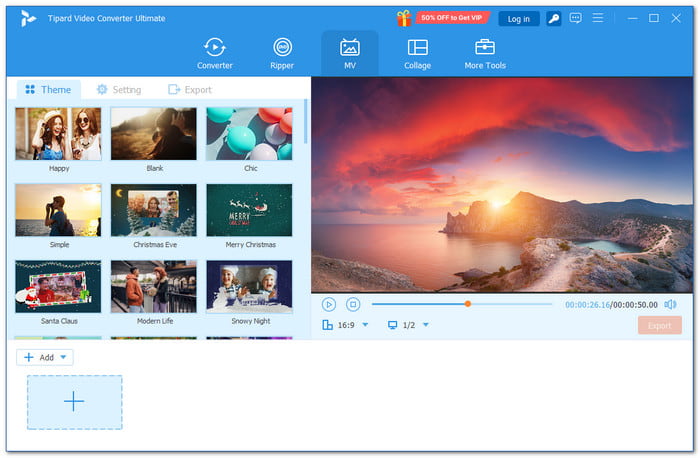
Best for: Fast 4K and 8K video processing, AI video upscaling, and stylish social media video editing.
The best video editors for 4K processing and AI upscaling should handle sharp videos without slowing you down. Tipard Video Converter Ultimate does that well. It uses full GPU acceleration for faster decoding, editing, and transcoding.
It also supports AI upscaling to improve blurry or low-clarity clips. You can also produce clear 4K, 5K, and even 8K videos with smooth quality. Do you also want fashionable social media videos? Its MV and collage tools help you create eye-catching edits fast and easily.
Platform: Windows and Mac.
Main Features:
- 51 built-in video themes.
- 42 filters with basic effect controls.
- 45 collage layouts with different screen styles.
- Multiple aspect ratio options for any platform.
- Add unlimited photos and video clips.
- Supports editing for many video formats.
- Add text or image watermarks easily.
- Import background music with volume control.
- The free version has file upload limits.
Testing Result:
- Ease of Use: Easy for beginners.
- Performance & Smooth Editing: Very smooth; uses GPU acceleration.
- Export Quality: Very high: supports up to 8K output.
- Export Speed: Fast due to hardware acceleration.
2. DaVinci Resolve
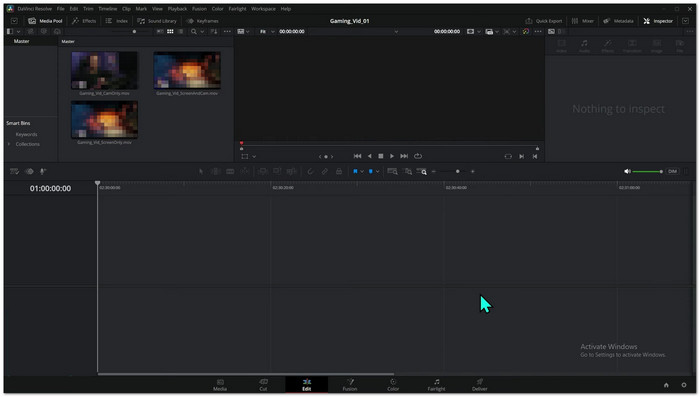
Best for: Professional film editing, advanced color grading, and 4K or HDR video production.
Power meets precision in one full editing system built for high-end work. DaVinci Resolve Video Editor brings editing, color correction, visual effects, motion graphics, and audio post together in one place. It is used in film and TV production.
It supports advanced HDR workflows and deep color science for clean 4K results. AI tools help with smart search, facial adjustments, and upscaling. It is strong for users who want studio-level output without switching apps.
Platform: Windows, Mac, and Linux.
Main Features:
- AI Neural Engine for smart editing tools.
- Advanced color grading with HDR support.
- Built-in VFX and audio post tools.
- Hollywood-caliber editing equipment.
- There is a free version available.
- Hard for beginners.
- Needs strong computer performance.
Testing Result:
- Ease of Use: Hard for beginners.
- Performance & Smooth Editing: Heavy but stable on strong computers.
- Export Quality: Cinema-level quality.
- Export Speed: Depends on hardware.
3. Premiere Pro
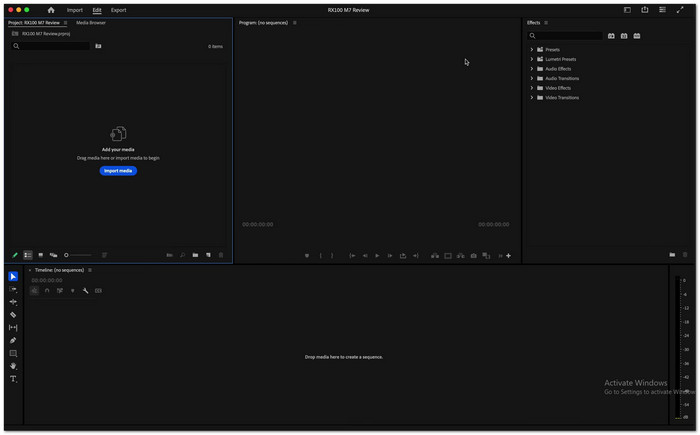
Best for: YouTube videos, commercial editing, and professional 4K content creation.
A modern editing program made for creators who want speed and control in one place. It supports frame-accurate editing, layered audio, and cinematic color tools. AI helps with tasks like auto-editing, search, and speech cleanup.
Additionally, generative tools for extending clips and repairing missing frames are supported by this Adobe Video Editor. Premiere Pro is built for content creators who want clean 4K output and a fast workflow for social media or professional projects.
Platform: Windows and Mac.
Main Features:
- AI-powered editing and media search.
- Advanced color correction tools.
- Text-based editing and auto transcription.
- Industry-standard program.
- Strong AI features for speed.
- Subscription required.
- Heavy system usage.
Testing Result:
- Ease of Use: Medium to hard.
- Performance & Smooth Editing: Smooth with a strong GPU.
- Export Quality: Professional grade.
- Export Speed: Fast with hardware acceleration.
Part 3. Top Video Editors for YouTube, Instagram, and TikTok
1. CapCut
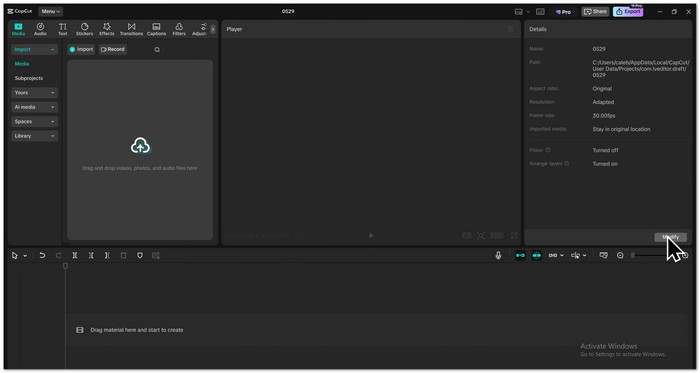
Best for: Quick AI-based editing and effects for YouTube Shorts, Instagram Reels, and TikTok.
CapCut Video Editor is built for fast and creative short-form videos. It gives smooth editing with strong AI tools that help turn simple ideas into eye-catching clips. Users can add video filters, adjust effects, keyframes, and auto captions in a few clicks.
It also supports smart color tools and auto adjustments for better visuals. Plus, it connects well with social platforms, so exporting and sharing are quick. It helps creators build content that looks clean, modern, and ready for viral posts.
Platform: Windows, Mac, Web, iOS, and Android.
Main Features:
- AI script to video and auto captions.
- Massive effects, filters, and templates.
- Keyframes and smart color adjustment tools.
- Very easy to use.
- Strong AI tools for content creation.
- Limited advanced pro controls.
- Needs internet for some features.
Testing Result:
- Ease of Use: Very easy.
- Performance & Smooth Editing: Smooth for short videos.
- Export Quality: Up to 4K support.
- Export Speed: Fast.
2. VN Video Editor
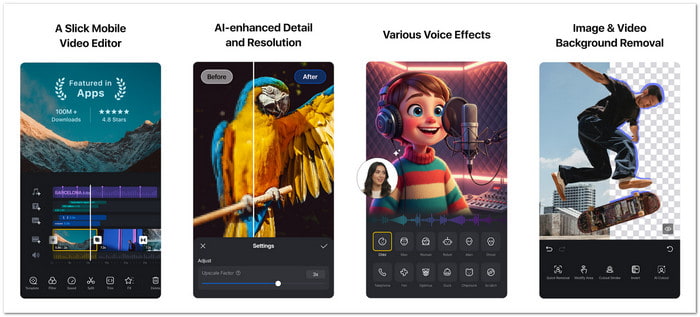
Best for: Clean vlog edits, music videos, and social media content with detailed but easy control.
VN Video Editor is a simple but powerful tool made for smooth mobile and desktop editing. It provides a clear timeline that allows users to cut, trim, and modify clips precisely. Keyframe animation, beat-based editing for music videos, and multi-track editing are all supported.
It also has speed controls, transitions, and filters to make videos more engaging. You can export videos in up to 4K quality. It helps users create professional-looking videos while keeping editing simple and easy for beginners.
Platform: Windows, Mac, iOS, and Android.
Main Features:
- Multi-track timeline editing.
- Keyframe animation and speed curve tools.
- 4K export with no watermark.
- Free and no watermark.
- Smooth and easy interface.
- Fewer advanced AI tools.
- Limited built-in templates.
Testing Result:
- Ease of Use: Easy.
- Performance & Smooth Editing: Smooth for basic editing.
- Export Quality: Good high-definition and 4K support.
- Export Speed: Fast on mobile.
3. Kdenlive
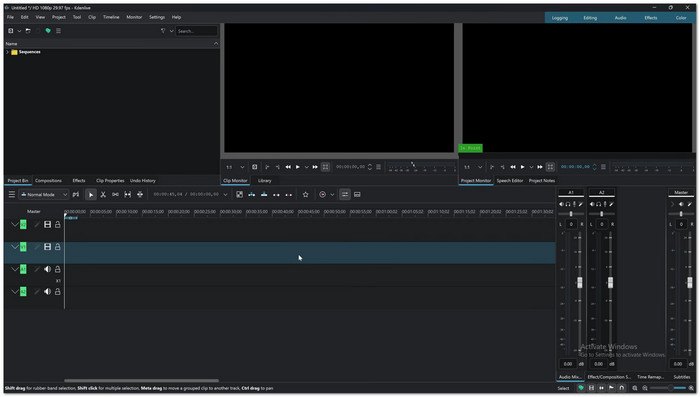
Best for: Advanced desktop editing, 4K projects, and users who want a free professional-style editor.
Kdenlive Video Editor is a free and open-source tool for flexible and detailed video editing. It lets you use multi-track timelines so you can cut, arrange, and stack clips with full control. It also has transitions, effects, and proxy editing to help 4K videos run more smoothly while editing.
It also allows color correction and audio mixing inside the same workspace. This tool gives strong editing power without cost. It makes it a solid choice for users who want full control over their video projects.
Platform: Windows, Mac, and Linux.
Main Features:
- Multi-track timeline with proxy editing.
- Built-in effects and transitions.
- Color grading and audio mixing tools.
- Completely free and open-source.
- Strong editing features for 4K.
- Steeper learning curve.
- Interface feels less modern.
Testing Result:
- Ease of Use: Easy for beginners. Moderate difficulty.
- Performance & Smooth Editing: Stable, but it depends on the system.
- Export Quality: Good.
- Export Speed: Average.
Part 4. Best Easy-to-Learn Video Editors for Beginners
1. iMovie
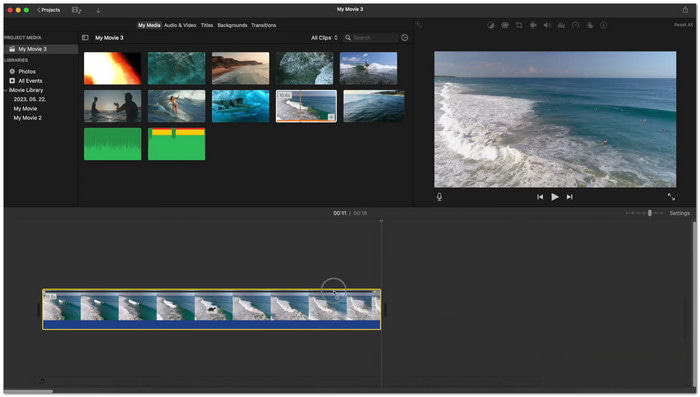
Best for: Creating simple movie-style videos using ready templates and built-in effects on Apple devices.
Simple video editing feels easy when a tool is made for clear and simple storytelling on Apple devices. iMovie Video Editor helps you turn clips into smooth videos with music, titles, and video transitions in just a few steps.
You can use ready-made templates that guide your story and help you arrange scenes without confusion. It also supports cinematic effects, filters, and even green screen editing for more creative results.
Platform: Available on Apple systems.
Main Features:
- Magic Movie auto editing tool.
- Storyboards guided video creation.
- 4K video support for high-quality exports.
- Free on Apple devices.
- Smooth Apple ecosystem support.
- Limited advanced editing control.
- Fewer professional plugins.
Testing Result:
- Ease of Use: Very easy.
- Performance & Smooth Editing: Very smooth on Apple devices.
- Export Quality: Good up to 4K.
- Export Speed: Fast on Mac and iOS systems.
2. ClipChamp
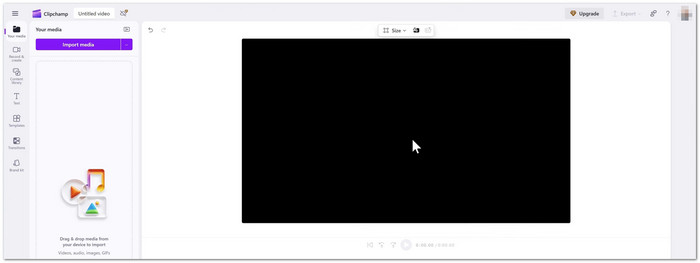
Best for: creating online videos fast with AI tools and no software installation.
Creating videos in a browser becomes simple with an editor that uses smart tools and automation. ClipChamp Video Editor lets you record, edit, and export videos without a heavy program or complex setup.
You can add voiceovers, subtitles, and stock videos to make your project better and faster. It also has AI tools that fix audio and create captions in different languages. It makes it good for social media videos, presentations, and simple marketing content.
Platform: Web browser and Windows.
Main Features:
- Screen and webcam recording tools.
- Stock media library access.
- Audio cleanup and enhancement tools.
- Works directly in the browser.
- Helpful AI editing tools.
- Limited offline editing.
- Some features require a subscription.
Testing Result:
- Ease of Use: Easy.
- Performance & Smooth Editing: Depends on internet speed.
- Export Quality: Up to 1080p free.
- Export Speed: Fast for simple edits.
3. OpenShot
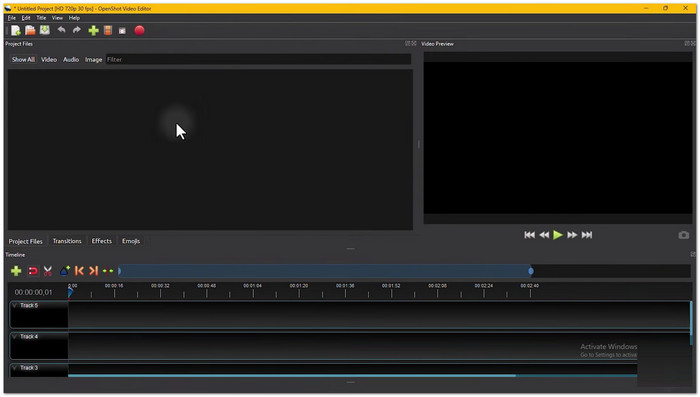
Best for: Best for flexible desktop editing with unlimited tracks and free open-source tools.
Free video editing becomes more flexible with a tool that works across many devices and systems. OpenShot Video Editor gives you a simple way to cut clips, add effects, and build full video projects.
You can use many tracks, animations, and audio waveforms for more detailed editing. It also has titles, 3D effects, and slow motion tools for more creative control. It is made for beginners who want strong editing tools for free.
Platform: Windows, Mac, and Linux.
Main Features:
- Unlimited video and audio tracks.
- Video effects and color adjustments.
- Title and 3D text editor.
- Completely free and open source.
- Strong editing power for beginners.
- The interface seems dated.
- It can take longer to complete large projects.
Testing Result:
- Ease of Use: Simple and easy to use.
- Performance & Smooth Editing: Can lag on heavy projects.
- Export Quality: Good for simple editing.
- Export Speed: Slow on large files.
Part 5. Top Video Editors Free Online
1. Canva
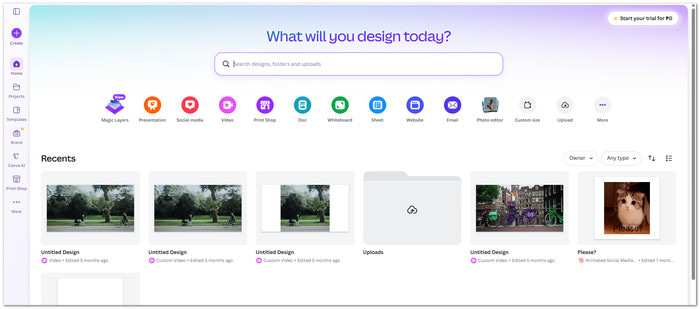
Best for: Easy social media videos, ready-made templates, and quick AI video making with simple drag-and-drop editing.
Canva Video Editor makes editing feel light and simple. You just drag clips, images, and text. Everything sits in a clean timeline.
It also gives AI help for edits, captions, and even video generation. You can turn photos into moving scenes with ease. It also offers ready-made templates that guide your work step by step. You do not need editing skills.
Platform: Runs directly on the browser.
Main Features:
- AI video generator tools.
- Auto captions and text tools.
- Stock video and media library.
- Strong AI tools for quick edits.
- Large template library.
- Some features require a paid plan.
- Heavy files may lag sometimes.
Testing Result:
- Ease of Use: Very easy.
- Performance & Smooth Editing: Smooth in browser.
- Export Quality: Good for social media.
- Export Speed: Fast online.
2. Kapwing
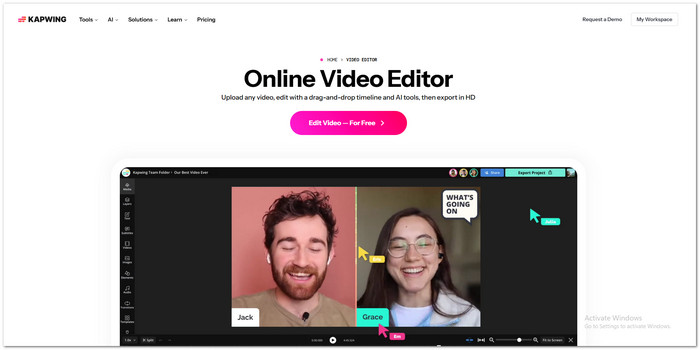
Best for: Online editing, team projects, and quick social media video creation.
You upload a video and start editing right away using Kapwing Video Editor. It gives you smart AI tools for subtitles, resizing, and cutting clips. You can also turn one video into many short clips for different platforms.
Team collaboration is strong. People can edit videos together in real time. It is made for fast content creation with less work and more automatic tools.
Platform: Accessible online.
Main Features:
- AI subtitle generator.
- Auto video clip repurposing.
- Multi-format export support.
- Strong AI automation tools.
- Easy team collaboration.
- The free version has limits.
- The Internet is needed all the time.
Testing Result:
- Ease of Use: Easy.
- Performance & Smooth Editing: Depends on the internet connection.
- Export Quality: Good, but the free plan has limits.
- Export Speed: Fast for short videos.
3. VEED
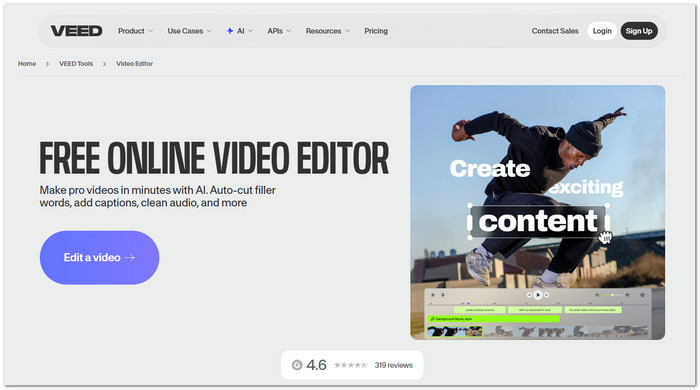
Best for: Fast editing, captions, and AI-powered video creation online.
This online video editor feels like a smart video studio inside your browser. You can upload clips and edit them fast. It removes filler words, cleans audio, and adds subtitles automatically. Additionally, it supports AI tools like text-to-video and voice cloning. Time-saving is the goal of everything. Videos can be polished without complicated steps for use on social media or in business.
Platform: Available online, like Google.
Main Features:
- Auto subtitles and translation.
- AI audio cleanup tools.
- Background removal tool.
- Very fast AI editing tools.
- Strong subtitle accuracy.
- Free export may include limits.
- Some tools need to be upgraded.
Testing Result:
- Ease of Use: Very easy.
- Performance & Smooth Editing: Smooth browser editing.
- Export Quality: Up to 1080p free.
- Export Speed: Fast for standard videos.
Part 6. Comparison of the Video Editing Software
| 12 BestVideo Editors | Ease of Use | Target Users | Pricing | Export Limits | Top AI & Standout Features |
|---|---|---|---|---|---|
| Tipard Video Converter Ultimate | ★★★★★ | Beginners and professionals. | Free version available, with a paid version starting at $18.00. | No strict export limit. | Upscale resolution, remove noise, stabilize video, optimize basic effects. |
| DaVinci Resolve | ★★★☆☆ | Professional editors. | Free version available, with Studio for a one-time fee of $295. | No watermark; full export. | AI color tools, Fusion VFX, and Fairlight audio. |
| Premiere Pro | ★★★☆☆ | Professional editors. | About $22.99 per month. | No export limit. | Adobe Sensei AI, auto reframe, and speech tools. |
| CapCut | ★★★★★ | Social media creators. | Free version available, with Pro plans starting from $9.99 per month. | No watermark in most exports. | Auto captions, AI effects, and templates. |
| VN Video Editor | ★★★★☆ | Beginners and vloggers. | Free to use. | No watermark basic export. | Simple AI cuts, templates, and filters. |
| Kdenlive | ★★★☆☆ | Semi-profesional users. | Free and open-source. | No export limits. | Multi-track editing and keyframe tools. |
| iMovie | ★★★★★ | Fits for beginners. | Free to use. | No major limits. | Storyboards, Magic Movie, and cinematic mode support. |
| ClipChamp | ★★★★★ | Fits for casual creators. | Free version available, Premium via Microsoft 365. | Some limits in the free plan. | AI captions, screen recorder, and stock library. |
| OpenShot | ★★★★★ | Fits for first-time users. | Free and open-source. | No export limits. | Simple timeline, keyframes, and effects. |
| Canva | ★★★★★ | Designers and creators. | Free to use. | Some premium export limits. | AI video tools, templates, and image-to-video. |
| Kapwing | ★★★★★ | Content creators and teams. | Free to use. | Watermark on free plan. | AI subtitles, clip maker, and translation tools. |
| VEED | ★★★★★ | Social media creators. | Free to use. | Watermark in free plan. | AI captions, voice tools, auto edits, and translation. |
| Show MoreShow Less | |||||
Part 7. FAQs of Video Editor
What are the 321 rules of video editing?
The 321 rule is a safe way to protect your video files. It means you keep 3 copies of your data. You store them in 2 different places. And 1 copy should be stored in another location. It helps prevent data loss if a device breaks or fails.
Can I add music and sound effects in video editors?
Yes. Most video editors allow this feature. You can add background music, voiceover, and sound effects. Tools like Tipard Video Converter Ultimate, iMovie, Canva, CapCut, and VEED make it simple to drag and add audio to your video.
What is the difference between free and paid video editors?
Free video editors often have limits. Some add watermarks on exported videos. Some also limit export quality or remove advanced tools. Paid video editors give full access. They allow higher quality export, faster processing, and more advanced features like full AI tools and premium effects.
Conclusion
You now have a lot of choices, from the best free video editor to the powerful paid ones. To avoid confusion, think about what you really need.
If you want easy editing, pick tools with a simple design. If you want strong results, choose tools with advanced features and AI support. If you want 4K or professional work, go for more powerful editors.
Impressively, Tipard Video Converter Ultimate offers all those. So, ensure to pick a video editor that helps you create the video you already have in mind.

All-in-one video toolbox: convert, edit, upscale, enhance, and compress your videos easily
100% Clean & Safe
100% Clean & Safe

More Reading

About the Author

 Click here to join the discussion and share your comments
 Tipard Video Converter Ultimate