

Choosing the right YouTube movie maker can transform your channel, helping you create polished videos faster and with less effort. Below, we review the best video editing software for YouTube, compare features, and explain how to pick the ideal editor.
Part 1. Top 11 Video Editing Software for YouTube
1. Tipard Video Converter Ultimate
Platform: Windows, macOS
Best For: Beginners, hobbyists and semi-professional YouTubers who need speedy conversions and editing.
User Review: Ripped, upscaled to 4K, and the movie can be watched on any phones, tablets, or TVs.
Why We Select It
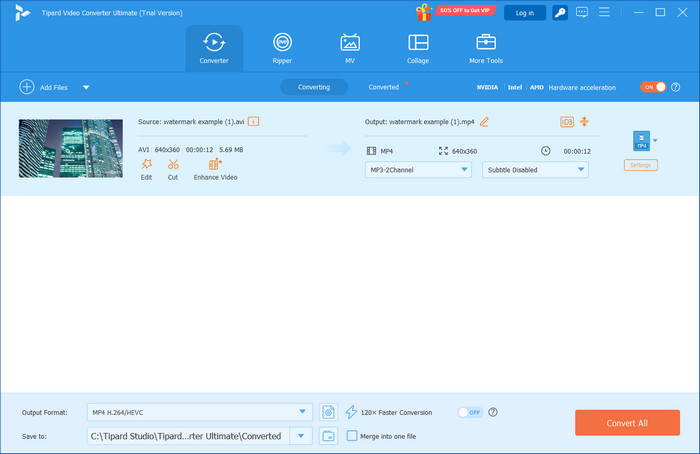
Tipard Video Converter Ultimate can be more than a converter; it is an editing suite. It is extremely fast, and it works with over 500 formats. It is high-speed and creates YouTube videos at a professional level.
Key Features:
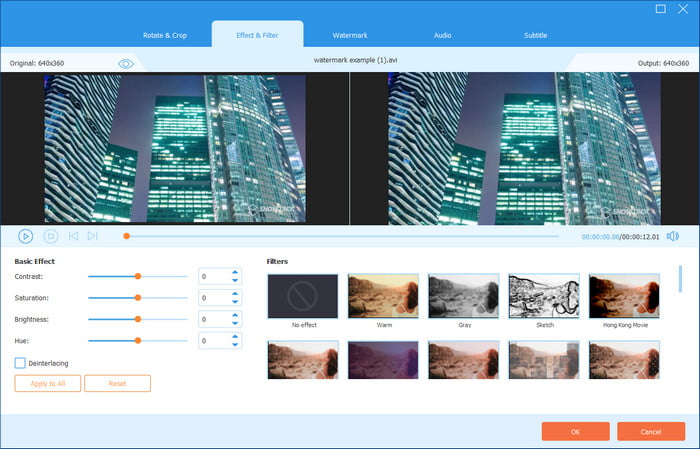
- Has a video collage editor and an MV
- Supports the AV1 codec
- Outputs high-quality video with YouTube-ready presets
- User-friendly with a simple interface
- GPU acceleration helps speed up video/audio decoding and encoding.
- Has a high-speed hardware acceleration (up to 120× speed)
- No prior experience needed with the editing tools.
- You can rip and convert DVDs.
- Some features can be too advanced for end users.
2. Adobe Premiere Pro
Platform: Windows, macOS
Best For: Professional YouTubers and content creators working within studio setups.
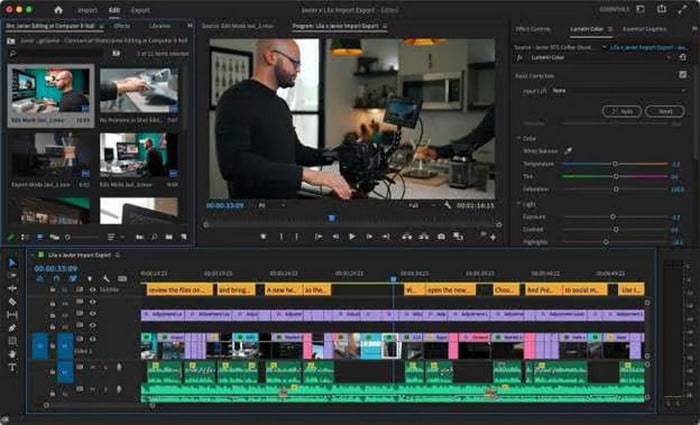
User Review: Premiere Pro is a one-stop shop for professional video editing with its AI, color grading, multicam, and text-based editing.
Key Features:
- Text-based editing, auto-captioning, and Generative Extend AI.
- Multicam support with unlimited video tracks.
- Advanced color grading, masking, and stabilization tools.
- Flexible interface with high performance.
- Extensive support for motion graphics and AI.
- Beginners may find it complex.
- Subscription-based.
Why We Select It
It is an industry standard with advanced AI and unlimited tracks for professionals. It integrates with Adobe Creative Cloud, making it perfect for high-budget YouTube videos and collaborations.
3. CyberLink PowerDirector 365
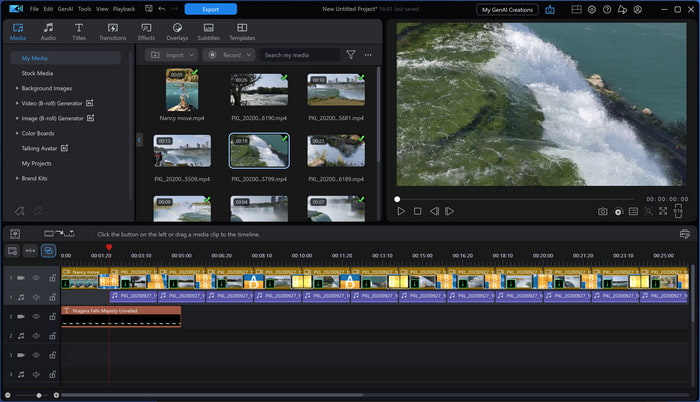
Platform: Windows, macOS
Best For: Semi-professional YouTube creators.
User Review: I can create videos very quickly with the multicam and AI tools, including an easy, clear interface and no steep learning curve.
Key Features:
- Multicam and VR support, keyframed effects.
- Generative AI with auto-captioning, auto-face-blurring, and anime effects.
- Motion tracking and screen recording.
- User-friendly interface.
- Large library of effects.
- Options can feel excessive.
- Not the best for group projects.
Why We Select It
In PowerDirector, YouTube creators can quickly gain a professional look for their videos. It features a better user experience and fast rendering with AI effects.
4. Apple iMovie
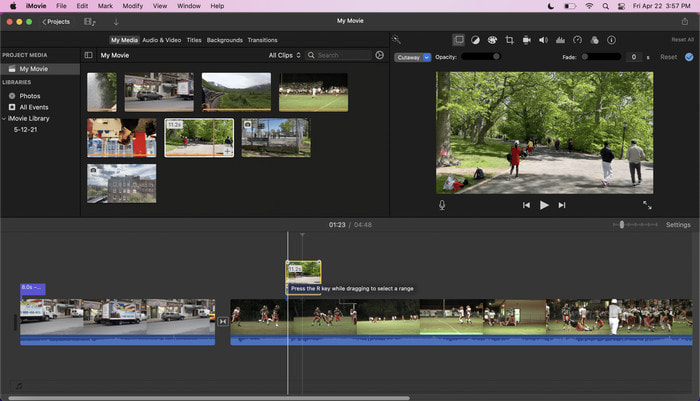
Platform: macOS, iOS
Best For: Apple User Beginners.
User Review: iMovie is great for making vacation videos. I love that I can use the Cinematic mode.
Key Features:
- Templates for Storyboards and Trailers.
- Chroma Key, picture-in-picture, and stabilization.
- Free if you have Apple products.
- Very user-friendly.
- Only 2 video tracks.
- No multi-cam and no sophisticated motion tracking.
Why We Select It
Optimized for Apple, it is free and great for beginners. Great for family videos and YouTube videos that need to look polished in a short amount of time.
5. Apple Final Cut Pro
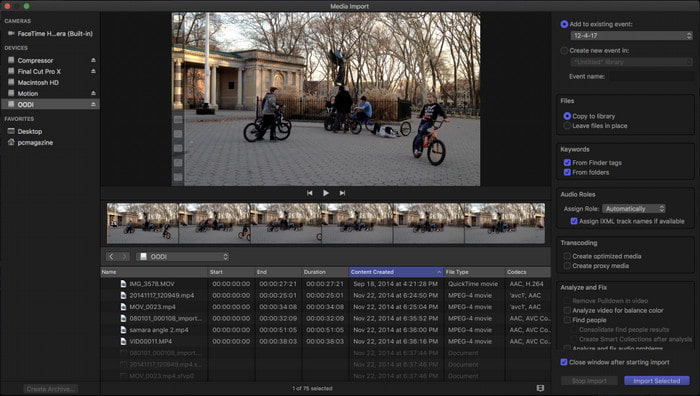
Platform: macOS
Best For: Apple Professionals, YouTubers.
User Review: The magnetic timeline is refreshing and works really well with 360° footage and multicam edits.
Key Features:
- Support for 360° and multi-cam edits.
- Flexible editing with a magnetic timeline.
- Scene removal and masking powered by AI.
- Only one payment is required.
- Great optimization for Mac.
- Runs only on Apple hardware.
- Fewer collaboration features than Premiere Pro.
Why We Select It
Great for Mac users who are moving up from iMovie. It is a bit expensive because it is a one-time purchase, but the tools included are very advanced for the price.
6. DaVinci Resolve
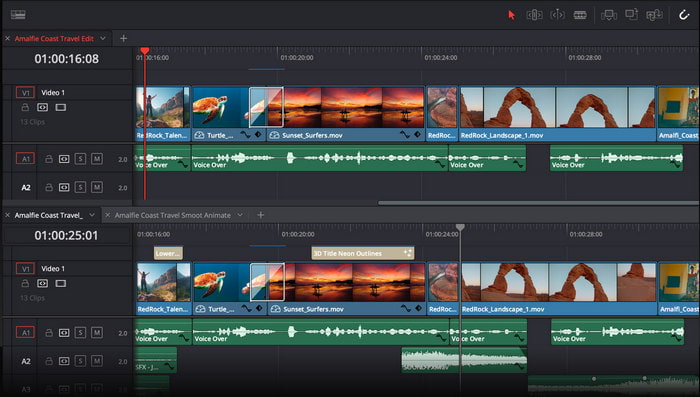
Platform: Windows, macOS, Linux
Best For: YouTube content with heavy color grading and studio-quality.
User Review: DaVinci Resolve lets you do color grading and edit audio. Plus, you can use their free version, which is pretty good.
Key Features:
- Node-based effects and color grading.
- AI auto-captioning, audio editing, and motion graphics.
- Professional-grade and free.
- Comprehensive audio and color tools.
- Collaborative features.
- A lot to learn.
- Wastes resources.
Why We Select It
Professional tools in the free version. You get color grading, audio editing, motion graphics, and even some AI for free. So, it is great for YouTube creators on a budget.
7. Adobe Premiere Elements
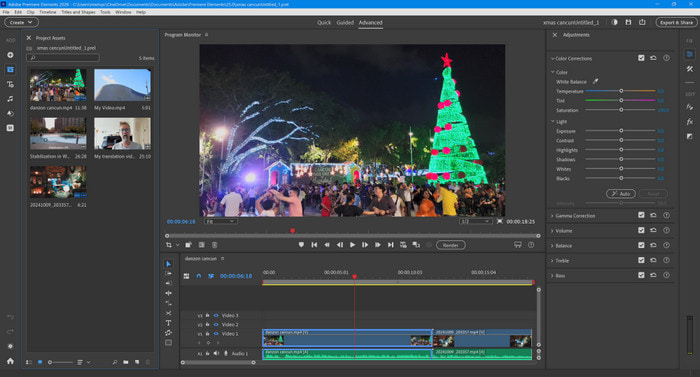
Platform: Windows, macOS
Best For: Beginners, YouTubers and Digital scrapbooking.
User Review: Guided edits help you use creative effects, and there is a smooth upgrade to Premiere Pro.
Key Features:
- Guided edits for overlays, filters, and lighting.
- Chroma key and motion tracking.
- VR editing tools for 360.
- More user-friendly than Premiere Pro.
- One-time fee and is budget-friendly.
- Smooth upgrade path.
- No support for multi-cam.
- License is 3 years max.
Why We Select It
Guided edits make effects and transitions easy, which is great for making creative YouTube content.
8. Microsoft Clipchamp
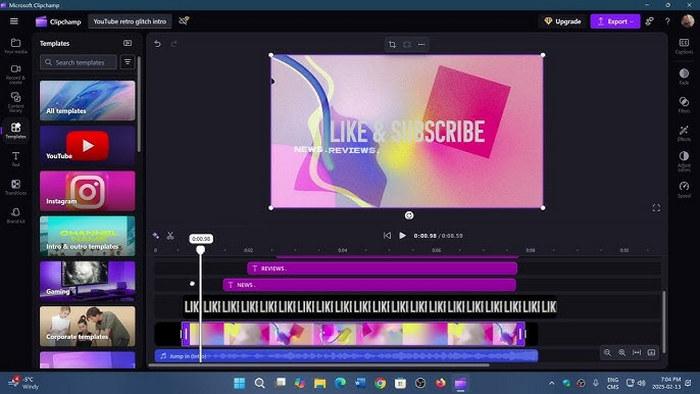
Platform: Windows, iOS, Web
Best For: Small business YouTubers and social media marketers.
User Review: AI speech-to-text and text-to-speech tools make creating videos quickly for my channel easy.
Key Features:
- AI-powered auto-captioning and voice-over.
- Prebuilt templates and stock content.
- Cloud-based editing and export.
- Simple interface, easy drag-and-drop.
- Free tier available.
- Good for short-form content.
- Limited effects control.
- Slow exports on large projects.
Why We Select It
Freemium editor with templates, AI voice-overs, and cloud-based editing, ideal for YouTube creators who need speed and simplicity.
9. Pinnacle Studio
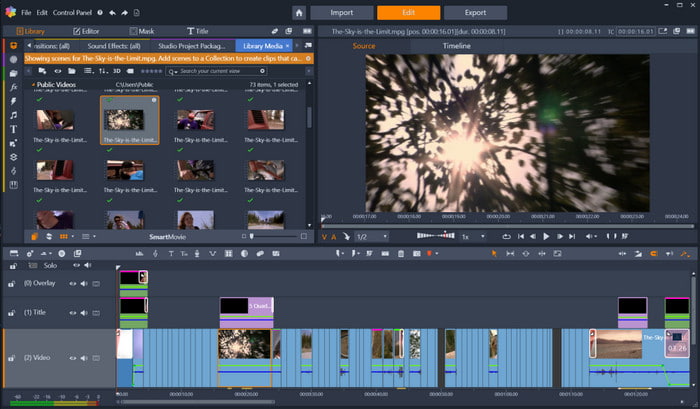
Platform: Windows
Best For: YouTubers who want timeline precision with robust editing features.
User Review: Pinnacle Studio provides pro-level control with keyframing, effects, and motion tracking without an Adobe subscription.
Key Features:
- Stop motion capture.
- Color grading and audio tools.
- Wide format support.
- Strong timeline and precision editing.
- Good balance of features and usability.
- Windows only.
- Limited collaboration/cloud features.
Why We Select It
Pinnacle Studio is a long‑standing and capable video editor with advanced timeline tools, effects, and precision controls. It is ideal for creators who want more power than basic editors but do not need enterprise‑level complexity.
10. Shotcut
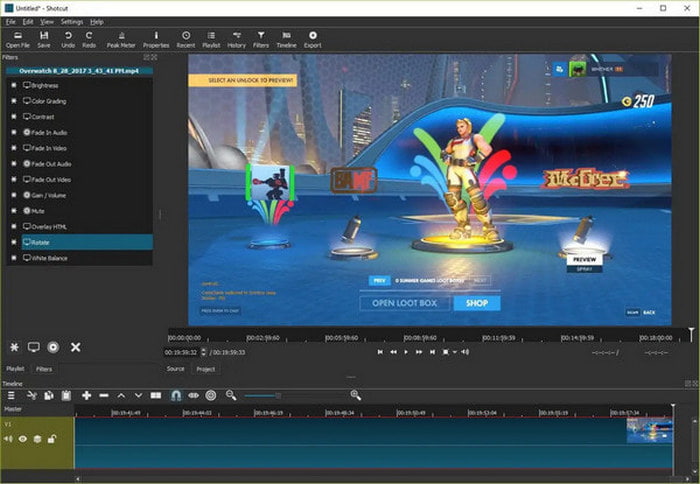
Platform: Windows, macOS, Linux
Best For: Budget‑conscious YouTubers and open‑source enthusiasts.
User Review: Shotcut is free and powerful, handling 4K footage with flexible filters, though it has a learning curve.
Key Features:
- Supports 4K video and a wide range of formats.
- Multitrack timeline with keyframing.
- Audio filters and video stabilization.
- Free and open‑source.
- Professional‑grade editing tools.
- Steeper learning curve than Clipchamp or VEED.io.
- The UI feels less polished.
Why We Select It
Shotcut is completely free, cross‑platform, and surprisingly feature‑rich. It is ideal for YouTubers who want professional tools without subscription costs.
11. VEED.io
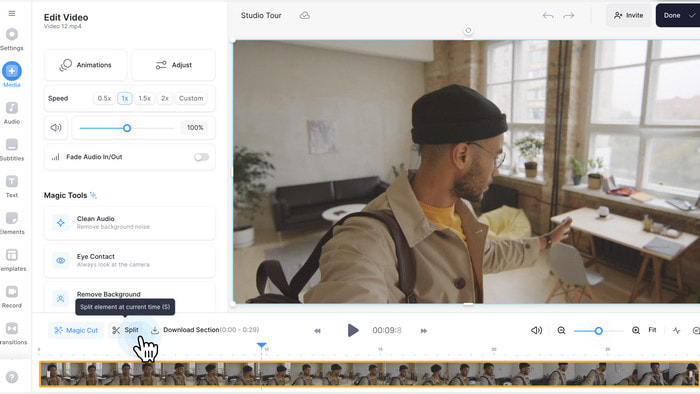
Platform: Web‑based, iOS, Android
Best For: YouTubers who want fast cloud‑based editing with easy sharing.
User Review: VEED.io lets me quickly edit and add subtitles online, sharing videos to YouTube without bulky software.
Key Features:
- Cloud‑based video editing, no software installation.
- Auto‑captioning and text editing tools.
- Templates, stock media, and transitions.
- No installation required.
- Fast editing for social media.
- Limited advanced editing features.
- The free version has a watermark and export limits.
Why We Select It
VEED.io is a browser‑based editor that simplifies editing for creators who want speed, automatic subtitles, and direct export to social platforms. It’s ideal for small channels or rapid video production.
Part 2. How to Select a Video Editor for YouTube
When selecting a video editor for YouTube, these are the most important factors to take into consideration:
1. Type of content: Basic editors for vlogs, Shorts, and to make reaction videos, advanced tools for cinematic videos.
2. User-friendliness: Starts want simplified editors, and advanced users want more control.
3. Support for YouTube: Integrated templates and support for standard codecs are important.
4. Prioritize speed for 4K editing: GPU acceleration plays an important role in increasing rendering speed.
5. Functionalities: Core editing tools, and more, with captioning and effects.
6. Costs: No charge for beginners, and pay for more advanced requirements.
7. Flexibility: Choose software that adapts to the growth of your YouTube channel.
Part 3. How We Test Those Video Editors for YouTube
When reviewing editors for YouTube videos, we like to review them in more of a real-world manner, as it will produce more pertinent results. We focus on export quality, performance, and user-friendly features.
1. Quality of output: We inspect clarity, compression after export, and audio syncing, especially for 4k and 1080p.
2. Exporting to YouTube: Video editors are evaluated based on available YouTube export presets, support for specific codecs (H.264, H.265, AV1), frame rate, aspect ratio, and tools to make vlog content efficiently.
3. Performance and speed: I evaluated rendering time, smoothness of playback, and the presence of GPU acceleration on the standard YouTube video editing timeline.
4. Features of editing: We take into account advanced features such as text-editing AI, color grading, and captioning, as well as basic features like multi-sequence editing and trimming cuts.
5. Ease of use: Interface clarity, learning curve, and workflow efficiency are tested for both beginners and experienced creators.
6. Stability: We monitor crashes, export failures, and overall reliability during longer editing sessions.
7. Scalability for creators: Editors are judged on how well they support channel growth, from simple uploads to advanced productions.
Conclusion
The best movie editor for YouTube is the one that matches your workflow, editing skills, and creative needs. Whether free or professional, the right tool helps you produce engaging videos and scale your channel smoothly.
More Reading


About the Author

 Click here to join the discussion and share your comments
 Tipard Video Converter Ultimate