

Key Takeaways
A VR video converter software or app should be able to change 2D flat videos to stereoscopic 3D VR-ready formats. For fast processing, Tipard Video Converter Ultimate is the best choice. If you pursue physical media to VR video conversion, you can choose Pavtube Video Converter Ultimate. For AI-powered 2D to 3D conversion on iOS, Spatial Media Toolkit is your choice. If you want a VR video converter on Android, VR Video Converter & VR Player is your choice.
Virtual Reality, or VR, lets you step into a digital world and experience stereoscopic 3D videos in a fully immersive way. You can watch 3D or 360° content as if you are really there. Now, it is possible to convert regular videos to VR format, and that is by using VR video converters.
If you want to try this, but do not know which program or application to use, you are in the right place. And in this write-up, you will get to know the leading 6 VR video converters available on Windows, Mac, Android, and iPhone.

Part 1. How to Choose a Good VR Video Converter
To get the most out of your headset, you must select the best VR video converter. You can easily convert regular videos into VR-ready formats with the aid of a good converter. It should be able to handle various video formats, provide simple editing, and make it simple to adjust output settings.
Key points to consider
- Converts multiple videos at once with batch processing.
- Works with popular video types like MP4, MOV, and MKV.
- Includes various VR formats like 360°, 180°, Side-by-Side, and Top-Bottom.
- Allows you to do simple editing, such as applying filters, trimming, cropping, etc.
- Enables you to change video settings like resolution, bitrate, frame rate, and aspect ratio.
In the next part, you will get to know some of the top VR video converters that run on computers and mobile devices.
Part 2. Top 4 VR Video Converters on Windows and Mac
1. Tipard Video Converter Ultimate
Platform: Windows & Mac
Best for: Users looking for high-speed batch conversion and advanced 3D customization.
One of the good VR video converters you can try is Tipard Video Converter Ultimate, and you will see why. First, it offers a dedicated VR video preset, making stereo-pair stereoscopic 3D VR conversion easy. It supports many input formats like MP4, MKV, MOV, M4V, and more, so almost any video can be used.
In addition, you can configure the output codec, resolution, frame rate, and other output settings to suit your needs. Plus, it supports batch conversion, letting you process multiple videos at once. On top of that, GPU acceleration speeds up the conversion for faster results.

- Super fast conversion speed, up to 120× faster.
- Supports a broad range of formats and device presets.
- Offers numerous video and audio solutions in one section.
- Customize videos with editing tools like effects, cropping, and trimming.

To learn how to convert a regular video to VR, please follow the steps below:
Step 1 Just like any program, download, set up and open Tipard Video Converter Ultimate on your computer.
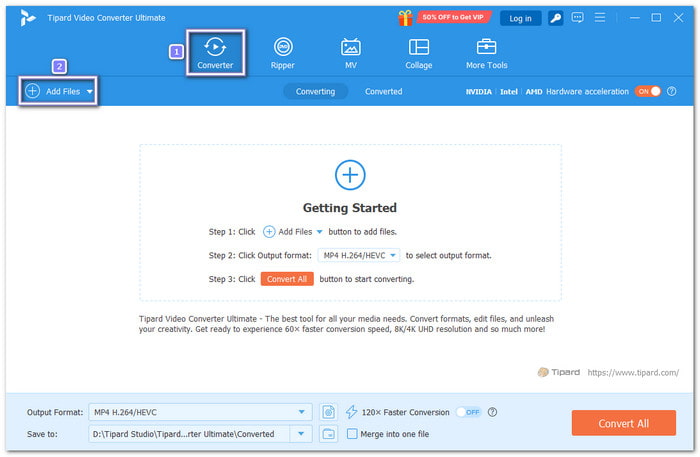
Step 2 On the Converter tab, click the Add Files button to import your regular video, like MP4, MKV, MOV, M4V, or other formats. You can add as many regular videos as you want, since Tipard Video Converter Ultimate supports batch conversion.
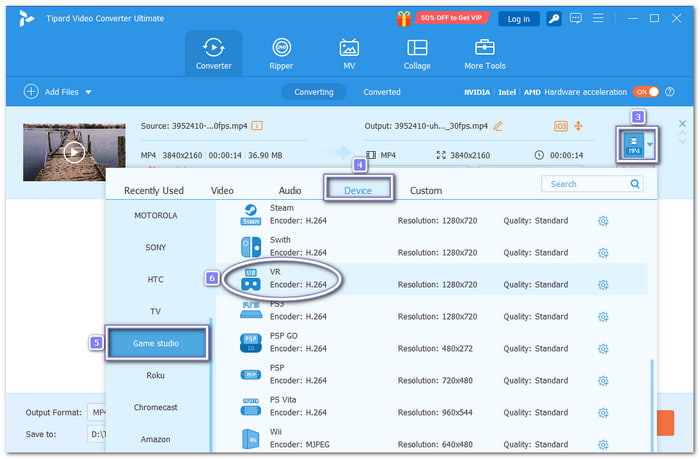
Step 3 Once the video is loaded, open the Format menu and go to the Device section. Scroll down until you find Game Studio and select it. On the right side, scroll again and choose the VR option.
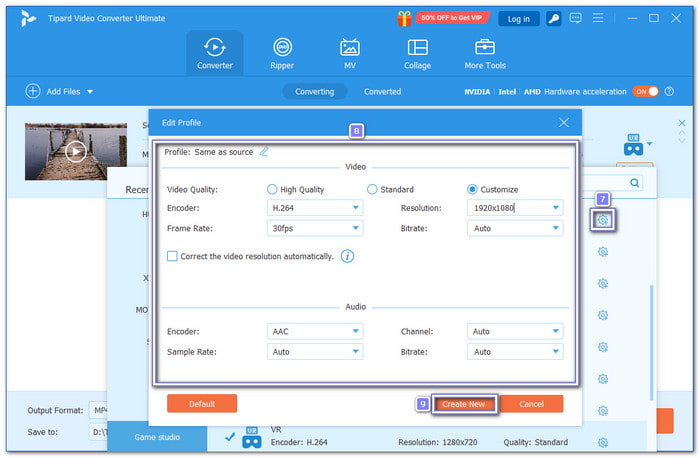
Step 4 You can also configure the output settings, such as the encoder, resolution, frame rate, and other options, using the Custom Profile option.
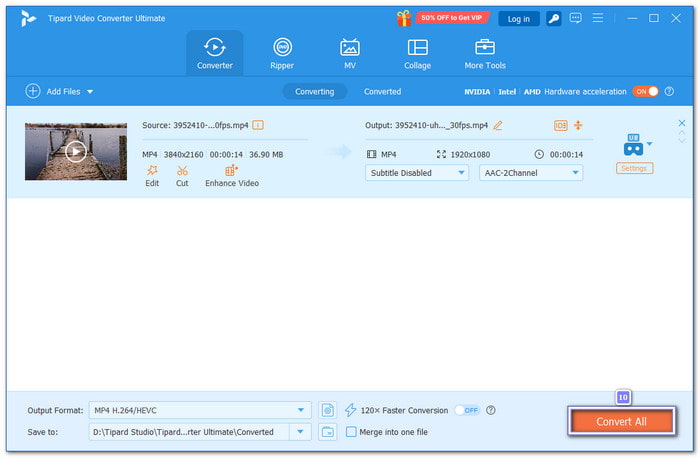
Step 5 It is time to press the Convert All button. Impressively, the conversion process is super fast, so you will not wait long. In just a few moments, your output file will be ready in your local folder.
- Includes ripper, MV creator, and collage maker.
- Offers a 3D maker for 360° split-screen VR videos.
- Provides a video enhancement feature, like upscaling and stabilization.
- Free version limited to 5-minute video length.
2. Pavtube Video Converter Ultimate
Platform: Windows & Mac
Best for: Digitizing physical Blu-ray/DVD collections for VR environments.
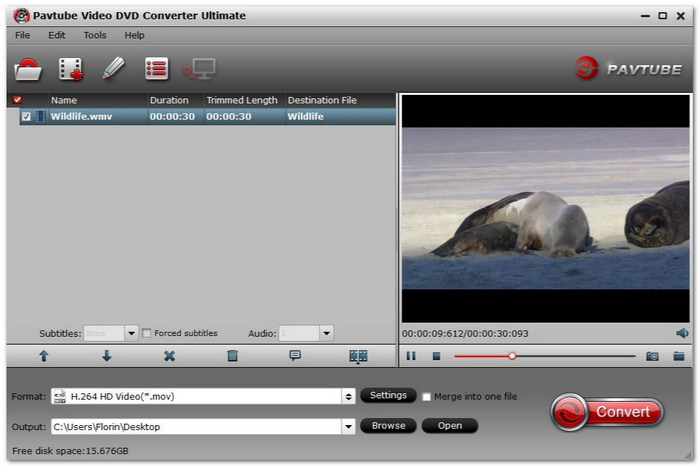
Pavtube Video Converter Ultimate is known for managing more than basic video files. This VR video converter software works with physical discs and common videos, then converts them into stereoscopic 3D VR-ready formats. The video to VR converter software focuses on speed and wide device support. It helps users prepare videos for phones, tablets, home systems, and VR headsets with ease.
- Fast conversion with GPU support.
- Supports Blu-ray and DVD sources.
- Works with many VR and device profiles.
- Editing tools feel basic.
- The VR field of view has limits.
3. Dimo Video Converter Ultimate
Platform: Windows & Mac
Best for: Casual users who prefer pre-configured VR headset profiles.
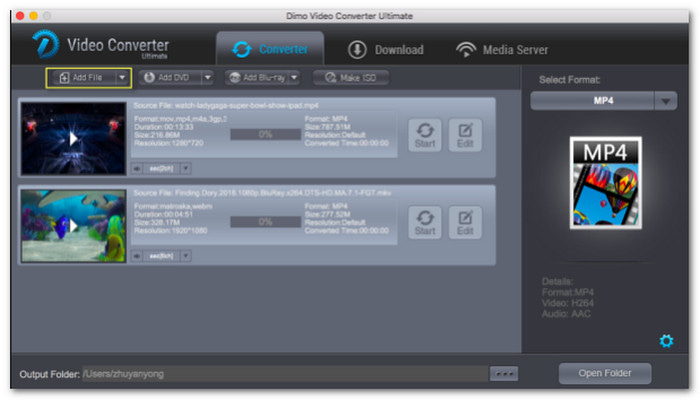
This VR video converter focuses on speed and ease. From beginning to end, the workflow is straightforward. Users can create videos for virtual reality viewing with 3D depth while maintaining control over basic effects and output settings, thanks to VR presets and headset options.
- Simple three-step workflow.
- VR presets for many devices.
- Supports ISO and media downloads.
- Editing tools are limited.
- The interface looks a bit dated.
4. iFun Video Converter
Platform: Windows
Best for: Casual Windows users wanting free, no-fuss VR conversion.
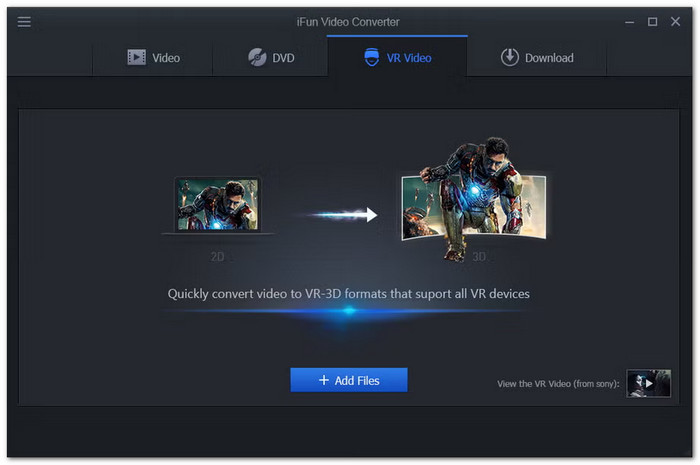
Free access is the biggest draw of iFun Video Converter. This 2D to 3D VR video converter allows quick 2D to VR-3D conversion without complex steps. It suits users who want simple VR results on Windows. It also supports audio tasks and DVD work, making it useful for light media jobs beyond VR videos.
- Free to use.
- Supports many file formats.
- Simple VR conversion steps.
- Limited platform support.
- No advanced editing tools.
Part 3. Top 2 VR Video Converter Apps on Android and iOS
1. VR Video Converter & VR Player
Platform: Android
Best for: Direct VR 3D-depth video playback on your Android phone.
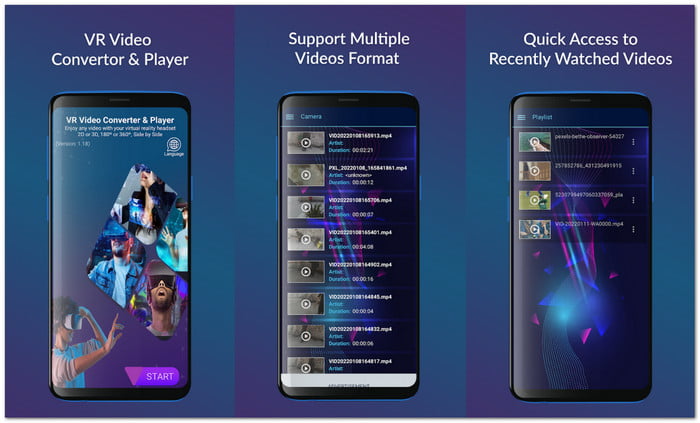
VR Video Converter & VR Player turns normal phone videos into a full VR cinema feel. It focuses on viewing first, then simple VR conversion. Users can convert video to VR format and watch 3D, 360, and VR videos straight from phone storage.
This application works well with Cardboard and VR Box headsets and keeps controls easy during playback. Moreover, you can also use it to play VR videos without a split screen by offering a standard 2D view.
- Strong VR and 360 playback support.
- Works with many mobile VR headsets.
- Small application size and smooth controls.
- Editing features are basic.
- Conversion clarity depends on the source video.
2. Spatial Media Toolkit
Platform: iOS
Best for: AI 3D VR video conversion.
This application is built around depth and realism. Spatial Media Toolkit is a 2D to VR converter that uses smart AI to turn flat photos and videos into 3D spatial content. It fits users who want more control over depth and framing. With batch tools and clean output, it helps prepare media for modern VR and spatial viewing on mobile devices.
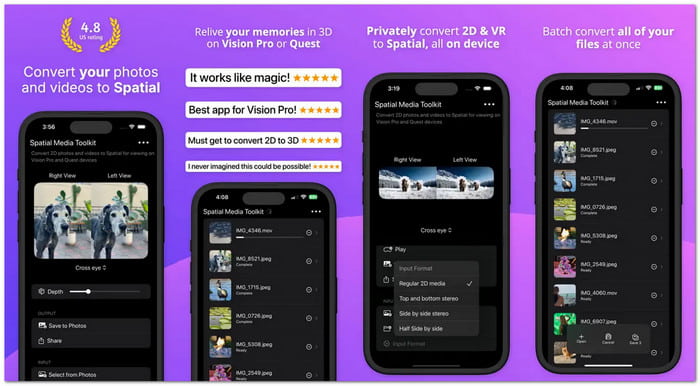
- AI-based depth control.
- Batch conversion support.
- Exports to Photos and Files.
- Learning curve for first-time users.
- Needs newer devices for best results.
Part 4. How We Test VR Video Converters
At our core, we believe that software recommendations should be backed by real, hands-on experience. To find the best VR video converters on the market, we put each software through a rigorous, standardized testing process.
1. Our Test Videos (The Source Material)
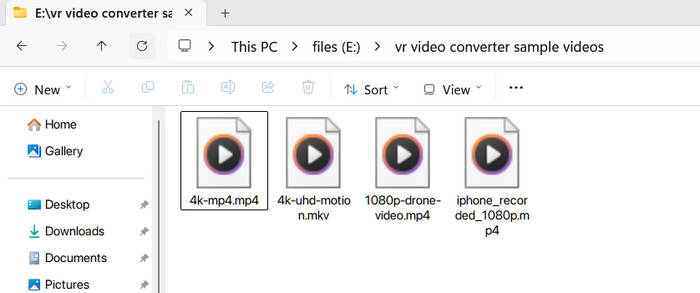
- Standard Formats: 1080p (Full HD) and 4K (UHD) MP4 and MKV files.
- Content Types: High-motion action clips (to test frame stability), scenic drone footage (to test depth perception), and standard smartphone-recorded video.
- Target Output: We test the conversion from these standard formats into 3D SBS (Side-by-Side) and Top-and-Bottom formats, which are the gold standards for mainstream VR viewing.
2. The Test Environment
- Operating Systems: Windows 10/11 and macOS (latest stable versions).
- Hardware Setup: Two Windows computers equipped with consumer-grade Intel Core i7 and NVIDIA RTX 4060.
- VR Playback Verification: Converted videos are tested for actual playback on two VR headsets: the Meta Quest 3 and Apple Vision Pro.
3. Our Evaluation Criteria
To ensure fairness, all software, including our top recommendation, Tipard Video Converter Ultimate, is tested on standard consumer hardware, rather than high-end developer rigs.
- Conversion Speed & GPU Efficiency: How well the software utilizes hardware acceleration (like NVIDIA CUDA or AMD App Acceleration) to speed up rendering without freezing the PC.
- 3D Effect & Visual Clarity: Whether the resulting SBS or Top-and-Bottom video provides a comfortable, believable 3D depth effect without causing eye strain.
- Ease of Use: A clean, beginner-friendly interface. We love features like Tipard’s one-click "3D Maker" tool, which skips overly technical jargon.
Part 5. FAQs of VR Video Converter
Can I convert a VR video back to a normal 2D video?
Yes, you can convert VR video to normal 2D video. By using an advanced VR to 2D converter like Tipard Video Converter Ultimate, you can select a single eye/channel from an SBS or 360° file and export it as a standard flat MP4 for regular screens.
Can MP4 files be VR?
Absolutely! MP4 is a flexible format, and VR content can be stored in MP4 files. You just need a VR player or converter to view it in 3D or 360°.
Can VLC play VR videos?
Yes, but with limits. VLC can play 360° and VR-style videos, but it cannot provide full VR headset support or 3D effects. It is better for previewing VR content on a regular screen.
What is the best format for Meta Quest 3 video playback?
For local playback, an MP4 container encoded in H.264 or HEVC, configured for 3D Side-by-Side (SBS) at 4K resolution and 60 fps or 90 fps, provides the best balance of visual clarity and smooth performance.
Conclusion
It is clear that VR is becoming popular, and it offers a special and immersive experience. You can rely on the VR video format converters mentioned above, like Tipard Video Converter Ultimate, if you want to try it, too.
It supports almost any video format and even comes with a ready-to-use VR preset. It makes it simple to convert your videos and shows exactly what a good VR video converter should be.
All-in-one video toolbox: convert, edit, upscale, enhance, and compress your videos easily
100% Clean & Safe
100% Clean & Safe

More Reading
About the Author

 Click here to join the discussion and share your comments
 Tipard Video Converter Ultimate