

Blu-ray discs are known to provide clear images and high-quality audio and are not always easy to play on a PC or Mac. Not all computers have the software or drivers required to play back smoothly, and this may lead to glitches or interruptions. In this guide, we will show you how to play Blu-ray on PC using trusted software and easy system adjustments. We will also discuss the playback on Mac, converting discs to compatible formats, and the answers to the frequently asked questions to guide you to enjoy your movies without frustrations.
Part 1: How to Play Blu-ray on PC
One of the surest options in case you are in need of a Blu-ray player for PC is Tipard Blu-ray Player. It provides quality playback and the use of GPU acceleration to maintain smooth playback even with large Blu-ray files. You may toggle between chapters easily, control videos and have all the capabilities of your discs without interruptions.
To use it, a disc drive is required, whether it is built into your PC or connected externally. Tipard stands out for its combination of stability, performance, and ease of use, making it an excellent option for anyone who wants a hassle-free Blu-ray experience on their computer.
Step 1Download the Blu-ray Player on your PC by clicking the appropriate button that we have here. Then, follow its instructions to install the app before you can launch it.
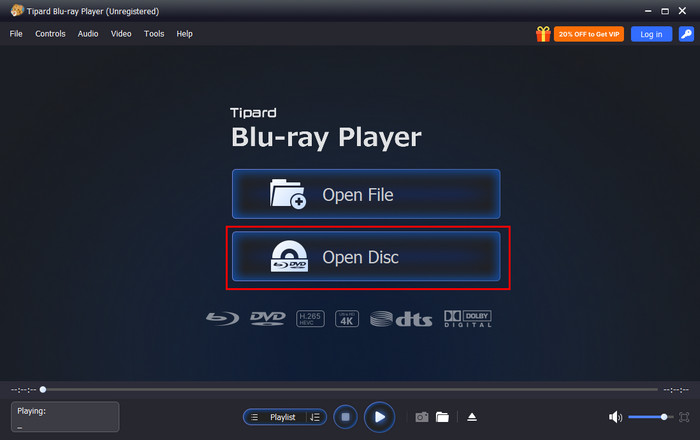
Step 2On the interface, select the Open Disc, and we said earlier, you will need a disc drive that connects to your PC. Select the Blu-ray file name that appears in the selection to load it up.
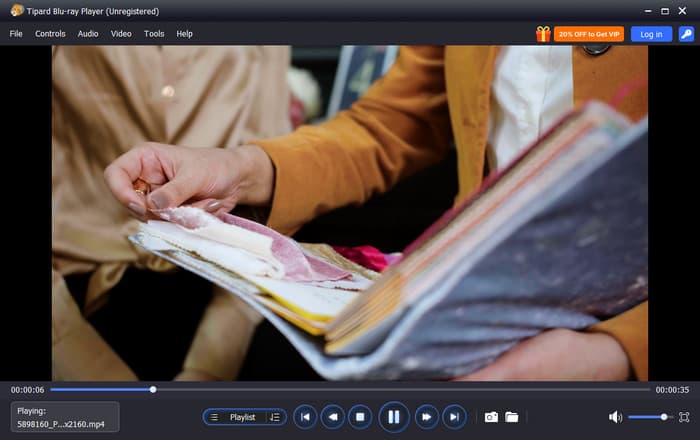
Step 3As easy as that, you have learned to play Blu-ray on PC. While the video is playing, you can manage to use the playback buttons available here and even take a quick snap of the Blu-ray movie you are watching.
You can now understand how to play Blu-ray on PC with a good video player. The software is also compatible with other types of discs in addition to Blu-ray discs and will enable you to watch videos stored in your PC running smoothly. It can decode a broad set of formats without delays or loss of quality, making sure of stable playback.
Part 2: How to Play Blu-ray on Mac
Blu-ray discs are not always easily playable on a macOS, as most Macs do not support Blu-ray playback out of the box. Elmedia Player can solve this problem by offering an easy and trustworthy method to view Blu-ray videos and other forms of video without converting or complex installation. It accepts unencrypted Blu-ray discs and provides the ability to play videos and audio with flexibility through video and audio settings.
If you want to play Blu-ray on Mac without technical hassle, Elmedia Player offers a balanced mix of ease of use and dependable performance. The steps below show how to get started quickly.
Step 1Get the Elmedia Player from the official website and install it on your Mac. Open the app from the Applications folder and confirm any security prompts so it can run normally.
Step 2Open Elmedia Player and add your Blu-ray content. You can drag and drop the video into the player, or click Open in the menu and select the file. If you are using a Blu-ray disc, connect an external Blu-ray drive. Keep in mind that only unencrypted discs are supported.
Step 3As soon as the video is loaded, the playback is initiated immediately. You are able to change audio, subtitles, and video settings when necessary, and then watch the movie without any additional configuration.

Part 3: How to Rip Blu-ray to a Supported Format for Playback
When your Blu-ray does not support direct playback of discs, a convenient option is to convert the discs to digital formats. Tipard Blu-ray Converter enables you to convert Blu-ray discs, ISO files or folders into popular video formats and preserve high quality. It has lossless chapter support, soundtrack support, and supports subtitles, and has hardware-accelerated fast conversion. This enables it to make it a good option among users who desire playback which is reliable playback on various devices.
Step 1 Download Tipard Blu-ray Converter from the official website and install it on your computer. Launch the software after installation to access the main interface.
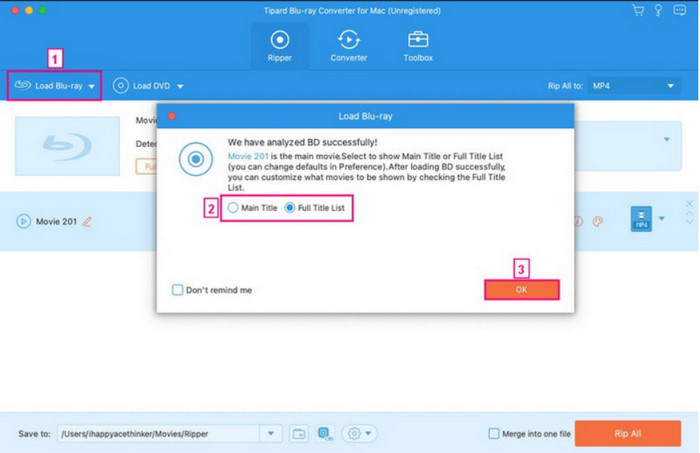
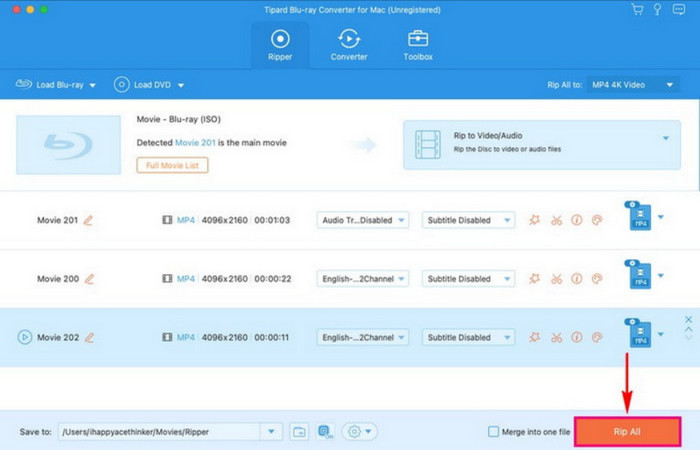
Step 2 Insert your Blu-ray disc into a compatible drive, or prepare a Blu-ray ISO or folder. Click Load Blu-ray to import the source, or drag and drop the files into the program. Select the main title if multiple videos appear.
Step 3 Select your desired output format from the Rip All menu. It is suggested to use lossless MKV in case you prefer to retain the original quality and disc format. Select a different digital format in case you want to playback with less difficulty using other devices.
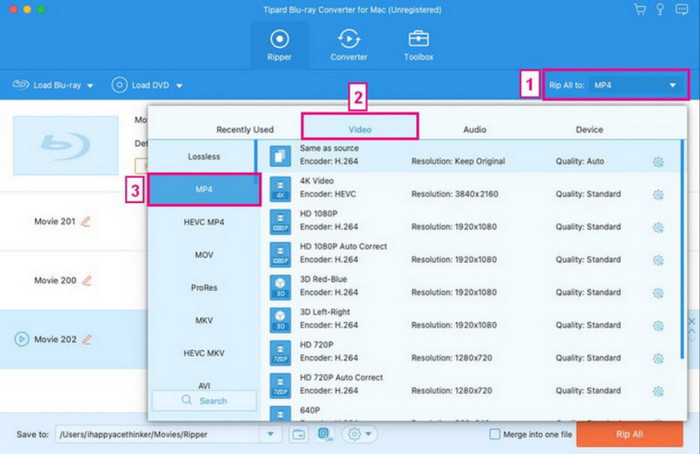
Step 4 Choose an output folder, then click Rip All to begin the process. Once finished, your Blu-ray content will be ready to play on supported devices.
Part 4: FAQs of Playing Blu-ray on PC and Mac
Do I need special software to play Blu-rays on a computer?
Yes. Most computers do not support Blu-ray playback by default. You need a dedicated Blu-ray player for PC or Mac that can decode Blu-ray discs and handle video, audio, and menu navigation properly. A compatible Blu-ray disc drive, either built in or external, is also required to read the disc.
Can I play Blu-ray discs on both PC and Mac?
Yes, but the software requirements differ. Windows and macOS do not include native Blu-ray playback support. You must use third-party Blu-ray player software that matches your operating system. For Mac users, only unencrypted Blu-ray discs are supported unless the disc is converted into a digital format.
Can I play 4K Blu-ray movies on Blu-ray Player software?
You can play 4K Blu-ray movies on Blu-ray Player software if your system meets the hardware and software requirements. This has a 4K-ready Blu-ray drive, a compatible GPU, and 4K-resolution and hardware-accelerated playback software. Without proper support, playback may fail or be limited to lower resolution.
Conclusion
You now know how to play Blu-ray discs on Windows 10 with the proper software and a compatible disc drive. After setup, playback is smooth, and video quality stays clear. The same player can also open other disc types and play videos saved on your PC, making it a practical choice for everyday viewing.
More Reading



About the Author

 Click here to join the discussion and share your comments
 Tipard Blu-ray Player