

Learning how to make a DVD can seem tricky at first. Many users get confused by disc types or software choices. Knowing which blank DVD to use and having the right burner is key. Most modern laptops need an external USB DVD drive. Following these instructions will help you make DVDs that play on most devices. We start with what you need to make a DVD.

Part 1. What You'll Need to Make a DVD
Before you start, it is important to know what you need to make a DVD. The correct tools will make it easier and guarantee that your discs are compatible with the majority of players. You will require a computer, blank DVDs and good software. All these products are essential in developing DVDs that look professional and do not have issues playing them.
1. A Computer with a DVD Burner
To create a DVD, you need a computer with a DVD burner. Most modern laptops do not have built-in drives, so an external USB DVD drive is often required. This ensures your computer can read and write discs smoothly.
2. Blank DVD Discs
It is imperative to make the correct selection of the blank disc. The most used are DVD-R, DVD+R and DVD+R DL (dual-layer). DVD-R has been suggested to have wider compatibility, with the exception that dual-layer discs are able to hold longer videos. Knowing how to create a DVD begins with picking the correct disc type.
3. DVD Authoring Software
DVD authoring software is reliable and makes it easy and professional to burn. The best program to make DVD enables you to arrange things, add menus and make sure your discs are compatible with most devices and not misread.
Part 2. Choosing the Best DVD Creator Software
Finding the best program to create DVD makes burning videos simple and reliable. The right software lets you add videos, edit settings, customize menus, and make discs that work on most players. Many programs exist, but some are easier to use and have better features. In this section, we will look at five trusted DVD creator programs to help you choose the right one.
1. Tipard DVD Creator
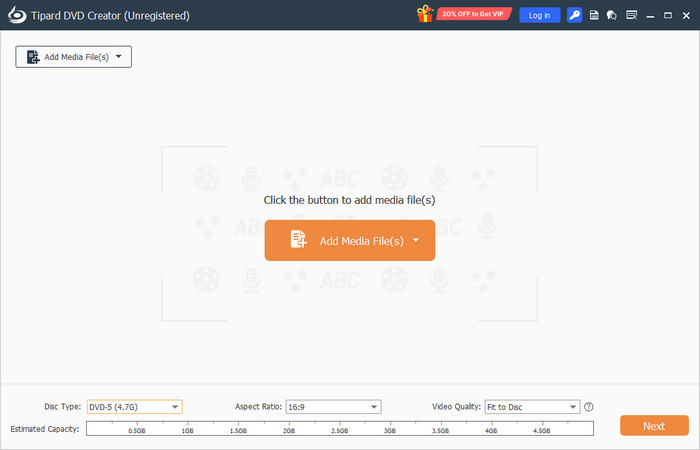
Tipard DVD Creator is a reliable tool that shows beginners exactly how to make a DVD without errors. It supports almost all video formats, allows custom menus, chapters, subtitles, and background music. Users can preview content before burning, which helps avoid wasted discs. It is simple enough for beginners but still offers enough options for more experienced users.
- Fast and stable DVD burning
- Original multiple video formats
- Chapters and menus that can be customized
- Some advanced features require additional steps
2. MAGIX Video Deluxe
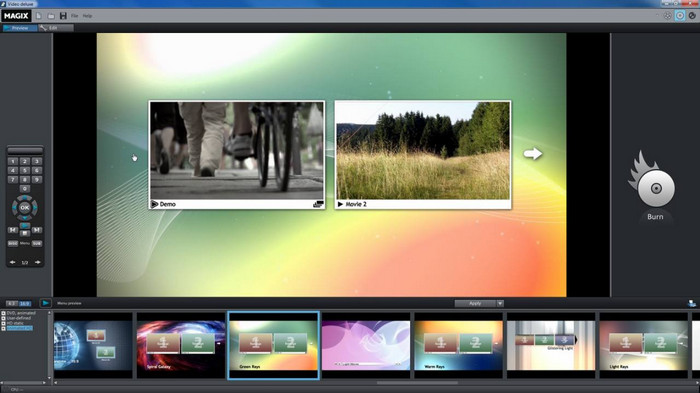
MAGIX Video Deluxe would suit users who are interested in editing videos and then burning them onto a DVD. It provides the opportunity to trim, add transitions, effects and audio modifications. The software, after that, assists the users in creating DVD files with a menu and chapter selections that appear professional. It has powerful editing features, which can be applied to personal work or small commercial videos.
- Advanced video editing options
- Flexible DVD export and menu creation
- Professional-quality results
- It can be complex for beginners
- Higher system requirements
3. DVDneXtCOPY DVD Creator
DVDneXtCOPY DVD Creator focuses on speed and simplicity, making it easy for beginners to learn how to create a DVD. Users can convert the most common video formats and burn them to discs quickly. It is best for those who want standard DVDs without extra customization or complicated steps.

- Quick and simple DVD creation
- Lightweight and easy to install
- Minimal setup required
- Limited menu customization
- Fewer advanced features than full-featured programs
4. Wondershare DVD Creator
Wondershare DVD Creator is often recommended as the best program to create DVD for casual and intermediate users. It complies with nearly all video types, gives the ability to add chapters, background music, and menu customization. Also, it allows users to preview their works prior to burning, hence professional output without wasted discs.

- Intuitive interface for beginners
- Broad format support
- Customizable menus and chapters
- Rendering large files may be slow
- Full features require the paid version
5. DVDFab
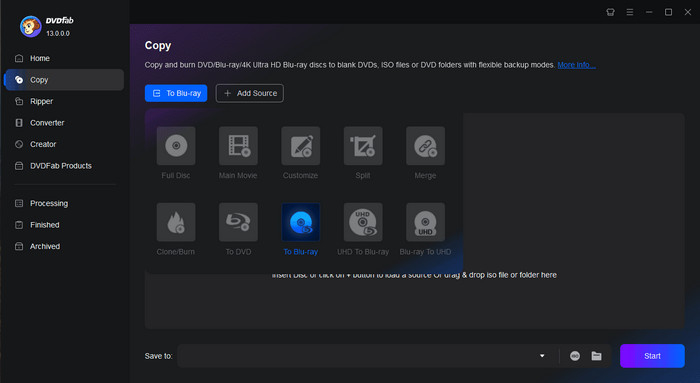
DVDFab is a complete package that enables users to create DVD, copy, convert as well and back up discs using HandBrake. Allows processing of many formats and provides sophisticated compression, menu development and disc management. It is best suited to users who desire complete freedom in DVD creation and backup.
- Whole DVD creation, copying and conversion suite
- Encourages numerous types and formats of discs
- Back-up and customization facilities
- The interface may be too complicated to start with
- All users may not be appropriate for subscription pricing
The right software ensures your DVDs are professional and work well. Each program has its strengths, whether for simple burning, editing, or an all-in-one solution. After picking the software, the next step is learning the process. In the next section, we will show a step-by-step guide on how to Handbrake create a DVD using Tipard.
Part 3. The Step-by-Step Guide to Creating a DVD
Learning how to create a DVD may seem hard at first. Using the right software makes it simple. Tipard DVD Creator lets you turn your videos into DVDs that play on most players. You can add several videos, edit settings, customize menus, and burn discs easily. Follow these steps to make your DVD quickly, even if you are new to the process.
Step 1 First, visit the official Tipard website and download the software. Follow the installation instructions to set it up on your computer. Make sure your DVD drive is connected if using an external USB DVD burner.
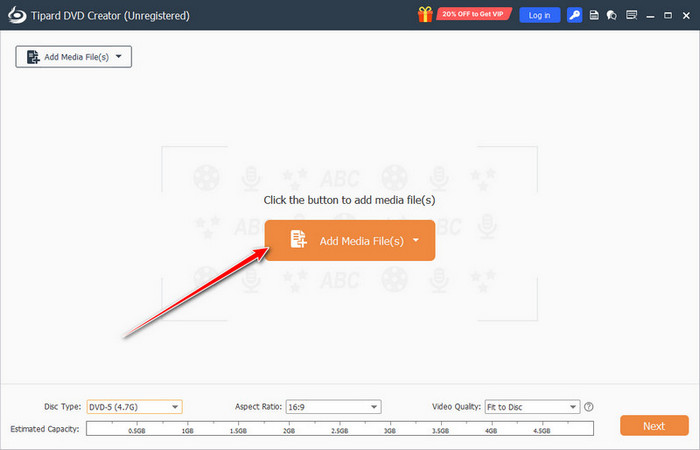
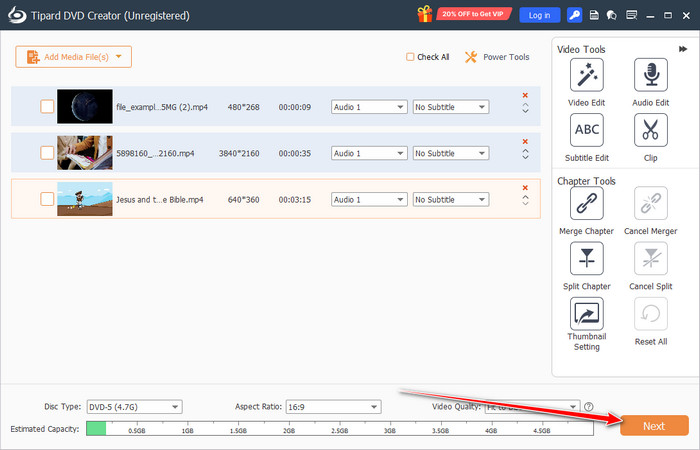
Step 2 Open Tipard DVD Creator and click the Add Media Files button. Select the videos you want to include on your DVD. You can add multiple files and arrange their order before proceeding.
Step 3 Before burning, customize your videos and disc. You can adjust chapters, subtitles, and thumbnails, and trim or crop video clips if needed. These options help make your DVD more organized and professional.
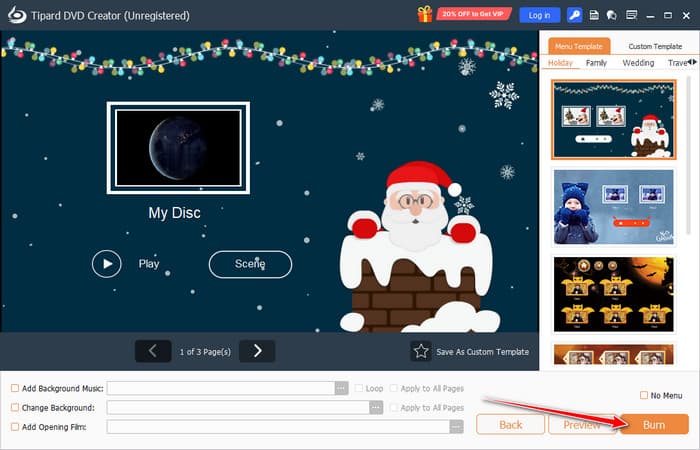
Step 4 Choose a menu template from the available options and customize it with text, background images, or music. Once satisfied, click the Burn button. Tipard will start creating your DVD. When finished, your disc is ready to play on most DVD players.
After you have created your DVD, you can use DVD player software or a standard DVD player to watch your videos. This completes the process, from preparing your files to burning a disc that works on most devices.
Conclusion
Making your own DVD is easier than it seems. With the right software, the correct disc, and clear steps, you can make DVDs that play on most devices. Whether it is for home videos, personal projects, or work, these steps help you create a DVD that looks good and works well. Now you are ready to start making your own DVDs with confidence.
More Reading

About the Author

 Click here to join the discussion and share your comments
 Tipard DVD Creator