

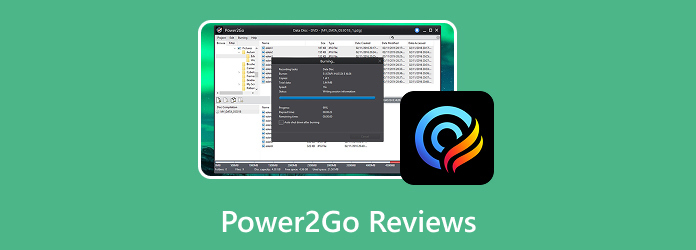
CyberLink Power2Go was designed to be an ideal disc burning, backup, and media conversion software. It can even handle CDs, DVDs, ISO files, and mobile formats, making it the best tool for professionals and casual users. Are you interested in learning more about the program? If so, we highly recommend reading this review as we give all the details you need, including its key features, pros, cons, and more.
Part 1. What is Power2Go
CyberLink Power2Go is a Windows-based software that combines disc burning, media conversion, disc authoring, and backup functions into a single platform. With this program, users can effectively and instantly burn data, video, and audio files to DVDs, CDs, and Blu-ray discs via drag-and-drop desktop widgets. Plus, it lets users create an appealing output, thanks to its menu templates, chapter editing tools, and background music. Thus, Power2Go is among the best programs you can rely on for home entertainment projects and business presentations.
Part 2. Main Features of CyberLink Power2Go
If you want to learn more about Power2Go, discover its features below.
Power2Go DVD Burner
The program allows users to burn data, video, and audio files to DVDs and CDs, with a simple drag-and-drop procedure. It is perfect if you want to create various collections on your discs.
Video Disc Authoring
When using CyberLink Power2Go, you can author professional-looking Blu-ray and DVDs with a customizable menu, background music, and chapter editing tools. The best part here is that it can provide premium templates, ensuring that you can polish your content for better playback.
Media Conversion
What makes the program powerful is that it can convert your media files. You can even digitize your disc, helping you to play your content on any platform. It also supports various formats, including MP4, MKV, AVI, MP3, WMA, and more. Plus, the conversion process is simple. With that, even if you are a beginner, converting your files will be a simple task.
Backup and Security
Power2Go software allows you to back up folders, files, and other data to your USB flash drive. It also uses a military-grade 256-bit encryption. It ensures that all your data is protected against unauthorized access.
ISO Mounting and Management
Another capability that software can offer is that it can mount ISO files as virtual drives without using any optical drives. This feature is ideal if you want to collect your files and burn them in the future, such as burning an ISO to a USB and other discs.
Part 3. Detailed Review of Power2Go
Do you want to get more information about Power2Go? Then, see the detailed review in this section.
1. Advantages of CyberLink Power2Go
• Simple User-Interface:
The main layout of the program is simple to navigate. Its features can be easily utilized for achieving your desired outcome.
• Wide Format Support:
Power2Go can support a wide range of formats, like CDs, DVDs, Blu-rays, BDXL, and more. It can even support digital formats, like MP4, MOV, MKV, MP3, etc.
• Cloud Integration:
The software is capable of saving and sharing the content directly to your clouds, such as OneDrive and Google Drive. With this capability, there is no need for YouTube to worry about data loss. Your cloud ensures that your content is kept and secured.
2. Drawbacks of CyberLink Power2Go
• Performance Issues:
There are some user reports about slower processing and installation problems. It might affect the user experience.
• Restrictions on the Free Version:
Power2Go is not 100% free. When using the free version, there are various restrictions you might encounter. Using the program's premium version is highly recommended.
• Windows Only:
The program is only available on the Windows platform. To burn a disc, convert media, or mount an ISO on Mac and other platforms, it is better to use another software.
3. Pricing Plans
Are you interested in purchasing the paid version of the program? In that case, you can try checking the price from the table we provided below.
| Power2Go Essentials | Power2Go Deluxe | Power2Go Platinum | |
|---|---|---|---|
| Pricing | Free | $48.99 | $69.99 |
| Features | • Basic disc burning • Audio CDs • ISO creation |
• Smart Fit video sizing • Wider format support • Enhanced menus • Cloud backup |
• Full Blu-ray authoring • 256-bit encryption • Premium menus • Advanced conversion tools |
If you are a casual user, you can stick with the Essential version for basic disc burning. For advanced users, it would be better to access the Deluxe version since it can balance the price and features, especially for cloud backup and smart delete conversion. Lastly, for professional use, there is no doubt that the Platinum version is the best choice. It can handle Blu-ray authoring and military-grade encryption, perfect for professional disc creation and secure backups.
Part 4. Modern Alternative to Power2Go
Are you looking for a modern, lightweight alternative to Cyberlink Power2Go? In that case, we recommend using Tipard DVD Creator. This software is ideal if you want a simple DVD creation process. It can even offer menu templates for creating an appealing DVD. It can also offer a Fit-to-Disc feature, ensuring that your content is compatible and fit to your disc. The best part here is that it supports full hardware acceleration, ideal for a faster and smoother burning speed. So, if you need the best replacement for Power2Go, start using Tipard DVD Creator.

- It can burn DVDs and Blu-rays in various formats.
- The program is capable of adding a video and audio track to the disc.
- It can offer basic editing tools for improving the video, such as a trimmer, cropper, watermark, and more.
- It is available on both Mac and Windows.
To start creating your DVD, use the instructions below.
Step 1 Download Tipard DVD Creator on your computer. Then, run it to see its interface on your screen.
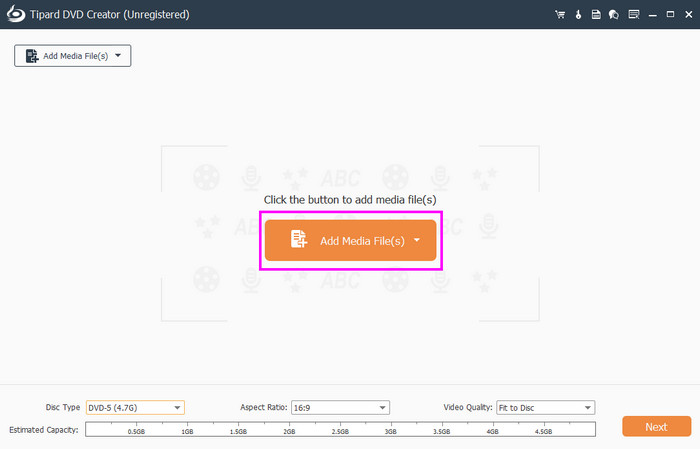
Step 2 After you launch the interface, click DVD. Then, tap Add Media Files to start adding the file you want to create as a DVD.
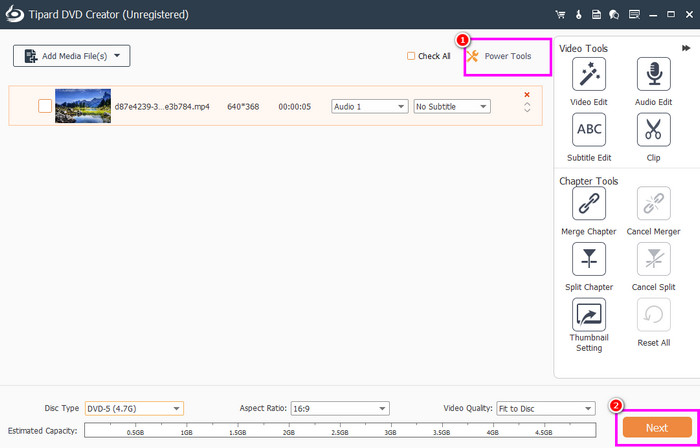
Step 3 After inserting the video, you can proceed to the Power Tools to access basic editing tools. After editing your video, hit the Next button below.
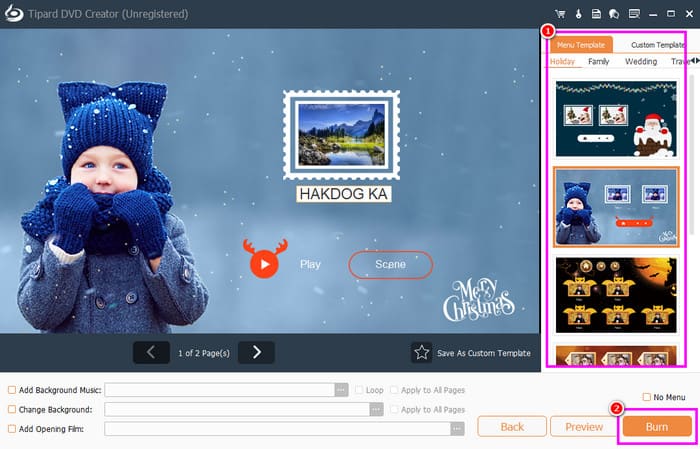
Step 4 You can also go to the Menu templates section to make a custom DVD menu. Once done, tap the Burn > Start button to begin the DVD creation process.
Part 5. FAQs about Power2Go Review
Is Power2Go free?
The software can offer its free version for basic DVD burning and media conversion. However, if you want to access its advanced features, you must use the paid version.
What is the best Power2Go for Dell?
Well, you can use all the Power2Go versions on Dell. For basic disc burning, you can use the Essential version. For advanced processing, you can access the two paid versions.
How to save a DVD to a computer using Power2Go?
All you need to do is insert the DVD into your computer. Then, launch the Power2Go software and proceed to the Ripping feature. After that, add the DVD and start selecting your desired output format. Once done, tap the Rip button to begin saving the DVD on your computer.
Conclusion
CyberLink Power2Go is an ideal software for disc burning, media conversion, and ISO mounting. However, there are times when its processing is too slow. It also has various restrictions on the free version. With that, if you need the best replacement, feel free to use Tipard DVD Creator. This program ensures that creating a DVD would be a simple task, thanks to its useful features. Thus, access the program and begin creating your DVD.

Burn and author media files to DVD disc, ISO, and folder
100% Clean & Safe
100% Clean & Safe

More Reading


About the Author

 Click here to join the discussion and share your comments
 Tipard DVD Creator