 MP4 Video Converter for Mac
About | Privacy Policy | Terms of Use | Support | Contact Us
Copyright © 2026 Tipard Studio. All Rights Reserved.

Windows

Rip your favorite Blu-ray/DVD movies or videos to popular formats

Powerful software to play Blu-ray/DVD videos and audio

Create Blu-ray disc/folder/ISO file with your own video

Backup/Copy your favorite Blu-ray to disc/folder/iso files
Mac

Rip your favorite Blu-ray/DVD movies or videos to popular formats on Mac

Powerful software to play Blu-ray and popular video formats on Mac
Windows

Rip DVD to any popular video format quickly of full quality

Create DVD from videos and burn video to DVD/Blu-ray freely

Copy DVD to DVD disc/folder/ISO files in a 1:1 ratio
Mac

Rip DVD to any popular video format quickly of full quality on Mac

Burn or author a DVD from videos with subtitles and chapters on Mac

Copy DVD to DVD disc/folder/ISO files in a 1:1 ratio on Mac
Windows

Rip DVD, convert 4K video, edit, and upscale videos to 5K/8K

Repair broken videos with high accuracy and support many formats

Convert any video to MP3, MP4, MOV, WAV, and other 350 formats

Upscale resolution, optimize brightness and remove video noise

The easiest tool to capture screen, game, audio, etc. with high quality

Convert any 2D video to 3D video and convert 3D to 2D video

Convert 4K video to 4K/1080P and common videos

Convert TS video to various popular video/audio formats
Mac

Rip DVD, convert 4K video, edit, and upscale videos to 5K/8K on Mac

Repair broken videos with high accuracy and support many formats on Mac

Convert any video to MP3, MP4, MOV, WAV, and other 350 formats on Mac

Upscale resolution, optimize brightness and remove video noise on Mac

The easiest tool to capture screen, game, audio, etc. with high quality on Mac

Convert any 2D video to 3D video and convert 3D to 2D video on Mac

Convert 4K video to 4K/1080P and common videos on Mac

Convert TS video to various popular video/audio formats on Mac
Desktop

Rip and convert DVDs to MP3 and support other audio formats

Reset Windows Admin and Standard user account password in seconds

Accurately Convert any PDF file to Word with OCR

Convert PDF to Word, Excel, HTML and Image with OCR
Online

Easily remove watermarks from many image file formats free online

Points:0
Redeem
User Guide
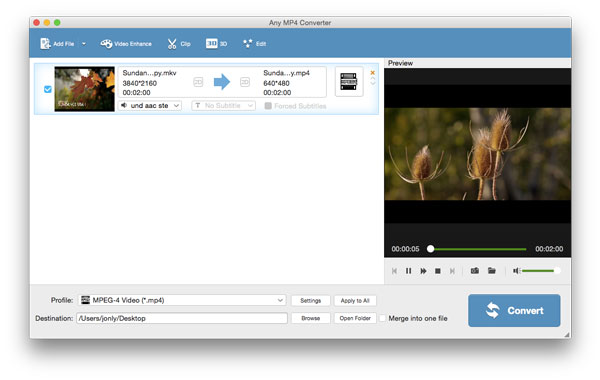
Step 1 Import the target video
Click the button of "Add File" on the top-left side of the software tool bar and the Any MP4 converter will enable you to add video file(s) and folder.
Step 2 Set output format and the destination folder
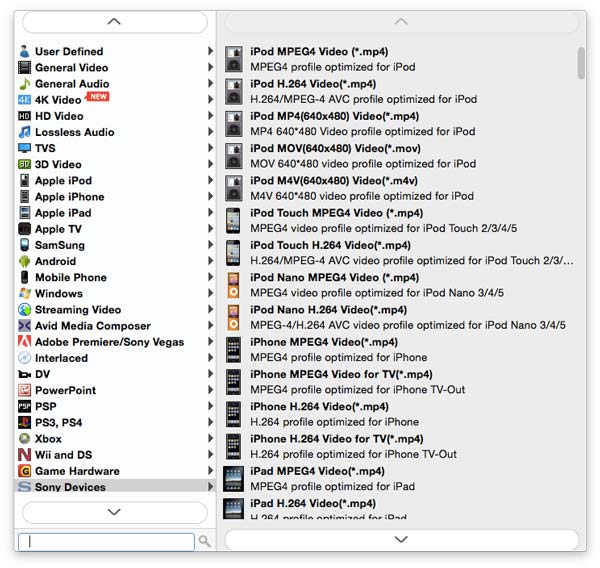
Tab the arrow of the "Profile" and input "MP4". From the right column, there are a lot of MP4 options for you to choose from. By the way, this full-featured video converter can also help you to convert videos in different formats. For example, you can also convert FLV to AVI, or turn MP4 to MOV.
Step 3 Convert the imported video to MP4 file
Click "Convert" and turn the target video to MP4 file on Mac. With the advanced acceleration technology, this program supports batch MP4 video conversion on Mac with super fast speed.
Besides video converting, this smart software enables you to extract the audio file from the imported video and convert it to any preferred audio format on Mac as you like.
Step 1 Add the video
Tab "Add File" on the top-left side of the software tool bar and the Mac Any MP4 converter will enable you to add video file(s) and folder.
Step 2 Select the output audio format and the destination folder
From the "Profile" tab, and enter "MP3", "M4A", or any other audio format you like. Highlight and set it as the output audio format. Click "Browse" and choose your destination folder to get the file.
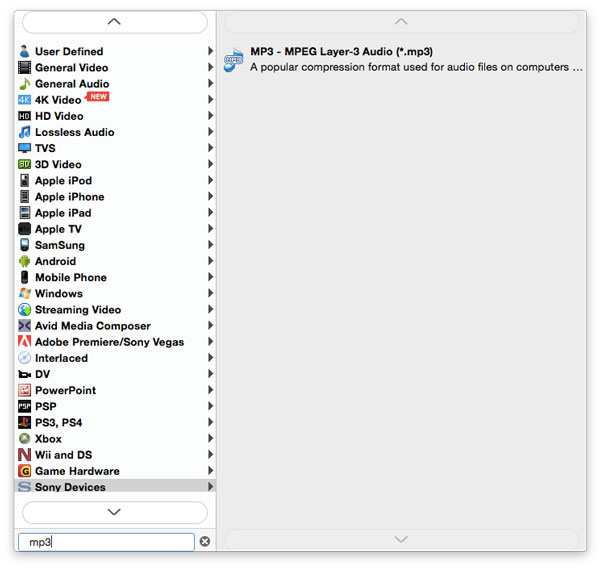
Step 3 Extract and convert the audio file
Tab "Convert" button. Within seconds, you can find the output audio document will be converted in the destination folder.
This all-in-one Mac Any MP4 Converter has its built-in video editing tool. With that, you are free to edit the source video, add 3D effects or personal watermark, and adjust the brightness, contrast, hue, or saturation of the target video.
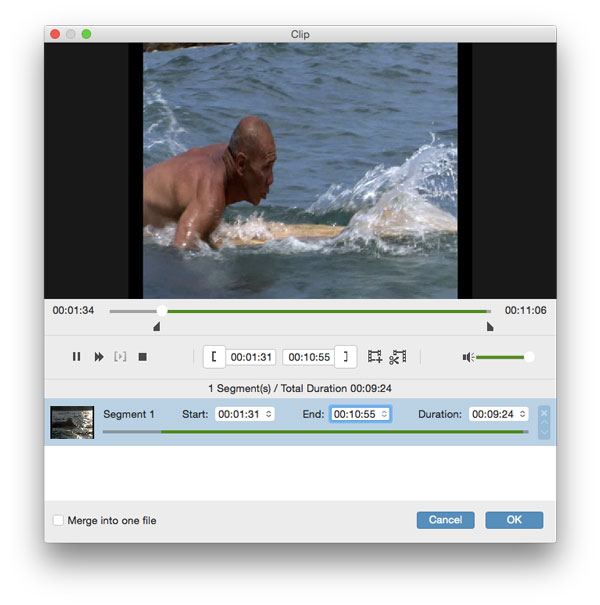
Step 1 Clip the video length
This satisfying DVD Ripping software for Mac enables you to cut off your unwanted video part. You could drag the slide bar to set the start time and end time according to your needs. Here you can get several clips.
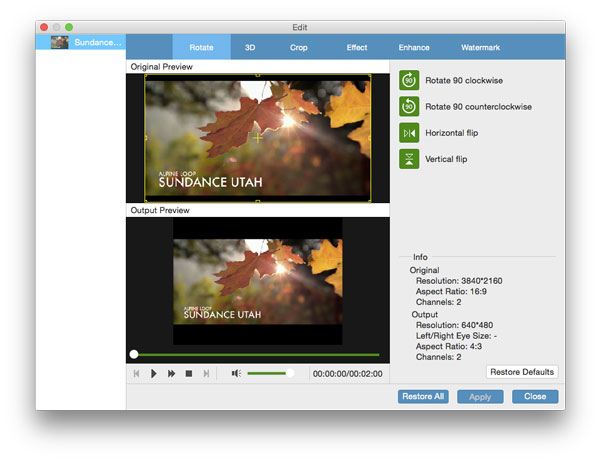
Step 2 Rotate the video
You can rotate the video to the right angle from the window of "Rotate". There are 4 options: "Rotate 90 clockwise", "Rotate 90 counterclockwise", "Horizontal flip" and "Vertical flip".
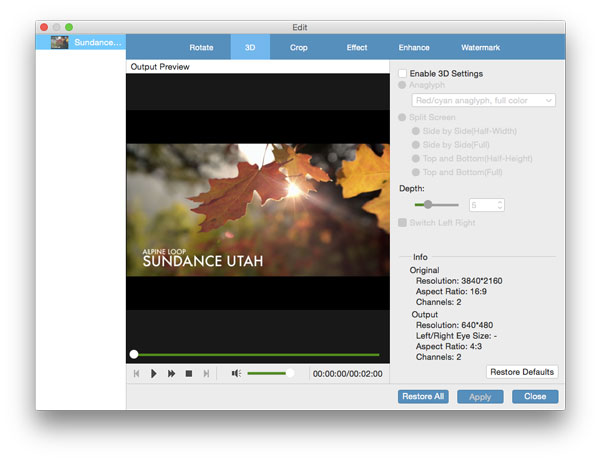
Step 3 Customize 3D settings
Click "3D" button and there is a pop-up "Edit" window. You can enable the 3D settings like Anaglyph, Slide by Slide (Half-weight), Slide by Slide (Full), Top and Bottom (Half-height), Top and Bottom (Full) and Depth.
Step 4 Crop the video frame
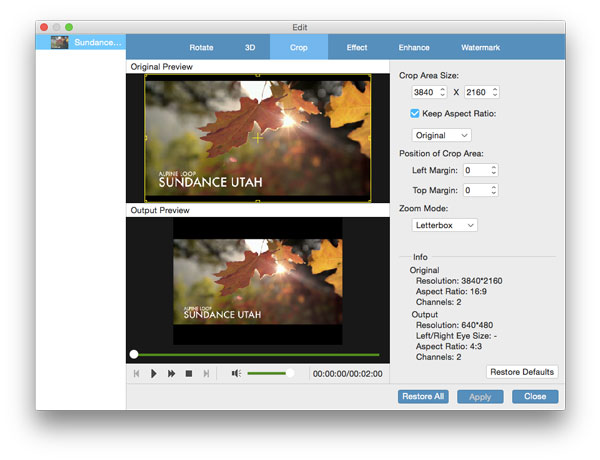
With "Crop" function, Tipard Mac Any MP4 converter app assists you to crop the video frame. You can customize the video area size, set the position of crop area and select the zoom mode.
Step 5 Adjust video effect
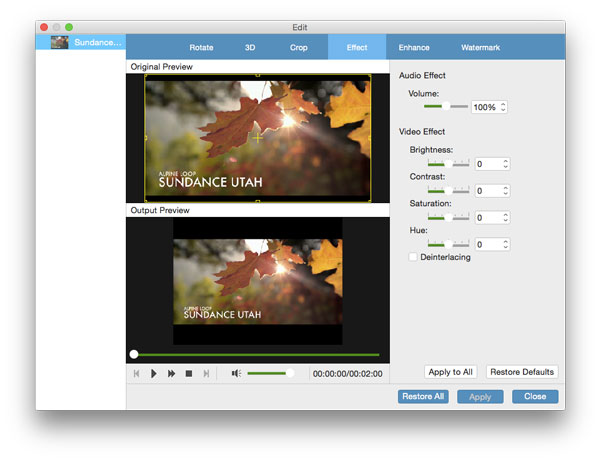
From the "Effect" window, you can adjust the video effect by set its brightness, Contrast, saturation, and hue. Besides, the audio volume can also be adjusted.
Step 6 Add personal watermark
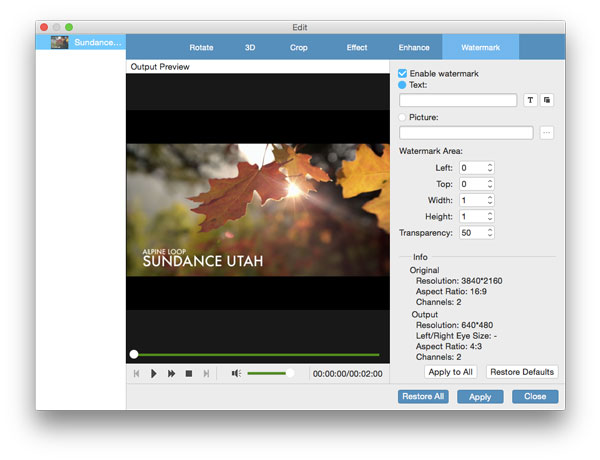
This Tipard Any MP4 Converter can satisfy your needs. You can enable watermark option from the "Watermark" window, and then check "Text" or "Picture" option to add personal text/image watermark to the video.
Step 7 Merge files
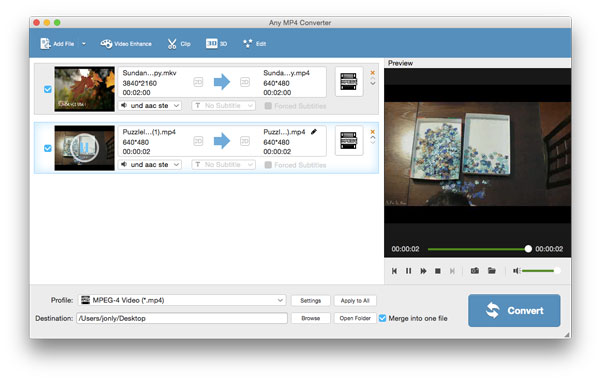
The program also allows you to choose video files and click "Merge" button near "Convert" to merge the selected files into a new video file.
Step 8 Enhance the video quality
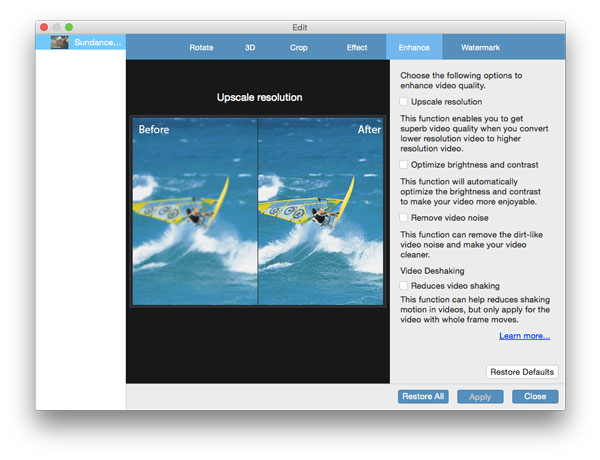
Click "Edit" > "Enhance", and you are able to optimize the brightness and contrast, upscale the resolution, reduce the video shaking and remove the video noise.