

If you work or study online, sharing your screen is part of daily life. Yet saving, cropping, and sending screenshots can take too much time. Snagit fixes that by letting you capture and edit images or videos in just seconds. This guide will show what Snagit can do, how it helps with clear visual sharing, and why many users rely on it.
Part 1. Overview of Snagit
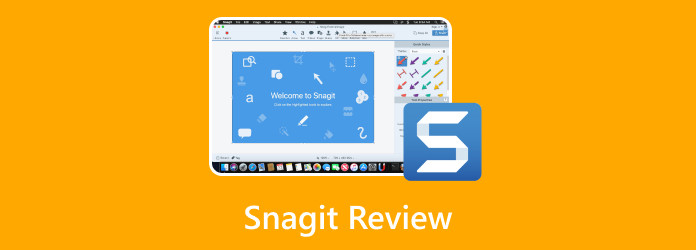
Snagit software is a screen capture and recording tool made by TechSmith. It allows you to capture a picture, record your screen and edit photos effortlessly. You can also insert text, arrows or highlights to explain ideas better. People use it as a time-saving guide, tutorial, or online lesson since it makes things understandable.
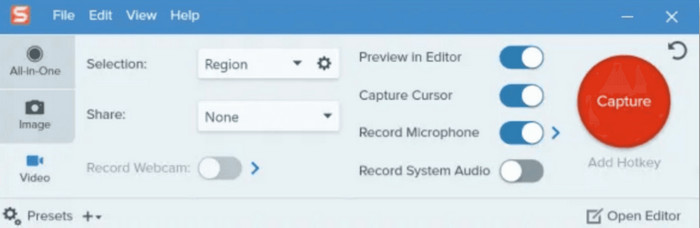
The design is straightforward so that new users can get started quickly. Snagit allows you to present your screen cleanly and professionally, regardless of whether you are working in an office, teaching online, or creating content.
Part 2. Key Features and Review of Snagit
Pros:
1. All-in-One Capture Tool
Snagit free lets you take screenshots or record your screen without switching apps. In just a few steps, you can create quick demos, tutorials, or guides.
2. Panoramic Scrolling Capture
Capture long web pages, chat threads, or documents that go beyond your screen. This app makes it easy to share full views without missing details.
3. GIF Creation Tool
Turn short recordings into animated GIFs for fun and simple visual explanations. It is useful for online guides and quick demonstrations.
4. Custom Templates
Downloading Snagit has built-in layouts you can use to make clean and professional visuals faster. These help when you need to create reports or lessons.
5. Easy Sharing
You are able to export your work to Google Drive and other cloud services. On Snagit, files can also be shared using Wi-Fi and hence share files fast with its mobile application.
6. Text Extraction (OCR)
Copy text directly from an image. It is helpful for editing documents or saving important notes quickly.
7. High-Quality Video Support
Snagit 2026 has 4K video recording and picture-in-picture video use, which enables you to present yourself on your screen and in the web camera to provide a personal touch.
Cons:
1. High Price Tag
Snagit license costs more than most screen capture tools. It starts at $62.99, which may be too much for users who only need basic features.
2. Limited Cloud Integration
Snagit continues to rely on third-party services for storing files. It should have an integrated storage so that it would be convenient to use on a daily basis.
User Experience:
The screenshot software Snagit is easy to use. You are able to make screenshots, short movies and edit them in the same place. It has a clean design that enables quick locating of tools. You can add a highlight, text or arrows to your message because the editor allows you to do so. The Simplify tool eliminates the clutter in the background, leaving your image clean and clear. It is great for lessons, tutorials, or reports.
Snagit works well on both Windows and Snagit for Mac. The app runs smoothly and feels steady on any device. New updates make cloud sharing faster and syncing easier. The picture-in-picture tool also adds your webcam feed to videos, which helps make demos or lessons feel more personal. Overall, the Snagit screen capture tool is simple, fast, and perfect for daily work.
Pricing and Plans:
The Snagit screen capture tool costs $62.99 for a one-time license. It works on both Windows and Snagit for Mac. One license covers two devices and includes one year of Maintenance. It gives you updates, support, and access to Snagit's training course.
After one year, you can renew Maintenance for $12.60 per year. If you already own the screenshot software Snagit, you can upgrade for $34.99. For users who need advanced video tools, TechSmith also sells a $274 bundle with Snagit and Camtasia. This set gives you everything you need to capture and edit like a pro.
Part 3. How to Use Snagit for Screenshots and Videos
The Snagit screen capture tool makes it easy to take screenshots or record your screen. Whether you use Windows or Mac, the steps are simple. If you are a Mac user, you can get started by searching for the Snagit download for Mac on the official TechSmith website.
Step 1Open the screenshot software Snagit on your computer. The capture window will appear on your screen. Choose whether you want to take a screenshot or record a video.
Step 2Click Capture, then drag your mouse to select the part o. the screen you want to capture. You can capture the whole screen, one window, or just a small area.
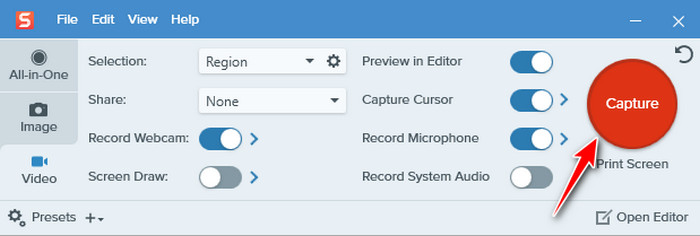
Step 3Before you record, check the settings. You can pick the image format, turn on your microphone, or show your webcam using the picture-in-picture feature.
Step 4Click the Camera button for images or the Video button for screen recordings. Snagit will start capturing right away. If recording, you can pause or stop at any time.

Step 5After capturing, the Snagit Editor opens. You can crop, blur, or add arrows and text. Use the Simplify tool to clean up your image and make it clear.
Step 6When finished, click Save As to store your file or share it right away. You can send it to email, Word, PowerPoint, or cloud storage. Both Windows and Snagit for Mac support fast sharing to these platforms.
With these steps, you can record a webinar meeting whenever you need to. The Snagit-free alternative below will give you a broad spectrum of recording options that Snagit lacks.
Part 4: Top 5 Snagit Alternatives on Windows and Mac
1. Tipard Screen Capture
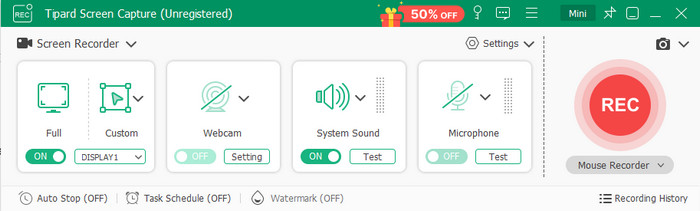
Tipard Screen Capture is a strong choice for anyone who wants a light and simple screen recorder. It works well as a macOS Snagit free alternative because it is easy to use and runs smoothly on both Windows and macOS. You can record your screen, capture system sound, or even use a webcam without any lag. The layout is clear, so you can start recording right away without spending time learning how it works.
You can save videos in MP4, MKV, MOV, and many other formats. This makes it easy to share or upload your clips anywhere. Even during long recordings, Tipard stays fast and stable. It is great for work, online classes, or casual projects.
2. ShareX
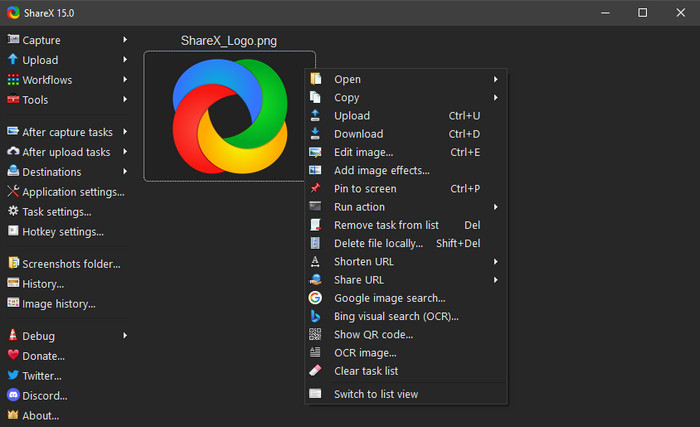
If your Snagit editor won't open, ShareX can be a solid replacement. This open-source tool lets you capture screens, take scrolling screenshots, and record videos for free. It has many options to upload or share captures online right after recording. ShareX also gives you tools for quick edits like cropping, blurring, and adding text. It works best for users who want flexibility without paying for a premium plan.
3. Movavi Screen Recorder
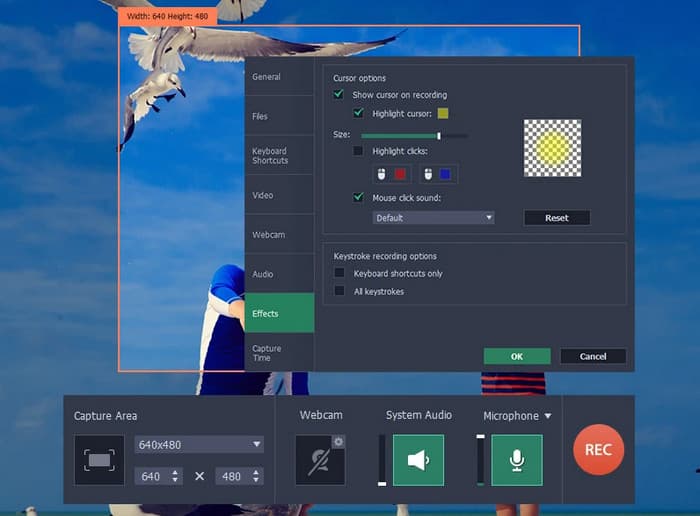
Movavi Screen Recorder is another great pick if you want a smooth screen capture experience. It is perfect for both work and study tasks, allowing you to record webcam footage, voice, and system audio in one go. The interface is simple and responsive, and it also offers editing tools to trim or highlight parts of your recorded video on Mac or PC. If you are searching for a trusted tool besides Snagit download Mac, Movavi gives you clear recordings and fast export options without needing much setup.
4. ScreenRec
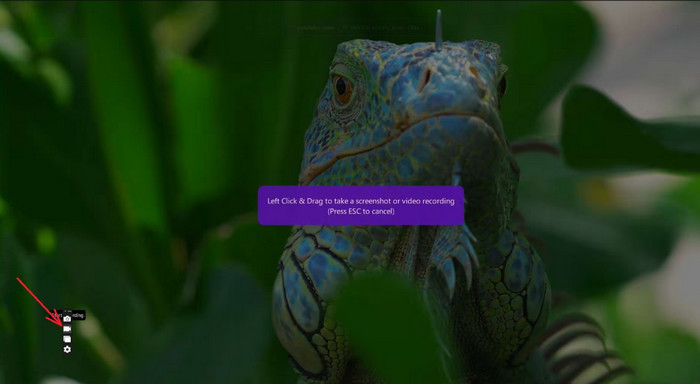
ScreenRec is a light and easy tool for capturing screens and videos. It runs fast, keeps your files secure, and is simple to use. The Snagit free version alternative gives you free cloud storage so that you can send quick links instead of large files. It may not have many editing tools, but its fast sharing and clean design make it great for educators, office workers, and anyone who needs to share screenshots or clips right away.
5. Icecream Screen Recorder
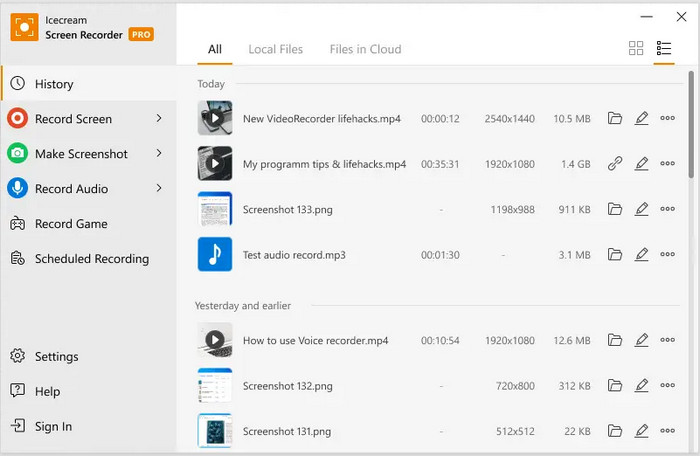
Icecream Screen Recorder is a good choice for people using Snagit for Windows. You can screen record, take snapshots and draw on your videos in real time as you record. It is compatible with multiple video formats and allows you to publish your work on YouTube or Google Drive without complications. Easy, dependable, and it would be perfect to record tutorials, meetings or app demos without any additional effort.
Conclusion
Snagit remains one of the best tools for screen capture and quick edits. It is trusted by users who need clear visuals for work, study, or sharing ideas online. While its price may seem high, its features make the job faster and easier. If you ever face issues during setup or your Snagit login, TechSmith support and tutorials can guide you through. Still, if you want lighter or more budget-friendly options, the tools above offer great alternatives for both Windows and Mac users.
More Reading


About the Author

 Click here to join the discussion and share your comments
 Tipard Screen Capture