

Upon reading the guidepost, you will discover everything regarding Region 2 DVDs. It includes playing it using region 2 DVD players, watching it in other countries, and more. Additionally, you can get an amazing offline tool for playing the Region 2 DVD. So, if you want to learn every detail about how to play Region 2 DVDs, read the post.
Part 1. What Is Region 2 DVD
DVD region codes were created to give content owners control over the global distribution of their films. These codes manage content availability, pricing, and release dates across different regions. Five main regions were established to prevent viewers from watching movies intended for other countries. This system reflects the high-quality standards of Hollywood's DVD and film distribution.
Purpose of Region 2 for DVD
The primary purpose of DVD region codes is to protect film distribution rights and copyrights, ensuring that studios can secure profits. Additionally, region coding helps enforce DVD censorship regulations that vary between countries.
What Is Region 2 DVD Area?
Region 2 includes Japan, South Africa, the Middle East, Greenland, and Europe. The Region 2 DVD was only created in these countries. Also, it is impossible to play Region 2 DVDs in other countries. Region 2 is only playable in Europe, Japan, the Middle East, Greenland, and South Africa.
Will Region 2 DVD Play in the USA?
The answer is no since the Region 2 doesn't include the USA. However, if your Region 2 DVD is also labeled a Region 1, then you can watch the Region 2 DVD in the USA because Region 1 includes the USA, and the DVD is playable in both Region 1 and Region 2 countries and regions.
Part 2. How to Play Region 2 DVD on Different Platforms
DVD is compatible with many devices, not just a DVD player hooked up to a TV. For example, you can also play Region 2 DVD on your computer and game console. You can check the guides below to see how to play Region 2 DVD directly on different platforms.
How to Play Region 2 DVD on Windows and Mac
Requirements: Disc drive compatible for DVD; a DVD player that supports Region 2
What's the best way to play Region 2 DVD on your Windows or Mac computer? How to watch Region 2 DVD in USA? You only need to load your DVD on your computer with a DVD drive, and then you can play Region 2 DVD on a computer. Moreover, you may want to break the region code restrictions. In that case, you should find a proper way to play Region 2 DVD without any restrictions. Tipard Blu-ray Player is your best Region 2 DVD player.
You can play Region 2 DVD discs on Tipard Blu-ray Player directly, for it can automatically bypass region code locks. Moreover, all types of region codes won't stop you from watching your excellent DVD movies. You can play DVD region 1 and 2, and other codes. When you play Region 2 DVD on a computer, this program can also help you adjust the audio and subtitle tracks without too much effort. Your high-quality DVD movie will stay excellent on this Region 2 DVD player.
Step 1Click the Download button below to download and install Tipard Blu-ray Player on your Windows or Mac computer. Load your DVD into your computer with your DVD drive. Then, you can play your Region 2 DVD on the computer.
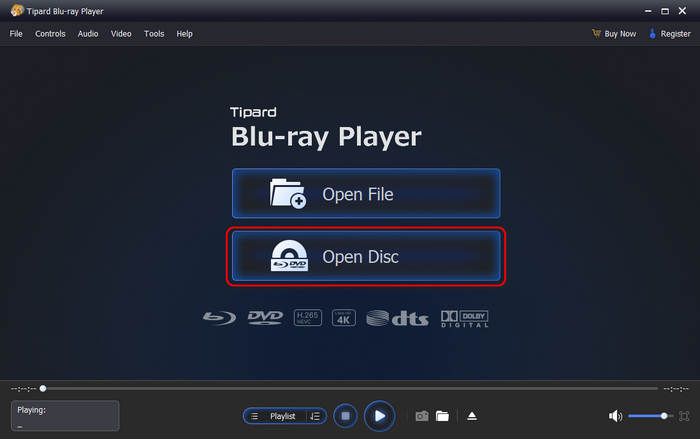
Step 2When the interface of this Region 2 DVD player appears on your screen, there will be two options. Select the Open Disc option, and then select the Region 2 DVD you want to play.
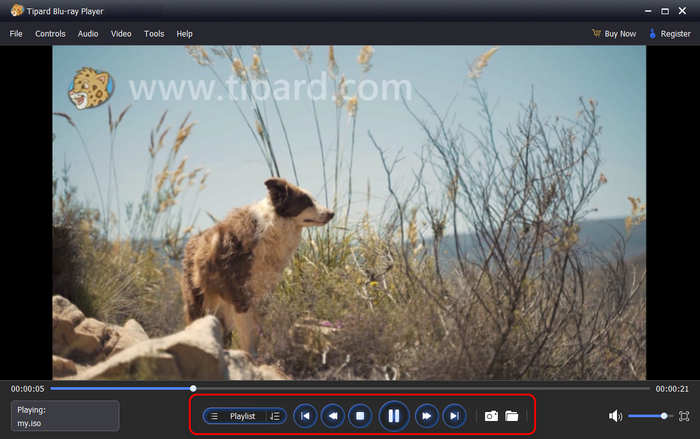
Step 3Your Region 2 DVD is playing. You can click the Pause and Play buttons below the interface or use the Space key on your keyboard. Also, you can click the Forward and Backward buttons or use your keyboard. Additionally, if you want to capture a scene from the movie, click the Camera button. This way, you can have your screenshot while watching the region 2 DVD movie.
Can PS5 Play Region 2 DVD
Can PS5 play Region 2 DVDs? Yes. The PS5 can play Region 2 DVDs as long as the disc's region matches the region of your PS5 console. Just make sure the DVD region is the same as your PS5's region. If they are aligned, your PS5 will play Region 2 DVDs without any issues.
But not all PS5 editions can play Region 2 DVDs. There are two versions of the PlayStation Console released by Sony. The first one is the PS5 standard edition. It's shipped with the disc drive, so you can play Region 2 DVD on it. The other one is the PS5 Digital Edition. It doesn't have a built-in DVD drive. Also, you can't connect an external Blu-ray drive or DVD drive to it. So, you can't play region 2 DVD on that PS5.
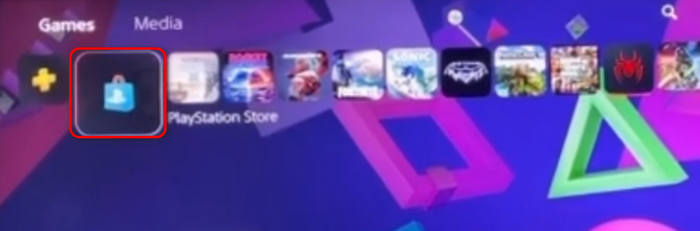
Step 1Just insert your DVD into your PS5 as you insert a game disc into it.
Step 2A USB button will appear in the top left corner. Tap on it.
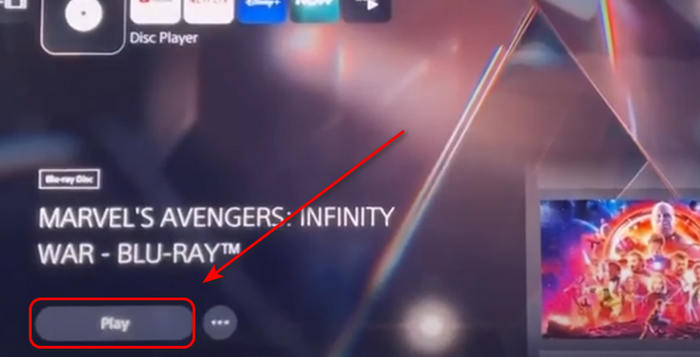
Step 3Your DVD will be loaded. Just tap the Play button in the bottom left side to play Region 2 DVD on PS5 straightforward. If your PS5 can't play it, that means the DVD region is not supported by the PS5 in your country or region.
Play Region 2 DVD on Xbox One
Do you want to know how to play Region 2 DVD on Xbox One? If so, you can read this post to learn the basic procedure. Playing Region 2 DVD is possible as long as it supports your region. Ensure the region codes on your Xbox One include Region 2 for DVD. Also, to play the Region 2 DVD on Xbox, you must install Blu-ray Player software. To learn everything, follow the simple procedure below.
Step 1The first step is to insert the disc into the optical drive of the Xbox One console. Then, wait for a few moments. After that, it will command you to download and install the Blu-ray Player application.
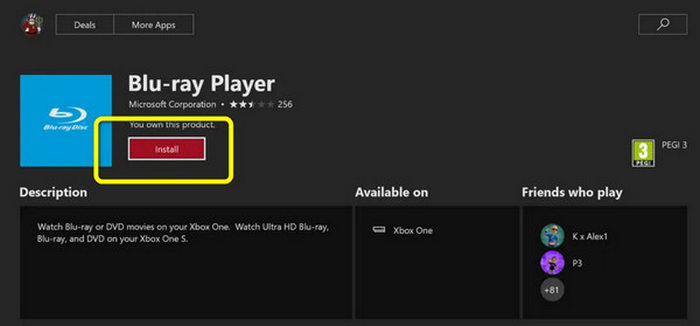
Step 2Once Blu-ray Player is installed, you can play Region 2 DVD movies on Xbox One easily.
Part 3. Rip Region 2 DVD to Compatible Video Formats
There are also other ways to watch Region 2 DVD in the USA or on many other platforms. You can convert Region 2 DVDs to formats that are compatible with your devices or platforms. You can check 2 ways to rip Region 2 DVD discs on your computer.
1. How to Rip Region 2 DVD Without Restrictions
Region 2 DVD has regional restrictions, so maybe your DVD-ripping software can't rip it successfully. What's the best way to rip Region 2 DVDs? You should not miss Tipard DVD Ripper, the best DVD ripping solution that can remove any restriction. You can convert Region 2 DVD to many popular and rare digital formats like MP4, AVI, MKV, MTS, DAV, etc. So, you can play Region 2 DVDs on all regions and platforms.
Step 1Download and install Tipard DVD Ripper on your Windows and Mac. Load your DVD on your computer.
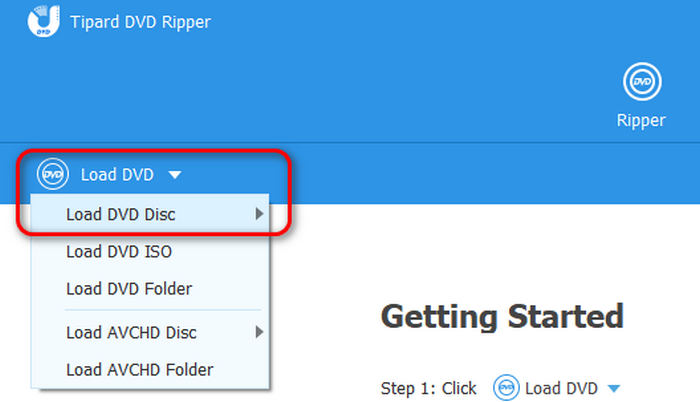
Step 2Click the Load DVD Disc button on the top left side of the program. Then, this program will quickly detect your Region 2 DVD.
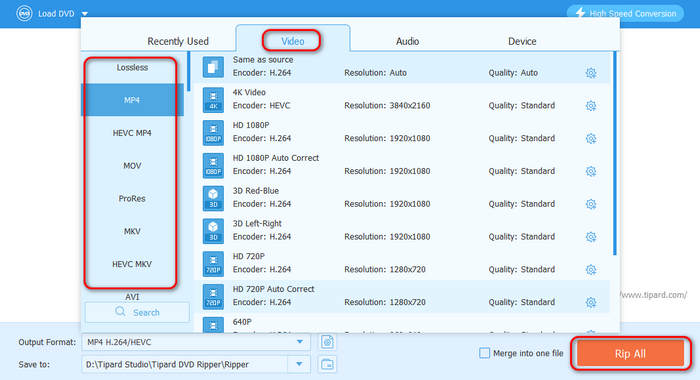
Step 3You can choose a desired video format, such as MP4. Then, click the Rip All button in the bottom right corner to rip the Region 2 DVD to video. Then, you can watch your Region 2 DVD movie on different platforms or devices at any time.
2. How to Rip Region 2 DVD with VLC
If your DVD drive is region-free, you can use it to rip your Region 2 DVD with VLC. VLC is an versatile media player and converter. It can rip your Region 2 DVDs to many popular video formats with excellent presets. Then, you can play your DVD video on any other devices that are not region-free. Check the guide below to learn how to rip Region 2 DVD with VLC
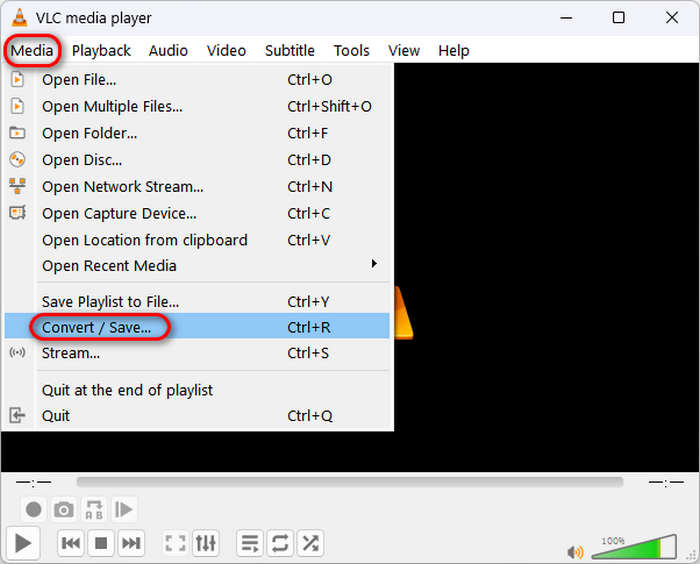
Step 1Insert your Region 2 DVD into your DVD drive and connect it to your computer. Click the Media button in the top left corner, and then click the Open Disc button to load your Region 2 DVD.
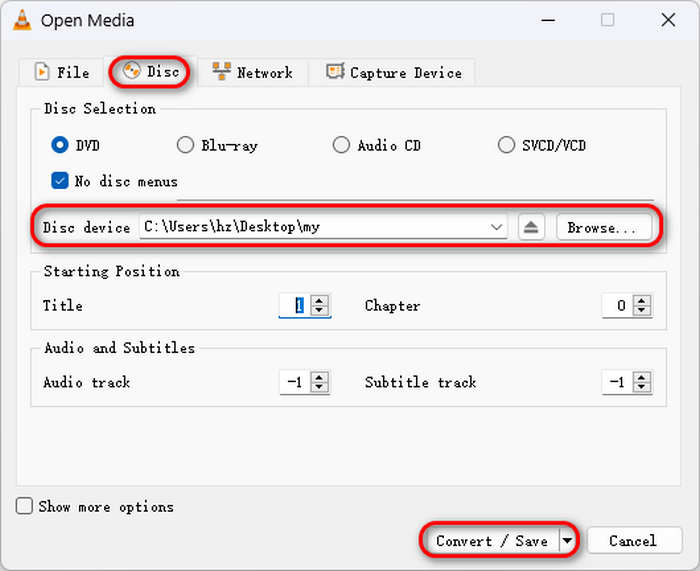
Step 2Click the Disc button and then the Browse button to find your DVD. Maybe it'll directly detect your Region 2 DVD. Then, click the Convert/Save button to go on.
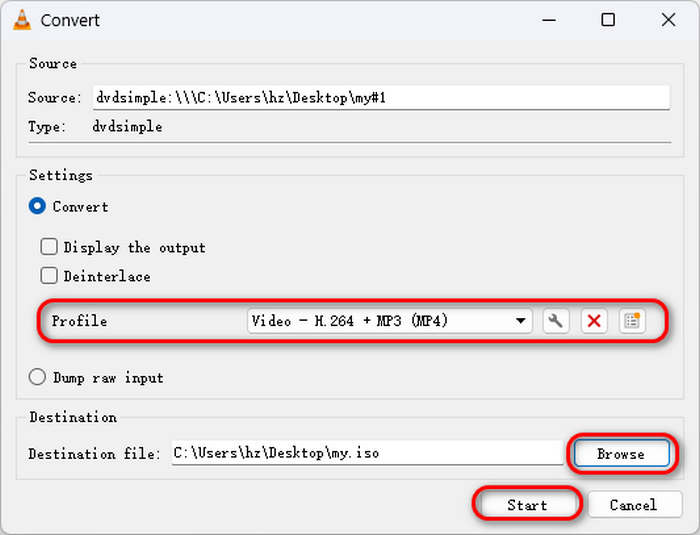
Step 3You can click the dropdown button in the Profile tab to choose your desired video format or just use the default MP4 format. Then, click the Browse button to customize a location to save the converted video. Finally, click the Start button to rip Region 2 DVD with VLC.
Part 4. FAQs of Playing Region 2 DVD
How can I play Region 2 DVD in the US?
Playing a Region 2 DVD in the US (Region 1) requires bypassing the region restriction. Here's how you can do it safely: Use a region-free DVD player hardware or software like Tipard Blu-ray Player; Change your DVD drive's region code to Region 2 – Go to Device Manger on Windows, and then select your DVD drive, right-click on it to choose Properties, and then change the drive region to Region 2.
Can I convert a region 2 DVD to region 1?
Yes, you can convert a Region 2 DVD to Region 1, but not by physically changing the disc; instead, you need to rip or copy the DVD to a digital file and then burn or play it as Region 1.
What happens if I try to play a wrong region DVD?
If you try to play a DVD from the wrong region, for example, a Region 2 DVD in a US Region 1 player, the DVD will usually not play, and you may see an error message.
Conclusion
If you are looking for the best methods on how to play a Region 2 DVD, you can read this post. It will give you the complete information you need. You can use Tipard Blu-ray Player to play Region 2 DVDs on your Windows or macOS computer. You can also learn how to rip Region 2 DVD to many other video formats so that you can play it easily.
More Reading

About the Author

 Click here to join the discussion and share your comments
 Tipard Blu-ray Player