

Looking for an ISO Player for Windows users to rely on to open DVD and Blu-ray ISO files smoothly? This guide covers the best ISO players, step-by-step playback methods on Windows and Mac, and answers common ISO-related questions.
Part 1. Top 7 ISO Players for Windows and Mac
1. Tipard Blu-ray Player (Best Overall)
Tipard Blu-ray Player is a great, solid all-in-one media player that is tailored to customers who want to play in high quality without having to worry about a setup. One of its great benefits is that it operates on both Windows and Mac.
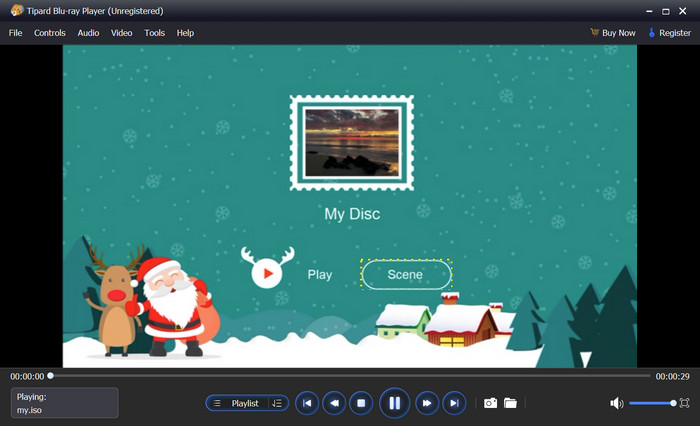
Platform: Windows 7/8/10/11, macOS
Key features:
- Analyze ISO files to manage videos and chapters easily.
- Deliver top video and audio quality with 4K, 8K, Dolby, and DTS support.
- Use GPU acceleration for smooth, lag-free ISO playback.
- Play Blu-ray/DVDs, folders, and ISO files without manual mounting.
- Provide flexible controls for subtitles, audio tracks, aspect ratio and screenshots.
- Automatic mounting of ISO files is not required.
- Great video and audio service.
- Compatible with DVD and Blu-ray ISO files.
- Some features may overwhelm beginners, but it is still one of the best ISO mounter software programs.
2. VLC Media Player
VLC is an open-source, free player for Mac and Windows users that supports a variety of media formats and ISO files.
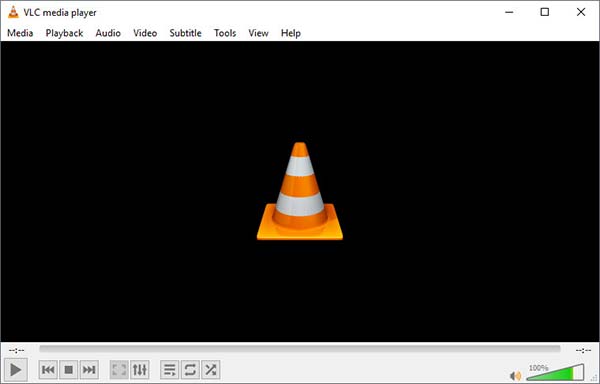
Platform: Windows, macOS, Linux
Key features:
- Compatible with DVD ISOs.
- User-friendly format.
- No additional codecs streaming.
- Reliable, free service.
- No storage.
- Compatible Blu-ray ISOs service.
- Encrypted ISOs are not playable.
- Use of an outdated system.
3. 5KPlayer
5KPlayer is a newer media player that is built to handle high-resolution video playback. Users wanting to view ISO files containing 4K videos or videos of a higher quality would benefit from using 5KPlayer.
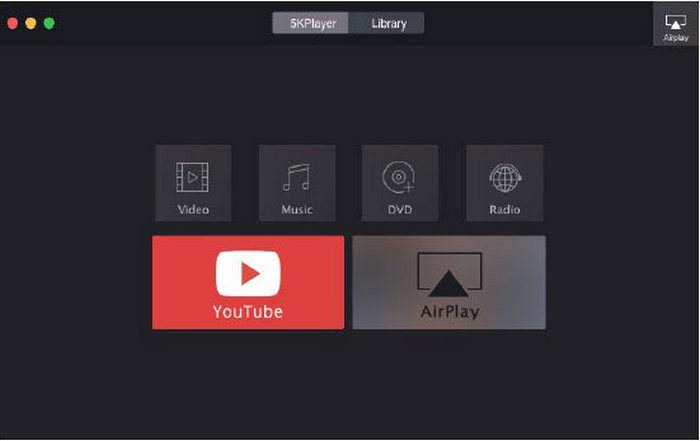
Platform: Windows, macOS
Key features:
- ISO video playback.
- DVD playback.
- 4K and 5K video playback.
- 5KPlayer is a good alternative to VLC.
- Strong performance for high-resolution content.
- Users may frequently see ads or bundled offers when using the program.
- Users have limited options when it comes to DVD ISO menu controls.
4. Kodi
Kodi is more than a simple video player. It's a fully featured media center including advanced library management and streaming, and it offers ISO playback.
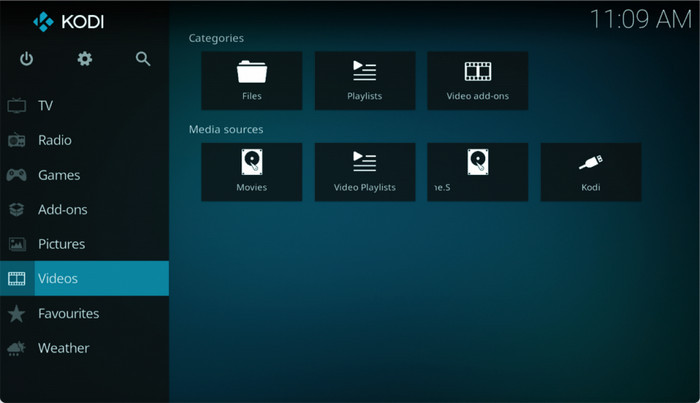
Platform: Windows, macOS, Linux, Android
Key features:
- DVD ISO playback.
- IMG and VIDEO_TS folder playback.
- Locally stored and network-stored media.
- At no cost, Kodi is very customizable.
- Kodi works well in home movie theater systems.
- There is a lot of complexity involved with using Kodi.
- For only ISO playback, Kodi may have more complexity than is needed.
5. PowerDVD
For users solely focused on Windows and in need of a premium Blu-ray and ISO player, PowerDVD provides users with a high-quality playback experience, even offering full Blu-ray menu support.
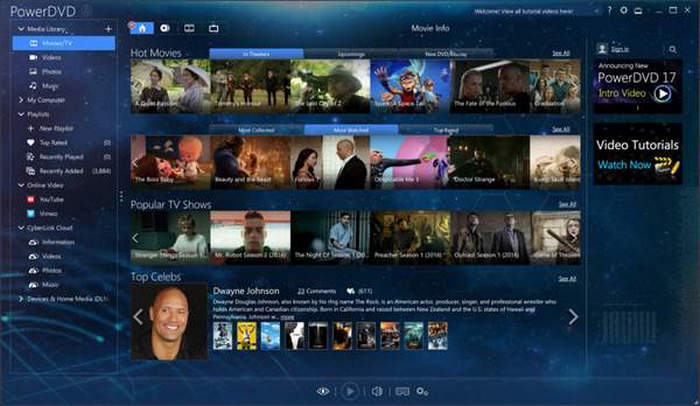
Platform: Windows
Key features:
- Blu-ray ISO and DVD ISO playback.
- 4K, HDR, and surround sound support.
- Blu-ray advanced navigation.
- Blu-ray ISO and DVD ISO playback.
- 4K, HDR, and surround sound support.
- Users have to pay a subscription fee that some might consider expensive.
- There is no version of PowerDVD for macOS.
6. Macgo Blu-ray Player
Macgo Blu-ray Player is an excellent option for macOS users who want to play Blu-ray and DVD ISO files without complications.
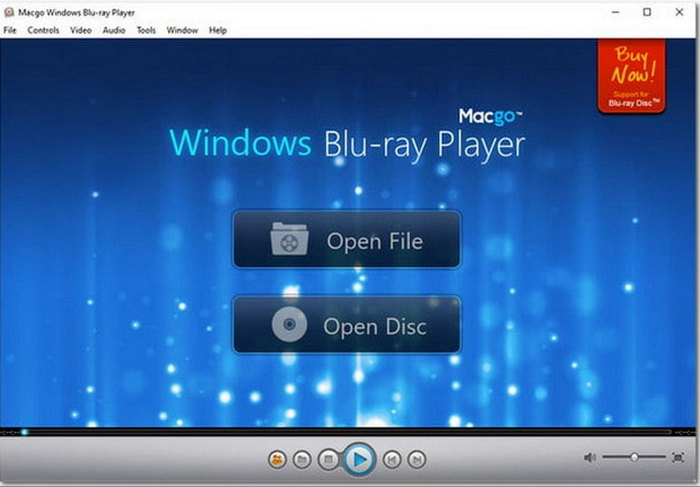
Platform: macOS
Key features:
- It can play Blu-ray ISO files and DVD ISO files.
- Compatible with most common video files.
- User-friendly macOS interface.
- Designed for Mac users.
- Can navigate Blu-ray menus.
- The unpaid version is restricted.
- Functions inconsistently with newer macOS versions.
7. KMPlayer
KMPlayer is an all-in-one multimedia player that is compatible with many codecs. KMPlayer is known for its advanced playback features and ability to open ISO files.
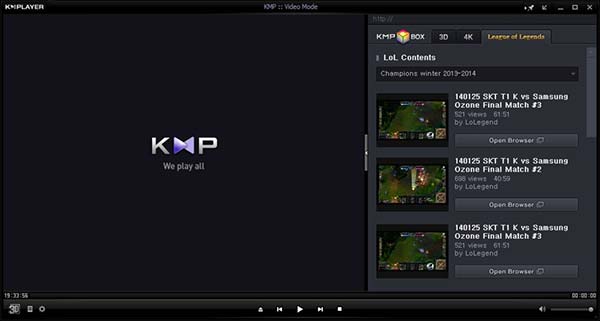
Platform: Windows, macOS
Key features:
- Can open ISO files.
- Supports high-quality video playback.
- Customizable advanced playback.
- Supports numerous formats.
- Customizable for advanced users.
- Bundled software and ads.
- Inconsistent playback of the ISO menu.
Part 2. How to Play ISO on Windows and Mac
Method 1: Play ISO Directly with Tipard Blu-ray Player (Recommended)
Step 1 Download and Install Tipard Blu-ray Player
To install the tool, first go to the official Tipard website and download the installer for the Windows version or the macOS version. Open the installer and follow the step-by-step instructions to complete the installation. Then, launch the player.
Step 2 Load the ISO File
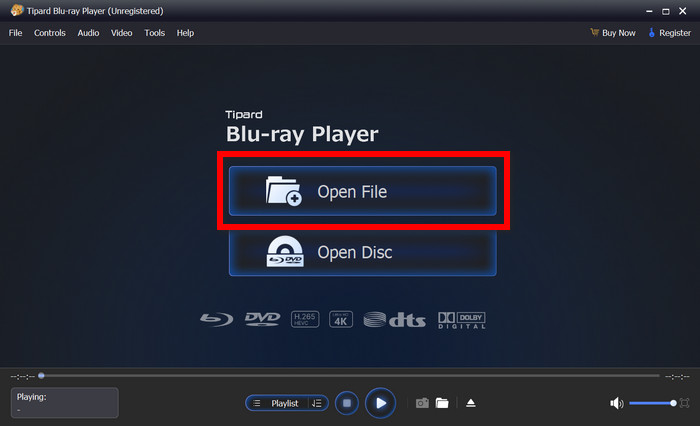
The main interface will have an Open File button. Click on it, and then navigate to the ISO file that you want to play and select it. Then, click on the Open button.
Step 3 Automatic ISO Content Analysis
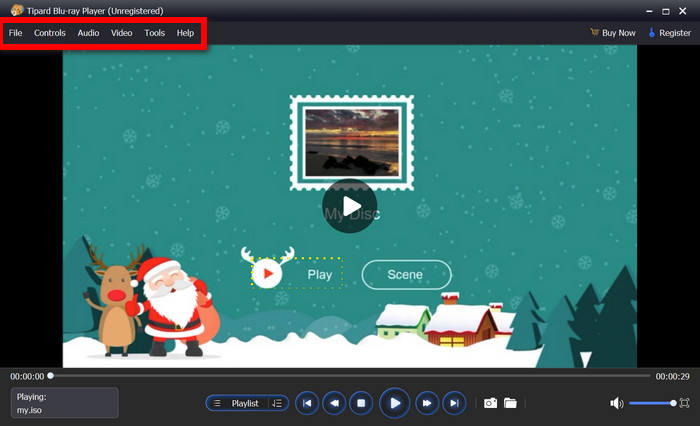
The software will examine your ISO file and extract the video content, chapters, and menus. In case the ISO has multiple titles, you have the option of selecting the primary movie or a particular chapter.
Step 4 Fine-tune Playback Settings
Utilize the Modification bar to modify subtitles, select different audio tracks, adjust your aspect ratio, and alter brightness, contrast, and other video effect settings to optimize your viewing experience.
Step 5 Enjoy Seamless Playback
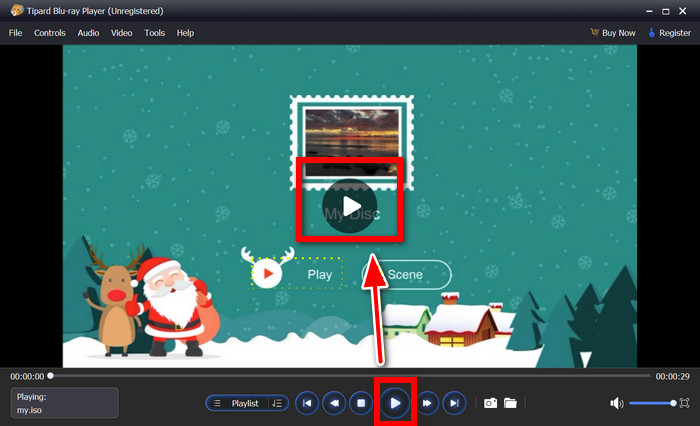
Click the Play button to experience seamless, high-quality playback. Even large Blu-ray ISOs will play at the highest quality using GPU acceleration.
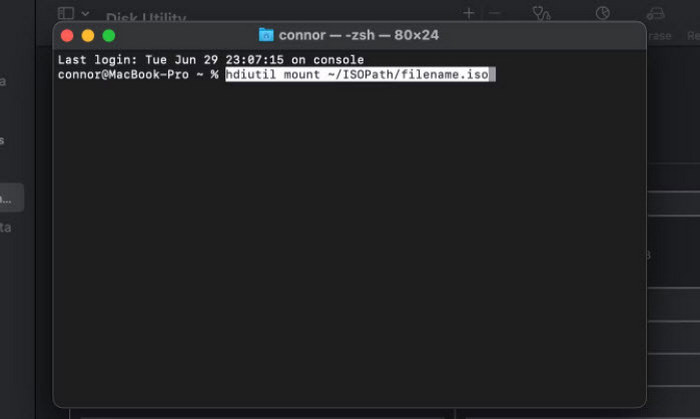
Method 2: Mount ISO as a Virtual Disc on Windows or Mac
After you mount an ISO file, your system will treat it as an actual physical disc, and you will be able to access and play the content using built-in Windows or macOS tools.
Step 1 Access File Explorer on Windows or Finder on Mac, and locate the ISO file you wish to access.
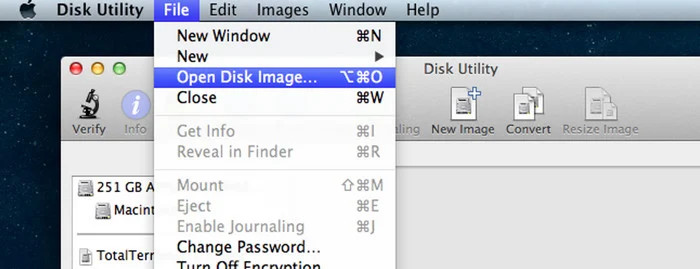
Step 2 Right-click on the ISO file and select Mount on Windows. For Mac, double-click the ISO file or navigate to Disk Utility > File > Open Disk Image.
Step 3 Once mounted, the ISO now shows up as a virtual drive in This PC on Windows or as a virtual disk in Finder on Mac, where you can access and play the files.
Part 3. FAQs of ISO Player
Can Roku TV play ISO files?
No, Roku TV cannot play ISO files since it lacks support for disc image formats. You will first need to convert the ISO file to a format compatible with the Roku, like MP4 or MKV, before you can stream or playback.
How to turn ISO to MP4?
To change an ISO to MP4, you need to use DVD or Blu-ray ripping software. Load the ISO file, choose MP4 as the output format, adjust video settings if necessary, and then convert and save the file.
What is the best video player for ISO?
Tipard Blu-ray Player is one of the best video players for ISO files because it allows playback of DVD and Blu-ray ISOs, has great video and audio quality, works on Windows and Mac, and can create an ISO from a DVD.
Conclusion
Using an ISO Windows Media Player or dedicated tools like Tipard Blu-ray Player ensures smooth ISO playback on Windows and Mac. This guide helps choose the best players, mount ISOs, and manage video content efficiently.
More Reading


About the Author

 Click here to join the discussion and share your comments
 Tipard Blu-ray Player