

If you have AVI files or work with them regularly, you surely notice how big they can be. Large file sizes make them hard to store, share, or play smoothly on some devices. So, why not compress AVI? Now is the best time to do it, as this write-up will show you dependable ways you can follow.

Part 1. Why You Need to Compress AVI
AVI files are usually large because they are uncompressed or only lightly compressed. It makes them hard to store, share, or upload. Compressing AVI reduces the file size while keeping good quality. It also helps videos play smoothly on devices with less power and makes editing faster. In short, compression makes AVI files more practical to use.
Part 2. How to Compress an AVI File Without Quality Loss
Is it possible to compress an AVI file without quality loss? The answer is yes, and you can do it using Tipard Video Converter Ultimate. It provides a dedicated video compressor to shrink AVI files speedily.
You can also convert AVI to MP4 using modern codecs like HEVC and AV1, which save space while keeping high video clarity. Plus, it supports batch conversion and hardware acceleration. With that, you can compress multiple files fast and without slowing down your computer.

- Lets you preview videos before compressing.
- Offers a variety of format presets for easy conversion.
- Adjust file size, bitrate, and resolution for precise compression.
- Can compress AVI, MP4, MOV, and many other popular formats.

Below, we will present two easy ways to compress AVI files using Tipard Video Converter Ultimate, so please check it out now:
Method 1: Compress AVI by Converting It to MP4
Step 1 Launch Tipard Video Converter Ultimate. Go to the Converter tab and click Add Files to upload your AVI file. You can upload more than one file at a time.
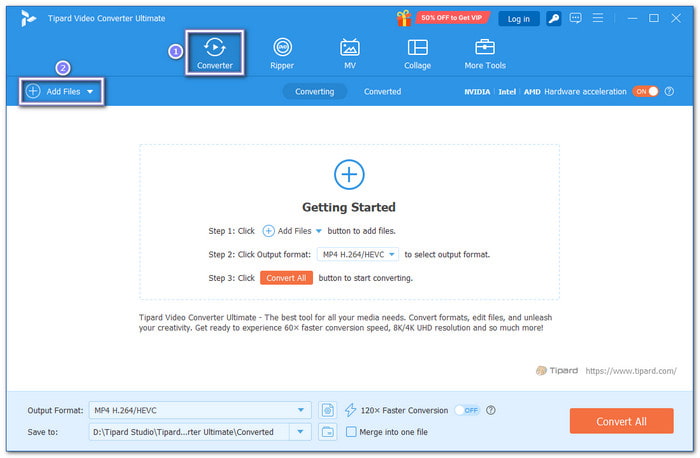
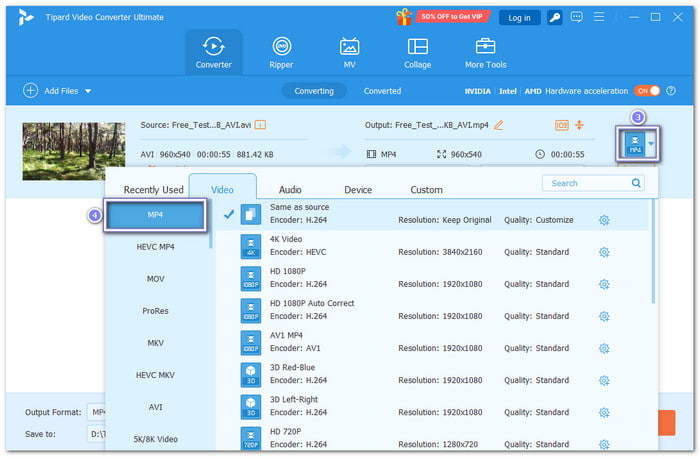
Step 2 Head to the Format menu and choose MP4, which is first on the list.
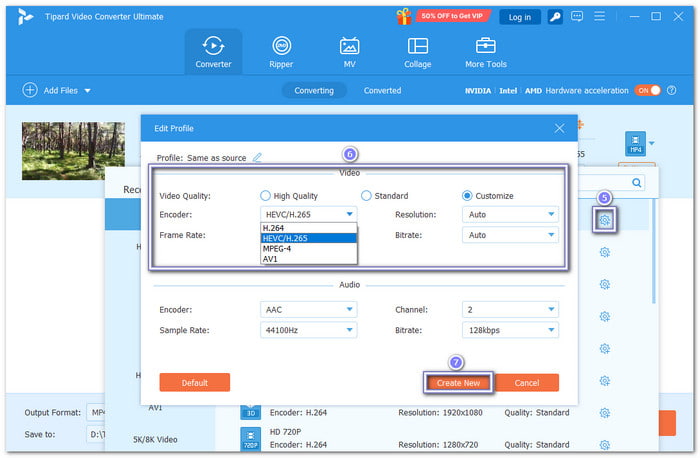
Step 3 Next, open the Custom Profile option. Under Encoder, pick HEVC/H.265 or AV1. You can keep the resolution the same as the original. You can also lower the bitrate slightly to make the file smaller without losing video clarity. Once done, press the Create New button to save the settings.
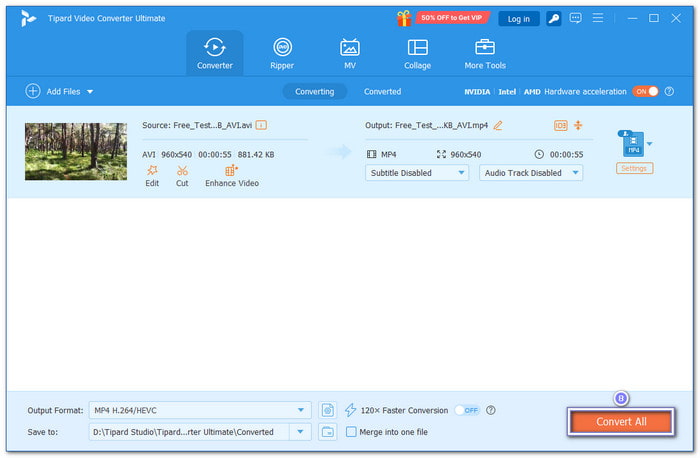
Step 4 For the last step, hit the Convert All button. The program will compress your AVI by converting it to MP4.
Method 2: Compress AVI Directly Without Changing Its Format
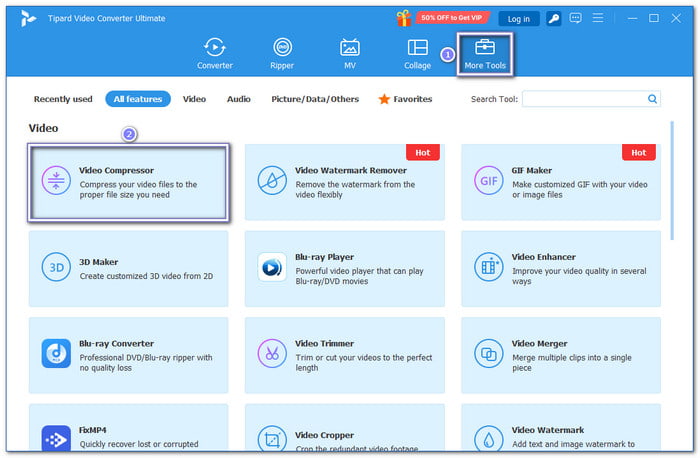
Step 1 Stay in Tipard Video Converter Ultimate. Navigate to the More Tools tab and select Video Compressor. Then, press the Add button to import your AVI file.
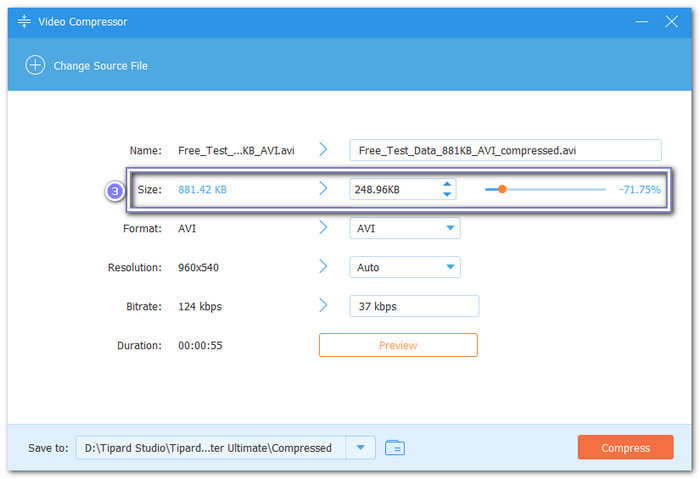
Step 2 Use the Down Arrow or Slider to set your preferred file size. The bitrate will automatically adjust depending on the size you set.
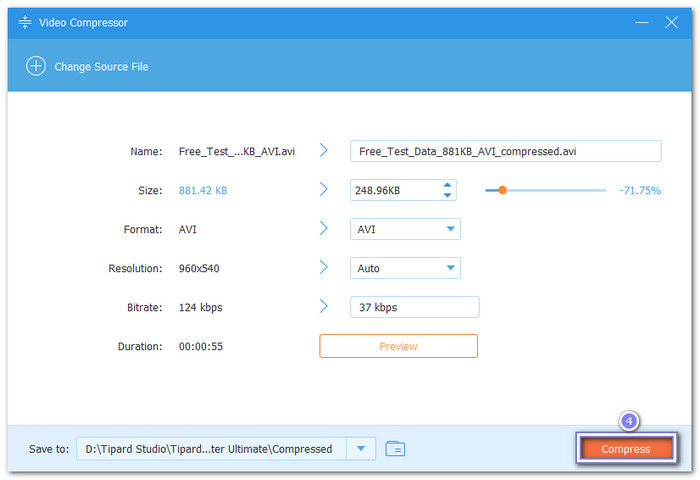
Step 3 Once you are satisfied with the size, click the Compress button. After compression, your smaller AVI file will be saved to your folder.
- Keeps video quality after compression.
- Allows edit videos before compressing.
- Offers extra tools like enhancer, trimmer, speed controller, etc.
- Enables you to compress a video on Mac and Windows operating systems.
- The free version is limited; subscription starts at $18.
Part 3. How to Compress an AVI File with HandBrake
HandBrake is a free, open-source video converter for Windows, Mac, and Linux. It can compress AVI files by adjusting codecs, FPS, resolution, etc. Its wide range of professional settings gives precise control over compression. You can refer to the steps below to learn how to reduce AVI file size using HandBrake:
Step 1 Launch HandBrake, and then drag your AVI file or folder into the program.
Step 2 Go to the Preset option and select a lower resolution and frame rate. For example, compress a 1080p AVI to 720p30 to reduce file size.
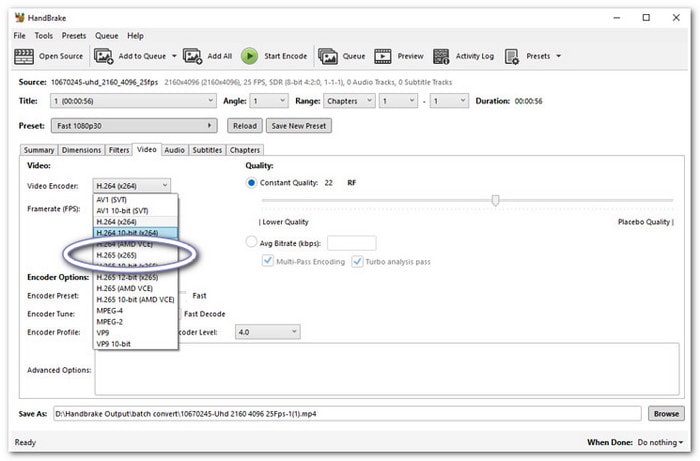
Step 3 Click the Video tab and choose H.265 (×265) as the video encoder. It helps shrink the file while keeping it clear.
Step 4 Click Browse to pick a folder to save your video. Then, click Start Encode. HandBrake will compress your AVI file and save it to your chosen folder.
- Offers high-quality output.
- Works on multiple platforms.
- Supports custom encoding settings.
- No file size estimation.
- Not supported on Windows 7/8 or older.
- Limited output formats: MKV, MP4, WebM.
Part 4. How to Compress an AVI File with VLC Media Player
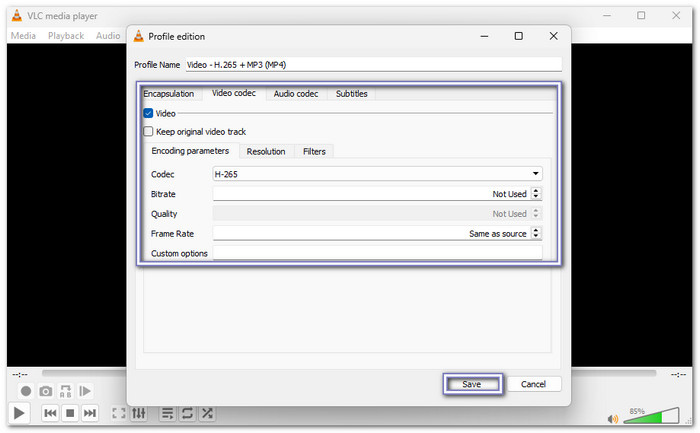
A popular media player that also works as an AVI file reducer is VLC. It re-encodes videos using H.265/HEVC, a common video compression format, to achieve smaller file sizes while keeping videos playable. You can configure codecs, bitrate, and frame rate for manual control over the file size.
Step 1 Run VLC Media Player. Then, go to Media > Convert / Save to start.
Step 2 Click Add to import your AVI video. Next, click Convert to open the conversion panel.
Step 3 Open the Profile drop-down and choose Video - H.265 + MP3 (MP4). For more control, open the Wrench button to fine-tune bitrate, frame rate, and video quality.
Step 4 Now, choose the destination folder for your video. Lastly, click Start, and VLC will compress your AVI file.
- Free and lightweight.
- Plays and compresses many formats.
- Offers codec options for custom compression.
- Sometimes, AVI loses sound.
- Compression is slower than other tools.
- Manual settings may confuse beginners.
Part 5. How to Compress an AVI File Free Online
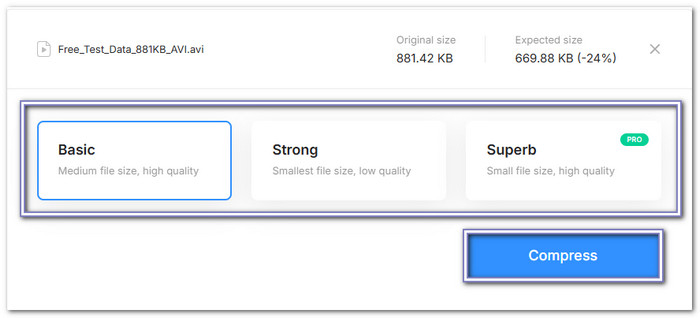
If you are wondering, "How do I compress an AVI file online?" Clideo is the answer. It offers multiple compression modes: Basic for balanced quality and size, Strong for maximum size reduction, and Superb for small size with high quality. Do not worry; it is secure, and all processing happens online.
Step 1 Go to the Clideo - Compress Video Online primary website using your browser.
Step 2 Upload your AVI file by clicking the Choose File button.
Step 3 Now, choose Basic, Strong, or Superb to reduce your AVI file size.
Step 4 Once selected your compression mode, press the Compress button. Once the exporting is done, click the Download button to save your compressed AVI file.
- Includes a simple video editor.
- Ensures secure file processing.
- Shows how much the file is compressed.
- Preview not available.
- Superb mode needs a pro version.
- Watermark removal requires sign-in and subscription.
Part 6. FAQs of Compressing AVI File
What is the best compression format for AVI files?
When you want to reduce AVI file size, modern formats like MP4 with HEVC or AV1 are the best. They reduce file size a lot while keeping the video clear.
Is the AVI video compressed?
AVI files are usually uncompressed or lightly compressed, which makes them large.
Why is AVI not used anymore?
AVI is an old format that stores video with minimal compression. It produces large files. Modern formats like MP4 and MKV are smaller, more efficient, and work on almost all devices. That is why AVI is rarely used today for sharing or streaming videos.
Conclusion
Now that your AVI file is compressed, you can easily store it, share it online, or play it on any device without worrying about large file sizes.
Fortunately, there is Tipard Video Converter Ultimate that can help you compress AVI files without losing quality. It keeps videos clear and smooth while shrinking the size. For more compression tasks, you can always rely on it, not just for AVI, but for many other video formats, too.
More Reading




About the Author

 Click here to join the discussion and share your comments
 Tipard Video Converter Ultimate