

Want to convert AVI to GIF? Well, transcoding your AVI file to GIF is an ideal method if you want to transform your file into a shareable, lightweight animation that plays seamlessly on various platforms, such as social media, websites, and messages. As we all know, an AVI file contains a large file size and needs a specific player for smooth playback, while a GIF is more universal and compatible. With that, if you want a better viewing experience, turning AVI to GIF is the best solution. Luckily, this article can offer you various online and offline methods to convert your files effectively. Thus, read everything here and convert your AVI files with the best AVI to GIF converters.

Part 1: How to Convert AVI to GIF on Windows and Mac
To convert AVI into an animated GIF, you must have an excellent converter that can let you achieve your preferred output. In that case, we recommend using Tipard Video Converter Ultimate. With this video converter, there is no doubt that you can convert your file successfully. The best part here is that you can trim your AVI file to extract your desired part from the video. You can even convert the file to the best quality. With that, you can enjoy the media file during playback. Plus, during the process, you can also customize the file's frame rate, resolution, channel, sample rate, and more.
Furthermore, Tipard Video Converter Ultimate can offer its batch conversion feature. With this feature, you can convert as many AVI files as you want at the same time, allowing you to save time during the conversion process. You can even convert your file to another format, like MKV, WMV, MP4, VOB, FLV, and more. You can also enhance your file with the help of editing tools, such as filters, effects, cropping, adding text, and more. Therefore, if you need the best and most powerful video converter and editor, look no further than Tipard Video Converter Ultimate.

- The video converter has a fast conversion speed of up to 120 times faster.
- It can offer a comprehensive user interface.
- It supports 500+ video and audio formats, such as MP4, AVI, MKV, FLV, WMV, GIF, MP3, AAC, AC3, and more.
- The program can offer both advanced and basic video editing features.
- It can also rip DVDs and Blu-rays to video and audio formats.

Begin converting your AVI file to GIF using this AVI to GIF converter.
Step 1 The first thing to do is to download Tipard Video Converter Ultimate. You can access the converter by clicking the Free Download button below.
Step 2 After that, go to the Converter feature. Add the AVI file by hitting the Add Files function. You can even drag and drop the AVI file from your computer folder.
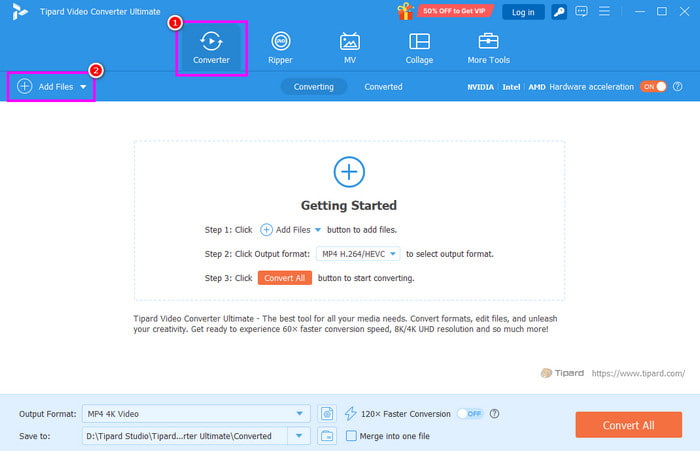
Note that you can add more than one AVI file since it supports the batch conversion feature.
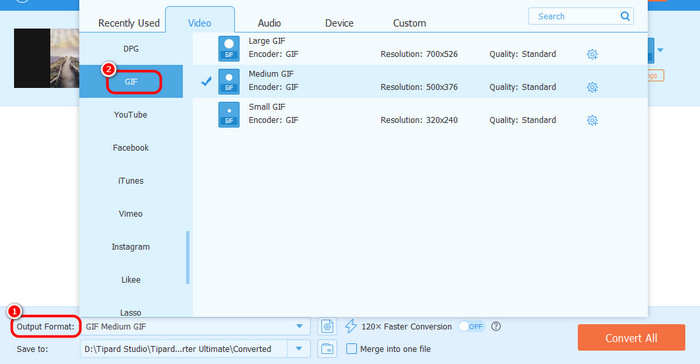
Step 3 Proceed to the Output Format section below. Then, look for the GIF format. You can also choose the resolution you want for better playback.
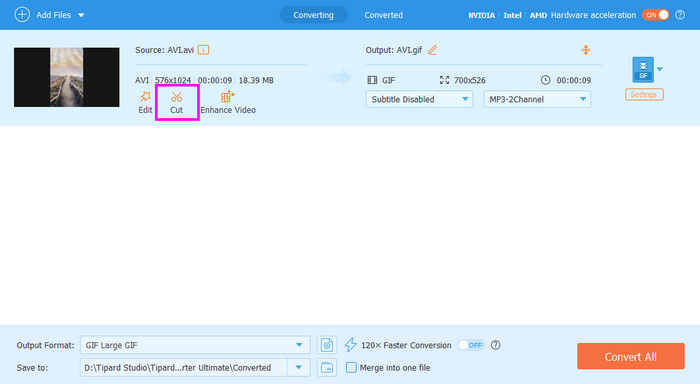
Step 4 If you want to trim the AVI file to get your desired part, you can click the Cut feature. Then, you can start trimming the file. Tap OK after the trimming process.
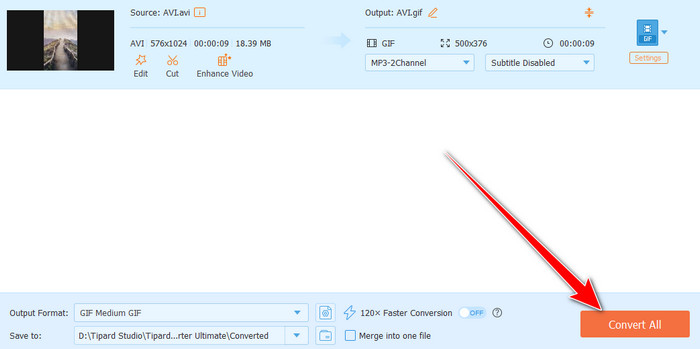
Step 5 For the final conversion process, tap the Convert All button below. After that, the converter will save your final file on your computer.
- The tool is easy to operate, thanks to its easy layout.
- You can convert various media files for free.
The program allows you to tweak the video frame rate, sample rate, resolution, and more.
- To access its overall features, you can use the paid version.
Part 2: How to Change AVI to GIF for Free Online
Do you want to convert AVI to GIF online for free? In that case, we suggest using FreeConvert. This online-based converter is perfect for transforming your AVI to GIF since it has all the functions you need. You can convert the file instantly as long as you have a fast or stable internet connection. Plus, you can navigate all the functions smoothly since its main layout is easy to navigate. You can also use its Trimmer feature to trim the video and get your preferred video part.
Moreover, you can decide the loop count, frame rate, compression level, and more. The only problem here is that there are disturbing ads appearing on the screen. Also, you cannot increase the resolution of the video. With that, you must have an excellent video resolution converter to get a better version of your file. But still, in terms of converting, you can get the result you need when using FreeConvert.
Use the methods below and learn how to transcode AVI into GIF.
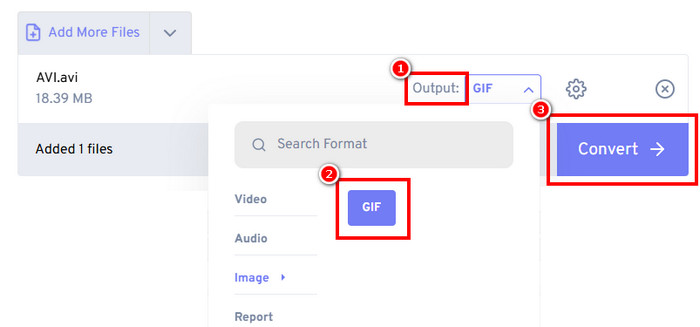
Step 1 On your browser, visit/proceed to the main website of FreeConvert. You can access this tool on almost all our platforms.
Step 2 Then, upload the AVI file you want to convert by clicking the Choose Files button.
Step 3 From the Format section, choose the GIF format. Tick the Convert button to begin the AVI to GIF conversion procedure.
Step 4 For the final process, hit the Download button to download/save the converted file on your computer.
Part 3: Key Settings to Look For When You Convert AVI to GIF
When transforming AVI to GIF, the right settings can offer a huge difference in both usability and quality. Since GIFs are used for short and looping animations, you might need to optimize them for better playback. See all the details below and discover the key settings when converting AVI into GIF.
- Trim Feature - Ensure that you have this feature when converting AVI to GIF, since it helps you shorten the video.
- Customize Frame Rate - Look for FPS customization. Customizing FPS can help you get a smoother playback.
- Resolution Setting - Select the right dimension for your GIF. Lower resolution can be offered after the loading process, and a smaller file size.
- Loop Feature - This feature is ideal if you want to customize the loop count. For messaging and meme purposes, an unlimited loop is ideal.
- Playback Speed - Adjusting/changing the playback speed of the GIF can change the mood.
Conclusion
Thanks to this tutorial, you have learned how to turn AVI to GIF effectively. With that, if you want to send a short, looping animated video to someone, you can follow the methods mentioned in this article. Plus, if you want to convert your media files without encountering a problem, it would be best to use Tipard Video Converter Ultimate. With this converter, you can convert your media files with the best quality. You can even access various editing features to enhance the files based on your preferences. Thus, access this program and achieve your goal.
More Reading


About the Author

 Click here to join the discussion and share your comments