

Imagine you have just finished downloading a collection of old home videos, all saved in MPG format, and you want to watch them seamlessly on your smartphone or modern media player. Converting MPG to MP4 becomes essential to ensure compatibility, preserve video quality, and make sharing easier with friends or family. With so many tools available, desktop software, free online converters, and Android apps, it can feel overwhelming to choose the right method. This guide walks you through practical, step-by-step solutions for every device, from high-speed converters like Tipard Video Converter Ultimate to free, accessible tools, helping you transform MPG files into smooth, ready-to-play MP4 videos.
Part 1. How to Convert MPG to MP4 Without Quality Loss
Tipard Video Converter Ultimate is one of the fastest tools available that can convert MPG to MP4 without losing quality. The Ultimate Video Converter Tipard can be used for free without any restrictions. Frequently captured MPG videos can be converted to MP4. Audio, subtitles, and other settings from the MPG video can be converted quickly and efficiently with extreme resolution and sound quality. The program is equally suitable for beginners and experienced video editors. The program works without any problems on both Windows and Mac. The program uses the latest AI and GPU technology to speed up and increase the quality of video conversions.

- Convert multiple MPG files to MP4 at once in the free version.
- Choose fast remuxing or re-encoding without quality loss.
- GPU acceleration enables quick, smooth video conversion.
- Improve video resolution for clearer playback.
- Enhance quality automatically using AI technology.

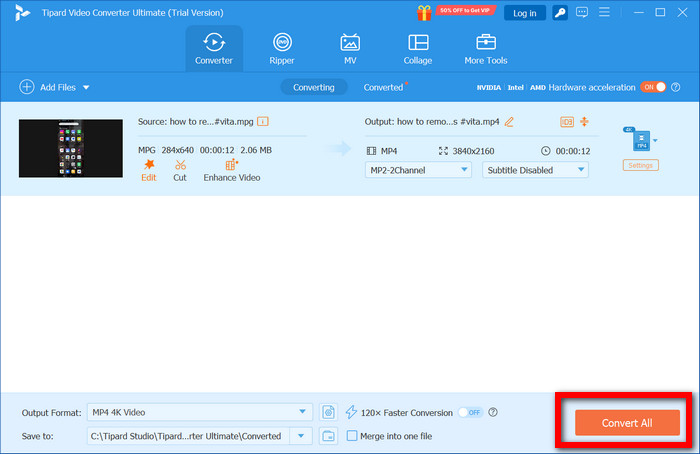
Step 1 Install the application and launch Step One. Tipard Video Converter Ultimate is free and completely safe, and risk-free to use. Download the application from the official website.
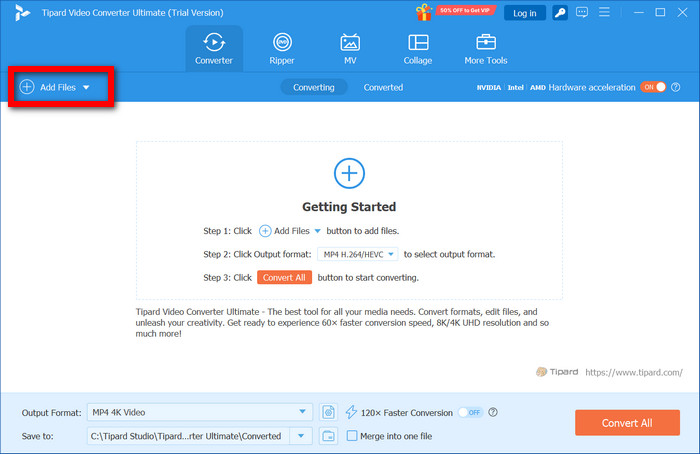
Step 2 Go to the top left corner of the interface and click the Add Files button. You can bring multiple files at once to benefit from batch conversion.
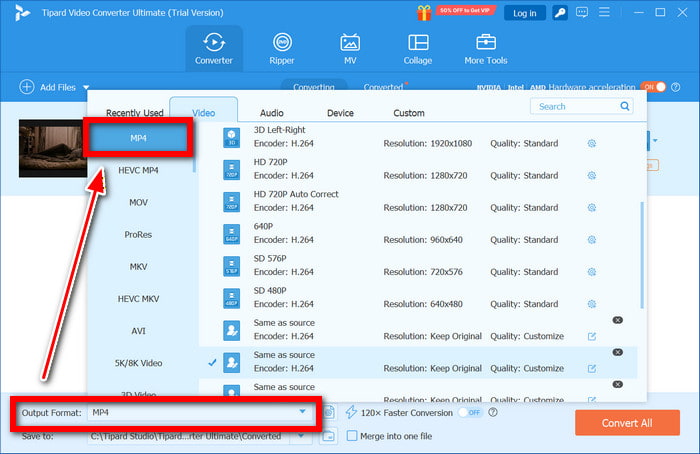
Step 3 Specify MP4 from the menu of output formats. To save time and loss of quality, focus on and speed up the conversion process. You have the option to manage more specifically by selecting re-encoding and changing the values of the resolution, the bitrate, or the codec.
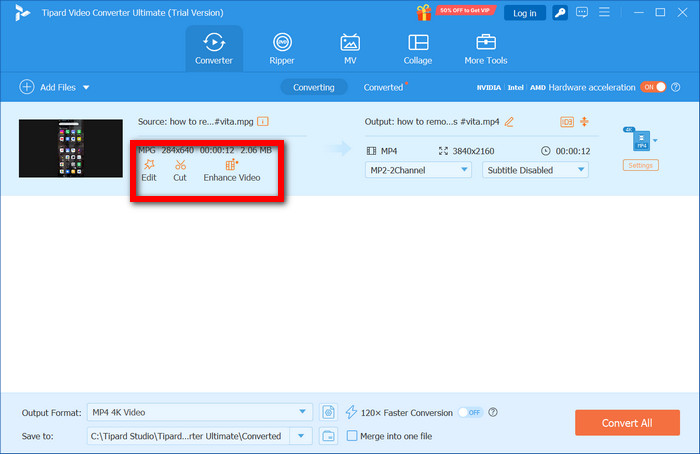
Step 4 If necessary, use the Edit, Cut or Enhance Video options. So, before the conversion, you can trim the video, correct orientation issues, enhance AI with a click, and upscale to 1080p, HD, or 4K.
Step 5 Click Convert All to start the conversion. Ensure to select converting MP4 files will be saved in an output folder beforehand. The process is quick thanks to GPU acceleration, while the original audio and video quality is preserved.
Part 2. How to Convert MPG to MP4 in VLC
Another option available and applicable to both Windows and Mac computers is the VLC Media Player. This player possesses the unique characteristic of being both a free and open-source multimedia application. Likewise, VLC supports basic playback, has the ability to be a basic MPG to MP4 converter with adjustable output profiles, and supports the AV1 codec. There is no need for any paid updates or additional plugins, making VLC a great and free video converter.
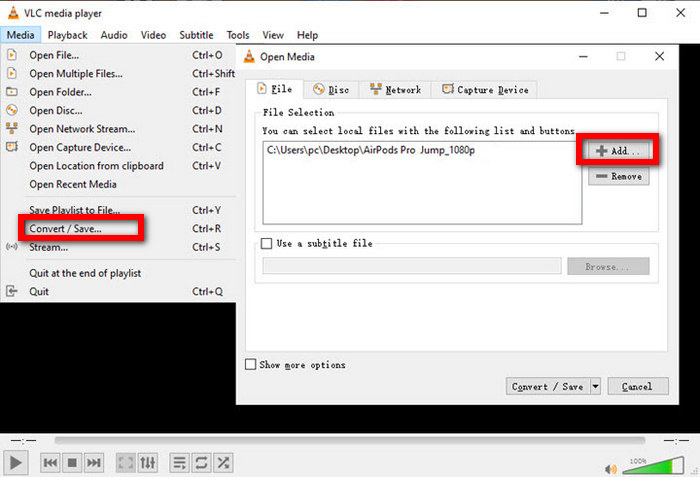
Step 1 To begin with, you must have VLC Media Player downloaded and installed. Then, open the application, and in the top left corner of your screen, select the Media tab, followed by Convert/Save.
Step 2 Then, to begin, to your MPG file click Add and proceed with Convert/Save.
Step 3 Then, for the output format, in the Profile section select Video - H.264 + MP3 (MP4) from the dropdown.
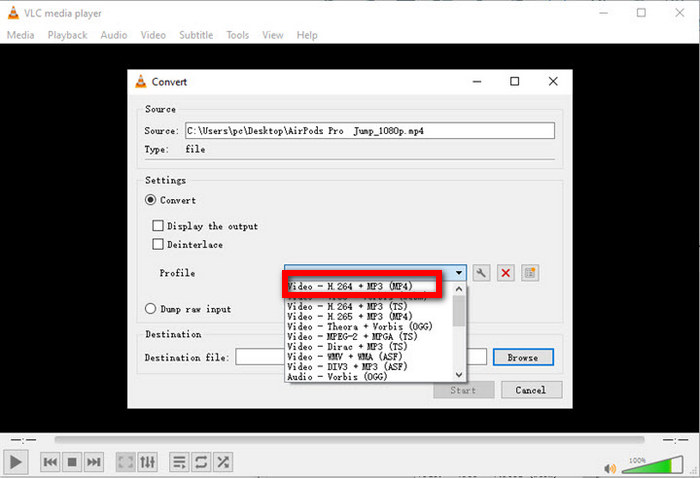
Step 4 Finally, for free MPG to MP4 conversion, click Start to proceed.
Part 3. How to Convert MPG to MP4 Free Online
Just like VLC, CloudConvert is also free for MPG to MP4 conversions. Unlike VLC, however, it is not a desktop application; therefore, it is a good free online MPG to MP4 converter.
CloudConvert converts MPG to MP4 directly from your web browser, supports batch conversion, has a very good output quality, and has no download requirement. This makes it a great option for those who want CloudConvert and MPG to MP4 conversion for limited, occasional use.
Step 1 In your browser, go to CloudConvert, and click on Select File to upload your MPG video. You can upload multiple files.
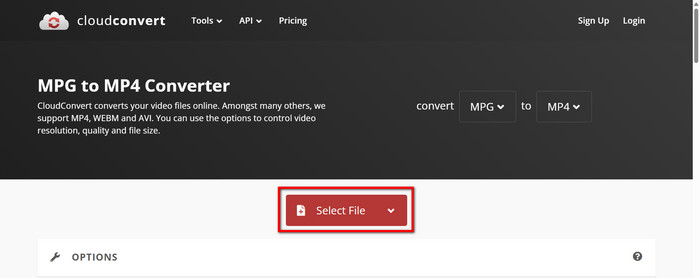
Step 2 Select MP4 as the output format, and click Convert, and the site will begin the transforming procedure.
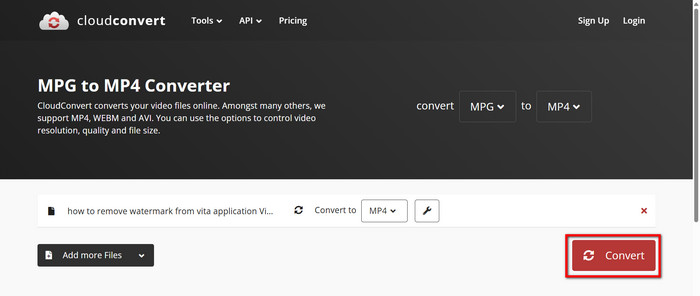
Step 3 After the transforming process is done, click the Download file button to save the converted file as MP4.
Step 4 Look at the MP4 file to check that it changes as it should and that it works correctly.
Step 5 If you wish to, you can alter the name of the MP4 file or move the document to a place on your computer that is easier to get to.
Part 4. How to Convert MPG to MP4 on Android
Video Converter: BDH Apps is a free app that can convert and compress video files. It can handle many of the popular kinds of video files, including MPG, MP4, AVI, MKV, and many more. It can also change video files into audio MP3, create GIF files, and use a video resolution converter to adjust quality and size. The app easily and quickly converts files and can be used offline.
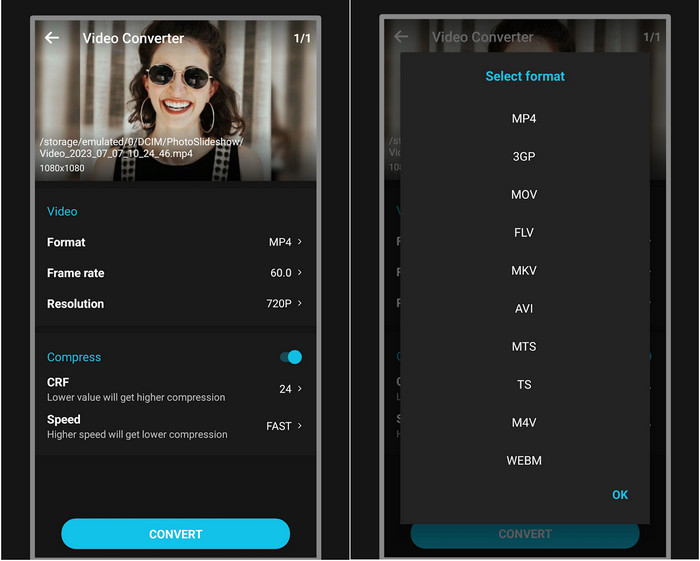
Step 1 Get the app called Video Converter - BDH Apps from the Google Play Store.
Step 2 Choose Convert Video, and look for the MPG file you would like to change.
Step 3 Select MP4 for the output format, and, if necessary, you can change the video and audio file quality and resolution.
Step 4 Click Start. After the video is done transforming, you can use or share the MP4 file. It will be on your device.
Step 5 Preview the converted MP4 video within the app or your gallery to ensure the quality and playback meet your expectations.
Conclusion
All in all, whether you need to convert MPG to MP4 on a computer, online, or directly on your Android device, there are reliable free and professional tools available to suit every scenario. From Tipard Video Converter Ultimate's fast, high-quality conversions to convenient apps and online services, you can easily transform your MPG files into versatile, ready-to-play MP4 videos.
More Reading

About the Author

 Click here to join the discussion and share your comments
 Tipard Video Converter Ultimate