

- Part 1. TS vs MKV - Why You Have to Convert TS to MKV
- Part 2. The Easiest Way to Convert TS to MKV with the Best Video Quality
- Part 3. How to Convert TS to MKV with HandBrake
- Part 4. How to Convert TS to MKV with FFmpeg
- Part 5. How to Convert TS to MKV with MKVToolNix
- Part 6. How to Convert TS to MKV Free Online
- Part 7. FAQs of Converting TS to MKV
Key Takeaways
Converting TS to MKV is not a simple conversion, for you probably need to change only the container without re-encoding. Tipard Video Converter Ultimate is the easiest and most reliable solution. It can directly remux TS to MKV with fidelity playback. If you are an advanced computer user, FFmpeg is also a good choice as long as you know how to set up FFmpeg.
Have you ever encountered a .TS video file, perhaps from a DVD backup or a TV broadcast recording, only to find that your default media player refuses to open it? Because the TS (Transport Stream) format was designed for broadcasting rather than regular playback, it suffers from poor compatibility with modern devices.
The best fix? Convert TS to MKV. MKV is a highly compatible, lossless container that preserves your original video quality perfectly. In this guide, we will review 5 simple and free TS to MKV converters to help you play your videos anywhere without hassle.

- Part 1. TS vs MKV - Why You Have to Convert TS to MKV
- Part 2. The Easiest Way to Convert TS to MKV with the Best Video Quality
- Part 3. How to Convert TS to MKV with HandBrake
- Part 4. How to Convert TS to MKV with FFmpeg
- Part 5. How to Convert TS to MKV with MKVToolNix
- Part 6. How to Convert TS to MKV Free Online
- Part 7. FAQs of Converting TS to MKV
Part 1: TS vs MKV - Why You Have to Convert TS to MKV
While both TS and MKV are video containers, they were built for entirely different eras and purposes. Understanding their core differences makes it clear why a conversion is necessary for standard playback.
| Feature | TS (Transport Stream) | MKV (Matroska) |
|---|---|---|
| Primary Use | IPTV, digital broadcasting, and DVDs | HD video storage, web streaming, and anime |
| Device Compatibility | Very poor (requires specific media players) | Excellent (supported by almost all modern devices) |
| Feature Support | Limited to basic audio/video streams | Supports multiple audio tracks, subtitles, and menus |
| File Efficiency | Larger size due to broadcasting data overhead | Highly efficient compression with zero quality loss |
3 Reasons You Need to Convert TS to MKV
- Universal Playback: TS files are notorious for failing to open on modern smartphones, smart TVs, and default players like QuickTime or Windows Media Player. Converting to MKV ensures your video plays seamlessly on any screen.
- Zero Quality Loss: MKV is a lossless container. When you convert TS to MKV, you are simply changing the "wrapper" around the video. Your original HD video and audio quality remain 100% intact.
- Better File Management: TS files contain extra broadcast data overhead, making them unnecessarily large. MKV strips out this fluff, leaving you with a smaller file size that is much easier to store and share.
Part 2: The Easiest Way to Convert TS to MKV with the Best Video Quality
If you are looking for the fastest and most reliable way to convert TS to MKV, Tipard Video Converter Ultimate should be your top choice. Supporting over 500 video and audio formats, this powerful software combines an intuitive, user-friendly interface with studio-grade media processing capabilities, making it perfect for beginners and power users alike.
Unlike basic converters that offer rigid outputs, Tipard gives you complete control over how your files are handled based on your specific storage and playback needs:

- Support lossless remuxing TS to MKV without quality loss for home theatre.
- Re-encode TS files to upscale the resolution and optimize the bitrate to increase the video quality.
- Provide smart compression for easy storage in hard drive, NAS, Plex, and Kodi.
- Support full GPU acceleration from NVIDIA NVENC, AMD, and Intel Quick Sync Video.

Steps to Convert TS to MKV with Tipard Video Converter Ultimate:
Step 1 Import TS Files into Tipard Video Converter Ultimate
Download, install, and launch Tipard Video Converter Ultimate on your Windows or Mac computer. Click the Add Files button on the top left side to add your TS videos.
Step 2 Choose an MKV Output Format
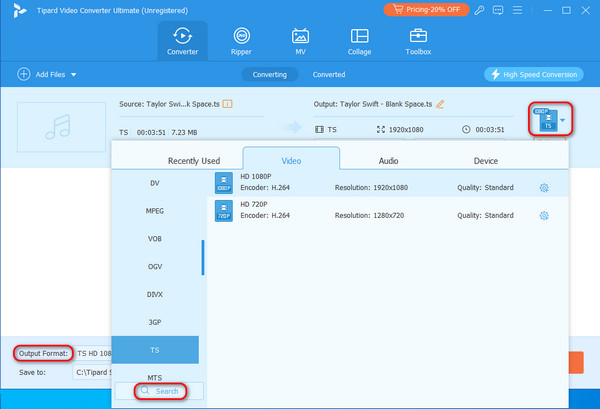
Luckily, Tipard supports a lossless MKV output format. It can directly remux TS to MKV. Click the Output Format dropdown button on the bottom left side. Then, select MKV category under the Video tab. Here, you have two types of options:
- Same as Source: This MKV preset lets you remux TS to MKV. You can get the original video, audio, and subtitle tracks and other important data from the TS file.
- Other MKV Presets: If you don't need to remux TS to MKV, you can select other presets. For example, you can choose HD 1080P with the H.264 codec. It is widely supported by most devices and platforms.
Step 3 Start Converting TS to MKV
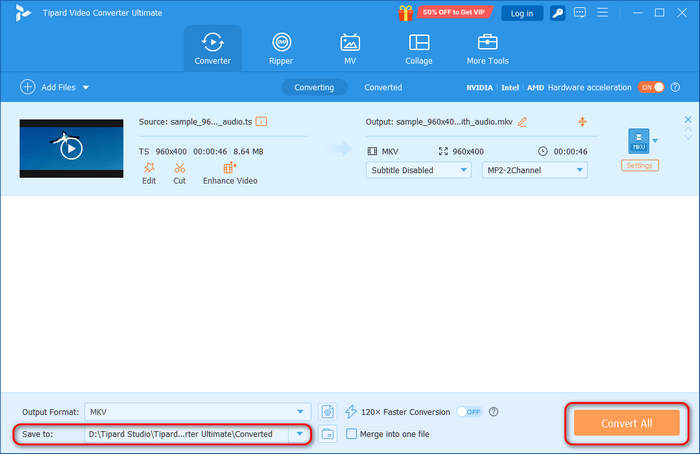
Finally, click the Save to dropdown list to choose an output folder for the upcoming MKV file. Then, click the Convert All button to convert TS file to MKV easily.
Part 3: How to Convert TS to MKV with HandBrake
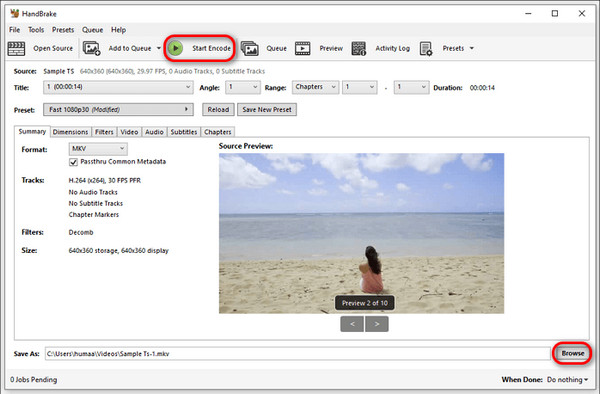
HandBrake is a free, open-source, cross-platform converter that can process most common multimedia files and batch scan and queue encodes. Although this software still has some issues, and sometimes people find that their HandBrake won't open, overall it can still solve most of people's needs. Follow the steps below to convert TS to MKV with HandBrake.
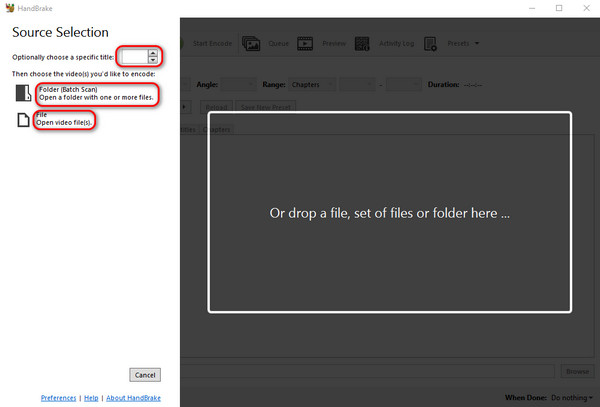
Step 1 Download HandBrake and launch it. First, you can choose to rename the title of your files. Then, click the File button on the left to open the files you want to convert.
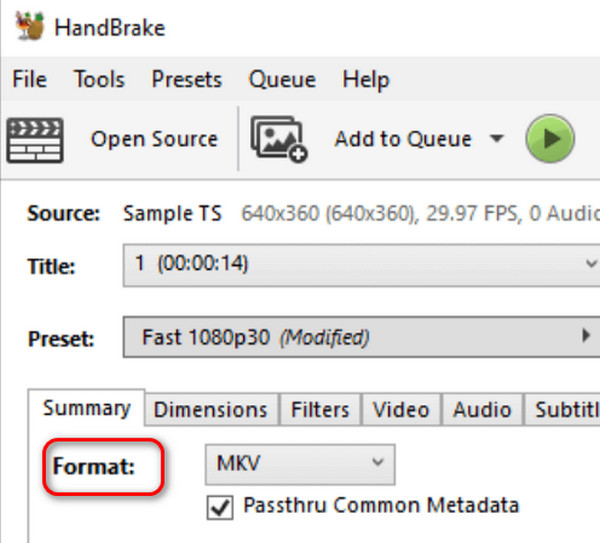
Step 2 Click the Format button, choose the desired format from the dropdown menu. You can preview your video before converting.
Step 3 Then, set the output file name and address at the bottom of the interface; lastly, press the Start Encode button and finish the conversion.
Part 4: How to Convert TS to MKV with FFmpeg
Many users want to know how to do FFmpeg TS to MKV conversion. They pursue lossless remuxing to keep the entire original content of TS files. However, knowing the FFmpeg TS to MKV conversion command lines is much easier than the FFmpeg setup. Here, we are going to offer you an easy setup method as follows:
Step 1 Go to the official FFmpeg website and download it on your computer. Then, you should put the ffmpeg.exe file in the same folder of your TS videos.
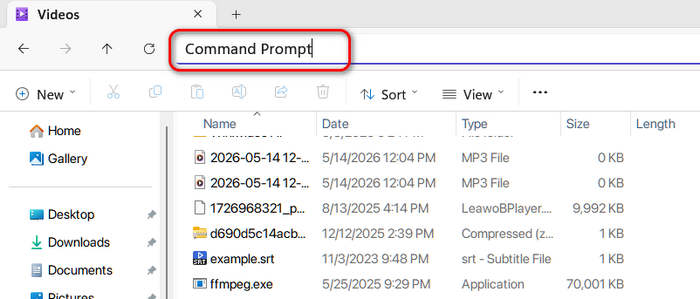
Step 2 In the file folder, locate the top search box, and enter Command Prompt and hit the Enter key on your keyboard to launch the Command Prompt
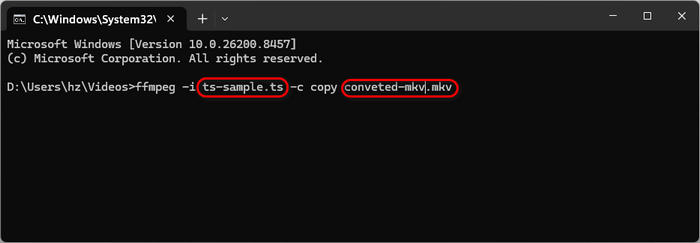
Step 3 Then, you can use your TS to MKV command line easily in the Command Prompt. For example, you can use:
ffmpeg -i input.ts -c copy output.mkv
Please change the input.ts to your TS file name and output.mkv your upcoming MKV file name. Then, tap the Enter key on your keyboard to remux TS to MKV with FFmpeg.
Part 5: How to Convert TS to MKV with MKVToolNix
MKVToolNix TS to MKV conversion is also very needed. Although MKVToolNix has a simple and kind of outdated program UI and website layout, its MKV remuxing and re-encoding abilities are very strong. If you only need to convert TS files to MKV format, this program is a good resort for you to consider. Let's check the detailed steps to convert TS to MKV with it.
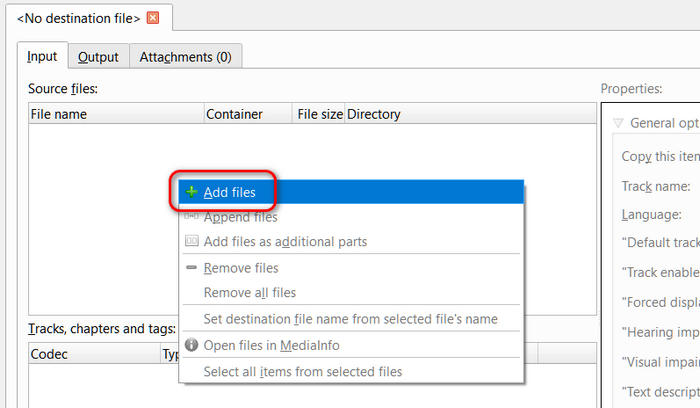
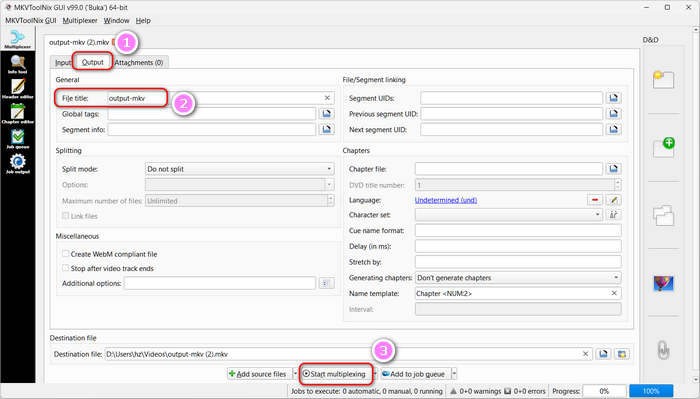
Step 1 Launch MKVToolNix on your computer. Locate the Source files panel and right-click to select Add files to input your TS videos.
Step 2 Click Output to enter the output panel. Since MKVToolNix can only remux other videos to MKV format, so what you need to do is only to provide a name for your output MKV file in the File title box. Finally, just click the Start multiplexing button at the bottom side to remux TS to MKV in MKVToolNix.
Part 6: How to Convert TS to MKV Free Online
Some people may only need to convert formats once, so they prefer to convert online rather than spend more time and computer memory downloading video converter software specifically. In that case, CloudConvert TS to MKV Converter is a good choice. CloudConvert is an online platform that offers many conversion features. It also lets you adjust the video configurations, including bitrate, resolution, and video codec. Therefore, this online converter can be more powerful than you expect. Let's check how to convert TS to MKV with CloudConvert.
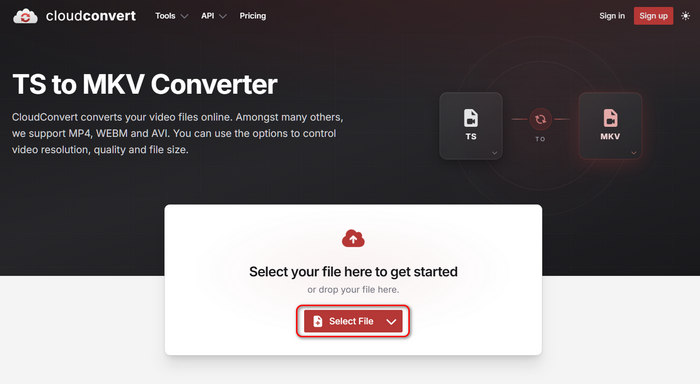
Step 1 Go to the official webpage of CloudConvert TS to MKV Converter. Then, click the Select File button to upload and import your TS videos.
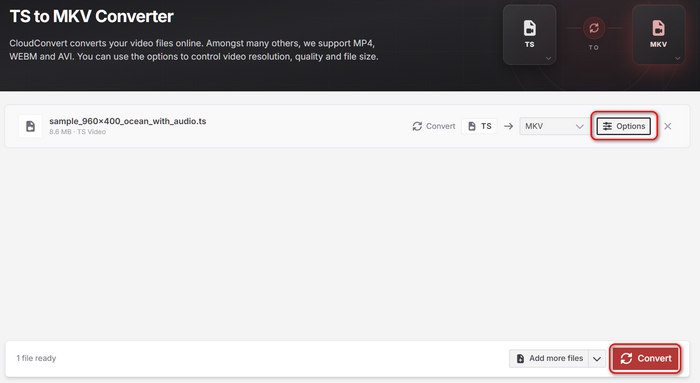
Step 2 You can click the Options button to adjust the video codec, bitrate (quality), and other parameters. If you only need to remux the TS files to MKV, you don't need to do this operation. Then, click the Convert button at the bottom to start the conversion.
Part 7: FAQs of Converting TS to MKV
Is MKV better than TS?
In most cases, it is. But after all, it depends on your specific needs. Considering compatibility and file size, MKV is much better than TS, which is mainly used for broadcasting and streaming.
What are the disadvantages of MKV?
MKV is small due to its high compression ratio. However, it requires high decoding capabilities and is unsuitable for playback on mobile devices or many video editing software.
Can VLC run TS files?
Yes, it can. VLC Media Player excels at converting files in almost all formats. Moreover, it can just play and run your original files without processing.
Conclusion
Converting TS file to MKV is not difficult as long as you clearly know your intention and find a reliable media converter. Since TS files have high video quality, many users only want to remux the video so that there's no quality loss, while others want to re-encode them with H.265 or AV1 codec to compress the large sizes while still having decent quality. Whether you want to do, Tipard Video Converter Ultimate is a good choice. It can help you do remuxing or re-encoding effortlessly. It supports level-3 hardware acceleration to quickly convert large TS videos in batch. You can enjoy fast speed with very low CPU usage!
All-in-one video toolbox: convert, edit, upscale, enhance, and compress your videos easily
100% Clean & Safe
100% Clean & Safe

More Reading




About the Author

 Click here to join the discussion and share your comments
 Tipard Video Converter Ultimate