

The MKV files contain high-resolution video, several audio streams, and subtitles in a single file. Several default applications do not read everything accurately, resulting in sound malfunctions or silence. A good MKV player can overcome these restrictions by encoding and format decoding correctly. This article states why this kind of software is important, gives the best choices by platform, demonstrates how to play the files and addresses the frequently asked questions.

Part 1. Why Do You Need an MKV Player?
The MKV is a royalty-free and flexible container format, yet several default media players are not well supported. It allows the storage of various video codecs, audio files and subtitles within a single file. Due to the lack of compatibility with various codecs in built-in players, MKV files might not open, cause sound loss, and subtitles to be forgotten during playback. This is why a dedicated player to play MKV is often required.
MKV is usually utilized with high-resolution video and Blu-ray quality, which imposes greater requirements on decoding performance. When the player is not optimized, large file sizes may stutter, lag, or drop frames. Windows Media Player and QuickTime are not directly compatible with MKV on most systems, so having the correct software is key to a smoother and more reliable experience.
Part 2. Top 17 MKV Players on Windows, Mac, iOS, and Android
Our Test Standards
We offer real and sincere tests and reviews to ensure you get your reliable MKV player. Please check how we tested as follows:
- Tested MKV Files: A 4K UHD MKV file encoded in HEVC (H.265) 10-bit with a massive bitrate peaking at 80 Mbps; A 4K MKV file utilizing the AV1 codec; An MKV file containing 5 distinct audio tracks, including lossless Dolby Atmos and DTS:X passthrough streams.
- Testing Environment: Windows 11 (Intel Core i9, 32GB RAM, NVIDIA RTX 4070 SUPER) and macOS Sequoia (Apple M3 Pro, 18GB RAM).
- Our Goal: We need to ensure that the MKV files can play seamlessly without stutter or frame drop; the audio tracks and subtitle tracks can be selected and applied; the CPU usage of this player should be lower than 7%.
1. Tipard Blu-ray Player
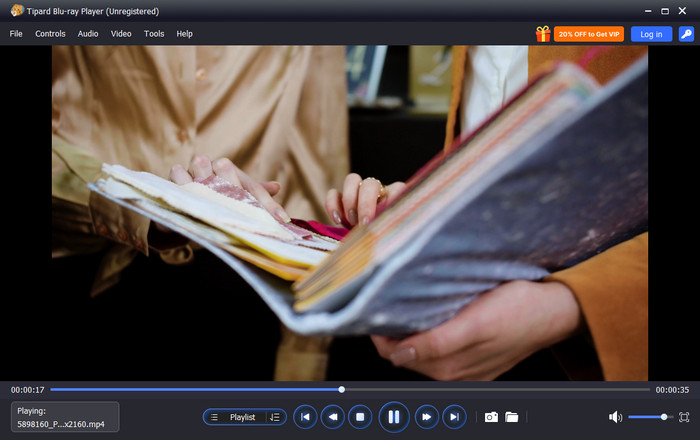
Tipard Blu-ray Player is a reliable option for playing MKV files on Windows and Mac. It supports a wide spectrum of video and audio codecs and correctly reads embedded subtitles and multiple audio tracks. When used as an .mkv player, it delivers smoother playback than most default media apps, especially for high-resolution video files and large file sizes.
Why We Select It
The complex video encoding of the Tipard Blu-ray Player can be supported without additional codec packs and plugins. It is designed to support HD and Blu-ray quality MKV videos, which improves lag and frame drop, and audio synchronization problems. The player also has the necessary playback controls and subtitles, enhancing the quality of viewing without adding a step of setup or extra expenses.
- Offers high-quality video viewing on Windows and Mac
- It supports a wide collection of multimedia formats, including MKV
- Simple but compact design that is comparable to professional players
- Always received an update to fix technical issues encountered
- GPU acceleration is supported to play large MKV files smoothly
- No Android and iOS versions
2. VLC Media Player
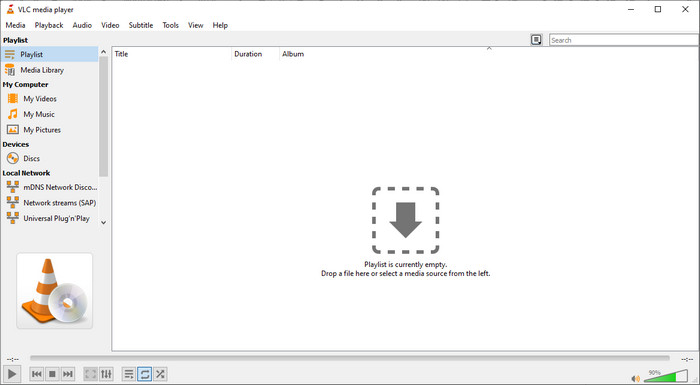
VLC Media Player is an unrestricted and open-source MKV file format player that supports almost all video and audio codecs without needing extra downloads. It can play high-resolution MKV videos smoothly and handle multiple audio tracks and subtitles. Does VLC play MKV? Its wide compatibility makes it one of the most trusted players across Windows, Mac, and Linux.
- Free and open source
- Wide codec support
- Cross platform
- The interface looks outdated
- Limited advanced playback features
3. Elmedia Player
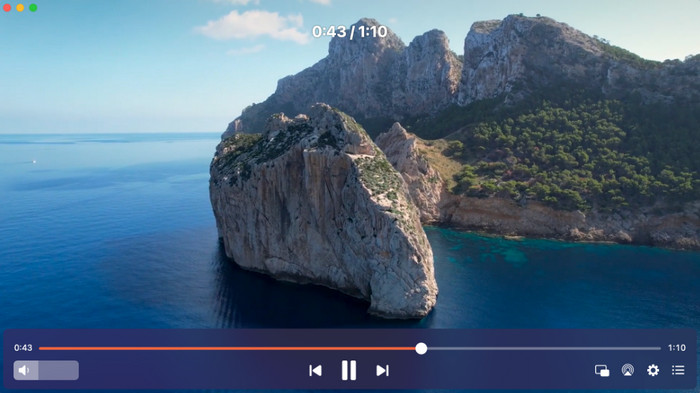
Elmedia Player is a lightweight Macbook MKV player designed to deliver smooth playback on macOS devices. It upholds subtitles and several audio files and does not compromise on the quality of resolutions. The app is stable and has a neat interface, which is suitable for use on a daily basis for watching MKV.
- Clean and modern interface
- Good subtitle support
- Optimized for macOS
- Advanced features require an upgrade
- Mac only
4. KMPlayer
KMPlayer is a versatile MKV file player with extensive format and codec support. It is capable of managing 4K and 8K videos and can customize the playback. Its ability to control the speed of the video, subtitles, and filters to play high-quality MKVs is appreciated by users.

- Supports high-resolution videos
- Customizable playback
- Wide format compatibility
- Ads in the free version
- Interface can be complex
5. IINA
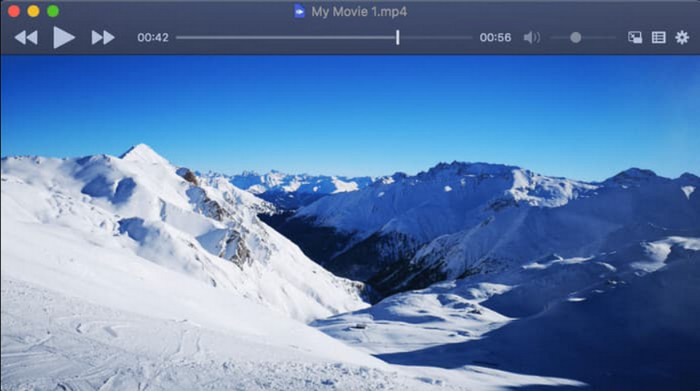
IINA is a modern MKV format player for Mac that integrates fully with macOS design and gestures. It has a smooth playback, subtitling and high resolution configuration. The Mac-friendly design it has is a highly viable option among Mac users who want to have a stable MKV experience.
- Native macOS design
- Smooth playback
- Supports gestures and shortcuts
- Mac only
- Limited codec settings
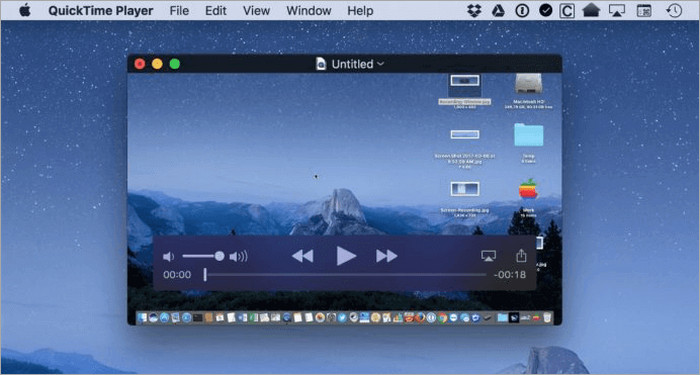
6. QuickTime with Plugins
QuickTime with third-party plugins can play MKV on Mac by adding support for additional codecs. After configuration, it is compatible with the native Apple player, with the only difference that it can allow MKV files with subtitles and multiple audio tracks. It is appropriate for those users who like to remain within the Apple ecosystem.
- Familiar interface
- System-level integration
- Plugin support
- Requires plugins
- Limited codec support
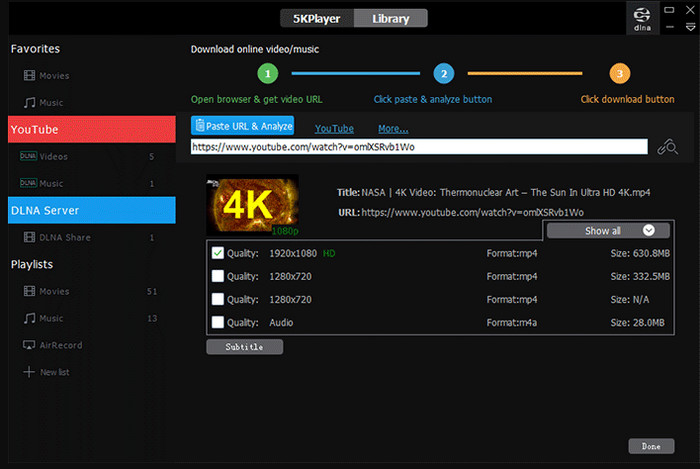
7. 5KPlayer
5KPlayer is an MKV file player for Mac that supports HD and Blu-ray quality video playback. It also has wireless streaming via AirPlay that makes it easy to share videos between devices. Its stable performance and free high-resolution MKV files attract users.
- Supports AirPlay
- Handles large video files
- Free version available
- Background processes may slow performance
- Occasional minor glitches
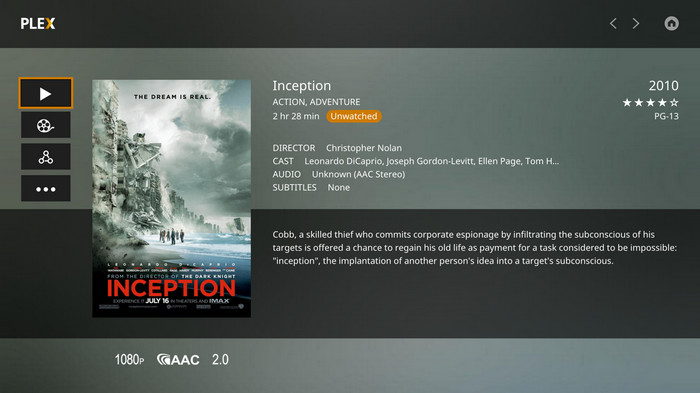
8. Plex
Plex functions as an MKV URL player online, allowing users to stream MKV files from servers to multiple devices. It coordinates media libraries and has the capacity to transcode video in order to achieve convenient playback on other devices. Plex can be used by users who do not have a large number of MKV files on a platform at once.
- Strong streaming features
- Multi-device support
- Organized media library
- Requires server setup
- Some advanced features require a subscription
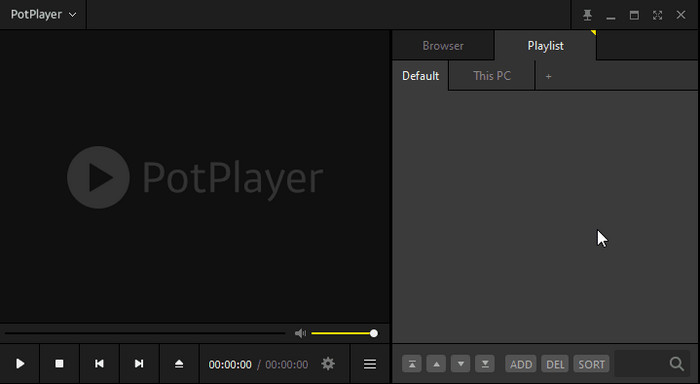
9. PotPlayer
PotPlayer is a powerful MKV format player known for its deep customization and high performance. It is compatible with the majority of codecs, 4K videos and the use of subtitles, which makes it the best with advanced users. PotPlayer is particularly convenient when it comes to users who require a lot of control over the settings of playback.
- High-performance
- Detailed playback controls
- Supports a wide codec range
- Windows only
- Complex interface
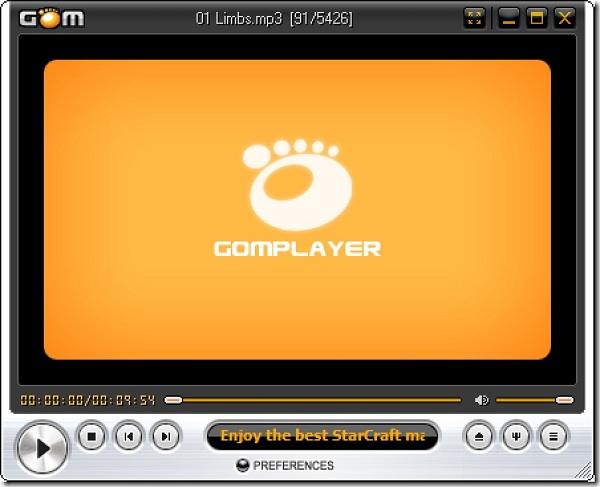
10. GOM Player
GOM Player is a user-friendly MKV video player with built-in subtitle search and playback support. It supports numerous MKV codecs and is not complicated for use by casual viewers. The app would be appropriate for Windows users who are interested in an easy but good MKV solution.
- Easy to use
- Built-in subtitle search
- Free version available
- Ads in the free version
- Some codecs require a download
11. Movist
Movist is a macOS MKV player focused on a clean interface and stability for high-resolution playback. It accepts several audio tracks and subtitles, which allows watching the video without disruptions. Movist is recommended to users of Mac users who desire to have an easy, stable, MKV experience.

- Minimal and clean interface
- Stable playback
- Good subtitle support
- Limited updates
- Mac only
12. DivX Player
DivX Player serves as a Matroska file MKV player for high-quality video playback. It also backs up advanced codecs and multitacks audio so that it can be a smooth ride. Users are able to watch HD-quality and Blu-ray quality videos with a smooth performance and decoding.

- High-quality playback
- Supports advanced codecs
- Clean interface
- The free version has limitations
- Optional bundled software
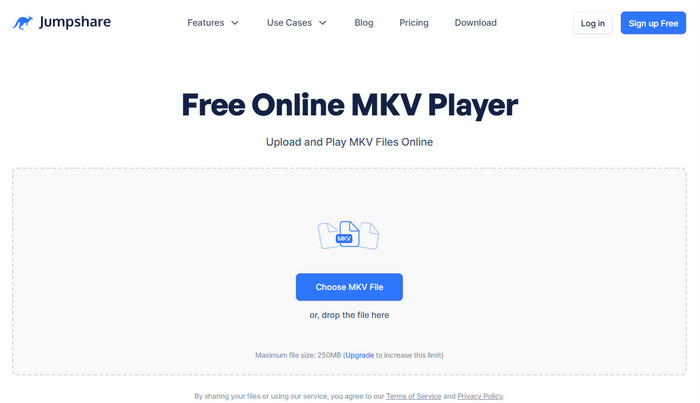
13. Jumpshare
Jumpshare is an online MKV player that allows users to play MKV files in a browser without installing software. It is best when it comes to sharing and streaming small files fast. The users get quick access to the content without installation and setup.
- No installation needed
- Simple sharing and streaming
- Accessible in browser
- Limited file size
- Internet connection required
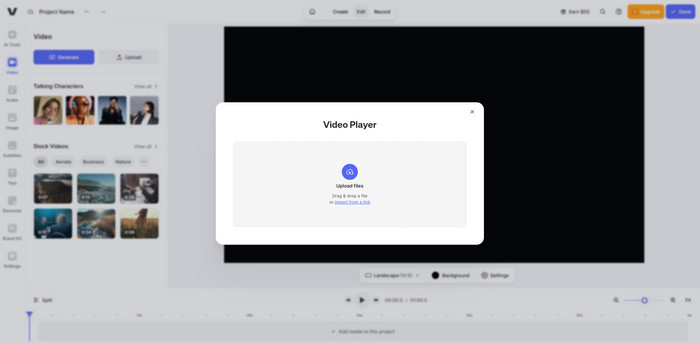
14. VEED Video Player
VEED Video Player works as an mkv player online, allowing users to upload and play MKV files directly in a web browser. It does not have to be installed and is compatible with the majority of devices. VEED offers quick and easy playback to the user.
- No installation required
- Works in most browsers
- Simple playback controls
- File size limits
- Internet connection required
15. Media Player Classic
Media Player Classic is a MKV player for PC that is lightweight and provides low resources and speedy playback. It works with a majority of the MKV codecs and will suit older systems. Customers like its simplicity and fast start-up when using it to view videos on a daily basis.

- Very lightweight
- Fast startup
- Free to use
- No longer actively developed
- Basic interface
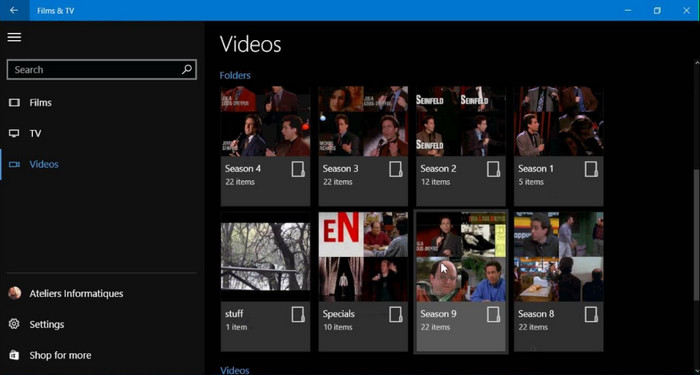
16. Windows Movies and TV
With proper codecs, Windows Movies and TV acts as an MKV player Windows for casual playback. It can support standard MKV files and is easy to use for beginners. This is appropriate for users who do not require additional software and would prefer basic features.
- Built-in on Windows
- Simple interface
- Good for basic playback
- Limited codec support
- Not ideal for large or high-resolution MKV files
17. SMPlayer
SMPlayer is the best MKV player for users seeking automatic settings and reliable playback. It stores playback positions, has a variety of codecs and an uncluttered interface. SMPlayer is also free and can be used with various platforms, and it is convenient for those who watch MKV more often.
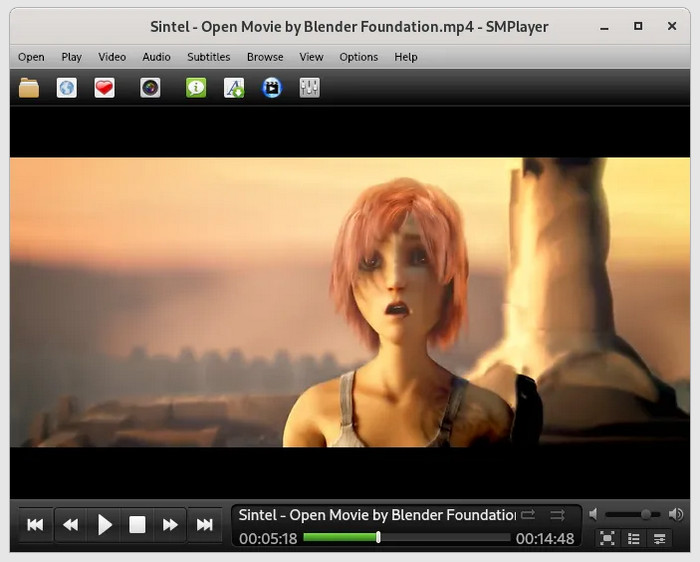
- Remembers playback position
- Supports multiple codecs
- Free and open source
- Interface feels dated
- Limited mobile support
Part 3. How to Play MKV Files
If you choose to download Tipard to play your MKV file, then you can use the MKV player Mac on and Windows tutorial that we have added in here.
Step 1 After doing the setup on your Windows or Mac, launch it and wait until the main interface appears on your screen.
Step 2 On the main interface of the app, click Open File, find the MKV file in your folder, click it, and press Open to load it up.
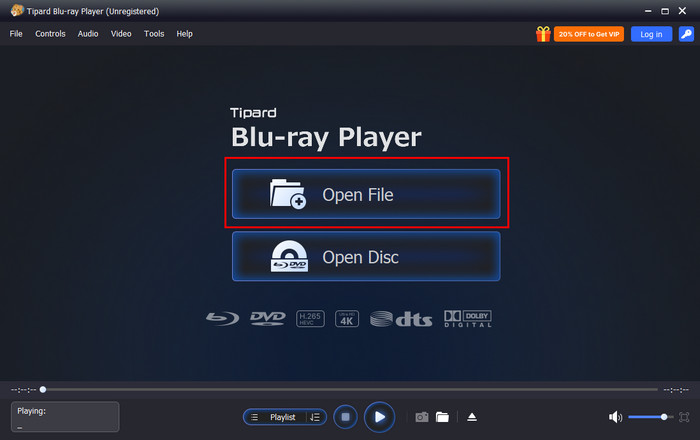
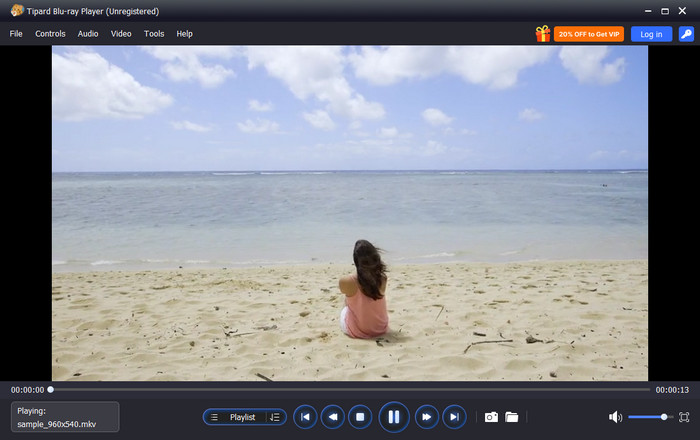
Step 3 Once you are done watching the MKV file, do Step 2 again to upload other videos you want to watch in high quality here.
Part 4. FAQs of MKV Player
1. Can I convert MKV to MP4?
Yes, you can convert MKV to MP4 using a video converter or some media players. The conversion keeps your video and audio but makes the file easier to play on more devices. Some MKV players even support basic editing before conversion.
2. Why is my MKV file not playing?
Your MKV file may not play if the player does not support the video or audio codec, or if the file is damaged. Large or high-resolution MKV files can also cause stuttering. Using a dedicated MKV player that supports most codecs usually fixes the problem.
3. Is MKV better than MP4?
MKV is better for storing high-quality video, multiple audio tracks, and subtitles in one file. MP4 works on more devices and is smaller in size. If you want to combine multiple videos, audio, or subtitle tracks into a single file, using an MKV merge tool is the easiest solution.
Conclusion
Choosing the right MKV video player is important to watch high-quality videos with multiple audio tracks and subtitles. A good player ensures smooth playback on Windows, Mac, iOS, or Android. The right MKV player makes watching, streaming, or combining files easier and more enjoyable.

Play Blu-rays and multimedia files with the best video and audio quality
100% Clean & Safe
100% Clean & Safe

More Reading




About the Author

 Click here to join the discussion and share your comments
 Tipard Blu-ray Player