

Trying to convert WMA to MP4 often happens when an old audio file will not play properly on modern devices, social platforms, or video editors. You might have a WMA music track, lecture recording, or voice note that needs to be shared as an MP4 video for better compatibility. In situations like uploading content online, creating a simple music video, or playing files on phones and TVs, MP4 is usually the safer choice. This guide walks you through practical desktop, free online, and Android methods to handle the conversion smoothly and efficiently.
Part 1. How to Convert WMA to MP4 with Image or Video
Supported by over 500 various video and audio formats, Tipard Video Converter Ultimate can convert WMA files into MP4 videos. MP4 presets, including 4K UHD and 1080p HD, are offered, as well as music video templates, and an assortment of editing tools, all powered by up to 60× faster GPU acceleration.

- Add images or videos as backgrounds when converting WMA to MP4.
- Add subtitles and captions with customizable fonts and positioning.
- Provide MV Maker templates for fast, one-click music video creation.
- Offer MP4 presets up to 1080p HD and 4K UHD.
- Include simple editing tools like trim, crop, rotate, filters, and audio sync.

Step 1Get Started by Downloading Tipard Video Converter Ultimate
Visit the Tipard Video Converter Ultimate website and download the software. Follow the instructions and install the software. Open the software once installed to access all features.
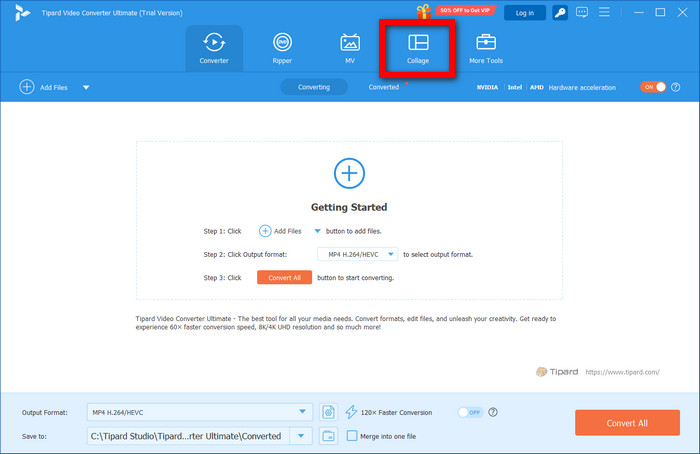
Step 2Pick a Template
You will see various settings and alternatives once the software opens. Go to the Collage section and choose the background template that you like best, and that fits how you want your video to look.
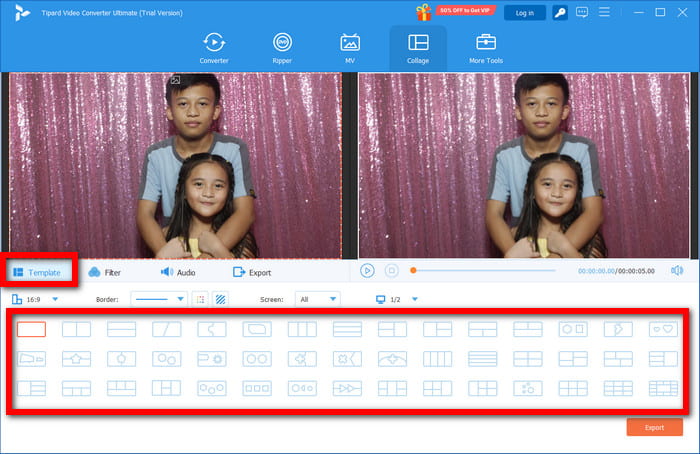
Step 3Add Pictures to the Background
Select and arrange the images you want to use in the background to create the template and achieve the look you want.
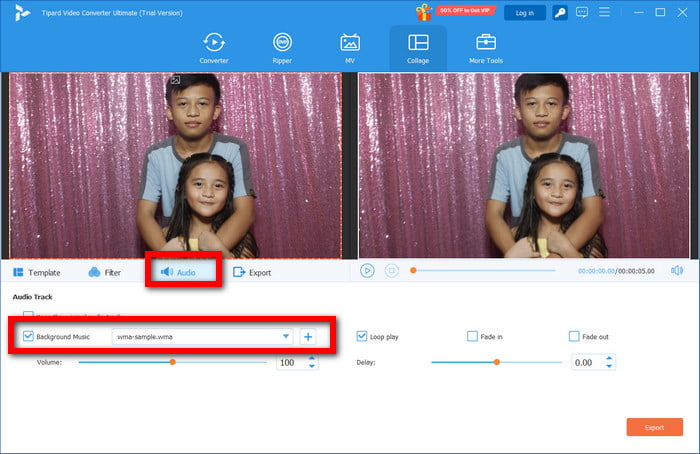
Step 4Import the WMA File
Select the Audio section, and then the + sign will let you upload your WMA file, which you want to convert to MP4. Before you continue, double-check that the file has been uploaded correctly.
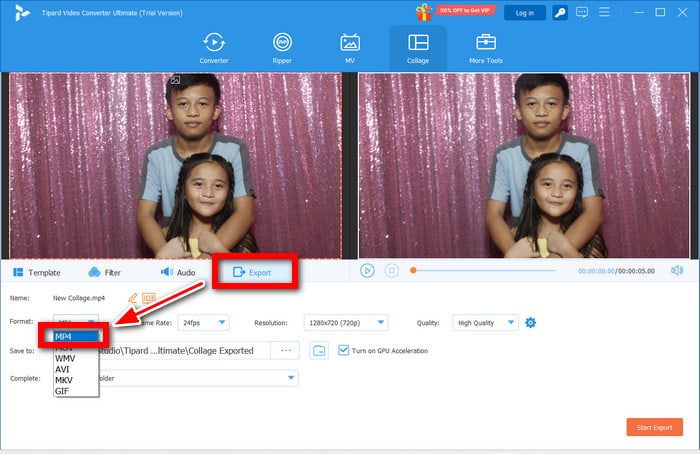
Step 5Choose MP4 as your Output Format
Head over to the Export section and choose MP4 for your video output format. Feel free to check other settings to ensure your output is of the highest quality.
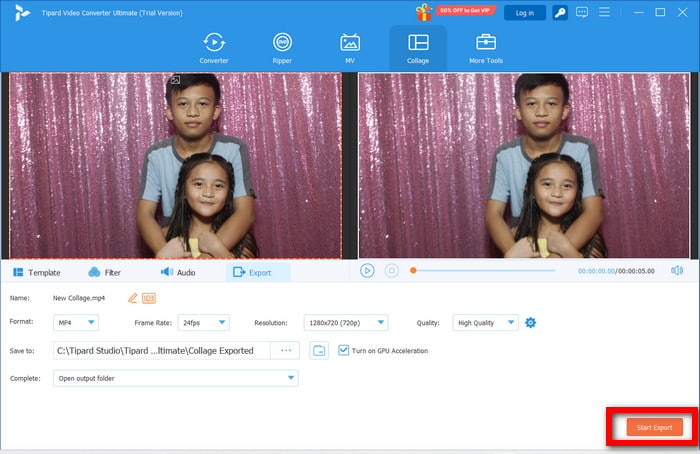
Step 6Save the MP4 Video and Export
Once all your settings are done and double-checked, select the Start Export option to begin the conversion process. The software will convert your WMA file into a new MP4 video and automatically save it to your chosen location.
Part 2. How to Convert WMA to MP4 with VLC
Because it offers the ability to convert WMA audio files to MP4 with a background, it is more useful than other free online CLS. You can use WMA to MP4 conversions. You will not be asked for an account or a subscription. It is a lightweight option, albeit not as visually satisfying, with little editing, so that it can carry WMA files to MP4 easily.
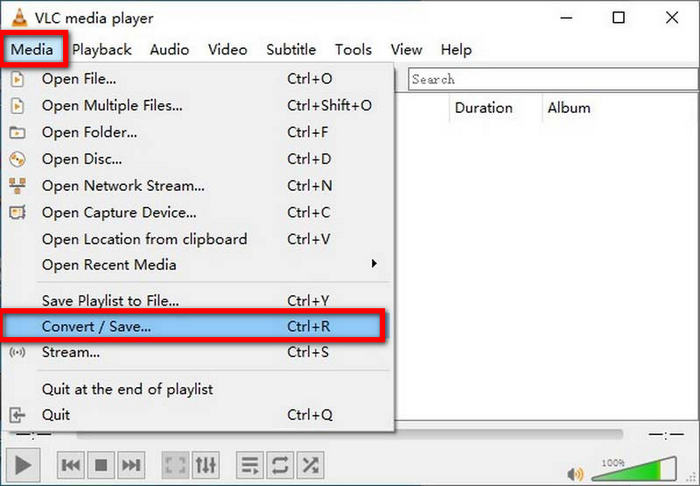
Step 1 You have to open VLC Media Player on your computer. In the middle menu, hit Media, and select Convert / Save. On the pop-up up hit Add to upload your WMA file.
Step 2 On the bottom of the window, click Convert / Save again to continue. On the Profile dropdown menu, select Video - H.264 + MP3 (MP4).
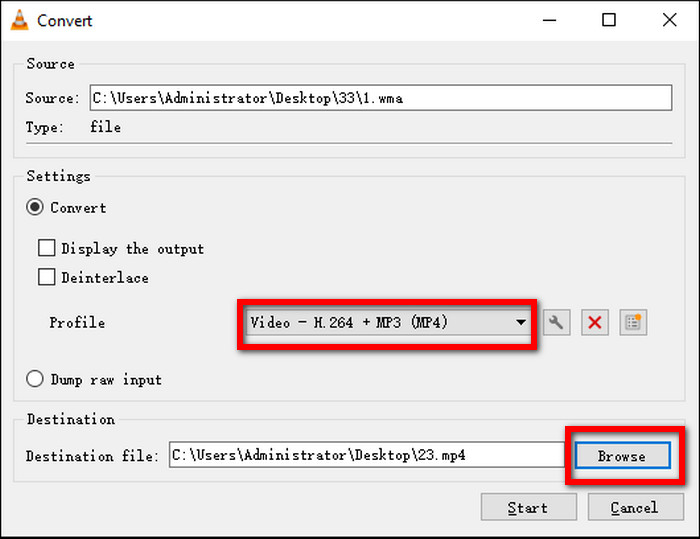
Step 3 Click Browse on the Destination file area, pick a folder to save your output, you can change the name as you wish and click Save to finish.
Step 4 Select Start to begin the conversion of the WMA file to MP4. When the process is complete, you will find the converted file in the destination folder you selected.
Part 3. How to Convert WMA to MP4 Free Online
You may use Clideo to convert WMA to MP4 files. This tool is free, and it works directly through your browser, so there is no need to download or install anything. Keep in mind, though, that the method described here is less versatile, as it does not allow the user to add images, video frames, or create videos from photos in the resulting MP4 file.
Step 1 To use this tool, open your browser and navigate to the Clideo WMA to MP4 conversion page.
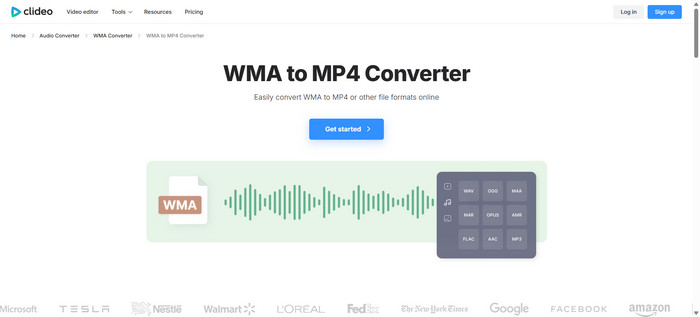
Step 2 Click on the button that says Choose file. Locate the WMA file you want to convert, and upload it to the webpage.
Step 3 Of the conversion options present, ensure that MP4 is chosen.
Step 4 Click the button that says Convert. Wait as Clideo does the conversion.
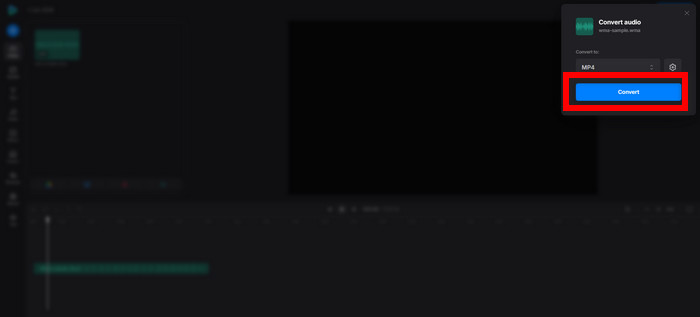
Step 5 Click on Download to save the new MP4 file to your computer when the tool is done converting.
Part 4. How to Convert WMA to MP4 on Android
Audio & Video Converter is a free Android app that allows you to convert WMA files to MP4 directly on your phone. It supports multiple formats, basic output settings, and works well with the Photogrid app for creating videos, making it suitable for quick mobile conversions.
Step 1 Go to the Google Play Store to search for and download the Audio & Video Converter app on your Android device.
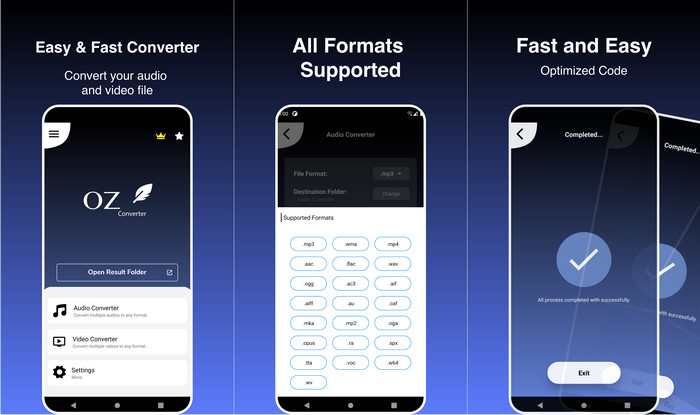
Step 2 On the app, click Add File or Select, and from your phone storage, select the WMA audio file.
Step 3 From the list of formats, select MP4 as the output file format.
Step 4 If there are options like bitrate or resolution, you can customize them to your preference.
Step 5 Click Convert to initiate the conversion. The converted file will be in your device storage.
Conclusion
Wrapping it up, if you need to convert WMA to MP4, you are doing the right thing in order to ensure that your audio files can be played across devices, platforms and video editing software. Whether you enjoy adding pictures and videos using the Tipard Video Converter Ultimate or prefer to convert files using the Audio & Video Converter app or online tools like Clideo, there are plenty of options available to you to be able to convert WMA to MP4.
More Reading



About the Author

 Click here to join the discussion and share your comments