

When you have DAV files from a digital video recorder, you might want to share them with your Android phone, iPhone, or other devices. However, the DAV format is not compatible with many common platforms or digital devices. You can convert a DAV file to MP4 to make it playable.
How can you convert DAV to MP4 with ease? Check this post, and you can learn more about the DAV file format and the best methods to decrypt the DAV to MP4.

Part 1: What DAV Is and Why Convert DAV to MP4
DAV is a proprietary, encrypted video format utilized by leading surveillance brands like Dahua, Amcrest, and Swann for their DVR/NVR systems. Unlike standard MP4 files, DAV is designed for security integrity, which unfortunately makes it incompatible with mainstream players like QuickTime, Windows Media Player, or smartphones. To view or share this footage for evidence or personal backup, you must first decrypt and convert the DAV container into a universally recognized format.
Why You Should Convert DAV to MP4
When you convert DAV files to MP4, you can watch the recorded videos easily on any device.
Of course, you can play the DAV videos with the surveillance manufacturer's official player and limited video players, such as the DVR365 player. But if you want to play DAV files on common platforms or devices, such as your Android phone or iPhone, you have to convert DAV to MP4 instead.
Part 2: How to Convert DAV to MP4 Quickly and Easily
Platform: Windows and macOS
Perhaps you know that VLC can play or convert DAV to MP4, but it cannot edit your video to take out important clips of a recorded video. What should be the a more versatile method to convert the output DAV files to MP4? You can select Tipard Video Converter Ultimate.
Whether you need to convert DAV file format to 4K MP4, or optimal MP4 files for an iPhone, Tipard Video Converter Ultimate can help you easily do the tasks. It also has advanced features to edit your DAV video and upscale the video after you change DAV to MP4. With hardware acceleration, it can even convert DAV file to MP4 120 times faster than ordinary converters.

- Utilize hardware acceleration to convert DAV to MP4 quickly in batch.
- Offer AI-driven techniques to enhance video definition and remove blur.
- Offer practical video editing features to clip, resize, and crop DAV videos.
- Support many MP4 output presets, like 1080p, 4K, 5k, and even 8K quality.

How to Convert DAV to MP4 with Tipard Video Converter Ultimate
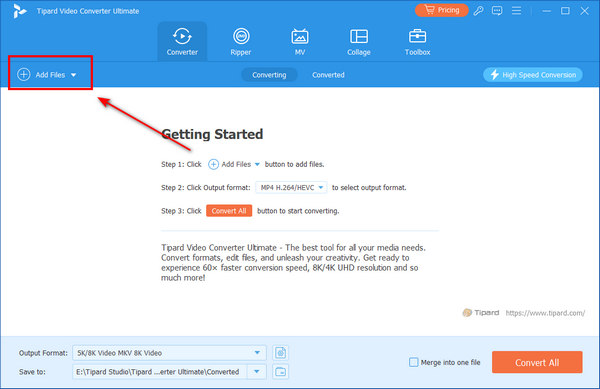
Step 1 Add DAV Video
Download and install Tipard Video Converter Ultimate on your computer and click the Add File button to import your DAV video to this program.
Step 2 Choose MP4 Output Format
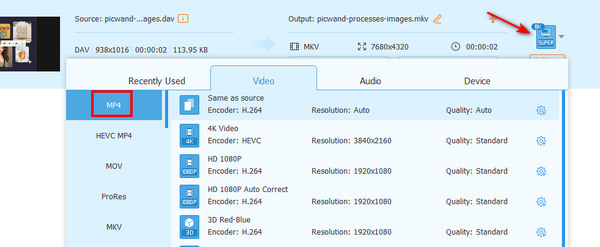
The .dav video is added. You can see that the output format is set to MP4 by default, but you can still click the Output Format dropdown button to choose another MP4 preset, such as HEVC MP4 or 4K MP4. Double-click on your desired MP4 preset.
Step 3 Convert DAV File Format to MP4
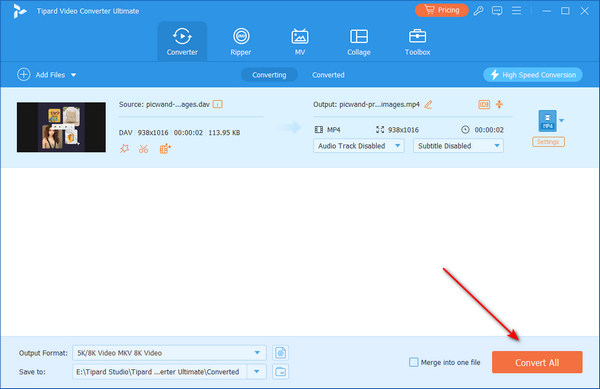
You can also try some video editing features, such as cropping your video. To export DAV to MP4, you can click the Save to dropdown button to choose a destination folder for your MP4 video. Then, click the Convert All button in the bottom right corner to convert .dav to MP4 format easily.
- Clear interface with simple workflow.
- Fast conversion speed with stable performance.
- Keep the original video quality or even enhance it.
- Offer many MP4 presets that suit different devices and displays.
- The preview feature can be improved.
Part 3: How to Convert DAV to MP4 with VLC
Platform: Windows, macOS, and Linux
VLC is a powerful media player and converter. It supports the .dav format input, so you can convert .dav to MP4 with VLC. However, some DAV files are encrypted, making it difficult to play those DAV files, let alone convert them to MP4 files. Of course, you can download only unencrypted footage or files from the DVR365 and convert DAV to MP4 files with VLC.
Steps to Convert DAV File Format to MP4 on VLC
Step 1 Log in to your DVR digital camera recorder through your computer, and isolate the specific area of video you need. After that, you can download it to your hard drive. The videos will be saved as DAV files.
Step 2 Launch VLC and click the File button in the top left corner. Then, click the Convert/Save button.
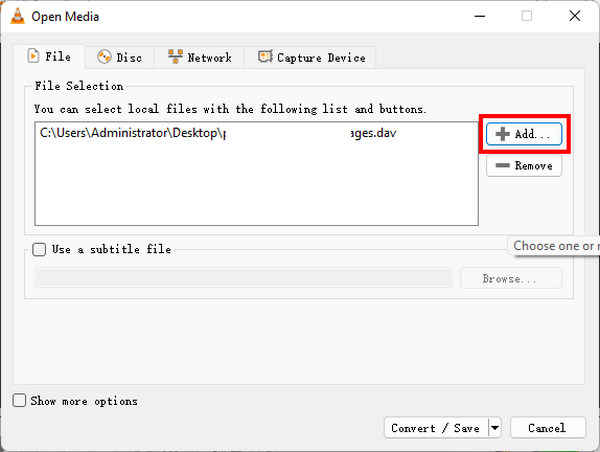
On the new panel, you should click the Add button to add your DAV file. Then, click the Convert/Save button on the bottom side.
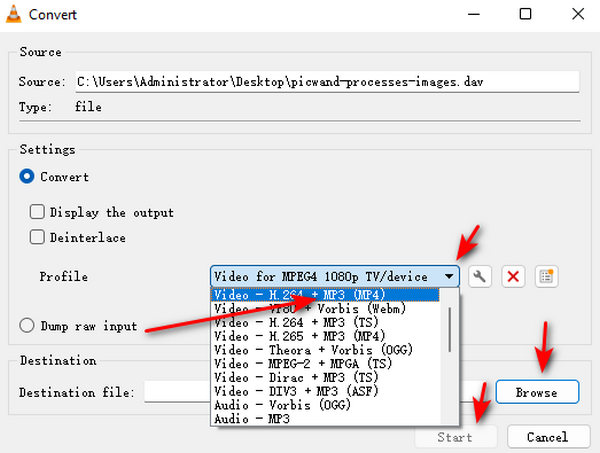
Step 3 It'll be very easy to change DAV to MP4 when you have added the DAV file to VLC. Click the Profile dropdown button to select the MP4 format. Then, click the Browse button to choose a destination for your upcoming MP4 video.
Finally, click the Start button to convert DAV to MP4 with VLC easily. You can play the output MP4 video with any MP4 player on Windows and Mac
- Fast and stable performance.
- Free and open-source.
- Offer many MP4 presets.
- It doesn't support encrypted DAV files.
- The conversion feature is not easy to find.
Part 4: How to Convert DAV to MP4 with HandBrake
Platform: Windows, macOS, and Linux
When it comes to free and open-source multimedia file converters, many users may think of HandBrake. Although this free video converter only supports three output formats, MP4 is just one of them. HandBrake offers an understandable interface and on-screen guides that can help you easily convert .dav to MP4. You can quickly do a video conversion with it.
HandBrake also offers feature-rich video customization features so that you can get high-quality or very customized MP4 videos. However, HandBrake doesn't support encrypted DAV videos.
Steps to Convert DAV File Format to MP4 on HandBrake
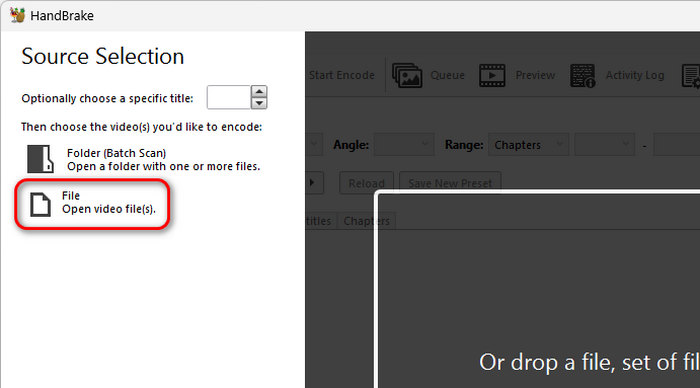
Step 1 Launch HandBrake and click the File button to add DAV video to this program from your computer.
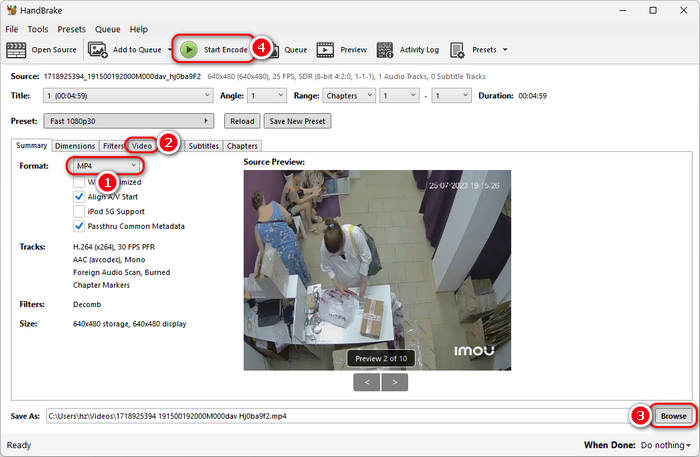
Step 2 When your DAV video is added, you can see that the output format is set to MP4 by default. You can also click the Video tab to select a desired video codec, such as AV1 or H.265.
Step 3 Then, you can click the Browse button to choose a desired output destination folder for the upcoming MP4 video. Finally, click the Start Encode button on the top ribbon to convert DAV to MP4 video easily.
- Free and open-source.
- Offer rich video and audio customization features.
- Support a large number of codecs, resolutions, and other parameters.
- It doesn't support encrypted DAV files.
- Beginners may get used to it quickly.
Part 5: How to Convert DAV to MP4 Free Online
Actually, you can choose to convert a DAV file to MP4 for free online. There are many online converters supporting DAV input and MP4 output. Why not use a free online DAV to MP4 converter? Just do a video conversion task without any installation.
Convert DAV File to MP4 with Online Convert
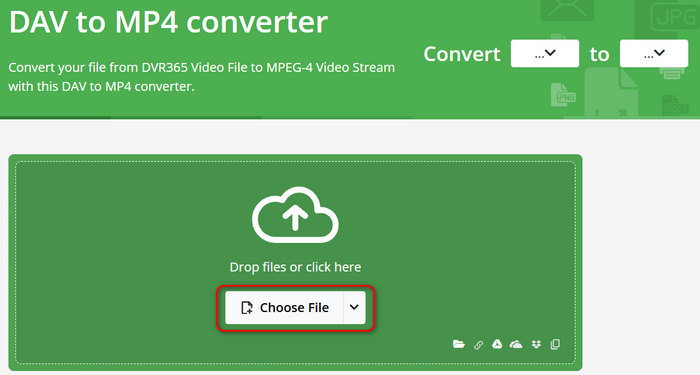
Step 1 Go to the official Online Convert DAV to MP4 webpage. Click the Choose File button to add your DAV video from your local storage to this webpage.
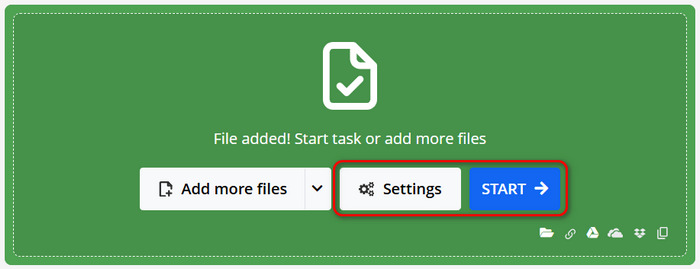
Step 2 When your video is added, you can directly click the START button to convert .dav to MP4 free online, but before that, you can also click the Settings button to change the resolution, frame rate, and audio parameters to enhance the output MP4 video.
- Clean interface without ad.
- Offer many video and audio customization features.
- Support batch conversion.
- It doesn't support encrypted DAV files.
- The uploading and processing speeds are slow.
Convert DAV to MP4 with video.converter.com
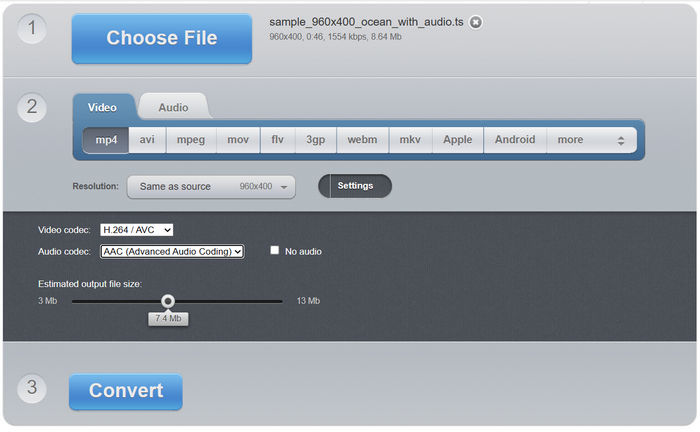
Step 1 Go to the official webpage of video-converter.com. Click the Choose File button to import your .dav video.
Step 2 The output format is set to MP4 by default. You can also click the Settings button to change the video and audio codec.
Step 3 Click the Convert button to convert .dav file to MP4 free online.
- Offer a understandable interface with clear instructions.
- Support HEVC and H.264 codecs.
- Allow you to compress videos.
- Doesn't support encrypted DAV files and batch conversion.
- There are ads on the webpage.
Part 6: FAQs about converting DAV to MP4
How can I convert DAV to MP4 on iPhone or Android?
It's not easy to convert DAV to MP4 on iPhone because there are not many apps that can handle this task. You can convert a DAV file to MP4 on a computer and transfer it to your iPhone. For Android devices, many apps can convert DAV to MP4, such as Dav To MP4 -CCTV DVR Converter.
How to Download DAV files from Your DVR?
Go to the DVR box and look for the USB port, which can be found on the back or front of the DVR. After that, you can plug your USB cable into the USB on the device, then plug the other end into an available USB port on your computer.
Which is Better, Converting DAV to MP4 or AVI?
Most of the DAV files are encoded in H.264 MPEG, whether you convert DAV to AVI, or MP4, you only need to keep the original video codec, it will preserve the best quality of the DAV files. Of course, when you convert DAV to MP4, you can use the file for most of the devices.
Conclusion
It is not easy to convert DAV to MP4 videos. You should download the DAV file from your digital camera first, and then choose a reliable DAV to MP4 converter. VLC is a powerful way to change DAV to MP4. However, it cannot help you clip the recordings. That's why you can choose Tipard Video Converter Ultimate. It can easily convert your DAV files to MP4 or optimal videos for any device. It can easily clip your videos to grasp the important parts of your recording.
All-in-one video toolbox: convert, edit, upscale, enhance, and compress your videos easily
100% Clean & Safe
100% Clean & Safe

More Reading


About the Author

 Click here to join the discussion and share your comments
 Tipard Video Converter Ultimate