

Key Takeaways
Your work can be done on iMovie on iPhone, iPad, and Mac, and Mac/Windows with Tipard Video Converter Ultimate. A few guidelines to follow:
- Editing Steps: Import, trim, arrange, and append audio, text, and effect overlays.
- Industry Vocabulary: Kenneth Burns, In/Out Points, Ken Burns, Green/ Blue Screen, and Skimmer.
- Audio and Captions: Audio and captions can be added and adjusted.
- Alternative Software: Tipard Video Converter Ultimate comes equipped with features like AI editing and the ability to choose different aspect ratios, resolutions, and codecs.
- Export and Share: Save your work as a MOV or MP4 and share online or on different devices.
How to edit movies in iMovie does not have to feel complicated, even for beginners. This guide explains how to create and edit movies on iPhone, iPad, and Mac, and also introduces a simple Windows and Mac alternative for faster, flexible editing.
Part 1. How to Make a Movie on iMovie on iPhone and iPad
iMovie is a Mac, iPhone, and iPad app that allows you to make videos quickly. You can upload videos, cut them down, and add music or sound effects, text, or other effects, and then share your video.
Step 1 Start iMovie, and tap the + button. Then select Movie. Select the images or videos that you wish to include, and tap Create Movie.
Step 2 Tap on a video and pull the edges to cut it down. You can rearrange videos by dragging them during editing.
Step 3 Tap on Add Media, select Audio, and then choose soundtracks or sound effects. Modify audio volume as required.
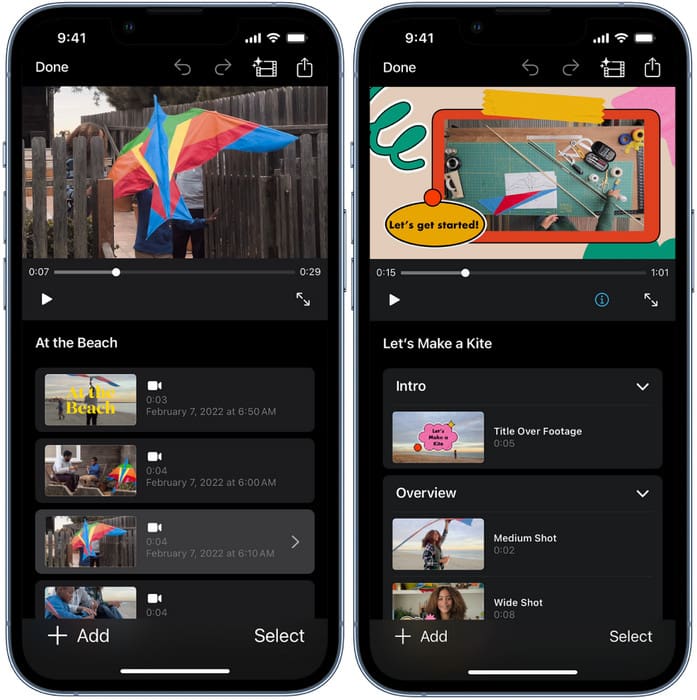
Step 4 You can add titles, captions, or credits by tapping on the letter T. You can also adjust the font and the position of the text.
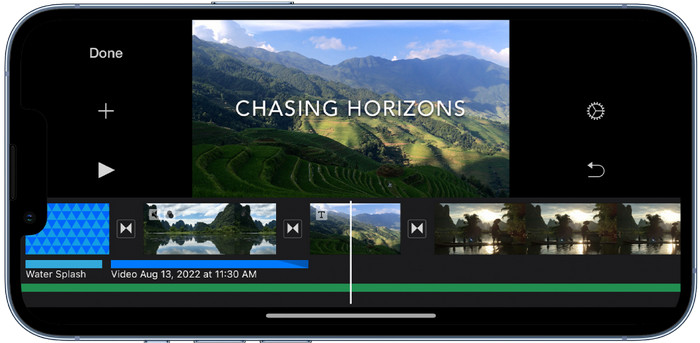
Step 5 You can add effects like Kenneth Burns, green/blue screen, and others. You can also add filters and change the colors.
Step 6 Press Play to preview. When you are finished, tap Done, then Share to save your movie or upload it.
Part 2. How to Make a Movie on iMovie on Mac
If you are using iMovie on a Mac, you have more control because of the bigger workspace. You can import videos from your iPhone, add and cut clips, add music, titles and other things, and then export your movie and share it online.
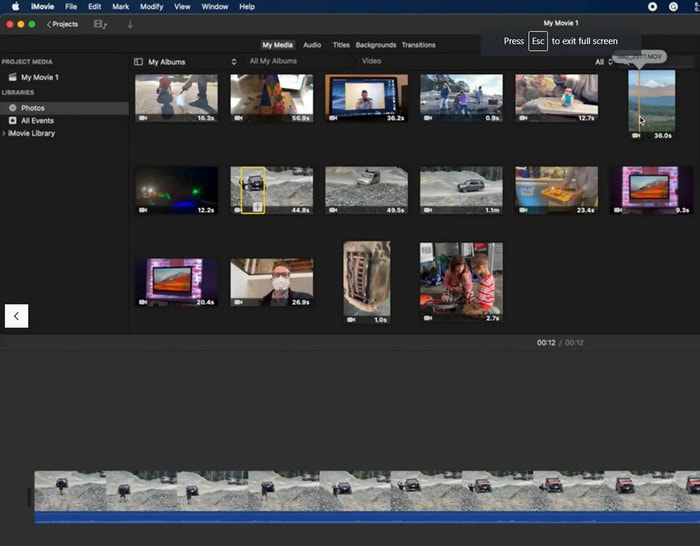
Step 1 Open iMovie, click on the + button, and click on movie. Look for your videos in photos or in iCloud, or connect your iPhone with a cable to import the videos.
Step 2 Use the skimming tool to preview the videos. Press the I key to mark the beginning and the O key to mark the end. Then click the E key to add a video to your timeline.
Step 3 You can trim the clips by dragging the edges of the video clips, and you can adjust the order of the clips on the timeline.
Step 4 You can add audio from the program or upload your own music and set the volume to balance the audio.
Step 5 You can add titles to the project, captions for the clips, or credits for the movie, and you can customize the font, size and placement of the text.
Step 6 To preview your movie, you can click the space bar to play your movie. After you have added everything to the movie, click the Share button and select export video.
Part 3. Easier iMovie Alternative to Make a Movie on Windows & Mac
For both Windows and Mac, there is an easy-to-use and powerful video editing and converting tool called Tipard Video Converter Ultimate. It enables you to instantly generate videos with additional features such as flexible aspect ratios, varied resolutions, adjustable video parameters, and AI-powered features. This makes it an excellent alternative for users who want iMovie-like functionality without being tied to a Mac.

- Support multiple aspect ratios and resolutions from 480p to 8K UHD.
- Customize frame rate, codec, bitrate, and other key settings easily.
- Available on both Windows and Mac.
- Offer simple editing tools like trimming, rotating, watermarking & enhancing clips.
- Use AI tools to upscale video, adjust brightness, reduce noise, and fix audio sync.

Step 1 Get Tipard Video Converter Ultimate
From the official website, download Tipard Video Converter Ultimate, and install it on your computer (Windows or Mac). Run the program once the installation is done.
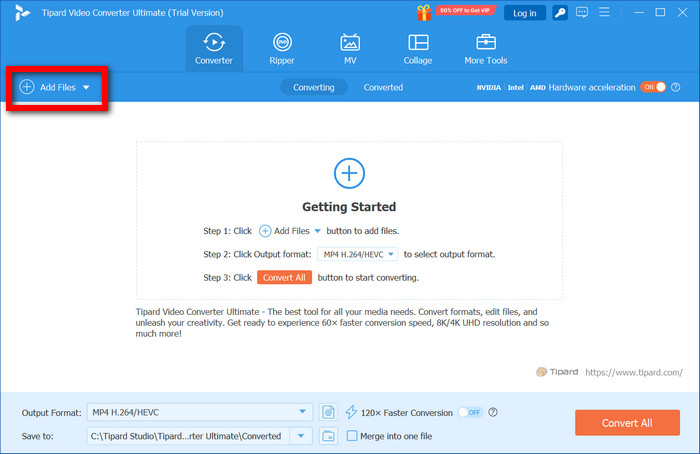
Step 2 Upload Your Media Files
Click the Add Files button on the upper left side and upload your video clips or any other media files you want to make a movie with.
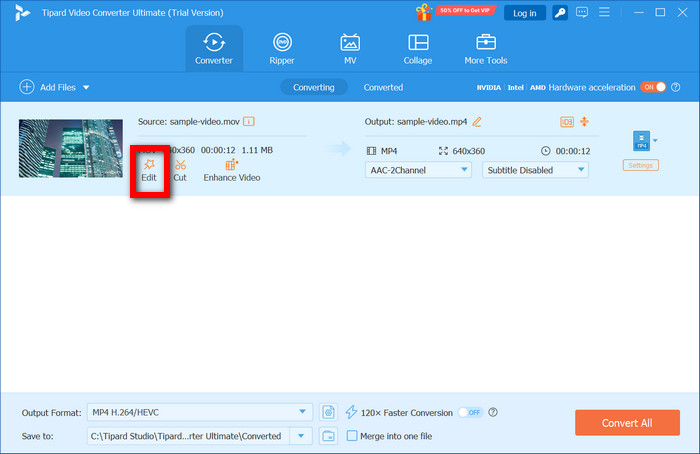
Step 3 Click The Edit Button
Click the Edit button adjacent to the video you imported (this will open a new window with all the editing tabs).
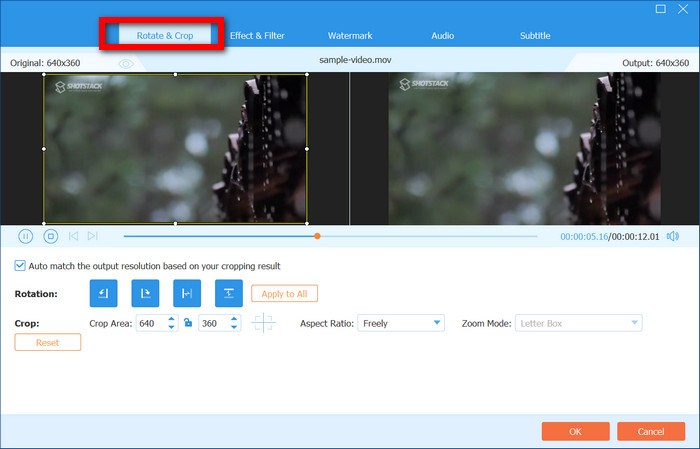
Step 4 Rotate and Crop
In this window, select Rotate & Crop. Here you can rotate videos and flip them, or you can crop them to your desired parameters.
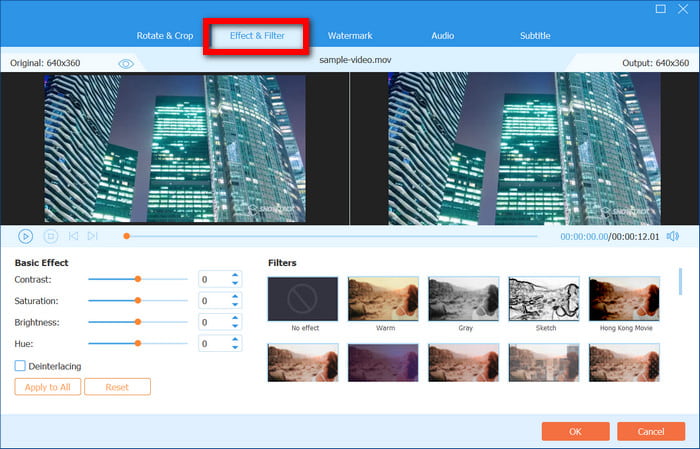
Step 5 Adjust Effects and Filters
In the Effects & Filter sections, you can adjust settings like saturation, contrast, and brightness, and they also have filters added to the software if you want to use them.
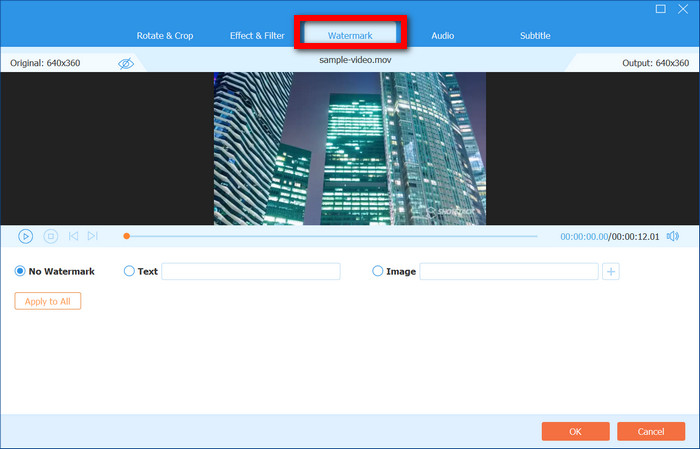
Step 6 Add a Watermark
To give your video a watermark, select Watermark, and you can adjust the image or text and watermark positions, and opacity.
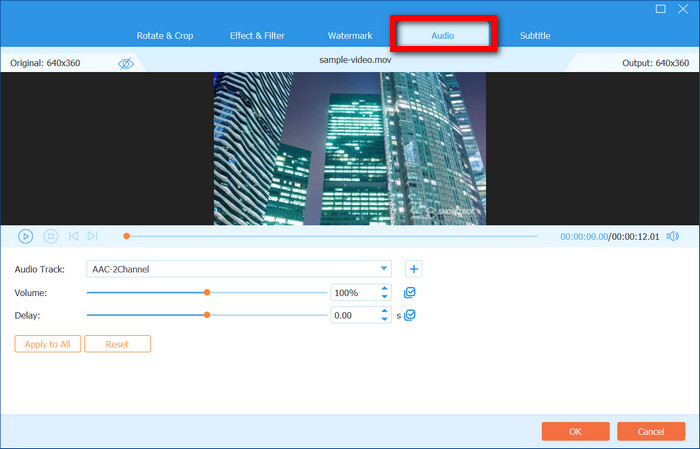
Step 7 Adjust Audio
In this window, make any audio adjustments like changing audio levels or correcting the audio delay if that is a problem.
Step 8 Add and Edit Subtitles
Access Subtitle to insert subtitle files that you have, and adjust the timing and position of the subtitles.

Step 9 Finalize Your Output Preferences
Define the format, resolution, frame rate, codec, and bitrate you would like to apply to your completed movie.
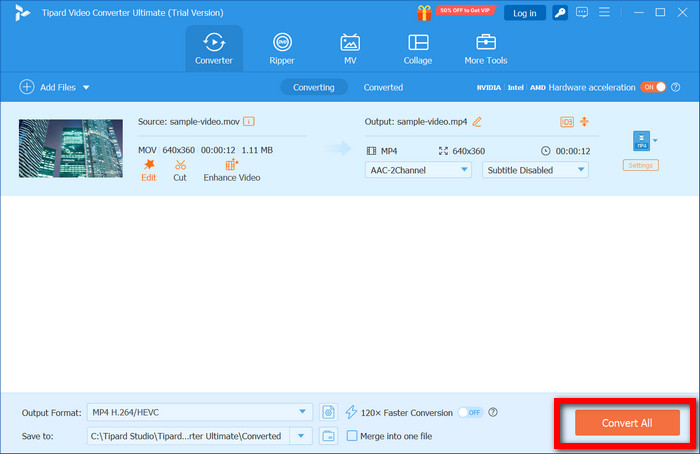
Step 10 Finish Exporting Your Movie
Select your destination folder and tap Convert All to finish exporting your movie.
Part 4. FAQs of Making a Movie on iMovie
Is iMovie good for making movies?
Definitely, iMovie is useful for all kinds of movie-making, especially short films and personal projects. It has all the necessary editing features like trim, transitions, text, and audio to help make videos look professional, even if you encounter issues like iMovie not exporting.
Is iMovie beginner-friendly?
Most definitely. iMovie is meant to be friendly for beginners and has a streamlined interface that features a simple drag-and-drop timeline. Users can upload clips, trim them, put in music or titles, and add effects. There is no need for settings to be adjusted like other complex editing software, which makes iMovie perfect for new editors.
What are the disadvantages of iMovie?
Some features that are implemented in more complex programs like Final Cut Pro are missing, as well as some other features, such as lacking multi-cam editing, advanced color grading, or the ability to easily add music to iMovie, among others.
Conclusion
Learning how to make a music video allows artists and creators to bring their songs to life with visuals that captivate and engage audiences. By focusing on pre-production, filming techniques, and post-production editing with tools like Tipard Video Converter Ultimate, anyone can produce a polished, professional music video that showcases creativity and leaves a lasting impression.
More Reading




About the Author

 Click here to join the discussion and share your comments