

Takeaway:
It's not difficult to convert MP4 to MP3, but the vital factor is whether you can keep the original or enhance the audio quality. We've tested 12 popular media converters and finally selected the six best MP4 to MP3 converters here:
- Best for fast and stable conversion: Tipard Video Converter Ultimate and VLC Media Player.
- Best for in-depth customization: Shutter Encoder and FFmpeg.
- Best for convenience: CloudConvert and MP3 Converter (for online and mobile).
Looking to extract high-fidelity audio from your MP4 files? While converting MP4 to MP3 is common, preserving the original studio depth requires the right tools and settings. This guide reveals the six best methods for Windows, Mac, and online users to achieve seamless, lossless-quality audio extraction. From professional batch converters to free open-source tools, these zero-hassle workflows ensure your music stays crystal-clear on any device.
Part 1. Convert MP4 to MP3 with Original Sound Quality
When converting MP4 to MP3, uncompromising sound quality is non-negotiable. Tipard Video Converter Ultimate streamlines your workflow by combining ultra-fast batch processing with surgical precision over audio parameters. Whether you need to preserve the original fidelity or fine-tune the bitrate, sample rate, and multi-channel settings, Tipard delivers studio-grade results on both Windows and Mac instantly.
Moreover, it supports audio merger and batch conversion, helping you create a song playlist or loop a song easily. You can also trim the MP3 file and enhance the sound quality before conversion.

- Keep the original sound quality or enhance to high quality.
- Customize the bitrate, sample rate, and channels.
- Clear interface and simple workflow.
- Offer audio editing tools to clip, denoise, and audio booster.

How to Convert MP4 to MP3 with Tipard Video Converter Ultimate
Step 1 Import MP4 Video
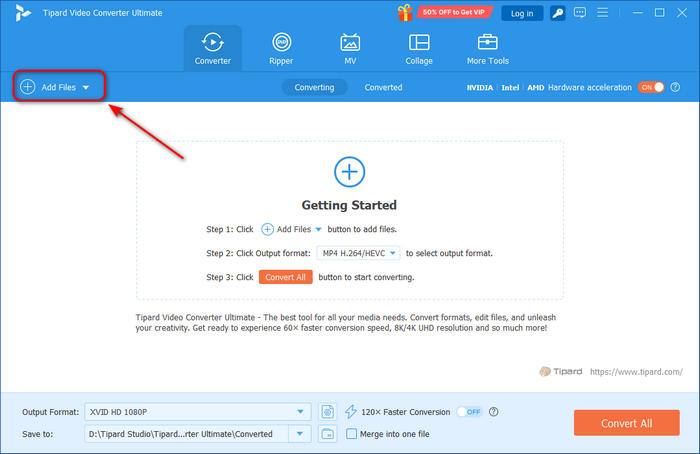
Download and install Tipard Video Converter Ultimate on your computer and launch it. Click the Add Files button on the top left side to add your MP4 video to this converter.
Step 2 Choose MP3 as the Output Format
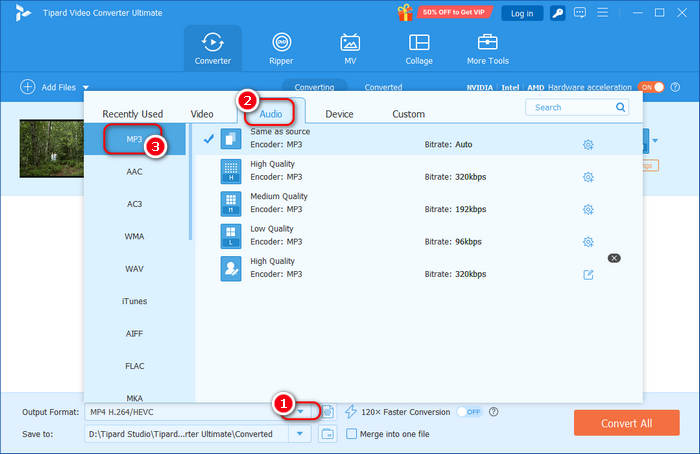
Click the Output Format dropdown button and then choose the Audio category. Choose MP3. You can choose your desired MP3 output with different quality.
You May Need to Know:
- You can select from different MP3 presets, like Same as Source, High Quality, Medium Quality, and more.
- If you want to customize an MP3 output profile, click the Settings button.
Step 3 Convert MP4 to MP3
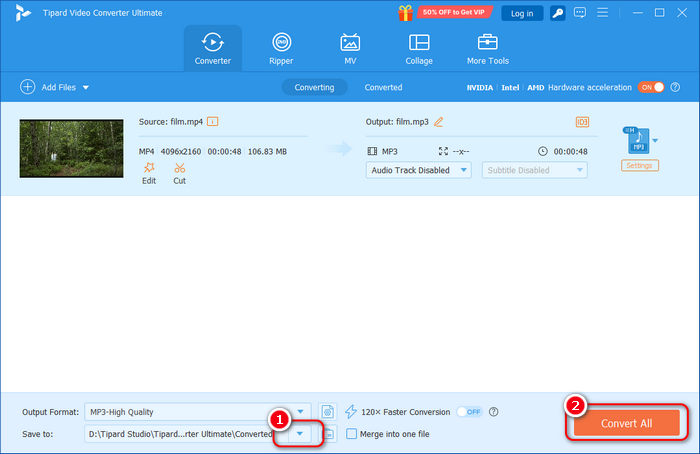
Finally, click the Save to dropdown button to choose your desired destination folder for your MP3 file. Then, click the Convert All button to turn MP4 to MP3 easily.
If you want to merge songs, select Merge into one file.
When customizing your MP3 files, understanding the distinction between V0 and 320 kbps is essential. 320 kbps (CBR) delivers a constant bitrate, representing the gold standard for MP3 fidelity with the highest possible audio quality. In contrast, V0 (VBR) utilizes a variable bitrate, intelligently optimizing file size while maintaining perceptual audio transparency.
Part 2. Convert MP4 to MP3 with VLC
VLC is a popular media player on Windows, macOS, and Linux. It also has a converter feature that can help you convert MP4 to MP3 easily. What's more impressive of this program is that it's totally free and open-source. When you convert MP4 to MP3, VLC lets you adjust the audio settings to enhance or compress the file size.
Main Features of VLC Media Player:
- Offer a dedicated MP3 preset with AAC codec.
- Allow you to adjust the audio codec, bitrate, sample rate, etc.
- Free, open-source, and cross-platform.
- Play your MP3 files after conversion.
From our test, however, there are some limitations you should consider:
- The convert feature is not easy to find, and the workflow is not beginner-friendly.
- No batch conversion or drag-and-drop support.
How to Convert MP4 to MP3 in VLC
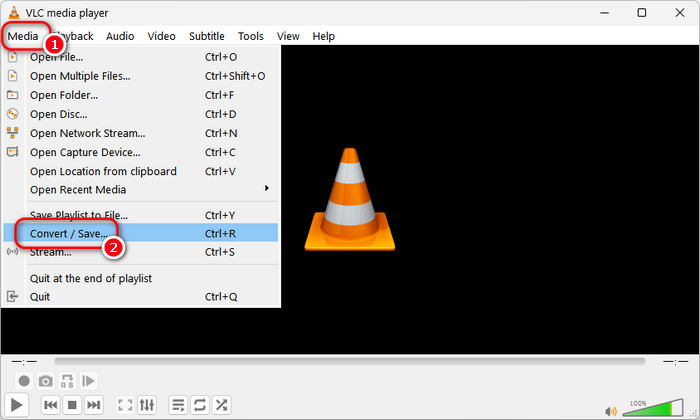
Step 1 Launch VLC and click the Media button on the top left side. Then, choose the Convert / Save option.
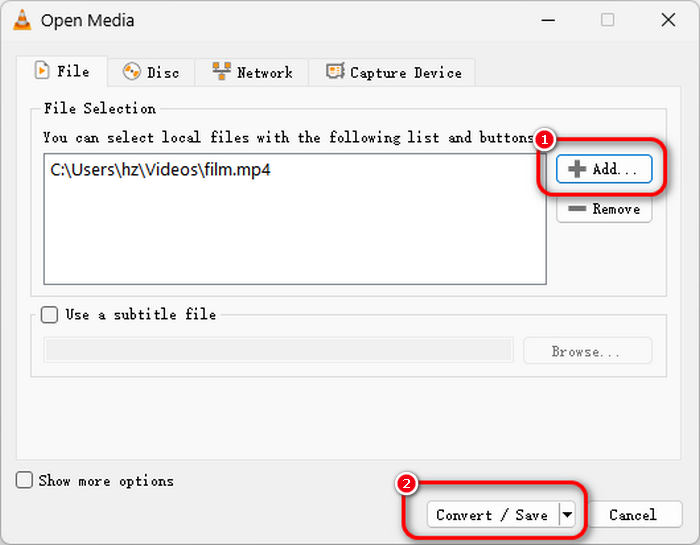
Step 2 On the popup window, click the Add button to import your MP4 video to VLC. Then, click the Convert / Save button to start converting MP4 to MP3.
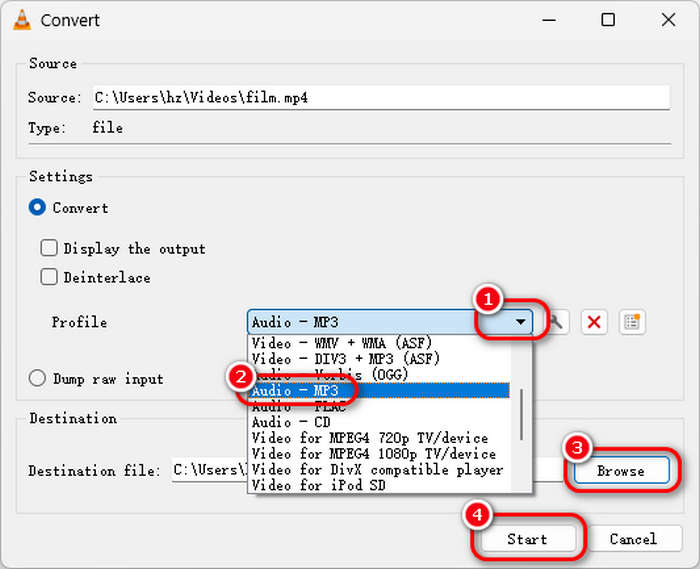
Step 3 Click the Profile dropdown button to choose the MP3 format. Then, click the Browse button to choose a destination folder to save your MP3 audio file. Finally, click the Start button to convert MP4 to MP3 easily.
Part 3. Convert MP4 to MP3 with Shutter Encoder
Do you want more ways to convert MP4 to MP3 for free? Then you should not miss Shutter Encoder. It is an increasingly popular media encoder program that can convert MP4 to MP3 with the best sound quality. It offers you rich and detailed audio settings to tremendously increase the sound quality. It also has video editing features to edit your MP4 video before converting MP4 to MP3. If you want to have a professional-like and feature-rich media converter, Shutter Encoder deserves your consideration.
Main Features of Shutter Encoder:
- Free, open-source, and cross-platform.
- Automatically set 320 kbps for the output MP3 file.
- Offer high customization for output multimedia file.
- Support batch conversion and audio enhancer.
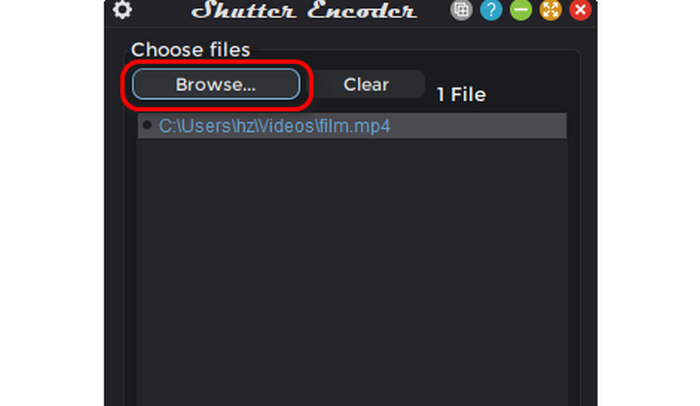
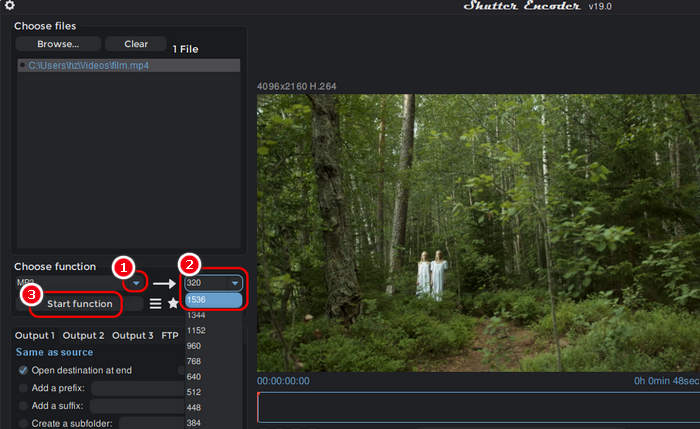
Step 1 Launch Shutter Encoder and click the Browse button to import your MP4 file to this program. You can also drag and drop your MP4 video here.
Step 2 Click the Choose a function button to choose the MP3 format. You can also click the dropdown button next to it to change the bitrate.
Technical Note: While Shutter Encoder allows you to select a bitrate as high as 1536 kbps, please note that the industry standard for MP3 is capped at 320 kbps. Selecting a higher value may lead to conversion failures or produce files that are incompatible with most players. For the best balance of quality and compatibility, we recommend staying within the 320 kbps limit.
Step 3 Click the Start function button to convert MP4 to MP3 with Shutter Encoder. The output MP3 file will appear in the folder where the MP4 video is.
Part 4. Convert MP4 to MP3 with FFmpeg
FFmpeg is a free and open-source MP4 to MP3 converter on Windows, macOS, and Linux. It uses the command line to execute everything you want to do. Although it has no user interface, it's not difficult to convert MP4 to MP3 format. If you can take a short time to learn how to install FFmpeg and use it to do a simple conversion task, you will easily convert MP4 to MP3 with FFmpeg. However, compared with other free and open-source MP4 to MP3 converters, FFmpeg is indeed more difficult.
Main Features of FFmpeg:
- Support a wide range of MP4 and MP3 settings for input or output.
- Support fast conversion with little CPU consumption.
- Free, open-source, and cross-platform.
- Work stable and reliable under various conditions.
Pro Tip: While AI tools like ChatGPT or Claude can generate FFmpeg scripts for MP4 to MP3 conversion, setting up the environment can be complex and time-consuming. To save you the technical hassle, we've prepared the streamlined guide below to get you started instantly.
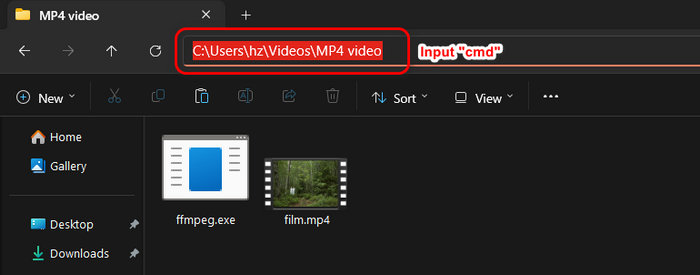
Step 1 Download and install FFmpeg. You should put the ffmpeg.exe and the MP4 video in the same folder. Then, choose the folder path and input cmd and hit the Enter key on your keyboard to launch the Command Prompt.
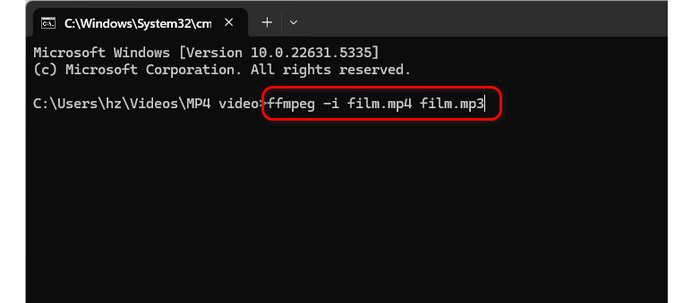
Step 2 In the Command Prompt, you should input:
ffmpeg -i yourfilename.mp4 yourfilename.mp3
Then, hit the Enter key on your keyboard to start converting MP4 to MP3 format quickly. You can see that it's not difficult to do that, and FFmpeg is a very fast tool to turn MP4 to MP3.
Part 5. Convert MP4 to MP3 Free Online
Maybe you don't want to install an MP4 to MP3 converter program on your computer, so why not resort to an MP4 to MP3 converter online? There are many free approaches to convert MP4 to MP3 online while keeping the best audio quality. Maybe some of those converters are not free, but they may probably offer free version. Therefore, if you only need to convert MP4 to MP3 once, you can just use an MP4 converter online tool. However, there are a few things you should consider:
- Online MP4 to MP3 converters require a stable internet connection to upload, process, and download your file. If your internet is not in good condition, it may take a long time to convert MP4 to MP3.
- Many online converters have many ads. You should be careful not to click on them.
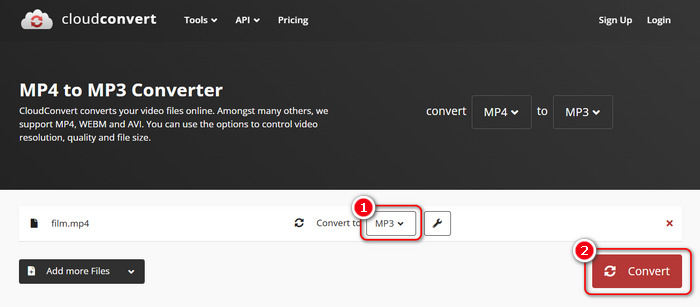
Step 1 Go to the official website of CloudConvert and click the Select File button to upload your MP4 video to CloudConvert.
Step 2 Click the Convert to dropdown button and select the MP3 format. Finally, click the Convert button to convert MP4 to MP3 free online.
Part 6. Convert MP4 to MP3 on iPhone and Android
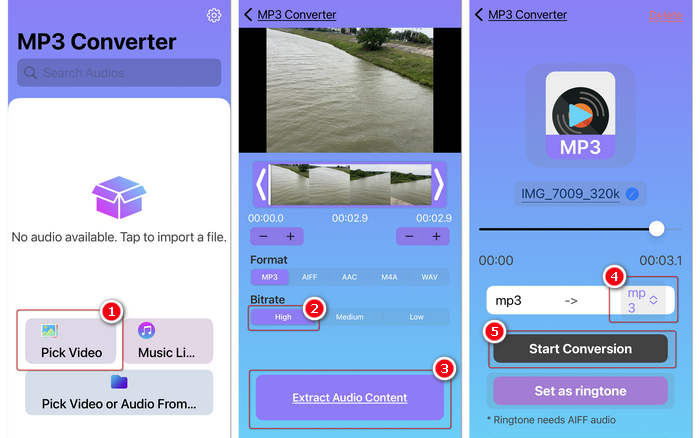
If your MP4 video is saved on your iPhone or Android devices, you can also use some MP4 to MP3 converters on mobile devices. It's easier to find a reliable app to convert MP4 to MP3 than on a computer. You can search for a popular media converter app in the App Store or Google Play Store. Most of the MP4 to MP3 converters are easy to use. In this article, you can learn how to turn MP4 to MP3 with the MP3 Converter app on iPhone or Android.
Step 1 Launch MP3 Converter and tap the Pick Video button to import your MP4 video to this MP4 to MP3 converter app.
Note: If your MP4 is saved in your file manager, you should tap the Pick Video or Audio From File button.
Step 2 This MP4 to MP3 converter can analyze your video and show you the audio format of your MP4 file. You can also adjust the bitrate, such as choosing a High level. Then, tap the Extract Audio Content button to go on.
Step 3 You should set the output format to mp3. Then, tap the Start Conversion button to convert MP4 to MP3 free on your iPhone or Android device.
Conclusion
You can see that it's really not difficult to convert MP4 to MP3 format on any platform or device. There are many approaches to convert MP4 to MP3 audio files with excellent sound quality. If you want an easy and fast MP4 to MP3 converter, Tipard Video Converter Ultimate should be your best resort. It utilizes level-3 hardware acceleration to make your MP4 to MP3 conversion ultra-fast, and the output sound quality is very high. You will enjoy your songs with the best experience!
More Reading
About the Author

 Click here to join the discussion and share your comments