

Understanding why QuickTime Player is not playing MP4 files starts with the file and the software. QuickTime works best with certain video and audio types. Some MP4 files use formats that QuickTime does not support. Other reasons include damaged files or old software. Knowing the cause aids you in fixing the problem. This guide will explain why QuickTime may fail with MP4 files. It will show easy ways to fix them and suggest alternative players if the problem continues.

Part 1: Why QuickTime Player Can't Open MP4
QuickTime Player is a reliable media player on macOS, yet most users have problems opening MP4 files. To correct this issue, it is vital to understand the reasons for this issue. MP4 is a loose container format, although not all videos in MP4 format can be viewed in QuickTime. The problem normally lies within the software versions, codec compatibility, file corruption or system constraints. Here are the main reasons QuickTime can't open MP4 files.
1. Outdated QuickTime Version
QuickTime versions that are older are unable to work with the new video codecs. Video clips with the H.264 or HEVC/H.265 coded video settings would not load. Updating QuickTime ensures the player can decode newer formats, making the MP4 not compatible with QuickTime issue less likely. On Windows, QuickTime may also have additional playback errors because it was primarily built for macOS.
2. Unsupported or Specialized Codecs
The MP4 container can hold multiple video and audio codecs. QuickTime supports only some of the types, including H.264, MPEG-4, and HEVC. Files that have been coded in other or legacy codecs will not play. Although the file may be in the form of an .mp4, its compatibility is based on the codec. This is the reason why not all QuickTime and MP4 files are opened.
3. Corrupted MP4 Files
MP4 videos can become corrupted during download, transfer, or due to system errors. A corrupted file will not play in QuickTime because the player cannot repair damaged streams. If your MP4 is broken, whether can QuickTime play MP4 becomes irrelevant until the file is fixed or replaced.
4. Metadata or File Extension Errors
Sometimes the file extension is correct, but the internal metadata is not structured properly. QuickTime relies on accurate file information to read the video and audio tracks. Improper metadata may prevent playback, causing users to question whether will QuickTime play MP4 even with seemingly normal files.
5. System or Software Conflicts
Other software conflicts can also block MP4, a lack of codecs, or restrictions by the OS itself. Before looking at alternative media players, it is important that QuickTime is up-to-date and the system is able to support the required video formats. This factor often explains why QuickTime can't open MP4 even on newer devices.
Part 2: How to Fix It When QuickTime Player Can't Open MP4
When QuickTime Player cannot open MP4 files, Tipard Video Converter Ultimate is a simple and reliable solution. It converts MP4 videos into QuickTime-friendly formats like MOV, solving the MP4 file not compatible with QuickTime problem without having to update to macOS. The software has also provided convenient editing capabilities, such as crop, rotate, clip, and filters, and can also work on a batch of files. Its rapid turnaround, high-quality output and user-friendly interface are what make it ideal for both beginners and experienced users.
Step 1 Download the Video Converter Ultimate on your computer by clicking the download button here. Then, follow the installation and setup process it requires, and then click Start Now to proceed.
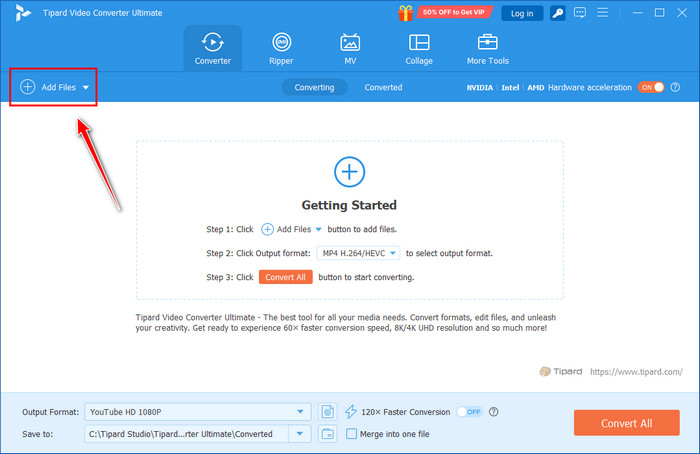
Step 2 On the main interface, tick the Add File button to upload the MP4 video you are unable to play on QuickTime. Here, you can import multiple files and convert them into your selected output format.
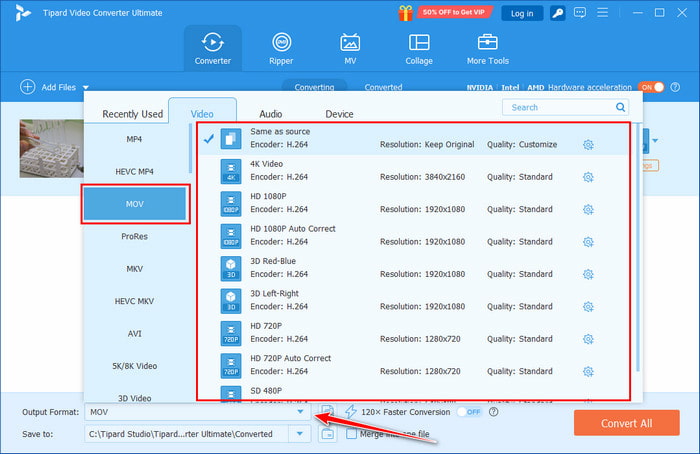
Step 3 On the Output Format, choose the MOV and the settings output you want to achieve. Aside from MOV, you can choose other formats here, but right now, you need to choose MOV since it is natively supported on the Apple ecosystem, including QuickTime.
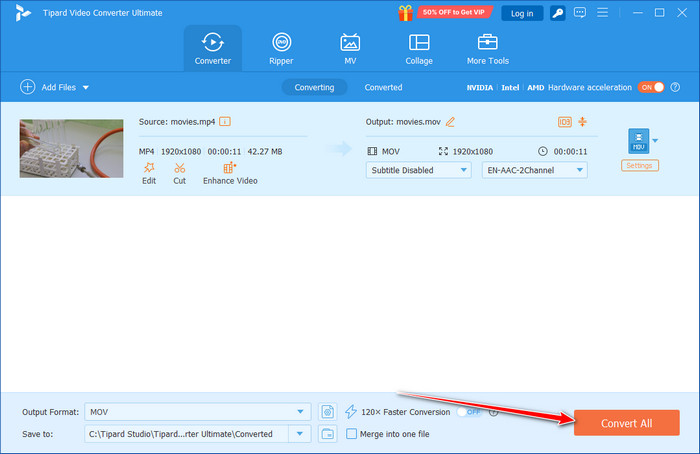
Step 4 Finally, click the Convert All button to start the converting process, and once it is done, you can now play the video in QuickTime. Now you would not need to worry if this file is not compatible with QuickTime Player, since you can make it compatible by turning it into the MOV format.
Part 3: Choose a QuickTime Player Alternative to Open MP4
When QuickTime fails to open an MP4 file, it is usually easy to use another media player. A number of good players can play MP4 and most video and audio codecs, and provide quality streaming with ease.
1. Tipard Blu-ray Player
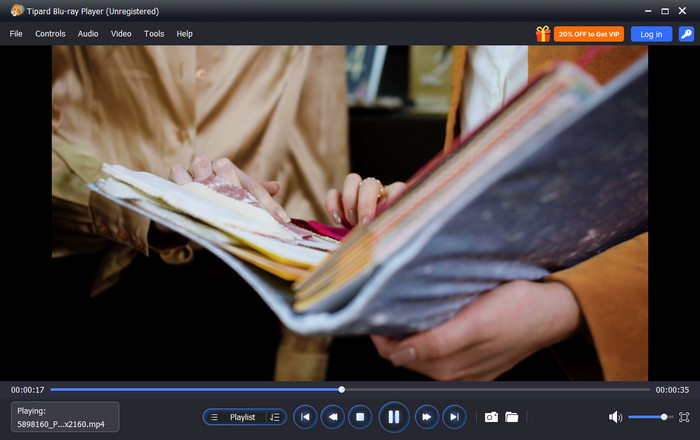
Tipard Blu-ray Player supports MP4 files and many other formats, including AVI, MKV, and MOV. It delivers high-definition video and clear audio while maintaining compatibility across codecs, making it ideal when your MP4 is not compatible with QuickTime. Its simple interface ensures that even beginners can play videos effortlessly.
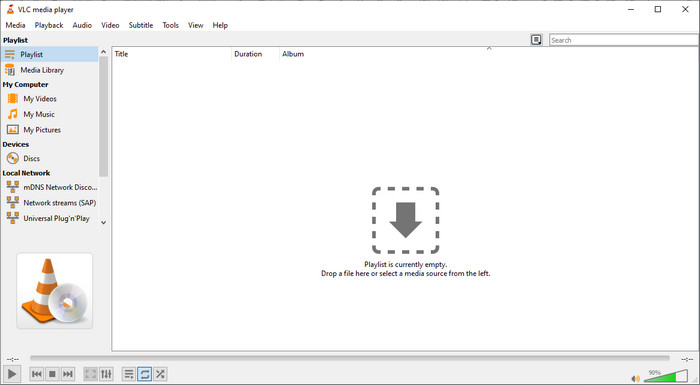
2. VLC Media Player
VLC Media Player is open-source and free, as well as very versatile. It is capable of playing almost all forms of video without any extra codecs, even files with MP4, which QuickTime cannot read. VLC is also the best choice, offering easy playback, support of subtitles, and a range of simple editing and streaming capabilities to users who have trouble with QuickTime and MP4.
3. KMPlayer
KMPlayer is an MP4, AVI, and MKV player, among others, that is lightweight and feature-rich. It also provides playback features that can be customized, such as speed control, audio filters, and subtitle customization attributes. When users question whether QuickTime can play the MP4 files, KMPlayer is sure to provide compatibility and good quality viewing without necessarily having to convert.

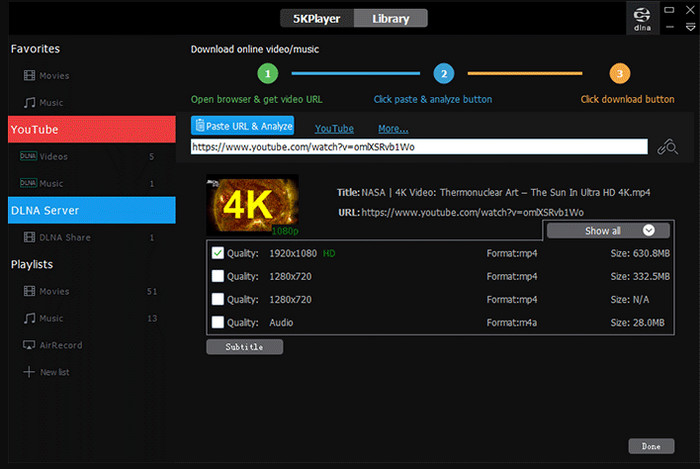
4. 5KPlayer
5KPlayer is a video player of the new generation, which supports MP4, MOV and other typical video formats. It can also provide HD and 4K videos and surround audio to provide a rich viewing experience. If QuickTime can't open MP4 files, 5KPlayer is a reliable alternative that plays them smoothly on both Mac and Windows systems.
5. GOM Player
GOM Player is compatible with a great number of formats. It has customization of playback, inclusion of subtitles, and inclusion of simple video effects. Considering the question, will QuickTime play MP4? GOM Player will guarantee your videos will play and will not be incompatible, so it is a viable alternative to use on a daily basis.

So, if QuickTime Player is not working, we suggest that you choose an alternative to it that can help you play any videos you have. These media players are not limited to being downloaded on Mac, but some are also available on Windows OS for you to experience the playback they have to offer.
Conclusion
When an MP4 is not compatible with QuickTime, then a solution is what you should normally looking for. In this article, we showcase what are the reasons it happens, convert the MP4 video into a MOV format to fix compatibility issues, and alternative to solve playback issues.
More Reading




About the Author

 Click here to join the discussion and share your comments
 Tipard Video Converter Ultimate