

A DVD writer is still useful for backups, media, and sharing files. Picking the right one can be confusing with so many options. In this guide, we tested top writers and software to see which works best. You will find clear comparisons, free and paid options, and simple tips for smooth disc creation. Keep reading to find a DVD writer that fits your setup and makes every burn fast and easy.
Part 1. What is a DVD Writer? A Quick Guide
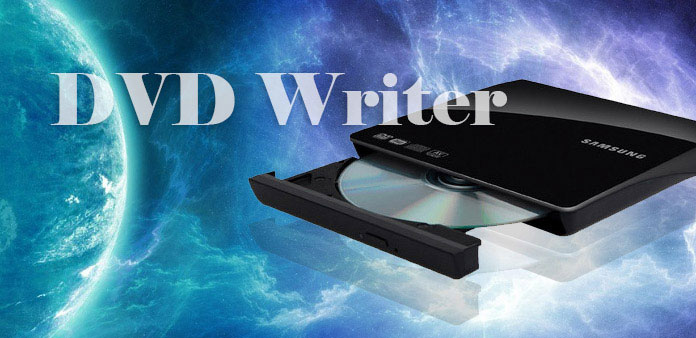
So, what is a DVD writer? Simply put, it is a device that can burn data onto blank DVDs. Unlike a regular DVD drive that only reads discs, a writer lets you save files, videos, music, and backups directly onto a DVD. You can find internal models that fit inside a PC and external ones that connect via USB. A DVD writer is handy for creating media discs, backing up important files, or sharing data without relying on cloud storage.
Part 2. Best External DVD Writers Review
Finding a reliable external DVD writer can be tricky with so many options on the market. To help, we tested top models and software to see which deliver the best performance, portability, and value. Here are five of the most popular and trusted drives today.
1. LG GP65NB60 8X Slim DVD Writer
This slim USB DVD writer supports 8x DVD and 24x CD speeds. It is lightweight, portable, and perfect for occasional disc burning or media playback. It also supports M-Disc for long-term storage.

2. ASUS ZenDrive V1M External DVD Writer
The ZenDrive comes with a built-in USB‑C cable for easy travel. It works with Windows and Mac, supports M-Disc, and includes backup software. Its sleek design has even won a Red Dot design award.

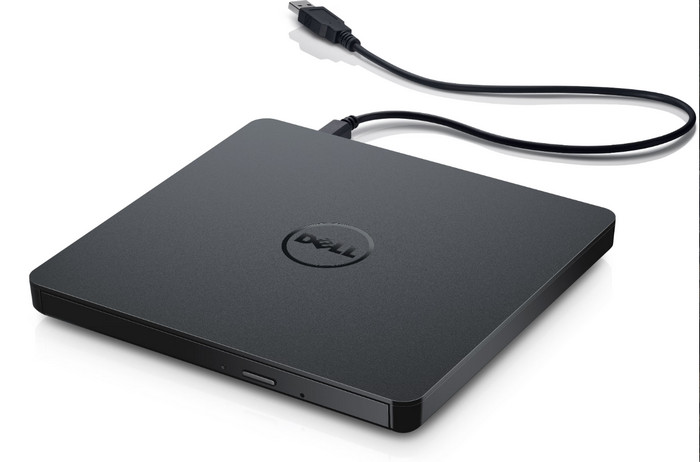
3. Dell DW316 USB Slim DVD Writer
A classic, dependable external DVD writer, the Dell DW316 uses USB 2.0 and is bus-powered. It supports 8x DVD and 24x CD writing. Users praise its plug-and-play simplicity and reliability.
4. ROOFULL USB 3.0 External CD/DVD Drive
This external CD DVD writer is fast and portable. It supports both USB‑A and USB‑C, reads and writes common disc formats, and comes with a carrying case, perfect for on-the-go use.

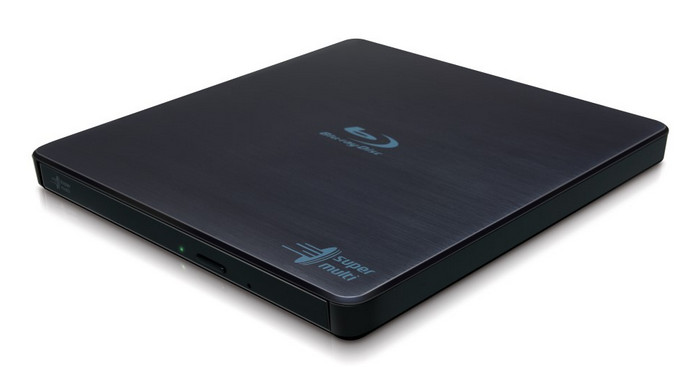
5. Hitachi‑LG BP55EB40 6X External DVD Writer
A slightly larger option, this drive supports 6x DVD speeds and even some Blu-ray discs. Its solid build makes it ideal for long-term use and frequent disc burning.
After choosing a reliable external writer, the next step is picking software to burn your discs. In the next part, we will show the best free writer tools for Windows and Mac that make creating DVDs easy and fast.
Part 3. Free DVD Writer Software for Windows & Mac
If you are looking for free writer software download, several reliable tools make it easy to burn discs on both Windows and Mac. Here are the top options:
1. Tipard DVD Creator
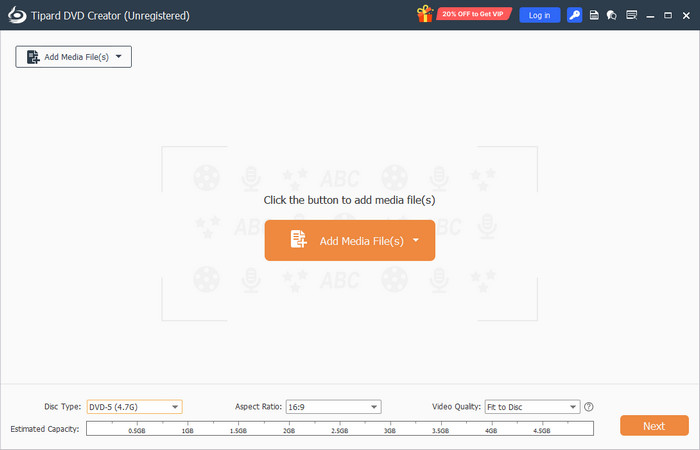
Tipard DVD Creator is a versatile DVD writer software that lets you burn videos, photos, or ISO files to DVD. It also allows menu customization, subtitle addition, video trimming, and cropping. Its simple interface works well for beginners while still offering features for more advanced users.
- Supports multiple video formats MP4, MOV, AVI, etc.
- Menu customization and basic video editing
- User-friendly interface
- The free version is limited; full features require purchase
- Large video files may take longer to burn
2. CDBurnerXP
CDBurnerXP is a simple and entirely free Windows DVD writer software. It is able to burn CDs, DVDs and Blu-ray discs and ISO images. Also, it enables users to check their data after burning so as to ensure that files were copied properly.
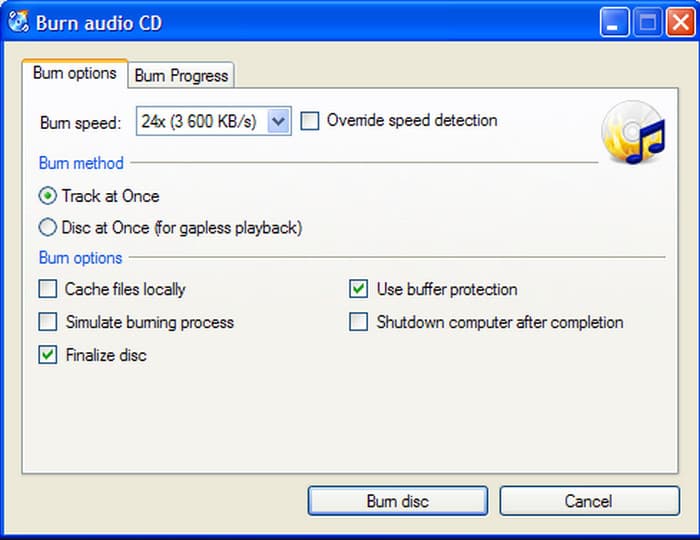
- Completely free for personal and commercial use
- Supports data, audio, and ISO discs
- Verifies discs after burning
- Windows-only; no Mac version
- The interface looks outdated
- Optional software may appear during installation
3. ImgBurn
ImgBurn is a classic DVD writer software free download for Windows. It is compatible with virtually all disc formats and allows its users to burn image files, generate backups and set high-level options such as write speed and layer breaks. Even burning Blu-ray discs with ImgBurn is possible, so it is a universal medium-burning tool.
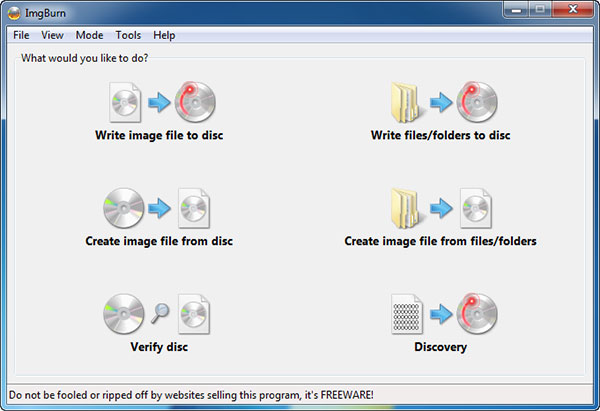
- Lightweight and fast
- Almost every disc format is supported
- Complex features of detailed control
- No Mac version available
- The interface can be distracting to the new user
- Earlier versions had optional adware
4. Burn
Burn is an open-source, free DVD writer which enables you to copy data, audio and video discs on Mac. It comes in useful when one wants to know how to write ISO to DVD on a Mac but does not have to purchase commercial software.
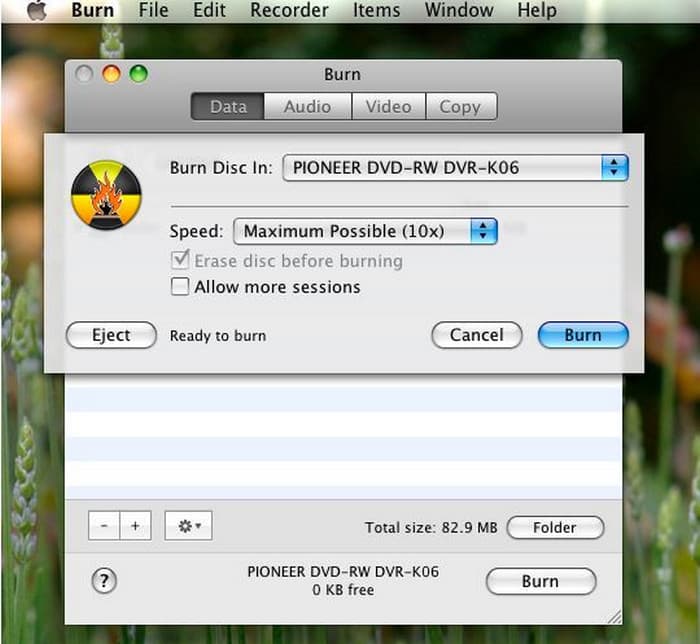
- Fully free and without weight
- Videos, audio and data discs are supported
- Simple, Mac-native interface
- Included a few advanced editing features
- Video format will be primitive compared to paid tools
- No formal help; makes use of community notices
5. DVDStyler
The DVDStyler is a free application to enable you to burn menus and interactive DVDs. Users also have the opportunity to know how to write DVD movies with custom-made navigation menus, which is perfect when it comes to creating professional-looking discs.
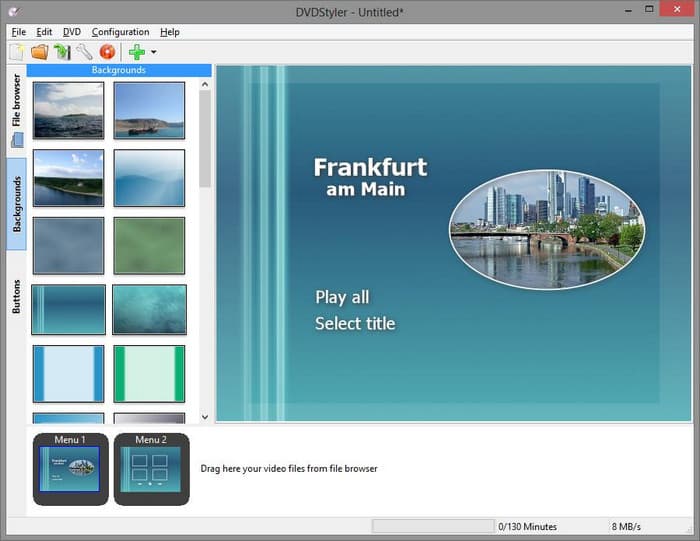
- Free and cross-platform
- Supports custom menus and subtitles
- Allows multiple video formats on one disc
- Interface feels dated
- Some features can be confusing for beginners
- Occasional compatibility issues with huge video files
Now that you know the best DVD writer software, choosing the right tool is much easier. Each program has its own strengths, from simple burning to creating menus or writing ISO files. Next, we will show you how to use the USB DVD writer step by step using Tipard. You will see how to add your files, customize settings, and create a finished disc ready to play or back up.
Part 4. How to Write a DVD: A Simple Guide
If you are looking for how to write a DVD in Windows 10 and Mac, Tipard DVD Creator makes the process simple and reliable. Follow these easy steps to burn your videos to a DVD.
Step 1 Start by downloading Tipard DVD Creator and installing it on your computer. Once installed, open the program to begin creating your DVD.
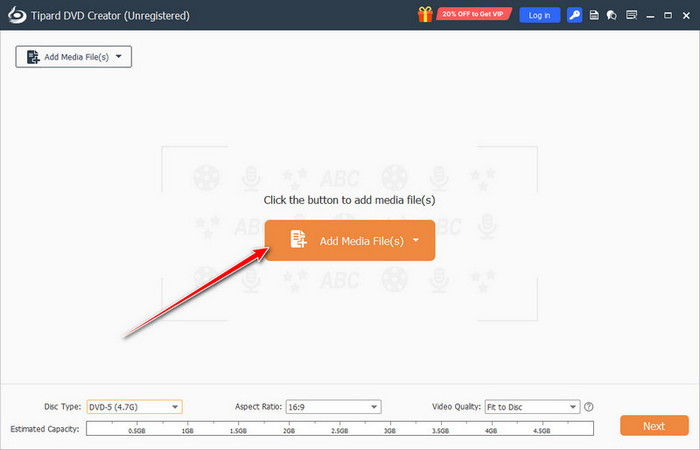
Step 2 Click the Add Media Files button to import the videos you want to include on your DVD or Blu-ray. You can add multiple files and arrange them in the order you want.
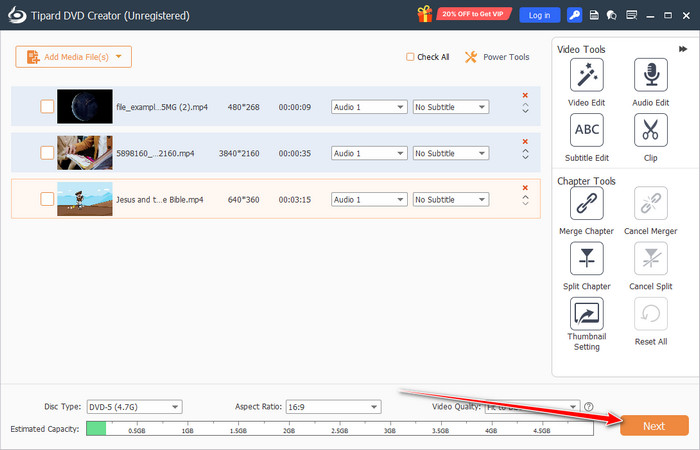
Step 3 Customize your videos and disc settings. You can adjust chapters, subtitles, and thumbnails, or make simple edits like trimming, cropping, and rotating your videos to improve the final output.
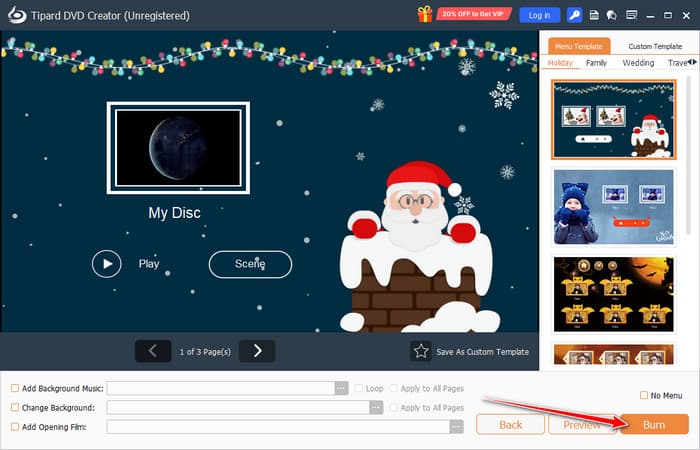
Step 4 Select a menu template and personalize it with text, images, or background music. When ready, click the Burn button. The software will take your files and complete the DVD to be played in your computer, your computer's DVD player software or even in your physical DVD player.
Conclusion
A reliable external DVD writer is still essential for backing up files, sharing media, and creating personal DVDs. With the right device and software, you can burn discs quickly and without errors. In this guide, we reviewed top external drives, free and paid DVD writer software, and showed how to create a DVD step by step using Tipard DVD Creator.
More Reading
About the Author

 Click here to join the discussion and share your comments
 Tipard DVD Creator