

Playing games is fun, but recording your best moments makes it even better. You can share your clips online or keep them as memories. Learning how to record Xbox 360 gameplay is simple when you know what tools to use. The console does not record on its own, but you can use a capture card or a computer to do it.
These tools help you get clear and smooth videos from your games. In this tutorial, you will learn easy steps to record, connect, and choose the best setup for your Xbox 360 gameplay.
Part 1. Does Xbox 360 Have a Default Recorder?
You might ask, How can I record Xbox 360 gameplay if the console does not have its own recorder? The truth is, the Xbox 360 cannot record games by itself. Only newer models like the Xbox One and Xbox Series X have that feature. Still, there are simple ways to capture your gameplay. You can link the console to a computer or use free recording tools to save your screen.
Some players also use a capture card for clearer and smoother videos. Each method has its pros and cons, so it helps to know what fits your setup best before you start recording your next Xbox 360 session.
Part 2. Record Xbox 360 Gameplay with a Capture Card and External Device
If you are wondering how can you record gameplay on Xbox 360, using a capture card is one of the most reliable methods. It sends your game from the console to a computer for recording or streaming. Here is a step-by-step guide:
Step 1Connect an HDMI splitter to your Xbox 360 and TV using two HDMI cables. Connect the capture card to the HDMI splitter, then link it to your computer via USB.

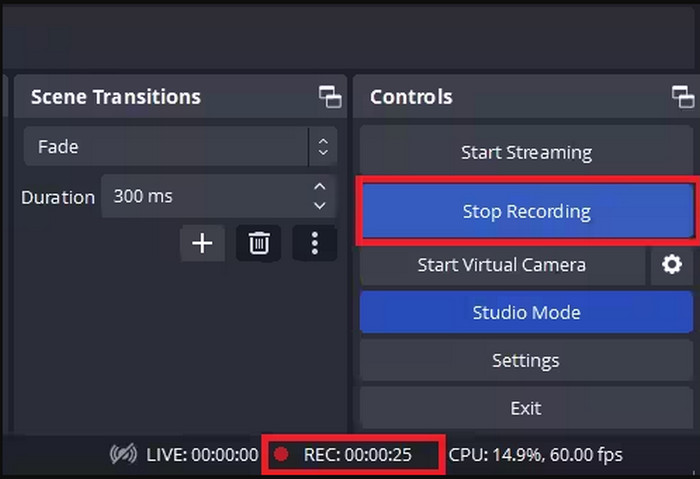
Step 2Download and install OBS Studio on your computer. Open OBS, click the Add button under Sources, and select Video Capture Device.
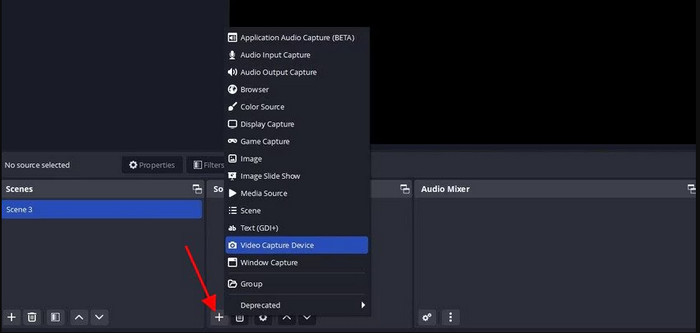
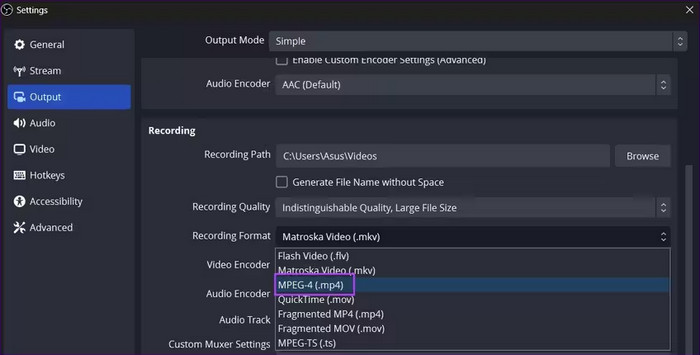
Step 3Click Create New > OK, then choose your capture card and click OK. Set Recording Format to MP4 in Settings > Output.
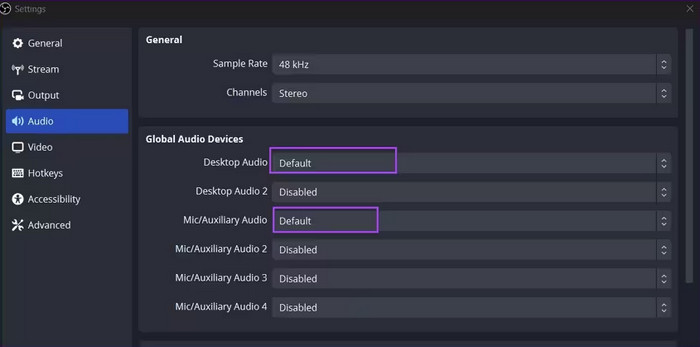
Step 4Adjust Desktop Audio and Mic/Aux settings under Audio. Set resolution and frame rate under Video.
Step 5Add Audio Input Capture if you want to record external audio. Set hotkeys for starting and stopping recording under Hotkeys.

Step 6Click Start Recording in OBS and play your Xbox 360 game. Stop when done. This method ensures clear, smooth recordings with minimal delay.
Part 3. Record Xbox 360 on Desktop with a Capture Card
Tipard Screen Capture is a top tool for recording Xbox 360 gameplay on a desktop. It works better than OBS because it records without lag or distortion. The software uses AV1 and HEVC encoders to keep video sharp and audio clear. File sizes stay small, so you do not run out of space. You can capture game sounds and your voice at the same time. Tipard also lets you share recordings directly to YouTube and X. It is simple to use, reliable, and fast.
Step 1Now that you have connected the Capture Card to the PC, you will need to download the finest screen recorder on Windows and Mac by clicking the download button here. Then, follow the installation process before you launch it.
Step 2Open the Game Recorder and choose the Xbox from the options available that appear to record your Xbox game fully. Activate the Microphone to record your voice, and System Sound to record the sound of the game you are playing. Once setup is done, click the Rec button.
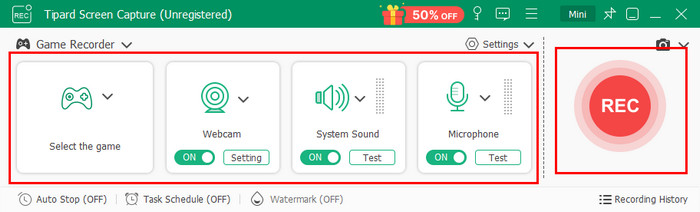
Step 3After recording the game, click the stop button, and you are able to edit the recorded Xbox gameplay with this tool.
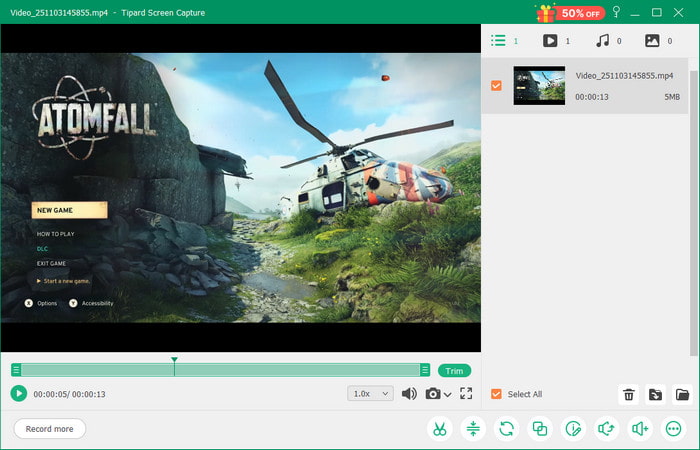
As you can see, this software is a reliable tool to use not only to record Xbox 360 games but also to record PS4 gameplay whenever needed.
Part 4. How to Choose the Best Xbox 360 Gameplay Recorder
Which gameplay recorder should you use on the Xbox 360? It depends on the system and your requirements. The following are some of the reasons why you should be careful when choosing a recorder to use on your Xbox 360:
1. Ease of Use
If you want a quick solution, the built-in Game Bar can help. This tool works well for short clips or highlights, making it ideal for those who wonder how to record clips on Xbox 360 without extra tools. It is easy to set up, and you can start recording in just a few clicks, which is perfect for beginners or casual gamers who want fast results.
2. Using a Computer
If you want higher-quality recordings, learning how to record Xbox 360 gameplay with a computer is the best option. A capture card or software such as Tipard can be used to capture uninterrupted, high-quality gameplay. You are able to record system audio and your microphone simultaneously.
3. Video and Audio Quality
To achieve professional outcomes, such tools as Tipard can record the gameplay at a high resolution and even 120 FPS. This guarantees a seamless flow of movement, sharp images and great sound that would respond to the question, Can you record gameplay on Xbox 360 without lag? You also get support for advanced video encoders, which keep file sizes manageable while maintaining quality.
4. Sharing and Editing
If you want to create content for YouTube or social media, knowing how to record gameplay on Xbox 360 for YouTube with editing features is essential. Some recorders allow trimming, adding effects, or syncing audio. This makes it easier to polish your clips before sharing them online, giving you professional-looking results without extra software.
5. General Recording Needs
Even for basic gameplay recording, it is helpful to know how to record on Xbox 360 to capture highlights efficiently. Whether you just want to save your favorite moments or share them with friends, understanding the available tools and methods will make recording easier and ensure your clips look their best.
Consider these points to pick the best recording method for your Xbox 360. With the same guideline, you can also use this to determine which Xbox One gameplay recorder to use.
Conclusion
Picking the right Xbox 360 recorder depends on what you need. You may want simple recording, high-quality video, or editing tools. If you do not have a capture card, learning how to record on Xbox 360 without a capture card is important, but it is not applicable to the Xbox 360. Knowing your options helps you record smooth, clear, and ready-to-share gameplay clips from your Xbox 360.
More Reading



About the Author

 Click here to join the discussion and share your comments
 Tipard Screen Capture