

A lecture recorder is essential when you are rushing between classes, trying to keep up with fast-talking professors and dense slides. In 2026, students and educators rely more than ever on reliable recording tools to review lessons, capture key explanations, and avoid missing details. This updated guide compares the best lecture recording apps and programs based on real testing results today.
Part 1. Top 7 Lecture Recording Apps in 2026
Our Test Standards
We utilized the same lecture recording setup and system configuration in order to compare the recording tools for lectures fairly. Results might differ on a higher-performance device or faster network.
- Duration of lecture: 50 minutes (spoken lecture with slide)
- Mode of recording: Live recording with transcription in real time (if available)
- Language of Transcription: English
- Audio source: External USB microphone
- Internet condition: Stable broadband
- Objective: Ensure a smooth recording of lectures, provide accurate transcription, and provide a review and study suitable output.
1. Otter
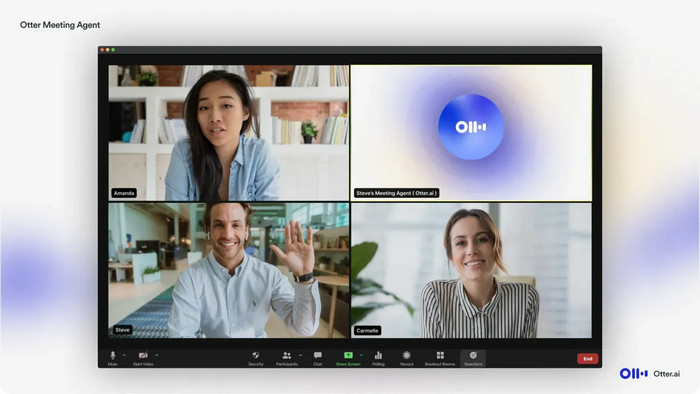
Otter is a recording and transcription tool preferred for lectures and has been designed for both in-person and virtual learning.
Platform: Web, iOS, and Android
Best For: Lectures in a hybrid atmosphere and classrooms.
Key Features:
- Recording of lectures in real time.
- Capture of slides with time stamps.
- Add on features for Zoom and Google Meet.
- Solid performance on mobile devices.
- Reliable capture audio.
- Additional features require the internet.
- Limitations on free plans.
Test Results
- Recording Fidelity: 80-85% clarity; effective mid-range voice pickup
- Transcription WAR: 88-92%
- Latency: 2-3 second delay
- Resource Load: 12-20% CPU
2. Rev
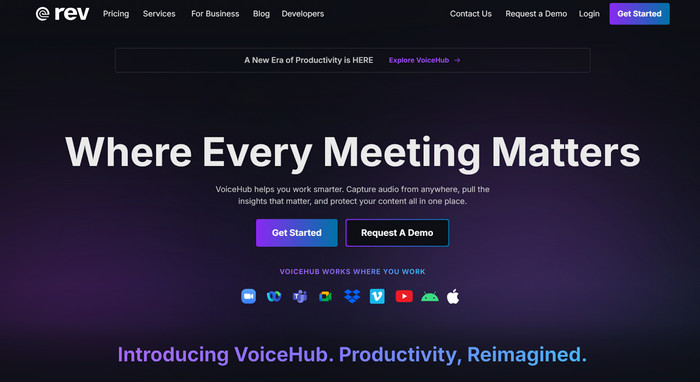
Rev is known for having a focus on efficiency through providing human transcription services for recorded lectures.
Platform: Chrome (Android/Desktop), Safari
Best For: Exact exam transcripts/research documentation.
Key Features:
- Real human transcription.
- No account is required to start.
- Pay-per-use.
- Superb accuracy.
- Academic terminology is great.
- There are no AI-generated summaries.
- Pricing info is provided only for processing.
Test Results
- Recording Fidelity: 70-75% clarity; browser-based capture.
- Transcription WAR: 99%+
- Latency: Post-processing
- Resource Load: Minimal local system impact.
3. Loom
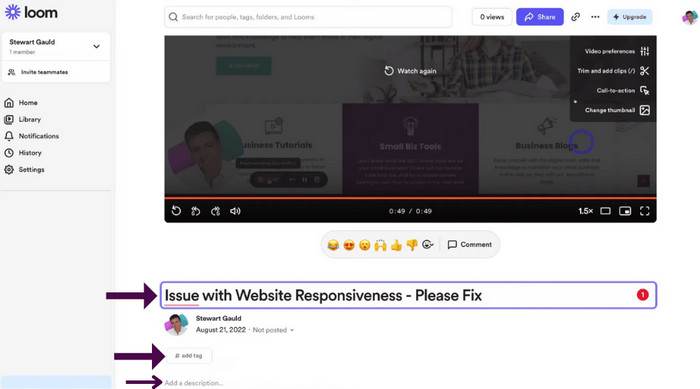
Loom is mostly a video recording app, but students frequently use it to capture lectures and use it to look it over later.
Platform: Windows, macOS, iOS, Android
Best For: Students who learn better visually by watching and rewatching lecture videos.
Key Features:
- Recording both the screen and the webcam.
- Video editing to trim and make highlights.
- Links that can be shared.
- Videos are of high quality.
- Great editing features, including cut and trim.
- They do not focus on transcripts.
- The free version comes with low storage.
Test Results
- Recording Fidelity: 80-90% clarity; video up to 1080p
- Transcription WAR: 60-70%
- Latency: Real-time capture
- Resource Load: 10-18% CPU
4. Tactiq
Tactiq is an AI tool designed to transcribe lectures for note-taking and summaries during live classes.
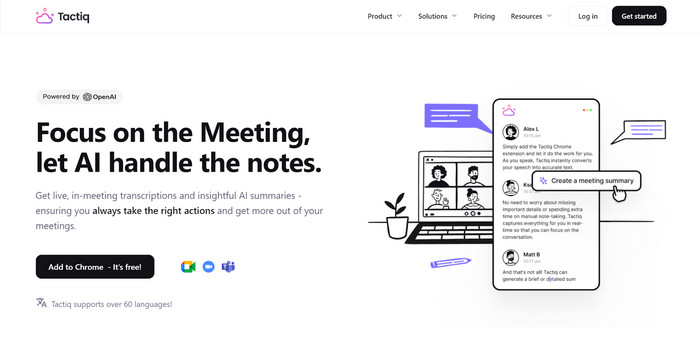
Platform: Chrome Extension, Web
Best For: Lecture transcripts that can be searched and AI summaries.
Key Features:
- Transcriptions are done in real time.
- Summaries are AI-generated.
- Integration with Google Meet, Zoom, and Teams.
- Great transcription accuracy.
- Great time saver when reviewing lectures.
- Must have an internet connection.
- Some features are available only for paying customers.
Test Results
- Recording Fidelity: 85-90% voice clarity; speech-optimized.
- Transcription WAR: 93-96%
- Latency: 1-2 second delay
- Resource Load: 8-12% CPU
5. Trint
Trint is useful when lecturing is complemented by the ability for multiple users to edit a transcript in real time.
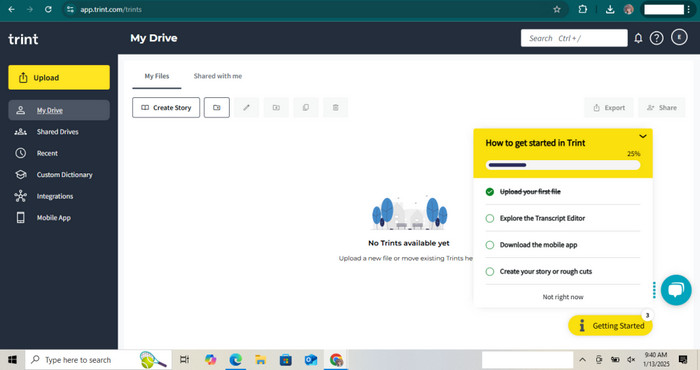
Platforms: Web, iOS, and Android
Best For: Group work and editing transcripts together.
Key Features:
- Recording in real time.
- Customizable dictionary.
- Multiple ways to export files.
- Good editing tools.
- Multiple ways to export files.
- Some features are restricted in the mobile version for the low tiers.
- Expensive.
Test Results
- Recording Fidelity: 75-80% clarity; stable audio capture
- Transcription WAR: 87-90%
- Latency: 2-4 second delay
- Resource Load: 10-14% CPU
6. Tl;dv:
TL;dv is a web-based recorder of lectures and meetings and a webcam recorder, emphasizing transcription in multiple languages.
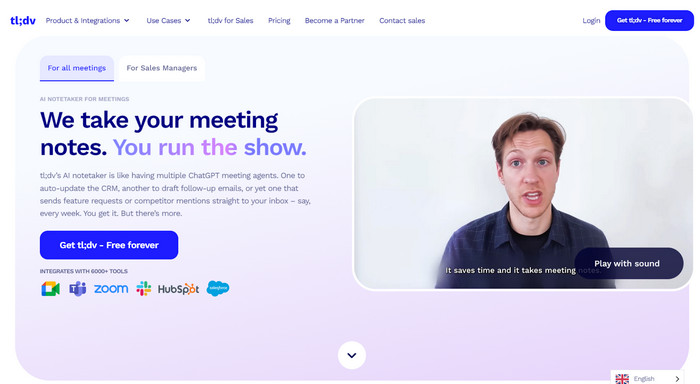
Platforms: Web
Best For: Online lectures for multilingual students.
Key Features:
- Recording in real time and uploading.
- Transcription in multiple languages.
- Notes from meetings are created automatically.
- Great transcription in different languages.
- Intuitive design.
- Some features are only available on the paid version.
Test Results
- Recording Fidelity: 70-78% clarity; voice-optimized
- Transcription WAR: 85-89% (English), ~80–83% (non-English)
- Latency: 3-4 second delay
- Resource Load: 9-13% CPU
7. Webex Assistant
Webex Assistant is built for more regulated lectures coming from an institution, offering built-in transcription and a summary.
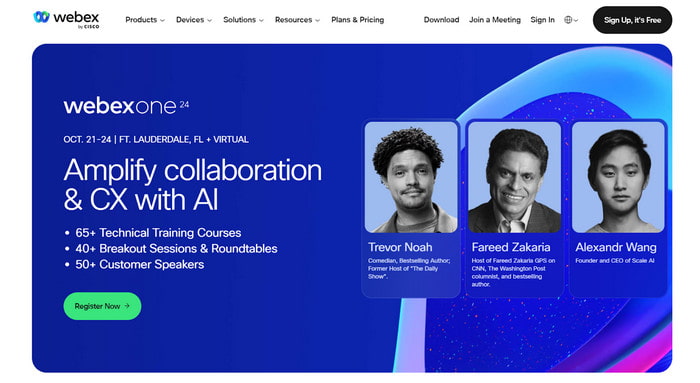
Platforms: Web
Best For: Formal lectures online and education for businesses.
Key Features:
- Transcription in real time.
- Voice commands.
- Search by keywords.
- Good performance in longer sessions.
- Great for summaries after lectures.
- Expensive.
- Little agency for students.
Test Results
- Recording Fidelity: 85-90% clarity; strong noise suppression
- Transcription WAR: 90-93% (AI-based)
- Latency: 1-2 second delay
- Resource Load: 10-14% CPU
Part 2. Top 3 Lecture Recorder Programs on Windows and Mac
1. Tipard Screen Capture [Best Overall]
Tipard Screen Capture captures all kinds of online content, including lectures, tutorials, presentations, meetings and more. It is designed for long recordings with low disk usage and high-quality video and audio. It has a seamless performance with low impact on the system.
Platforms: MacOS, Windows
Best For: All educators and students requiring long recordings of lectures and quick audio/video of high quality.
Key Features:
- Supports AV1 video and FLAC audio for clear, high-quality recording.
- Organizes and manages recordings efficiently.
- Handles long-duration recording without lag or stutter.
- Records system sound and microphone at the same time.
- Saves files locally with flexible export options.
- Recordings of lectures that are lengthy and packed with information are no bother
- File storage is no problem
- Endless quality recordings that are offline
- Need an installed application on the computer
User Manual
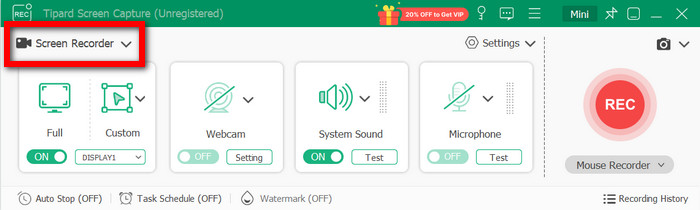
Step 1 Open the Software and Select the Mode
Launch the Tipard Screen Capture application and choose the mode you want to use: Screen Recorder, or others.
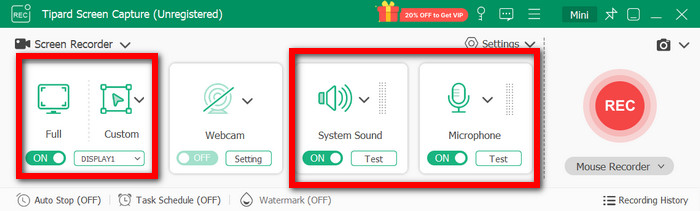
Step 2 Set Area and Audio
You may either select Full or Custom and then select from System Sound, Microphone, or both.
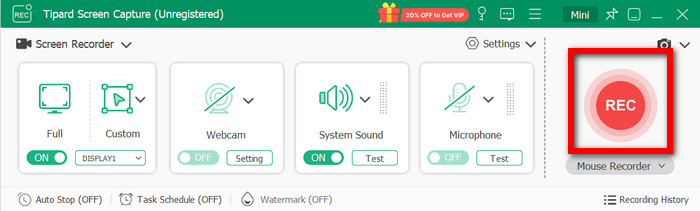
Step 3 Begin Recording
Click the REC button to start recording. You are allowed to use the drawing or whiteboard features during the lecture.
Step 4 End and Store
Click on Stop, then preview the recording, and if you want, trim, edit, or change the recording, then save the recording to your preferred format.
Test Results
- Recording Fidelity: 85-90% clarity; supports up to 1080p video.
- Audio Capture: Clear system and microphone audio with minimal distortion.
- Transcription: Not available.
- Latency: Real-time capture with no visible lag.
- Resource Load: 8-12% CPU during long recordings.
2. Bandicam
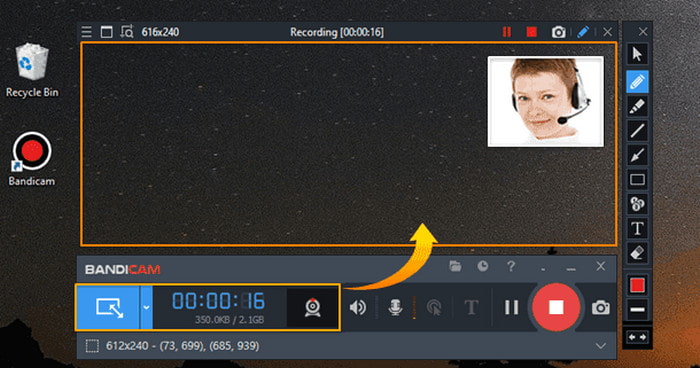
Bandicam is a lightweight desktop screen recording software commonly used for capturing lectures, presentations, and on-screen demonstrations with high-quality output.
Platform: Windows
Best For: Students who want stable lecture recordings with minimal system impact.
Key Features:
- Records full screen, specific windows, or selected areas.
- Supports system sound and microphone recording simultaneously.
- Offers real-time drawing and annotation tools.
- Low CPU usage during long recordings.
- Produces clear video and audio output.
- Simple setup with customizable recording settings.
- The free version adds a watermark.
- No built-in transcription or AI summaries.
Test Results
- Recording Fidelity: 85-90% clarity; supports up to 1080p video
- Audio Capture: Clean microphone and system audio recording
- Transcription WAR: Not available
- Latency: Real-time capture with no noticeable delay
- Resource Load: 8-14% CPU usage
3. OBS Studio
OBS Studio is an advanced open-source recording and streaming software and sound recorder, targeted towards more technical users who want additional control.
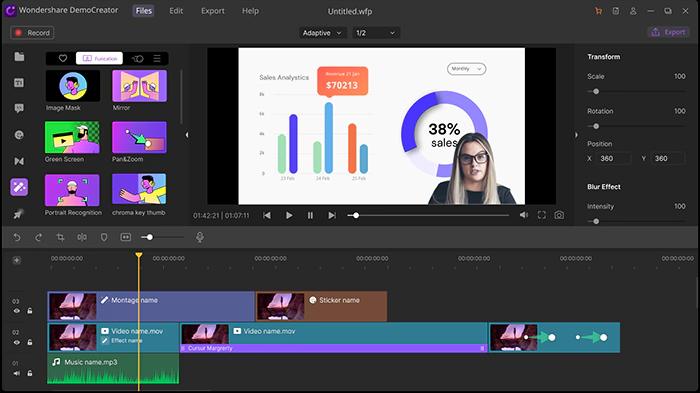
Platform: Windows and Mac
Best For: Users who want to have complete control over the recording settings.
Key Features:
- Custom videos and audio sources.
- Control over scenes and layouts.
- Recording with high resolution.
- Completely free.
- Extremely flexible recording options.
- No watermark or time limits.
- Steep learning curve.
- No built-in transcription or summaries.
- Manual setup required for optimal audio.
Test Results
- Recording Fidelity: 85-95% clarity,
- Audio Capture: High quality with proper mic configuration,
- Transcription: Not available.
- Latency: Real-time capture.
- Resource Load: 15-25% CPU depending on settings.
Part 3. Comparison of the 10 Lecture Recorder Applications
| Tool | Screen Recording | Long Recording Stability | Offline Use | AI Transcription | Low Resource Load |
|---|---|---|---|---|---|
| Otter |  |
 |
|
|
|
| Rev | |
|
|
|
|
| Loom | |
|
|
|
|
| Tactiq | |
|
|
|
|
| Trint | |
|
|
|
|
| Tl;dv | |
|
|
|
|
| Webex Assistant | |
|
|
|
|
| Tipard Screen Capture | |
|
|
|
|
| OBS Studio | |
|
|
|
|
| Bandicam | |
|
|
|
|
Conclusion
The best app for recording lectures depends on your needs, but Tipard Screen Capture stands out for high-quality, long-duration recordings. This guide helps students and educators choose reliable tools, compare features, and capture lectures efficiently for review and study.
More Reading
About the Author

 Click here to join the discussion and share your comments
 Tipard Screen Capture