

With the ability to capture or record 4K videos at 60 frames per second, iPhones are now ideal for YouTube Shorts, Instagram Reels, TikTok, and other platforms. In order to comply with social media requirements, you frequently need to cut clips or remove unwanted parts after filming.
The goal of this guide is to show you how to cut videos on iPhone using the built-in apps and also share a bonus method to trim your iPhone videos even more easily.
Part 1. How to Cut a Video on iPhone in Photos
With just a few taps, you can discover how to cut a video on iPhone using Photos. This application lets you keep the section that matters and save the trimmed video as a new clip or replace the original one. That means you can immediately refine your videos and still keep your original safe.
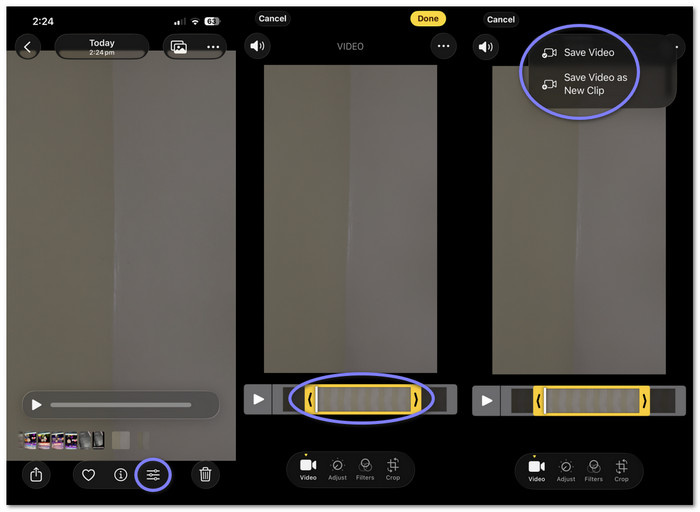
Step 1 Run the Photos app and look for the video you want to cut. Tap the Edit button in the lower corner.
Step 2 At the bottom of your screen, you will see a timeline with a slider. Please drag the start and end handles inward to select the part of the video you want to keep. You can play the video to check if it starts and ends exactly where you want.
Step 3 Once you are happy with the trimming, press the Done button. A menu will appear, giving you two choices to save your video.
Step 4 Choose Save Video as New Clip if you want to keep the original video and store the trimmed part as a new file. Choose Save Video if you only want the trimmed video. The saved video can always be restored to the original by pressing Revert. This way, you do not lose your original content if you change your mind.
Part 2. How to Cut a Video on iPhone in iMovie
The Photos app can trim a video from the start or end, but it cannot cut the middle part. Sometimes, you need to know how to cut out parts of a video on an iPhone and remove unwanted sections in between. You might also want to crop the video to focus on the important area. It is where iMovie helps. It lets you split clips, trim the middle, and arrange parts in the right order. It gives you more control while still being easy to use.
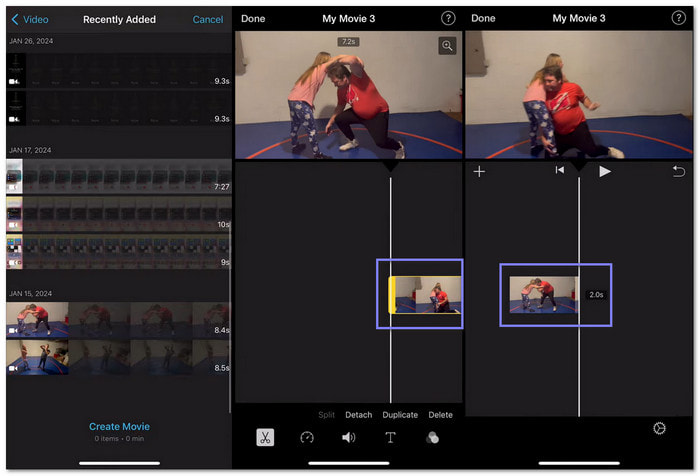
Step 1 On your iPhone, launch iMovie. Tap the Add button and select New Movie. Then, import the video you want to cut from your Camera Roll.
Step 2 Tap the video in the timeline and move it to the spot where you want to cut. Tap the Split button to divide it into two parts. You can drag the slider to trim sections in the middle, remove unwanted parts, and drag clips to rearrange their order as needed.
Step 3 If you like, you can add transitions between clips to make the video flow smoothly. iMovie offers basic transitions that are easy to apply.
Step 4 Once your video looks good, press Done to finish editing. Then, preview your video and export it to the Camera Roll.
Part 3. Tips to Trim iPhone Videos for Better Results
To cut a video on an iPhone is easy, but good trimming changes the result. A few simple tips can help your iPhone videos look clean and smooth. These ideas work whether you use Photos, iMovie, or a computer tool.
- Trim with a clear goal: Know which part of the video matters most. You can remove clips that feel slow or boring.
- Cut a little at a time: Make small trims instead of big cuts. It helps you avoid removing important moments.
- Preview before saving: Play the video after it has been trimmed, and preview before saving. To make sure it feels right, check the beginning and the end.
- Keep clips steady: Cut out shaky parts when possible. It makes the video easier to watch.
- Use smooth transitions when needed: Fade-in and fade-out effects help clips flow better, especially when cutting the middle.
- Save a copy if unsure: If the app allows it, save as a new clip. It keeps the original video safe.
These tips help you trim faster and edit with more confidence. Small changes can make your iPhone videos look much better.
Bonus: Easily Trim iPhone Videos on Windows or Mac Computer
You can easily trim iPhone videos on a Windows or Mac computer when editing on a small screen feels hard. It is where Tipard Video Converter Ultimate helps a lot. It lets you cut video by the second for clean and exact edits.
You can also drag two markers to set the start and end with ease. It also offers fade-in and fade-out effects to make clips look smooth. In addition, it provides iPhone-compatible formats like MP4 and MOV for easy playback and sharing on your device.
If the above is all about how to trim a video on iPhone, below is a guide on how to easily trim iPhone videos using your computer.
Step 1 To use Tipard Video Converter Ultimate, please download and install it on your Windows or Mac. Open the program once the setup is done.
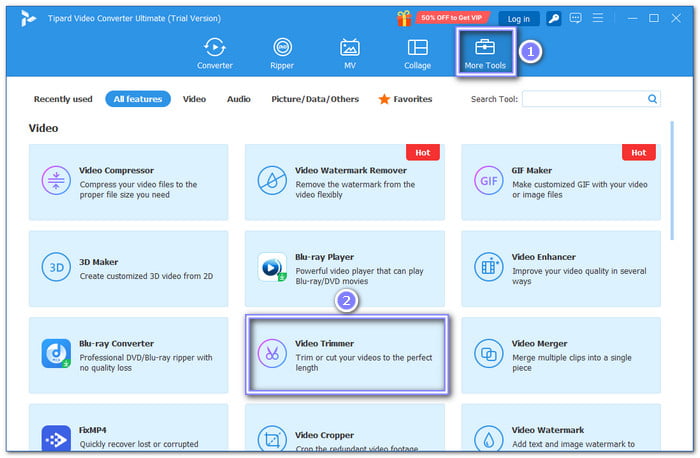
Step 2 Click the More Tools tab at the top and select Video Trimmer to start trimming your video.
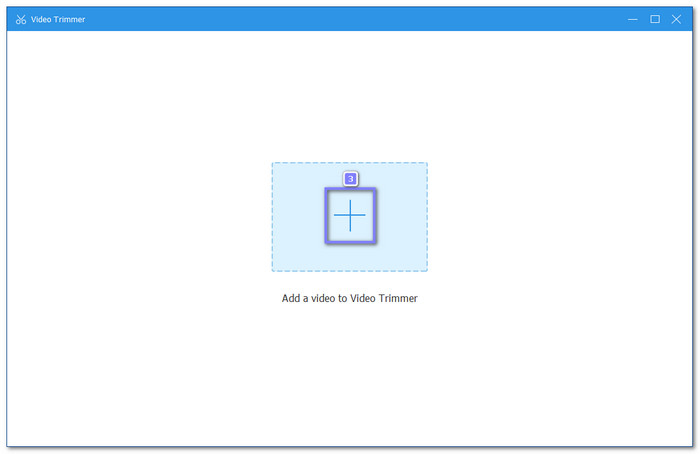
Step 3 Hit Add Files to upload your iPhone video. You can choose the video from your folder. Once added, it will appear on the trimming screen.
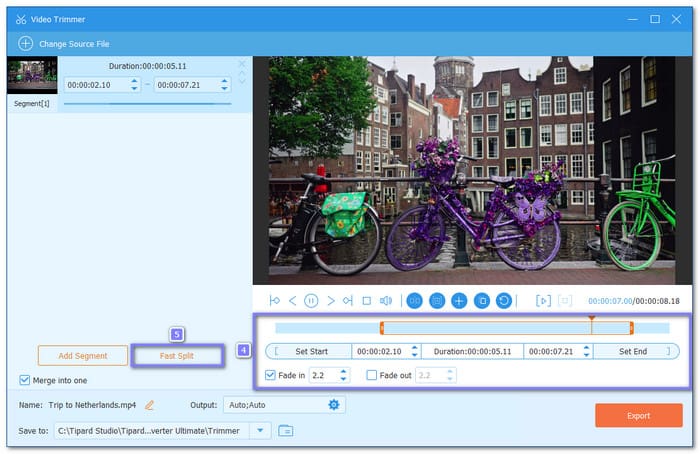
Step 4 Drag the two markers on the timeline to choose the part you want to keep. For a specific control, enter the Start and End times. You can also use Fast Split to cut the video into smaller parts. In addition, please turn on Fade-in or Fade-out if you want smoother clip changes. These effects help the video look cleaner.
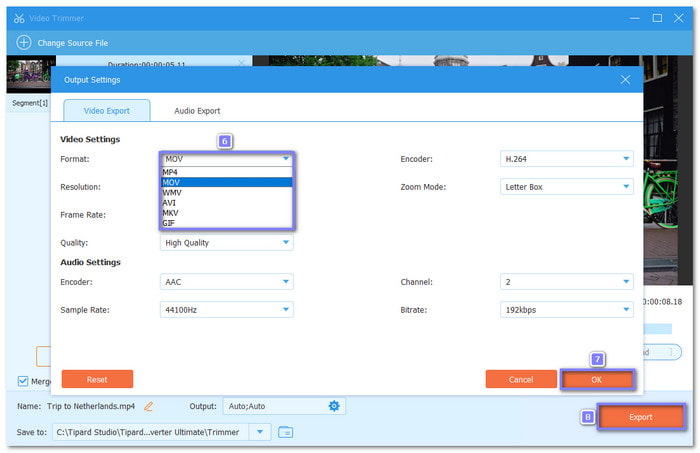
Step 5 Click Output to choose an iPhone-compatible format such as MP4 or MOV. You can also set the resolution and frame rate, then name your file. Once everything looks right, click the Export button to save your trimmed iPhone video to your computer.
Why We Select Tipard Video Converter Ultimate: It is more than a simple converter. It also offers many editing tools in one place. You can trim, merge, crop, change speed, and even reverse videos with ease. It supports many input formats, so adding your video file is never a problem. It also has a free version for basic use. If you want unlimited access, the paid plan starts at $18.00, which is affordable and worth it.
Conclusion
So, how do you cut a video on an iPhone? You already know the answer, and now you can also teach your friends. You can even share our guide with them if they want step-by-step help.
If you want more control, Tipard Video Converter Ultimate offers an easy way to trim iPhone videos on your Windows or Mac computer. It also lets you do more editing, like merging clips, adding filters, or adjusting speed, so your videos always look their best.
More Reading



About the Author

 Click here to join the discussion and share your comments
 Tipard Video Converter Ultimate