

A MOV player becomes essential when you need smooth, high-quality playback for movies, travel clips, or recorded videos. From enjoying 4K and 8K files to handling codec-heavy formats, this guide covers the top MOV players, practical playback tips, and solutions to fix videos that will not play on your device.

Part 1. Top 9 MOV Players on Desktop and Mobile
1. Tipard Blu-ray Player (Best Overall MOV Player)
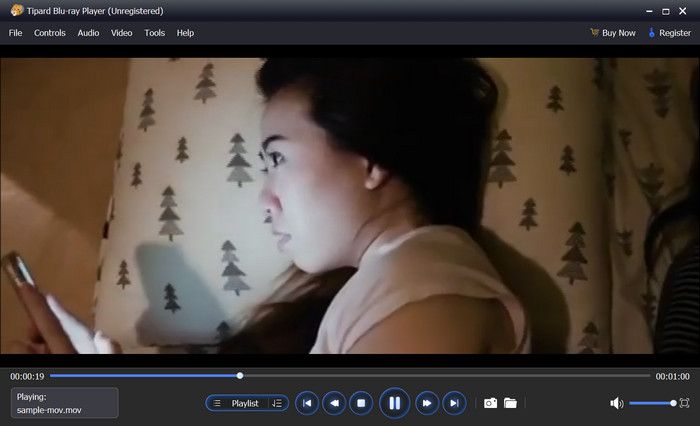
Platform: Windows 7/8/10/11, macOS
Best for: High-quality MOV playback, 4K/8K videos, Blu-ray & DVD support.
Tipard Blu-ray Player is a premium-quality desktop media player oriented towards users who will value flawless MOV playback without needing to deal with codecs. It is compatible with the modern MOV format, including HEVC/H.265 and cinema-quality video and audio playback. In addition to MOV playback, it is also a full Blu-ray, DVD, ISO, and Hi-Res audio player, meaning it offers a powerful all-in-one solution.
Key features:
- It can play MOV videos with almost all video and audio codecs.
- It can record high-quality video and audio playback.
- It is also a GPU accelerator for MOV playback.
- It is high-resolution MOV files up to 8K compatible.
- No need to install additional codecs.
- Everything is easy to use.
- Great audio playback.
- It is desktop only and no mobile version is available.
Why We selected It
We selected Tipard Blu-ray Player as the top recommendation as it is the most endurable, providing smooth playback quality on MOVs with 4K, 8K, and high-bitrate files that numerous players have difficulty with, even numerous free players. Because of its hardware acceleration, wide codec support, and lossless audio, it is preferred by quality realism and playback users.
2. VLC Media Player
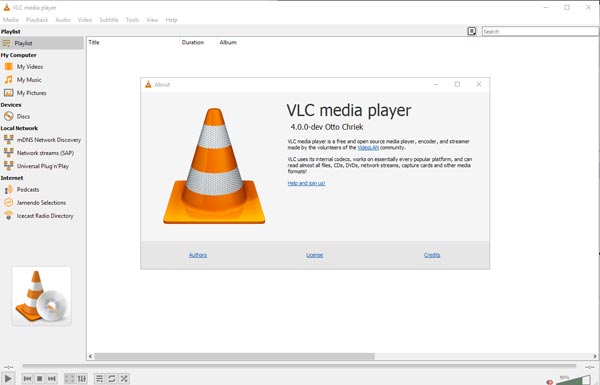
Platform: Windows, macOS, Linux, Android, iOS
Best for: Free, open-source MOV playback on any device.
VLC Media Player is used by many millions of people across the globe. It is popular because of its ability to play most MOV files. It is open-source and is compatible with almost every format. It is available across every operating system and mobile platform.
Key features:
- Built-in subtitle and playback features.
- Streaming and conversion features.
- Compatible with almost every format.
- It is open-source and free.
- A MOV player ensures smooth playback of movies, 4K clips, and videos.
- Supports ASF to MOV and strong codecs for seamless, high-quality viewing.
- The interface is outdated.
- Can struggle with MOV files encoded in HEVC 4K.
3. 5KPlayer
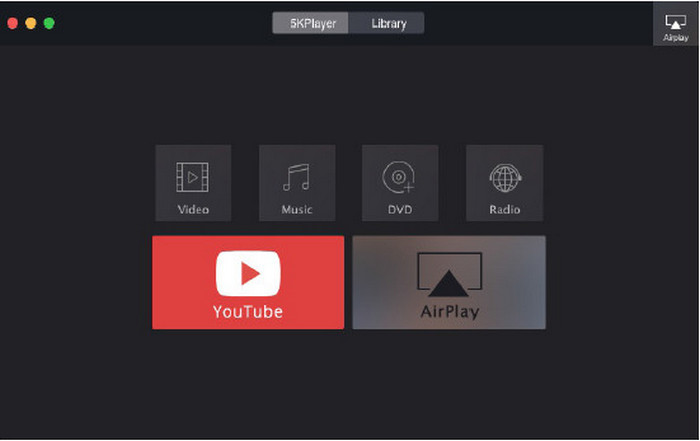
Platform: Windows, macOS
Best for: Wireless streaming and 4K MOV playback.
5KPlayer is a multimedia player that is mainly used for video playback and wireless video streaming. It includes the features of streaming to smart TVs with AirPlay and DLNA, and supports MOV files encoded with H.264 and HEVC.
Key features:
- Playback and hardware acceleration of 4K MOV.
- Streaming of AirPlay and DLNA.
- Support for DVDs and downloads of online videos.
- Playback of most 4K MOV files with smoothness.
- Streaming of videos with built-in wireless.
- Usage of the CPU is high in some cases.
- There can be a lack of stability and some issues.
4. QuickTime Player

Platform: macOS
Best for: Native MOV playback on Mac.
One of the original creators of the MOV format is QuickTime Player, Apple’s built-in media player and original MOV software. It performs decently for simple MOV files on macOS and supports conversions like MKV to MOV, but struggles with high-quality MOV videos.
Key features:
- Recording of the screen and simple editing.
- Preinstalled on macOS.
- Simple and lightweight.
- Cons:
- Limited codec compatibility.
- No longer updated for Windows.
5. PotPlayer
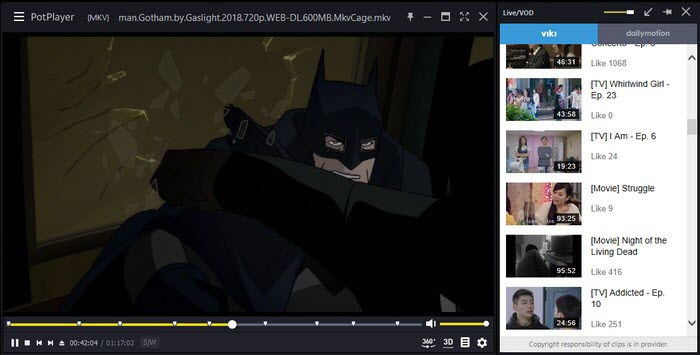
Platform: Windows
Best for: Advanced users needing deep playback control.
For Windows, there is an app called Potplayer, and it is excellent for playing videos. It even plays high-quality videos such as 8K and certain MOV files. Plus, it is highly customizable and offers superb software support.
Key features:
- 4K/8K MOV playback.
- Advanced subtitle and codec options.
- Hardware acceleration support.
- Excellent performance for power users.
- Highly configurable.
- Complex interface.
- Windows-only.
6. KMPlayer
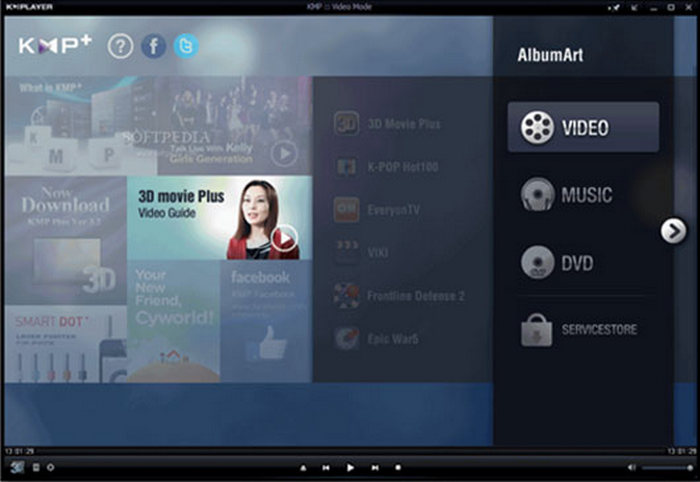
Platform: Windows, macOS (beta), Android, iOS
Best for: MOV playback on both desktop and mobile.
All devices can download the app KMPlayer. It supports a multitude of formats for videos and plays MOV files of all qualities, even 4K and 8K. KMPlayer is also available on desktop and mobile.
Key features:
- MOV playback up to 8K.
- Subtitle and screen capture support.
- Multi-platform availability.
- Handles damaged or incomplete files.
- Ads in the free version.
- The Mac version is less stable.
7. Windows Media Player
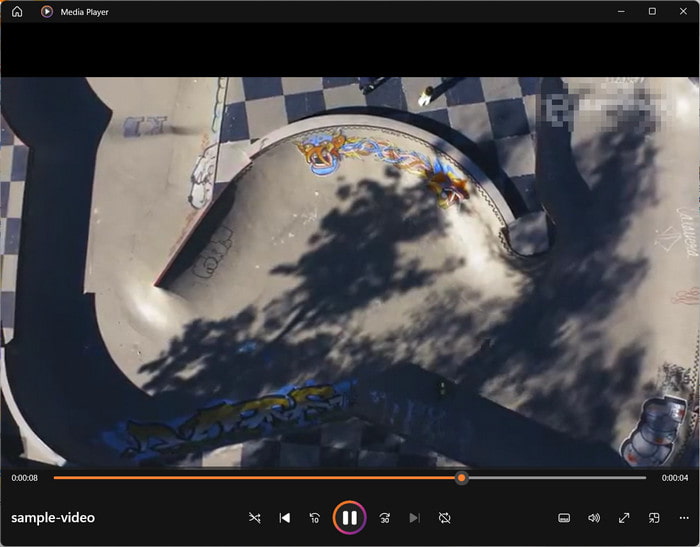
Platform: Windows
Best for: Basic MOV playback without third-party software.
Windows includes Windows Media Player, which can also play MOV files, as long as the codecs are installed. It can satisfy needs for simple playback.
Key features:
- Built-in Windows Media Player.
- Playlist and library management.
- No installation required.
- Familiar interface.
- Limited codec support.
- Weak performance with modern MOV formats.
8. RealPlayer
Platform: Windows, macOS, Android
Best for: Managing local and online MOV videos.
RealPlayer features local video playback, online video downloading, and casting. It supports MOV files, but often requires third-party tools for full compatibility.
Key features:
- Playing MOV files and downloading videos.
- Casting videos to TV.
- Synchronizes with cloud and local storage.
- Supports videos from the internet.
- Issues with performance.
- Not as stable in macOS.
9. MOV Viewer Free

Platform: Windows
Best for: Simple MOV viewing on Windows.
A lightweight Windows application, MOV Viewer Free, was designed to open and play MOV files. It is good for basic playback, but has no advanced features.
Key features:
- Playback of MOV files.
- Single-purpose application.
- Very easy to use.
- Light application.
- Limited in format support.
- Not best for MOV files with 4K.
Part 2. How to Play MOV Videos
One of the players that you can use to play MOV videos on both Windows and Mac is Tipard Blu-ray Player. This player is the best because of its full codec support and high output. This media player also keeps the original quality of audio and video, as well as uses GPU acceleration to make sure that the playback is stable. This is especially true for large or high-res MOV files.
Step 1 Download and Install the Player
Go to the official website and download the Tipard Blu-ray Player. After it is done downloading, install it on the Windows or Mac computer.
Step 2 Install the Software
After the installation is done, you can now open the Tipard Blu-ray Player.
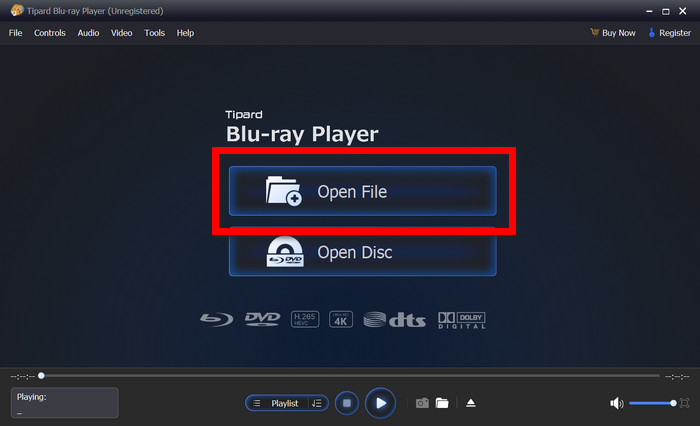
Step 3 Access the MOV File
Find the MOV video that you want to open. For that, you have to click Open File, and then go to the MOV video.
Step 4 Video Playback
Video playback can now be done. The audio quality and video quality are high and smooth.

Step 5 Playback Settings
There are plenty of settings that can be adjusted. This includes the effect of the video, audio tracks, subtitles, aspect ratio, and playback quality.
Part 3. How to Fix It When Your Device Cannot Play MOV
When there are problems with downloading, transferring, recording, or even just corruption, Tipard FixMP4 always comes in handy for MOV videos that will not play. Rather than converting the video, the software restores it to playable condition and maintains the original quality.
Step 1 Download and Launch FixMP4
Install Tipard FixMP4 on your Windows or Mac, then open the software.
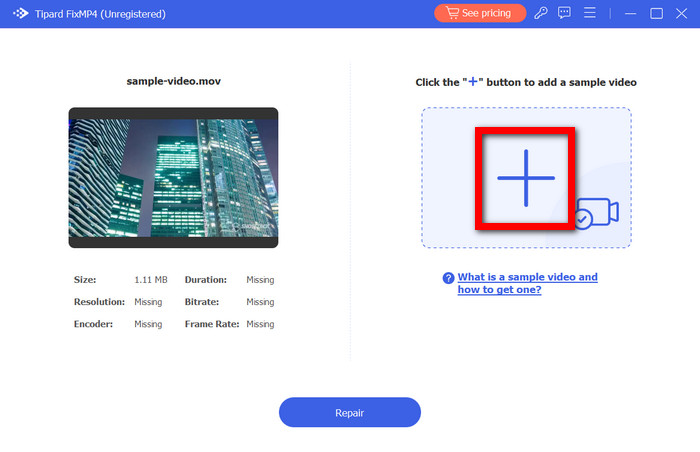
Step 2 Add the Corrupted MOV File
On the left side, there is a Plus (+) button to import the corrupted MOV video that your device is unable to play.
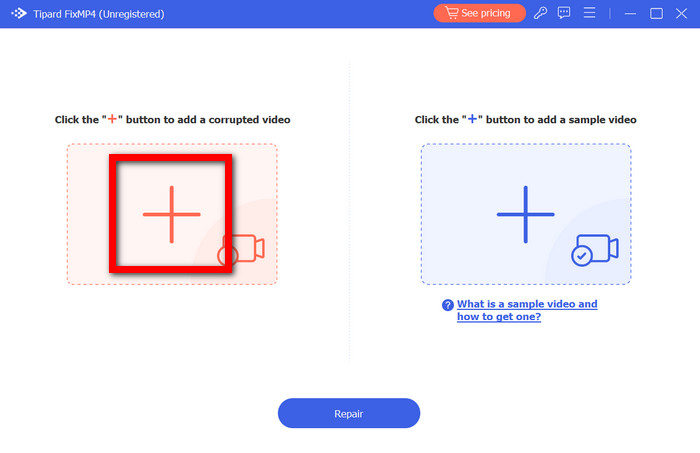
Step 3 Upload a Sample Video
On the right side, use the Plus (+) button to upload a sample video that is normal and was shot by the same device with the same recording settings.
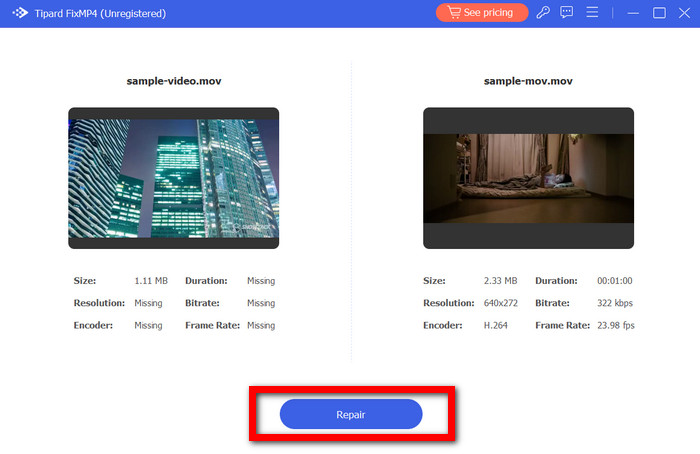
Step 4 Repair the MOV Video
Choose Repair and the software will start to analyze the MOV video.
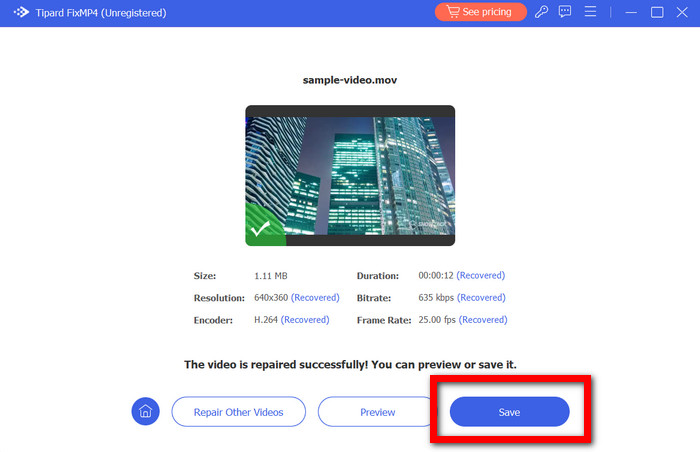
Step 5 Preview and Save the Video
Check the repaired video to ensure it is working properly, then use Save to export the problematic MOV video that is now fixed and can be played seamlessly.
Conclusion
Mastering how to play MOV files ensures you enjoy every video smoothly, from 4K movies to personal recordings. With the right players and repair tools, you can overcome compatibility or corruption issues and experience flawless, high-quality playback on any device.
More Reading




About the Author

 Click here to join the discussion and share your comments
 Tipard Blu-ray Player