

Key Takeaways
You should select a reliable converter to change MOV to WMV format. Tipard Video Converter Ultimate is the best one for fast decoding and re-encoding. It can also offer many related video codecs to ensure the WMV videos are playable. Convertio is the most straightforward online solution if you don't need to ensure the 100% compatibility.
Do you need the best guide on converting MOV to WMV without losing quality? Due to the increasing demands of delivering video on various devices and platforms, getting a reliable converter has been crucial. Unfortunately, it is not always the case that a particular tool will be efficient or, on the opposite extreme, reliable. That is where we come in - guiding you through the available choices and providing the means to pick a converter that will enable you to have your videos delivered in their entirety and in the right format for WMV.
Part 1. Best Way to Convert MOV to WMV on Your Computer for Free & Fast
When it comes to finding the most efficient way to convert MOV to WMV, Tipard Video Converter Ultimate consistently stands out as the premier choice. Designed with an intuitive and user-friendly interface, this powerful software makes the MOV to WMV conversion process accessible and seamless for users of all ages and technical backgrounds.
Whether you need to convert a single clip or handle large-scale projects, this software ensures a swift and highly accurate MOV to WMV transition. Empowered by advanced hardware acceleration technology, it can batch-convert multiple files simultaneously without sacrificing quality. Furthermore, it offers fully customizable output settings, allowing you to fine-tune professional parameters such as video resolution (supporting up to 4K/8K), bitrate, frame rate, and audio tracks to match your specific needs.

- Fully compatible with both Windows PC and macOS.
- Enhance your videos before executing the MOV to WMV conversion.
- Utilize GPU acceleration (NVIDIA, AMD, Intel) to deliver lightning-fast conversion speeds.
- Convert your MOV files to WMV with zero quality loss.

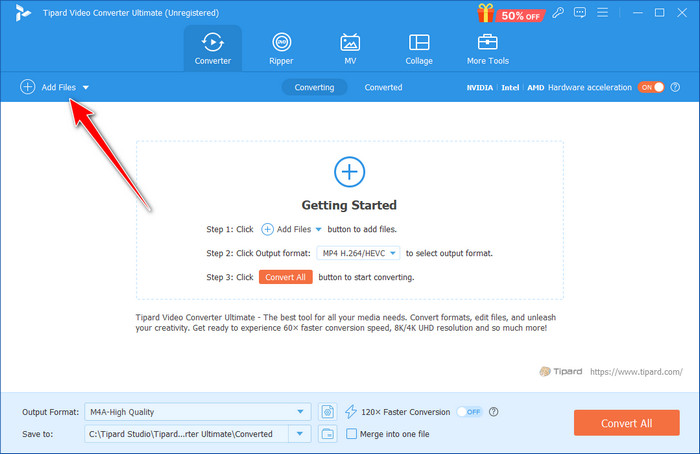
Step 1 Add Your MOV Videos to Tipard Video Converter Ultimate
Click the Add Files button in the top left side to add the MOV file you wish to convert from the folder on your screen. Aside from uploading a single file, you can also upload multiple if you want to do batch conversion.
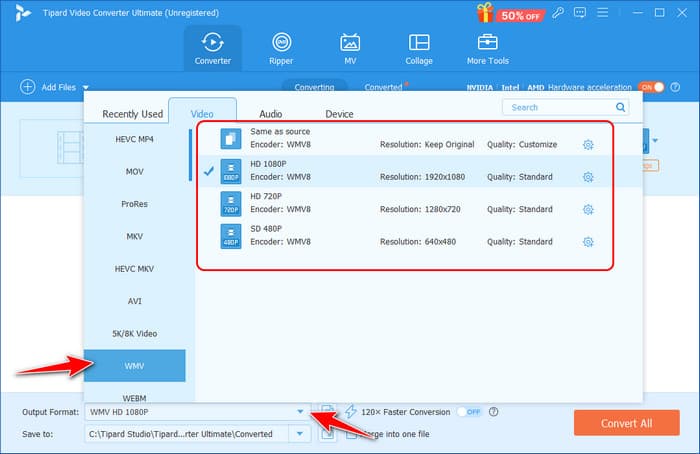
Step 2 Choose a WMV Output Video Format
Next, click the Output Format dropdown button to select WMV, then you can select a desired preset. If you want to create one, click the Settings button to customize the WMV settings. You can customize the video codec, resolution, bitrate, and more.
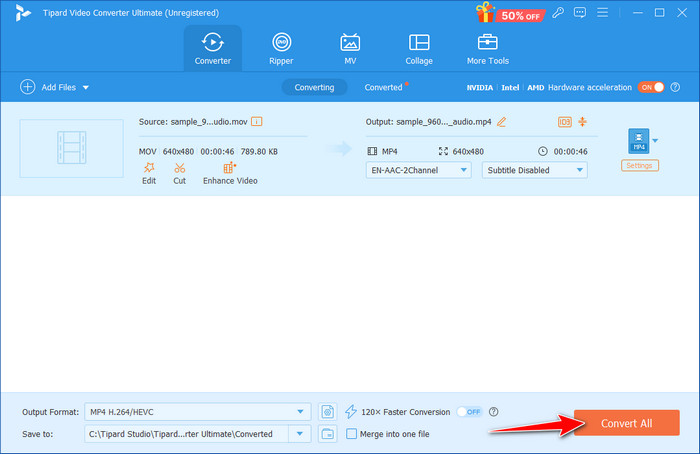
Step 3 Convert Your MOV Videos to WMV
Finally, you can start the MOV to WMV conversion by clicking the Convert All button, and you will get the WMV output you want after a few minutes.
Part 2. Change MOV to WMV with VLC
VLC Media Player is not only a great video player, but it also acts as a simple converter for videos, from MOV to WMV. VLC is very easy to use; hence, it is suitable for users who do not want to install other application software since the VLC media player can do all the work. However, the general usage terms of file conversion are less strong than those of other specialized version converters, but this software is good enough for simple format conversion. Their support for Windows, Mac, and Linux and the completely free nature of the software make it great for individuals looking for a no-fuss and no-muss video converter.
Key Features of VLC Media Player
- Offer a dedicated WMV output format.
- Provide many WMV presets made for different devices and platforms.
- Totally free and open-source.
- Let you flexibly customize the video codec, resolution, frame rate, and more settings.
Although VLC supports legacy formats like WMV, you don't need to highly customize the video parameters. For example, if you set the bitrate too high, the output video still cannot be played on specific devices after you convert MOV to WMV.
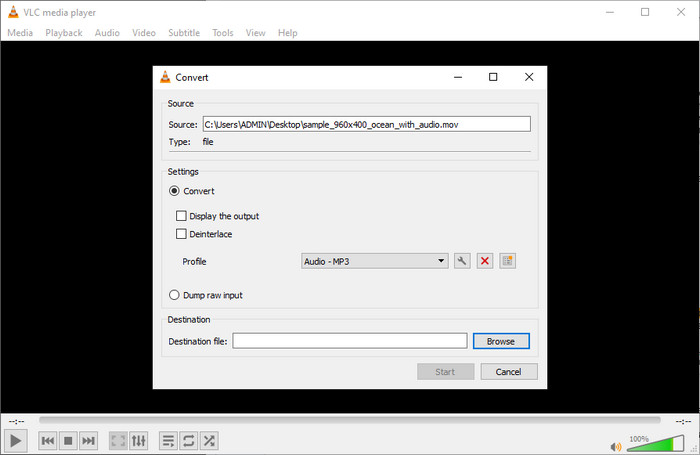
Step 1 Open the VLC app on your computer, click Media, and then Convert/Save to activate the VLC converter.
Step 2 Under the File, click the Add button to upload the MOV file and click the Convert/Save button to proceed to the next step.
Step 3 On Profile, select the Video - WMV + WMA (ASF) output from the dropdown list. Then, click the Browse button to choose an output format and click the Start button to easily convert the MOV format to WMV in VLC.
Part 3. How to Convert MOV to WMV in Adobe Media Encoder
When it comes to professional-grade video transcoding, Adobe Media Encoder stands out as an industry-standard powerhouse. As the dedicated rendering and conversion engine is tightly integrated with Adobe Premiere Pro and After Effects, it effortlessly handles cross-platform conversions like MOV to WMV. Since MOV is Apple's native QuickTime format and WMV is optimized for Windows environments, Media Encoder ensures a flawless transition between these ecosystems without container-related errors.
By leveraging its free trial, you can instantly access enterprise-level encoding presets. The software grants you granular control over critical parameters: you can flexibly customize the target video bitrate (the definitive factor in balancing visual quality and file size), adjust resolutions up to 4K, fine-tune aspect ratios, and choose between single-pass or two-pass VBR (Variable Bitrate) encoding to get the crispest output possible.
Key Features of Adobe Media Encoder
- Offer strong decoding and re-encoding abilities to decode ProRes/H.264 MOV and re-encode VC-1 based WMV.
- Provide rich WMV output presets and let you create your own WMV preset.
- Choose VBR 2-pass for optimized compression with decent video quality.
- Fully support hardware acceleration from NVIDIA, AMD, Intel, and Apple M.
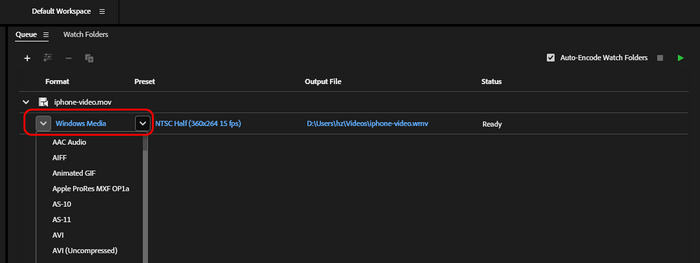
Step 1 Launch Adobe Media Encoder on your computer. Click the File button in the top left corner and then click Add Source to import your MOV videos to this MOV to WMV converter. You can also use the Media Browser to navigate in your local storage to find MOV files.
Step 2 Your files should be added in the right side of the panel. Click the Format dropdown button and select Windows Media.
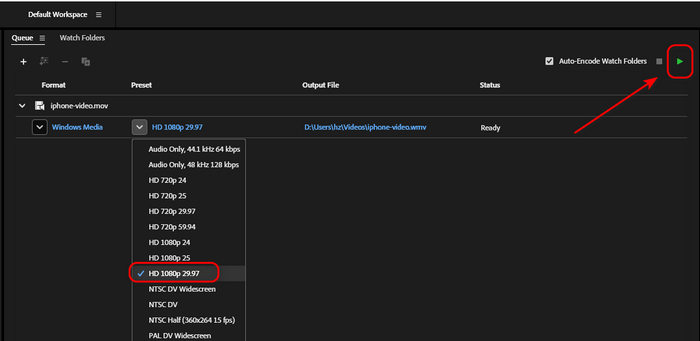
Step 3 Click the Preset dropdown button to select a preset (with resolution and FPS) based on your target display's resolution. For standard playback, we recommend HD 1080p 29.97. Then, click the green Start Queue button on the top right side to convert your MOV videos to WMV.
Part 4. How to Change MOV to WMV Online
Convertio is perfect for small to medium-sized files, and the basic package is also free with files up to 100MB, making it a reliable choice if you need to change MOV to WMV online. Currently, it is compatible with most browsers and operates applications that enable you to access it from your location. Although the service is free, there are limitations on file size or extension, or you may convert only one file at a time. All files are safe with Convertio as the service deletes them shortly after uploading them, making the user data secure. If you require a quick, no-installation tool or a powerful web application to transform MOV to WMV, nothing stands out more than Convertio.
Key Features of Convertio MOV to WMV Converter:
- Support batch conversion even as an online media converter.
- Provide dedicated and standard bitrate presets based on video quality.
- Let you add MOV videos from online cloud storage and local storage.
- Provide detailed introduction to each video format on its webpage.
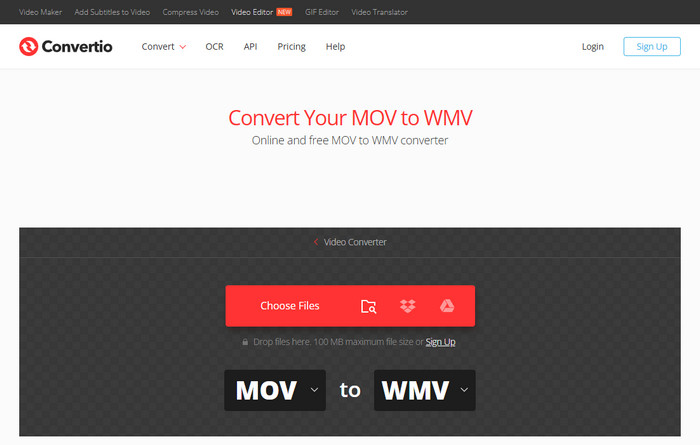
Step 1 After opening Convertio on the browser, click Choose Files to import the MOV you want to convert here.
Step 2 Tick the dropdown button to search the WMV format you want to set as an output.
Step 3 Click Convert and Download to save it on your device.
Part 5. FAQs of Converting MOV to WMV
Is WMV better than MOV?
No, MOV is better than WMV. MOV is more widely used than WMV.
Is WMV outdated?
No, WMV is still used in specific devices and platforms for streaming and storage.
Is WMV high quality?
By modern standards, WMV is no longer considered a "high-quality" or efficient format.
Conclusion
When choosing the most suitable software to convert MOV to WMV, Tipard Video Converter Ultimate stands out as the ideal choice. Intuitive design, high file conversion speed, and powerful instruments make this solution suitable for novices and experienced users. In contrast to most tools, Tipard provides an all-encompassing solution, so besides changing MOV to WMV, you can also perform several operations on your videos, with instant trimming, cropping, merging, and adding subtitles if necessary.
All-in-one video toolbox: convert, edit, upscale, enhance, and compress your videos easily
100% Clean & Safe
100% Clean & Safe

More Reading


About the Author

 Click here to join the discussion and share your comments
 Tipard Video Converter Ultimate